Digital signage turns the TVs in your stores into menu boards. Upload images and videos, put them in playlists and choose when each one plays, on every screen at your locations.
Who: admins, and managers for the locations they're assigned to, on the web. Add-on: it's a paid add-on that each location subscribes to, charged per screen. It isn't part of the Basic or Pro plan, and the free trial doesn't include it.
How it fits together
Part | What it is |
|---|---|
Screens | The TVs showing Mays. Each runs the Mays Player app or a web browser, and belongs to one location. See Pair a TV with Mays Player. |
Media | The images and videos you upload. |
Playlists | Media in the order it plays, on a loop. See Signage media and playlists. |
Schedules | Which playlist plays when, on one screen, a whole location or a zone. See Signage schedules and zones. |
Zones | Groups of locations that admins use to send one playlist to all of them. |
A screen plays, in this order: the schedule that's on right now; otherwise the playlist chosen for that screen; otherwise its location's default playlist. With none of these, it shows No content scheduled.
Subscribe a location
- Pick the location in the location switcher at the bottom of the sidebar.
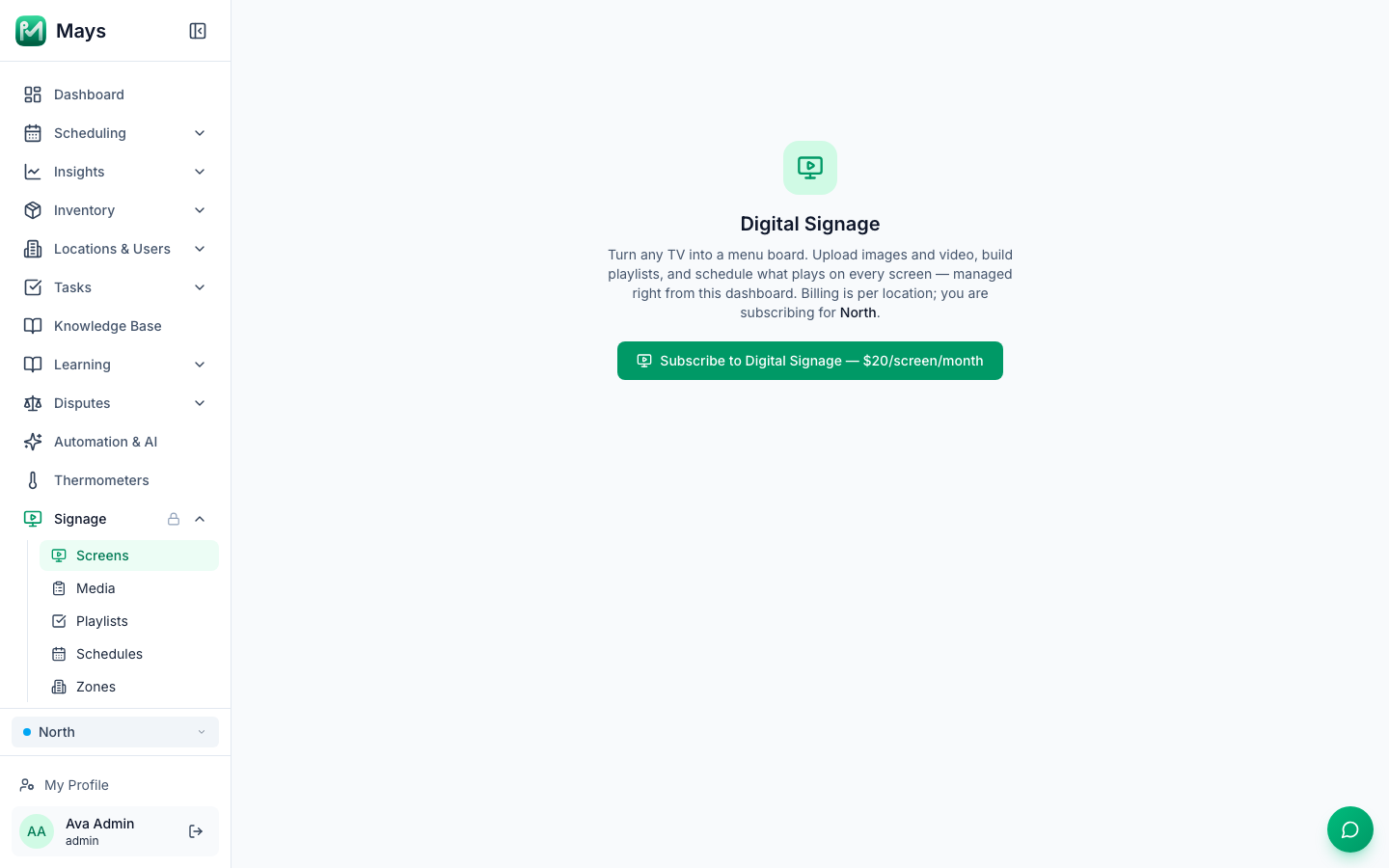
- Click Signage in the sidebar. Until a location subscribes, it has a lock and shows a Subscribe to Digital Signage button with the price per screen.
- Click the button. Stripe, our payment provider, opens a secure checkout. Pay for the first screen.
- You come back to Mays, which shows Payment received for a moment and then opens Signage → Screens.
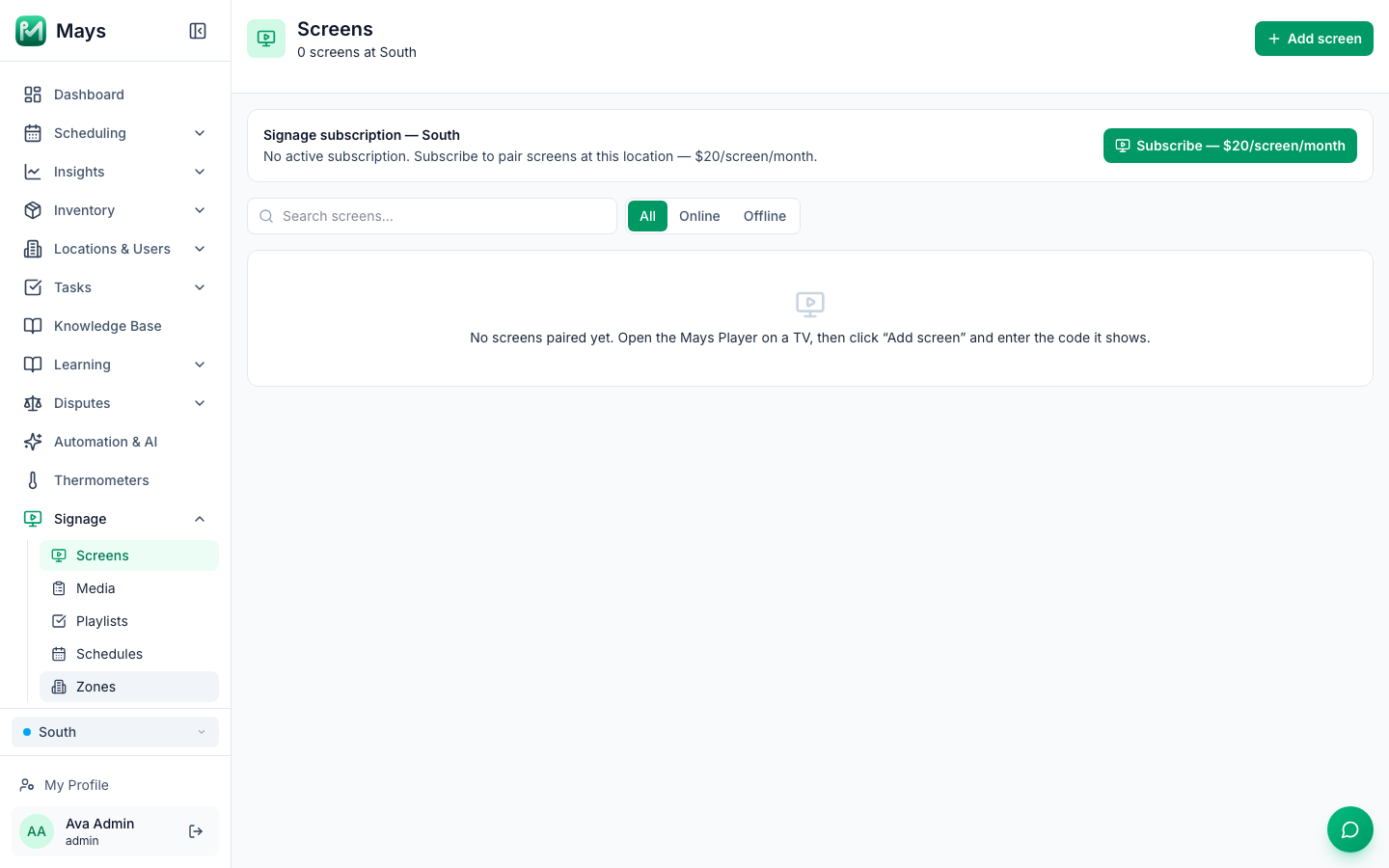
More locations: once one location subscribes, Signage opens for your whole organization, but each location needs its own subscription before you can add a screen there. Pick the location in the switcher, go to Signage → Screens and click Subscribe on the Signage subscription card.
What it costs
- $20 per screen per month at each location, as shown on the Screens page when this was written.
- The subscription starts with one screen, even before you pair a TV.
- Adding a screen adds one to the location's bill, and removing one takes it off. The difference for the rest of the month shows on your next invoice.
- Removing the last screen ends the location's subscription at the end of the month you've paid for.
- Manage billing on the Screens page opens Stripe's billing page for the location: change the card, see invoices or cancel.
When a subscription stops
- A failed payment stops the location's screens straight away, although the Screens page says to update the card to keep screens playing. Update the card under Manage billing and they start again.
- When a subscription ends, the location's screens show Subscription inactive — Digital Signage isn't active for this location. Renew the subscription from the Mays dashboard to resume playback. Subscribe again from Signage, and the same screens start playing.
Good to know
- No templates. Mays shows the images and videos you upload. Design your boards in a design app, then upload them.
- No sound. Videos play muted.
- Nothing updates by itself. Prices and items don't come from your POS. Change the image to change the board.
- It's on the web only. The phone apps don't have signage screens.
- Managers can do everything for their own locations, including subscribing them. Only admins can make media and playlists for all locations, and manage zones.