Automation rules do routine follow-ups for you. When something happens, like a task rejected, a deadline near or a fridge too warm, Mays checks your conditions and runs your actions.
Rules are under Automation & AI in the web app's sidebar. They're in the Basic and Pro plans (and the free trial). With the built-in roles, only admins can see and change them.
How a rule works
Every rule has three parts:
- When this happens: the trigger, for example Task Rejected, Deadline Approaching, Scheduled (every day, week or month at a set time) or Manual (only when someone clicks Run now).
- Only when (conditions): optional checks, for example Response Type eq photo. If there are none, the rule runs every time.
- Then do this: one or more actions, for example create a task, send a push notification or place a phone call.
Plus Where this rule runs: all locations, or the ones you tick.
For every trigger and action, see Automation triggers and actions.
Your rules
The Automation & AI page lists your rules in two groups, Active Rules and Draft & Paused, with a count at the top. Each card shows the rule's name and description, its status (active, paused or draft), its locations, the trigger with the number of conditions and actions, and how many times it has run (for example 3x). A Scheduled rule's card also says when it runs, for example Every Monday at 9:00 AM, location time; a Manual rule's card has a Run now button.
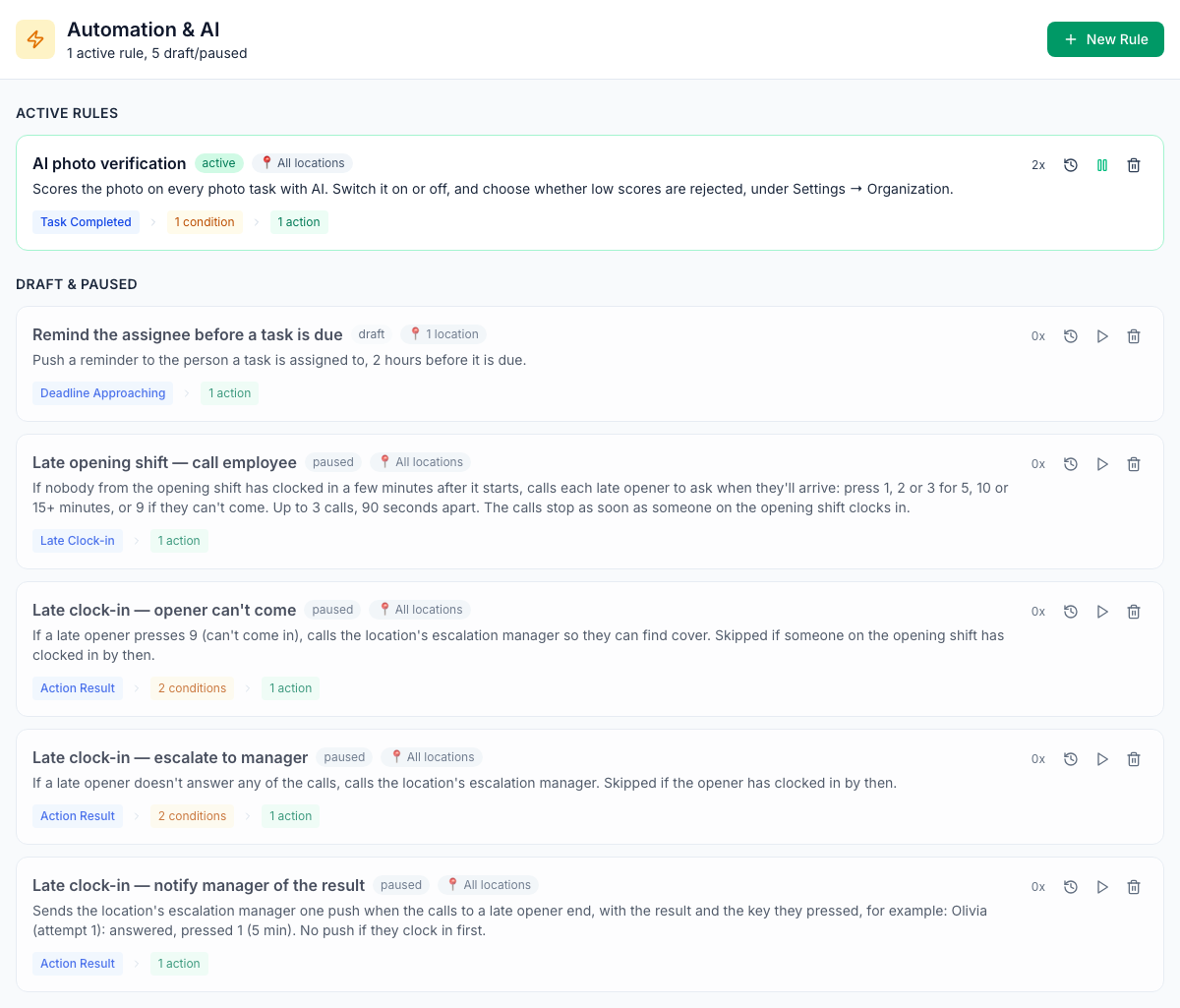
The buttons on the right of each card:
- the clock (View history): the rule's last 50 runs;
- the play or pause button (Activate / Pause);
- the bin (Delete), which asks once.
Click a card to edit the rule.
Create a rule
- Click New Rule.
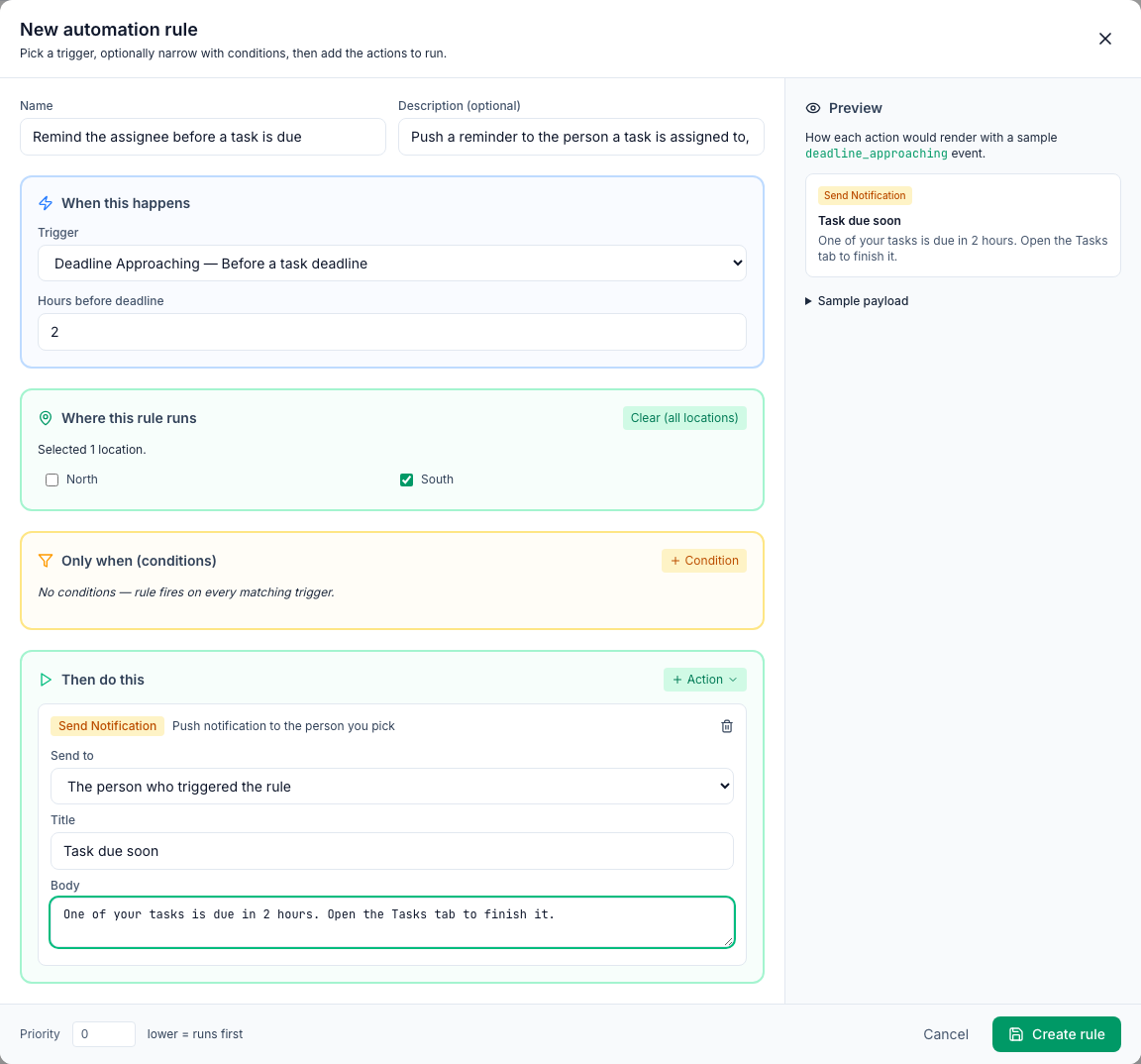
- Enter a Name and, if you like, a Description.
- Under When this happens, pick the Trigger. Some triggers have settings underneath, such as Hours before deadline.
- Under Where this rule runs, tick the locations. Leave them all unticked to run it everywhere (admins only: if your role is limited to some locations, there's no Clear (all locations) and you must tick at least one).
- Optionally, click + Condition and pick a field, an operator and a value.
- Click + Action, pick an action and fill in its fields. Add more actions if you need them; they run in order.
- Check the Preview on the right. It shows how each action would look, using made-up sample data.
- Click Create rule.
- Switch it on. A new rule is saved as a draft and does nothing yet. On its card, click the play button (Activate).
To stop a rule without deleting it, click the pause button (Pause). To change a rule, click its card, make your changes and click Save changes.
Run a Manual rule
Click Run now on its card, or at the bottom of the editor once the rule is saved and switched on. If the rule covers more than one location, pick one in the list next to it, or leave it on all of them. It runs for real, not as a test. A message at the top right says how it went; click Run history in it to see the run.
Check what a rule did
Click the clock on the card (View history). Execution History lists each run with its result:
- Success: the actions ran.
- Skipped: the trigger happened, but the conditions didn't match.
- Failed: an action went wrong; the reason is shown in red.
Runs of a Scheduled rule show the time they were for, and Run now runs say Run now, with the location.
A run at a location the rule doesn't cover isn't listed at all.
There's no test button. To try a new rule safely, run it at one location first and watch its history; a Manual rule can be tried with Run now for one location.
Priority
When several rules react to the same thing, Priority (bottom left of the editor) decides the order: rules with a lower number run first.
Rules Mays adds for you
Some rules appear by themselves. They're switched on, except where it says paused:
- AI photo verification, when your company is created. Turn it on and off under Settings → Organization, see AI photo verification.
- Investigate Square refund, when you connect Square.
- Investigate temperature alert, when you connect Govee thermometers. See Temperature thresholds and alerts.
- The four late clock-in rules. If your plan includes Scheduling, Mays adds them paused, so nobody is phoned until you turn them on. Connecting 7shifts adds any you don't have, switched on. See Late clock-in phone calls.
- Investigate low-rated review, when you connect Google Business Profile. It doesn't create tasks at the moment. See Connecting Google Business Profile.
You can edit, pause or delete them like any other rule.
Good to know
- Placeholders such as
{{task.title}}are filled in with the real task, location and person. The Preview shows them with sample data. - Conditions compare numbers as numbers and true / false as yes or no, so Review Rating eq 5 works. For in, type the values separated by commas.
- Managers can't see Automation & AI with the built-in Manager role. An admin can add Create & manage automation rules to a custom role; people with it can only make rules for their own locations, and can't switch a rule to run at every location (only an admin can). See Roles and permissions.
- Not in your plan? Automation & AI shows a lock and an Upgrade plan button, and your rules don't run (the late clock-in calls included) until it's back in your plan.
- Rules don't use AI credits, except the AI Photo Verify action. See AI credits.