Set a safe range and an alert delay for each thermometer. When a unit stays out of range, Mays creates a task at that location and notifies whoever is on shift.
Who: admins change ranges and delays. Managers see them. Everyone at the location can handle the alert task in the app.
Set the safe range
- Go to Thermometers on the web.
- On the thermometer, click Edit.
- Set Min °F and Max °F: the lowest and highest temperature that's still OK. For example 33 and 41 for a walk-in cooler, or −10 and 10 for a freezer.
- Set the Alert delay (minutes), from 0 to 120. It starts at 15.
- Click Save.
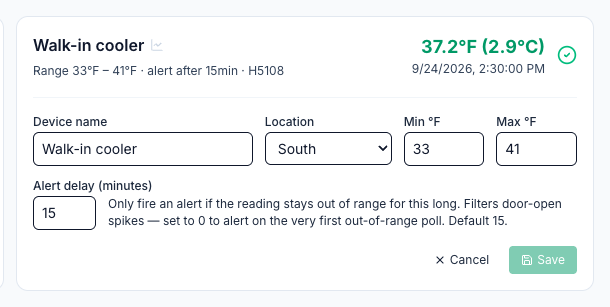
Use your own rules and your inspector's advice for the numbers. A cold unit is usually kept at 41°F or below.
How an alert is decided
Mays gets a reading from each sensor every five minutes.
- The first reading outside the range starts the clock.
- If a later reading is still outside the range once the alert delay has passed, Mays raises an alert.
- A reading back inside the range stops the clock. The next time it goes out, the delay starts over.
- After an alert, the same thermometer can't raise another one for an hour. If it's still out of range after that, it alerts again, so a unit that stays warm raises a new task every hour.
- Saving a new range or delay starts everything fresh.
So a door left open for a delivery doesn't wake anyone, but a cooler that is really warming up does. With a delay of 0, the alert comes with the second reading outside the range, about five minutes after the first.
The alert delay only decides when an alert is raised. The temperature log still marks any row with a reading outside the range as Fail, a short door-open spike included. See Health-department temperature logs.
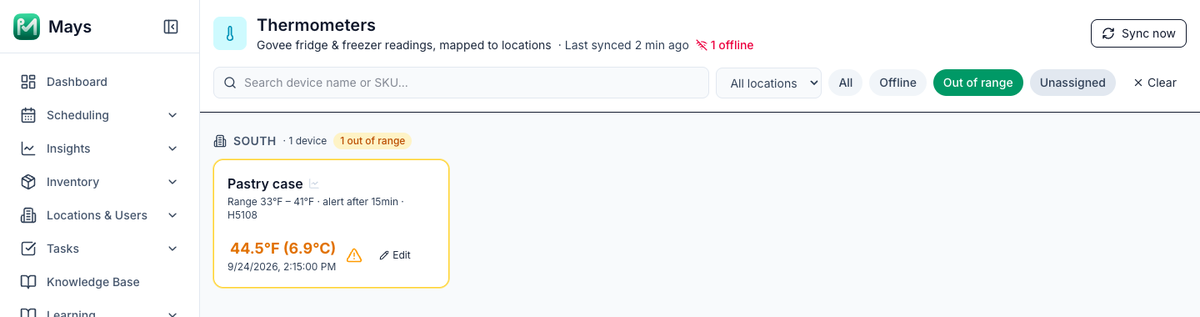
Out-of-range thermometers show in orange on the Thermometers page, and Out of range filters the list to them.
What happens when a thermometer alerts
Mays creates a task at the thermometer's location, for example:
Part of the task | What it says |
|---|---|
Title | Temperature alert: Walk-in cooler at 44.6°F |
Priority | High |
Description | Walk-in cooler is above the safe range (33–41°F). Current reading: 44.6°F. Check the unit, document any corrective action (door left open, compressor noise, contents moved), and reset the thermometer if needed. It ends with when it was detected, in the location's time, and when the reading first went out of range. |
Answer | Text: what was done. |
- Everyone at that location sees the task in My Tasks in the app. Whoever deals with it writes what they did and completes it. See Completing tasks in the app.
- A push notification, New Task with the task's title, goes to the people on a published shift at that location right now. If nobody is on shift, or you don't schedule in Mays or 7shifts, it goes to the admins and managers assigned to that location instead.
- There's no email, text message or phone call.
The task comes from the Investigate temperature alert rule that Mays adds under Automation & AI when you connect Govee. Edit that rule to change the task or who it's for, or pause it to stop the tasks. See Automation rules.
Good to know
- The notification is a New task assigned notification. Someone who turned that category off in the app still gets the task, without the buzz. See Notifications.
- An offline sensor doesn't alert. Check the Offline filter on the Thermometers page every day; a sensor that has stopped reporting can't warn you.
- Unassigned thermometers never alert. Give each one a location, see Setting up Govee thermometers.
- What staff write in the task stays with the task. It isn't copied into the thermometer's log, so the log's Corrective action column is blank. Keep the task history as your record of what was done.
- Managers can't change ranges with the built-in Manager role. An admin can give a custom role Configure thresholds & alerts; people with it can change thermometers at their own locations. See Roles and permissions.
- Readings typed into a form (a probe temperature on a custom form) don't go through thermometer alerts. For those, use a pass range on the form's Temperature field, or a Task Form Field Threshold alert, see Alerts and scheduled reports.