Every trigger, condition and action you can pick in an automation rule, what each one does and who gets the result.
For how to build and switch on a rule, see Automation rules.
Triggers
Trigger | When it fires | Settings |
|---|---|---|
Task Completed | Someone submits a task. | Filter by response type (optional) |
Task Rejected | A task is rejected, by a manager, a rule or AI photo verification. | — |
Integration Event | A refund goes through in Square, or a Govee thermometer stays out of its range (by default for 15 minutes; at most once an hour per thermometer). | Provider (Any provider, Square or Govee thermometer) and Entity type (Any, Refund (Square) or Temperature alert (Govee)) |
Review Received | A new Google review arrives. A rule limited to some locations runs only for reviews of those locations. Use | — |
Deadline Approaching | A task that's still pending is due soon. Mays checks every 15 minutes, and fires once per task. | Hours before deadline (2 by default) |
Deadline Passed | A task that's still pending is overdue. Mays checks every 15 minutes, and fires once per task. | Hours after deadline (0 by default: as soon as the task is overdue) |
Late Clock-in | Nobody from the opening shift has clocked in a few minutes after it starts. See Late clock-in phone calls. | — (always the opening shift) |
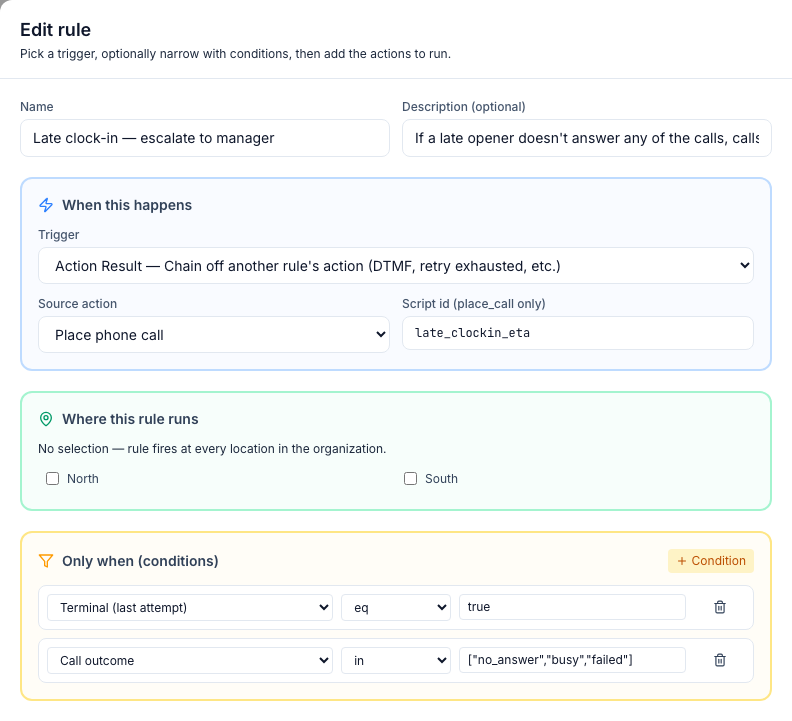
Action Result | Another rule's action finished, for example a phone call ended. Use it to chain rules. | Source action, Script id |
Scheduled | On a schedule you set: every day, on the weekdays you pick, or on one day of the month, at a time of day. It runs once for each location the rule covers, at that time on the location's own clock; a rule for all locations uses your company's time zone. The time stays the same when the clocks change. If Mays is briefly unavailable at that moment, the rule runs when it's back, up to an hour late. | Repeats, On (the days) or Day of the month (the 29th, 30th and 31st run on the last day of shorter months), Time of day (location time). The editor shows the Next run. |
Manual | Someone clicks Run now on the rule's card or at the bottom of the editor. It runs for real, once for each location the rule covers, or for the one picked in the list next to Run now. The rule must be switched on. | — |
Scheduled and Manual rules have no task or person behind them. Use {{branch.name}}, {{date}} and {{time}} (the location's date and time) in their messages, and with Manual, {{runBy.firstName}} for the person who clicked Run now.
A task's deadline is its due time; without one, the end of its visibility window, then the location's closing time, then 11:59 pm.
Conditions
Click + Condition, then pick a field, an operator and a value. All conditions must match for the actions to run.
Field | Use it with |
|---|---|
Response Type | Task triggers: photo, checkbox, text, number and so on. |
Amount (metadata) | Square refunds, in dollars (for example gt 50). |
Temperature (metadata) | Govee alerts. |
Review Rating | Google reviews. |
Call outcome, Terminal (last attempt), Attempt number, DTMF digit pressed | Action Result after a phone call. |
Is opening shift, Minutes late | Late Clock-in. |
Branch, Task Template, Employee Role, Integration Provider, Entity Type, Source action, Script id | Advanced; Branch and Task Template need the item's ID, not its name. |
Operators are short codes: eq (is), neq (isn't), gt / gte (more than / at least), lt / lte (less than / at most), in (one of a list: type the values separated by commas, for example no_answer, busy) and contains. Numbers are compared as numbers and true / false as yes or no, so Review Rating eq 5 and Terminal (last attempt) eq true work.
Actions
Action | What it does | Settings |
|---|---|---|
Create Task | Adds a one-off task at the location, due at the end of today. If the same task is already waiting there, it doesn't add a second one, except for Square refunds: each refund gets its own task. | Title, Description, Priority (high by default), Response type, Branch, Notify |
Send Message | Sends a chat message to the person who triggered the rule, from the location's manager, as if they wrote it. Only works with triggers that have a person and a location, such as Task Completed, Task Rejected and the deadline triggers. | From, To, Message |
Send Notification | Sends a push notification to the person you pick in Send to: the person who triggered the rule (for example the person a task is assigned to), the location's escalation manager, its first manager, the first admin, or a specific user. If there's nobody to send it to, it's skipped. | Send to, Title, Body |
Reject Task | Rejects the task that triggered the rule and tells the person who submitted it. The task's history shows it as rejected by AI Assistant. | Rejection reason |
AI Photo Verify | Scores the task's photo with AI and rejects it, or flags it for the manager, below the threshold. Uses AI credits. | Verification prompt, Threshold (0–100), Auto-reject below threshold |
Place Phone Call | Calls someone with a recorded voice script and can ask them to press a key. | |
Update Status | Sets the task that triggered the rule to Approve (mark completed), Reject or Reopen (back to pending), the same way a manager does: a rejection tells the person who submitted it and counts as rejected in reports, and approving a task from an earlier day closes it out as backfilled. Offered only with Task Completed, Task Rejected, Deadline Approaching and Deadline Passed, the triggers that have a task. | New status, and Reason (shown to the employee), or Note for the history (optional) for Approve |
Who a created task goes to (Notify):
- Whoever is on shift now (7shifts): a push to the people on a published shift right now, from Mays scheduling or 7shifts. If nobody is on shift, the location's managers and admins.
- All location managers: a push to every manager and admin at the location.
- Just the triggering user: the task is assigned to that person.
With the first two, the task is for the whole location, so anyone there can see and complete it. Only the push goes to the group you pick, one push per person.
Mays has no email or text-message action.
Rules Mays adds for you
Rule | Added when | What it does |
|---|---|---|
AI photo verification | Your company is created | Scores every photo task. Switch it on or off in Settings → Organization. |
Investigate Square refund | You connect Square | Creates Refund $12.50 issued — explain why (with the refund's amount) for whoever is on shift, one for each refund. |
Investigate temperature alert | You connect Govee | Creates Temperature alert: (thermometer) at (temperature)°F at the thermometer's location and notifies whoever is on shift. See Temperature thresholds and alerts. |
Late opening shift — call employee, Late clock-in — escalate to manager, Late clock-in — notify manager of the result, Late clock-in — opener can't come | Your plan includes Scheduling (added paused), or you connect 7shifts (added switched on, if you don't have them yet) | The late clock-in phone calls. |
Investigate low-rated review | You connect Google Business Profile | Meant to create a task for reviews of 3 stars or less. It doesn't fire at the moment. See Google reviews and replies. |
Good to know
- Each refund gets its own task; a refund Square reports twice still creates only one.
- Placeholders such as
{{task.title}},{{branch.name}},{{submittedBy.firstName}}and{{hoursOverdue}}are filled in with the real task, location and person. - Chains stop after five steps, so rules that trigger each other can't loop forever.
- Push notifications from rules can't be muted in the app's notification settings.