You sign up once for your whole business. It takes four short steps on the web — your owner login, your business, your first location — and your 30-day free trial starts when you finish.
Sign up only if your business is new to Mays. If your company already uses Mays, don't create a new account: ask your manager to add you, then see Signing in on web and mobile.
Before you start
- A computer or tablet with a web browser.
- Your mobile phone — we text you a code to confirm it's yours.
- A work email that doesn't already have a Mays account.
- Your first location's street address and time zone.
1. Create your owner account
- Go to go.mays.app/register, or click Create your account under the sign-in form at go.mays.app.
- Enter your First name, Last name and Work email. Mays checks the email as you type and shows Email is available. If it says the email already has a Mays account, sign in instead or use a different address.
- Enter your Mobile phone (pick the country from the flag first; it starts on the United States, +1).
- Click Send SMS code, type the 6-digit code from the text into the box and click Verify. You'll see Phone verified. You can continue.
- Choose a Password of at least 8 characters. The bar underneath rates it from Weak to Strong — longer, with capitals, numbers and a symbol, is better.
- Tick I agree to the Terms of Service and Privacy Policy and click Continue.
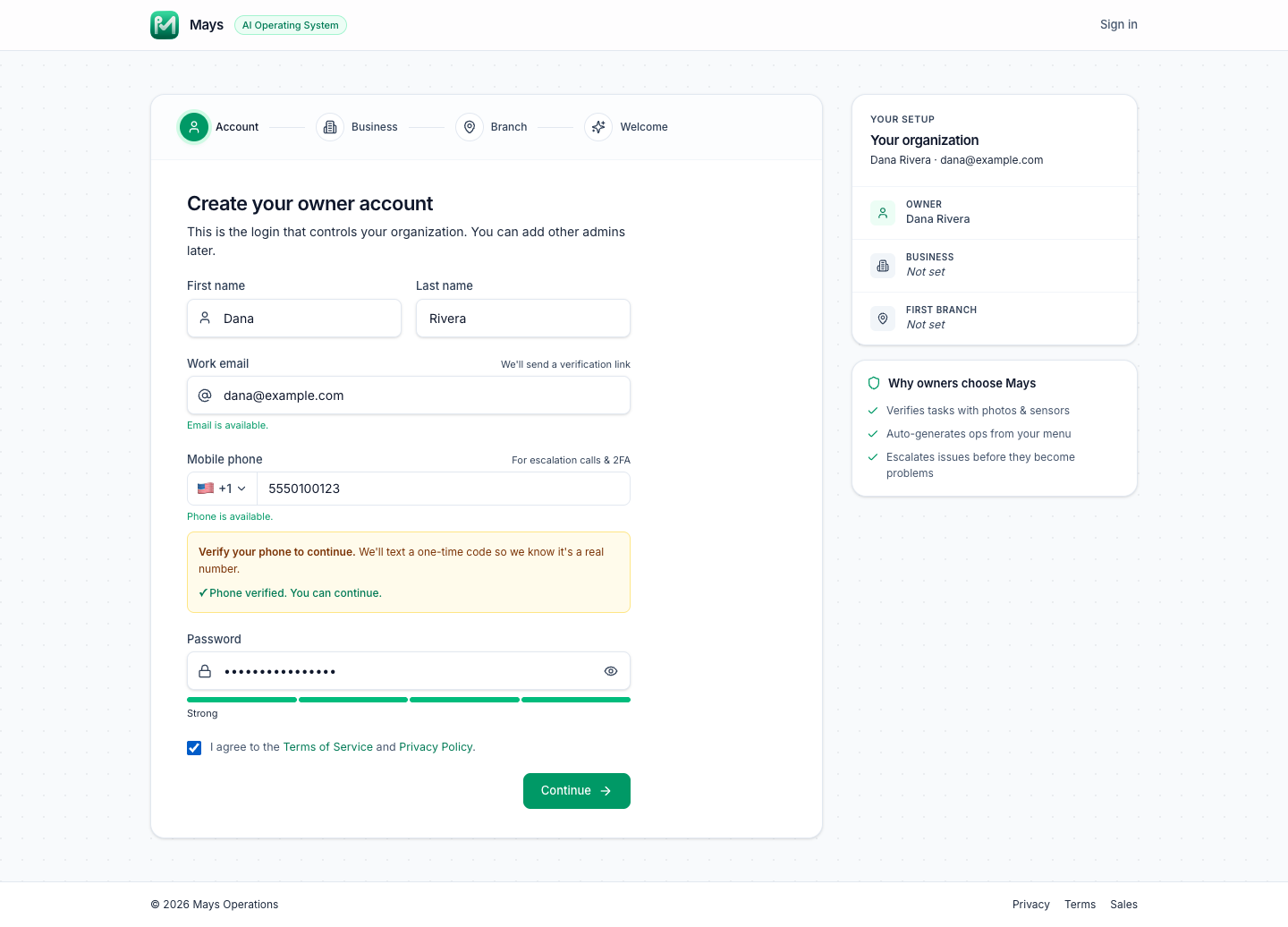
This login is the organization's first Admin: it can do everything in Mays, and you can add more admins later.
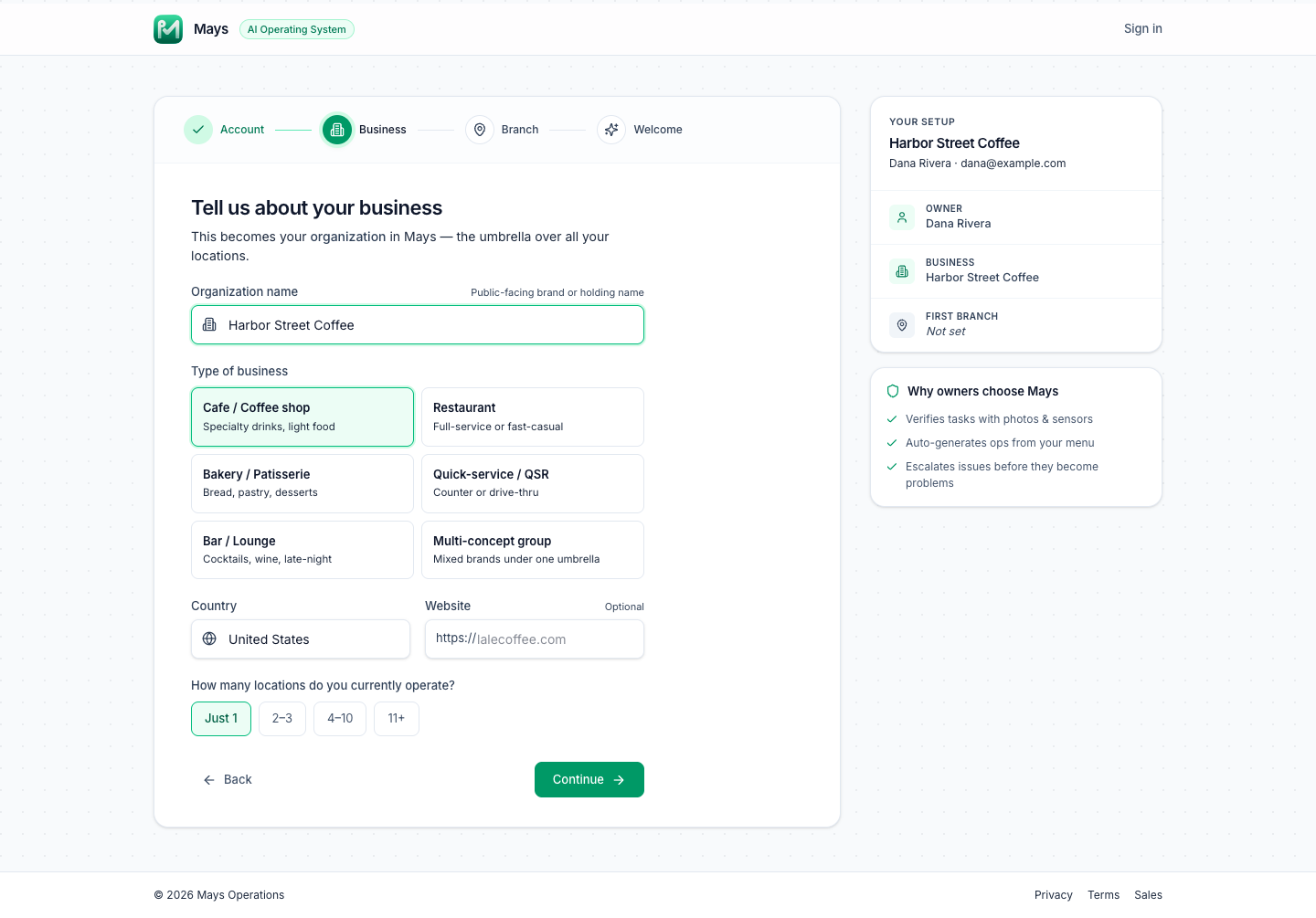
2. Tell us about your business
- Enter your Organization name — the brand or company name your team will see.
- Pick your Type of business, your Country, and (optionally) your Website.
- Choose How many locations do you currently operate? and click Continue.
3. Add your first location
This step is labelled Branch in the progress bar at the top.
- Enter the Location name — what you call this store internally, for example the neighborhood or street.
- Fill in the Street address, City, State (two letters) and ZIP.
- Choose the Timezone the store is in. Schedules, clock-ins and notifications for this location use it, so pick the store's local time zone, not yours.
- Pick the Team size and click Finish.
Mays creates your organization, your first location and your owner account, and signs you in.
4. Welcome
The last step confirms your organization and first location and that your 30-day free trial has started. Click Open dashboard.
The first time you open the web app as an admin, Mays takes you to Mays AI Onboarding, where you can upload the checklists you already use and have them turned into templates. Use it now, or click Skip for now — the dashboard keeps a Finish setup with Mays AI banner so you can come back to it. Your first week with Mays walks through what to set up next.
What you get
- An organization with your first location, and you as its Admin.
- The three built-in roles — Admin, Manager and Employee — ready to give to your team.
- A 30-day free trial with all plan modules switched on. No credit card is asked for.
- AI photo verification switched on in advise-only mode: the AI scores task photos and tells the location's manager about the ones that look wrong, but never rejects anything by itself. Each check uses AI credits. Change it under Settings → Organization → AI photo verification.
Good to know
- The code didn't arrive? Wait a minute, then click Resend. Codes expire after 5 minutes, and you can ask for a new one once a minute (sooner shows Wait a minute before requesting another code.). Check that the country and number are right.
- Your phone already has a Mays account — for example because another business you work for uses Mays? You can still sign up: verify the number with the code and carry on.
- Take your time, but not too long. A verified phone stays verified for 10 minutes. If you see Phone verification expired. Request a new code. when you click Finish, go back to the first step and verify the phone again. Going back to the first step also asks for a new code.
- Your first location's phone number starts out as your mobile number. Change it, and add the location's email, under Locations & Users → Locations — see Add and manage locations.
- Your type of business, website, number of locations and team size are only for your profile — they don't change which features you get.