Your employer can use Mays to phone you when a shift has started and you haven't clocked in. You decide whether Mays may call you. You choose once, after you sign in, and you can change your mind at any time.
The question you're asked once
Right after you sign in, the app (or the website) shows Calls about your shifts, one line saying which business would call you, and a short agreement. The agreement says which number Mays would call and what the calls are for: when a shift has started and you haven't clocked in, open shifts, and changes to your schedule. The calls are automated, use a computer-generated voice, and are never used to sell you anything.
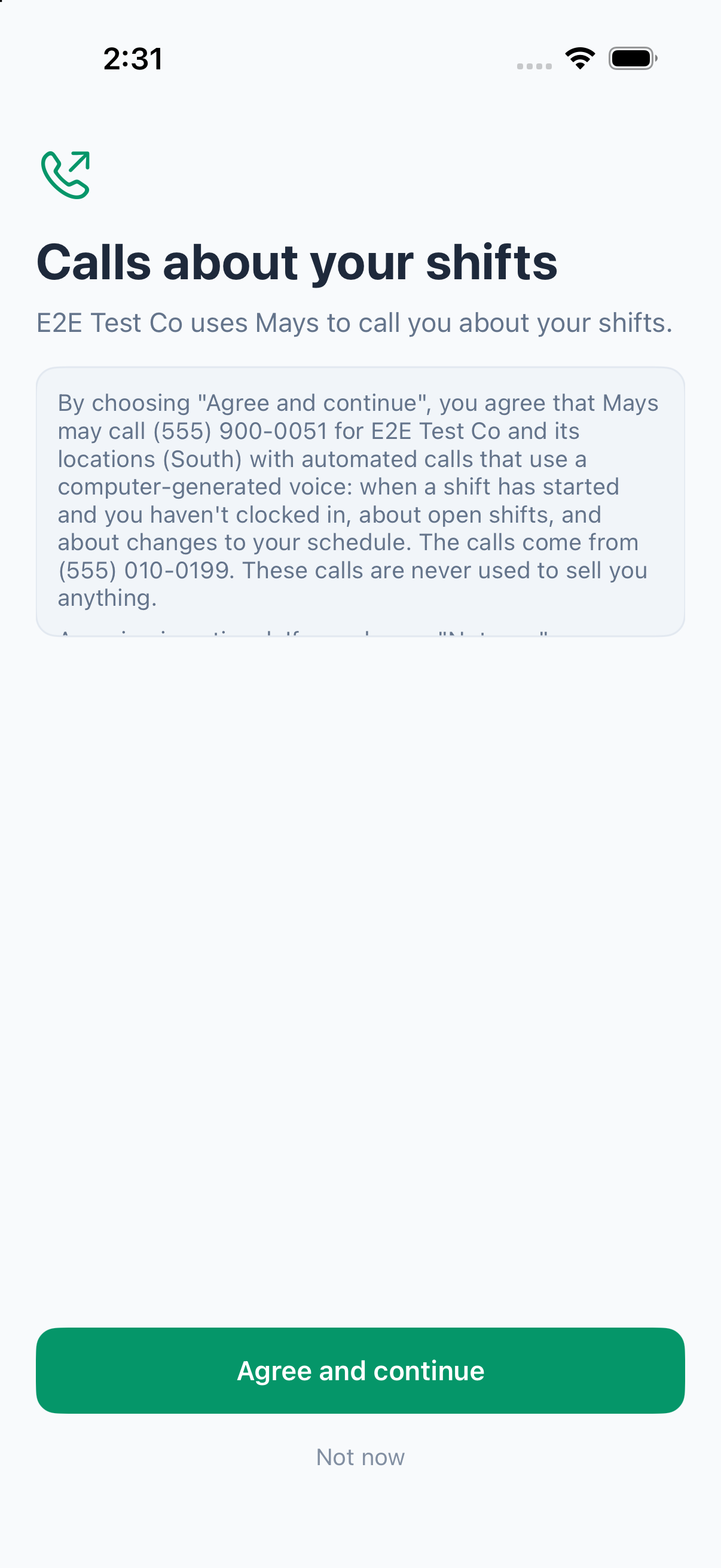
- Tap Agree and continue if you want the calls.
- Tap Not now if you don't. The app works exactly the same, and nobody asks you again.
There's no close button, but either answer is fine. If your answer can't be saved, the screen says why and offers Go to Mays; you're asked again next time.
The 6-digit code
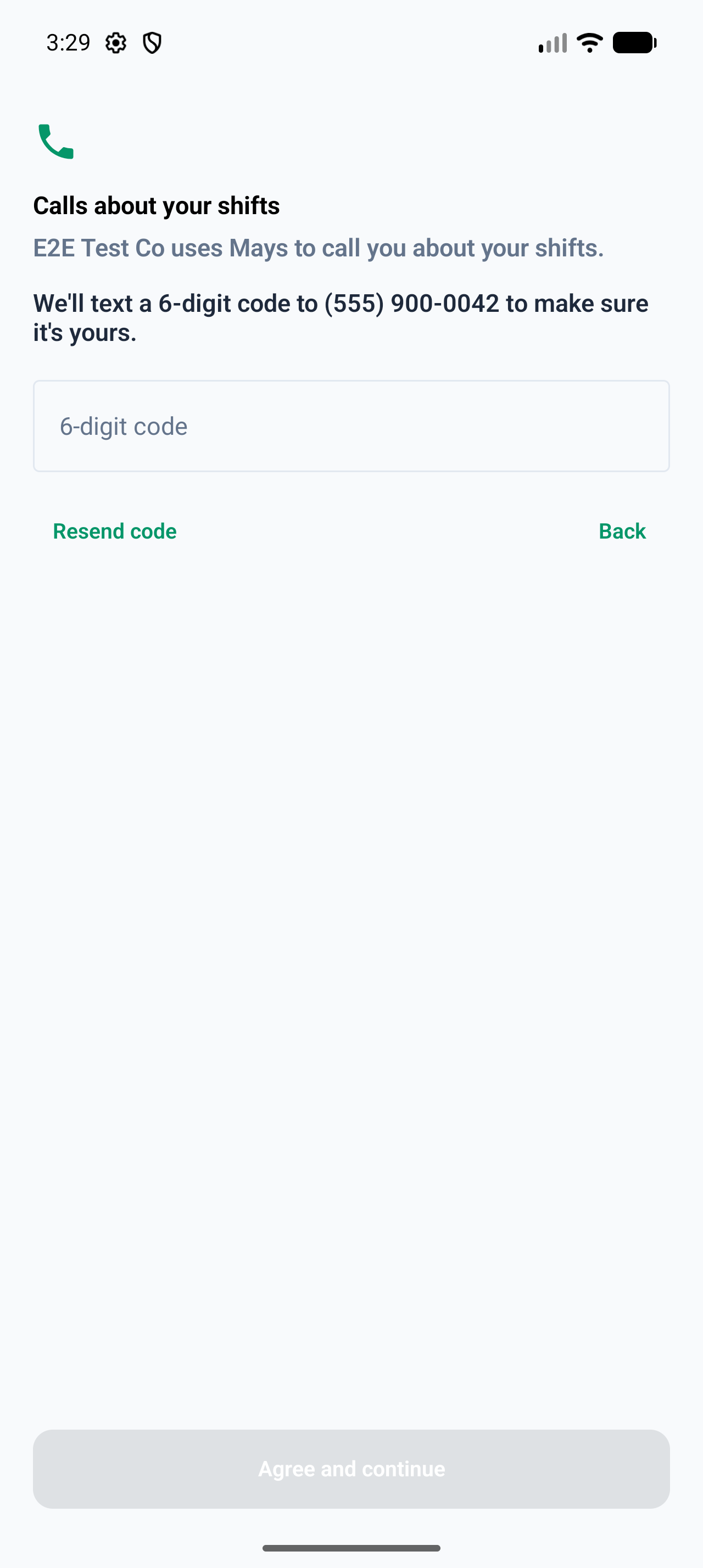
Mays only calls a number that is really yours. If you signed in with a text-message code to this number, that already proves it, and you go straight on. If you signed in another way (with an email code, or with a password on the web), Mays first texts a code to the number:
- The screen says We'll text a 6-digit code to (your number) to make sure it's yours.
- Type the code into 6-digit code and tap Agree and continue.
Didn't get it? Tap Resend code. Codes go out at most once a minute: if you tap it sooner, you see Wait a minute before asking for another code. and the code you already got still works. Tap Back to go back to the agreement, for example to choose Not now. Saying no never needs a code.
When you're asked again
Only when your answer may no longer apply:
- your phone number in Mays changes (you're asked about the new number);
- Mays changes the wording of the question;
- you were deactivated and your employer brings you back.
Shared kiosk tablets never show the question. People sign in there with their PIN.
Turn calls on or off later
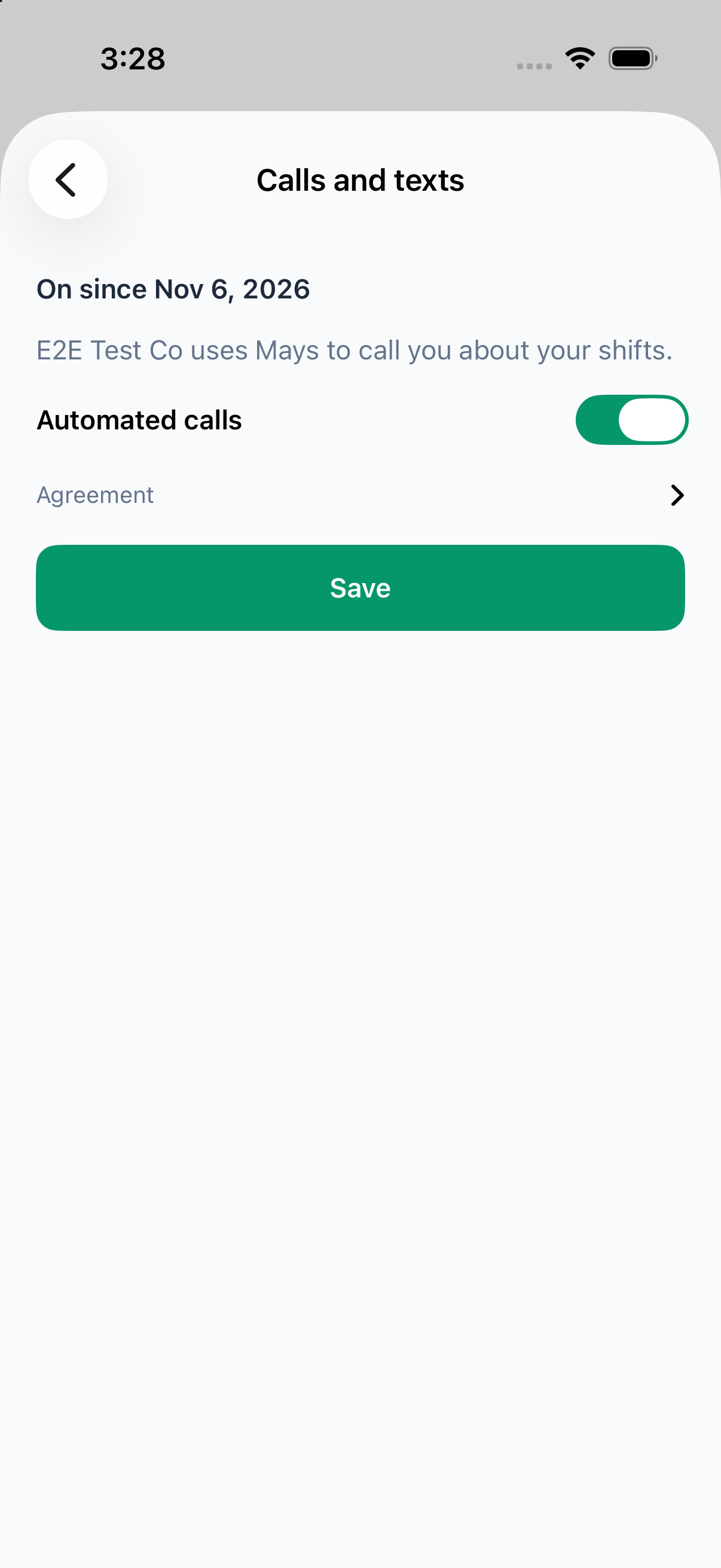
In the app: tap your picture in the top-left corner to open Profile, then tap Calls and texts. The top line shows your answer, for example On since Nov 5, 2026, Off since Nov 5, 2026 or Not answered yet. Change the Automated calls switch and tap Save. Tap Agreement to read the full wording.
On the web: click My Profile at the bottom of the sidebar and scroll to Calls and texts. The switch saves as soon as you click it. Under it you see your answer, for example On since Nov 5, 2026 or Not asked yet, and Agreement, which opens the full wording.
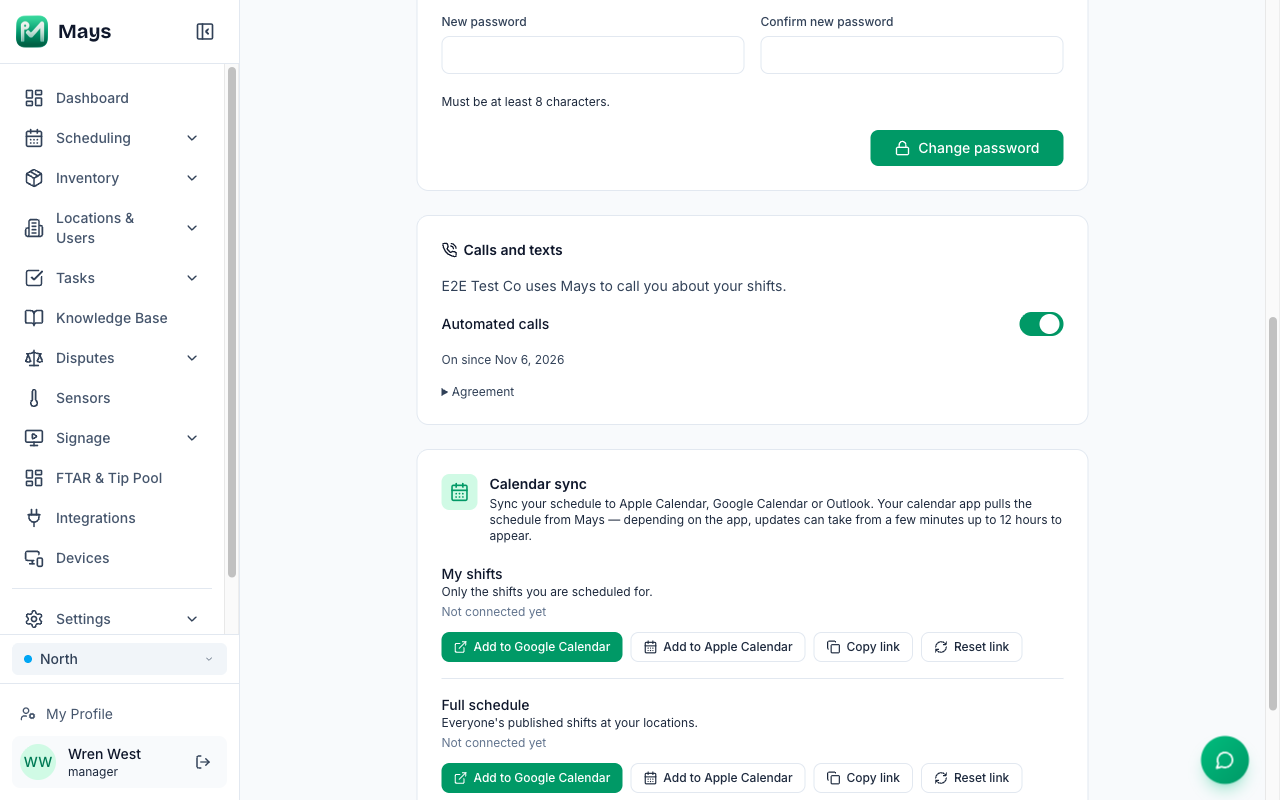
- Turning calls off works straight away.
- Turning calls on may ask for the 6-digit code first, the same way as above.
- No phone number on your profile? The section says Add a phone number to your profile to choose whether Mays may call you. Ask your manager to add it.
- The switch is for the business you're signed in to. If you work for more than one business on Mays, switch organization and set each one.
What a call sounds like
Every automated call from Mays starts by saying who is calling:
Hi (your first name). This is an automated call from Mays for (location), about your shift.
To stop the calls, turn Automated calls off in Profile → Calls and texts, or reply STOP to a Mays text. Pressing a key during a call doesn't turn calls off.
Calls from Mays are not recorded.
Texts from Mays
The only text Mays sends you without you asking is the invitation when you're added: You've been added to (your company) on Mays. Download the app and sign in with this phone number: https://mays.app/get Reply STOP to opt out. Sign-in codes are texts you ask for.
Replying STOP to a Mays text (or STOPALL, UNSUBSCRIBE, CANCEL, END, QUIT, REVOKE or OPTOUT) stops all texts from Mays to your phone, and it also turns automated calls off everywhere on Mays. Mays won't send you another invitation text either.
Your sign-in codes still reach you by text: after a STOP, they come from a different number than usual. Only if that fails too, the app says You replied STOP to Mays texts, so we can't text you a code. Text START to (number) to get codes by text again. If your profile has an email address, tap Email me a code instead to sign in with an emailed code.
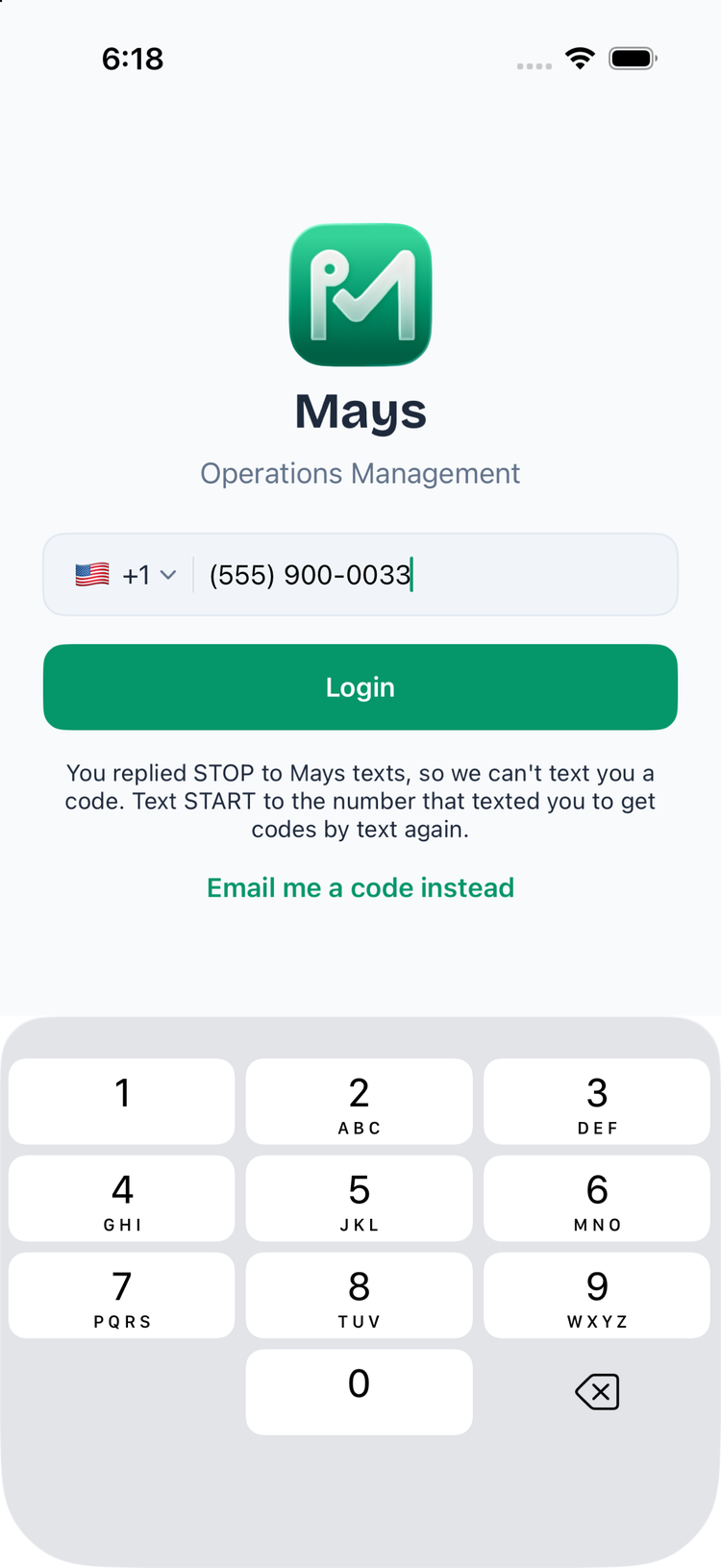
Replying START to that number turns texts back on, so sign-in codes reach you again. It doesn't turn calls back on. Only you can do that, in Profile → Calls and texts.
What managers see
Managers and admins can see each person's answer, but can't change it. Only the person can.
A person's page: at the top, Calls: On, Calls: Off, Calls: Not asked yet or Calls: No phone. Off means they turned calls off or replied STOP. No phone means there's no phone number on their profile, so Mays can't call them. Next to it, Download consent history gives a spreadsheet (CSV) of every answer they gave, with the number it was about, what they chose, how (the question after sign-in, the Profile switch, a key press or a spoken stop during a call, or a STOP text), the wording they saw, and when.
A location's Basic Info tab: how many of the location's people have turned calls on, for example 3 of 6 people opted in to calls, and Download consent CSV with the answers of everyone at the location. A manager's counts and download include only the people that manager can open.

When someone is late and hasn't turned calls on: the Time Clock page and the shift's dialog on the schedule show Not opted in to calls. Call (first name): (phone number). Click the number to call them yourself.

These need permission to edit team members, which managers and admins have by default.
Who Mays calls, and when
Only people who turned calls on
Your Mays account team will tell you when Mays starts calling only people who turned calls on. Until then:
- someone who hasn't answered yet is still called;
- someone who turned calls off or replied STOP is never called, from day one.
From that date, someone who hasn't turned calls on isn't called. Their manager hears about it straight away instead, see below.
Only inside the location's call hours
Each location has Automated calls between hours. Outside them, nobody gets an automated call, whatever a rule says. The default is 6:00 AM to 9:00 PM in the location's time zone.
To change them, go to Locations & Users → Locations → a location → Scheduling tab → Automated calls card. The earliest start can be from 4:00 AM to 10:00 AM, and the latest end from 6:00 PM to 11:00 PM.
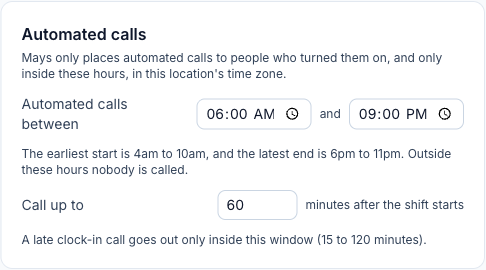
The same card has Call up to (minutes) minutes after the shift starts: a late clock-in call goes out only that long after the shift starts. The default is 60 minutes; choose from 15 to 120. This stops calls about a shift that was entered at the wrong time, such as 12:30 AM instead of 12:30 PM.
At most 2 calls
Mays calls a late person at most 2 times for one shift, and the escalation manager at most once about each late person, even if a rule asks for more.
When Mays skips a call
The manager is told. When the late person can't be called because they haven't turned calls on, or turned them off, Mays calls the location's escalation manager straight away: Hi. This is an automated call from Mays for (location), about (name)'s shift. (Name) has not agreed to automated calls. Please call them yourself. The escalation manager also gets the usual push, for example Emma (attempt 1): not called (hasn't turned on automated calls). The same rules apply to the manager's call: a manager who can't be called gets the push only.
When a call is skipped because of the call hours or the shift window, the manager gets the push but no call.
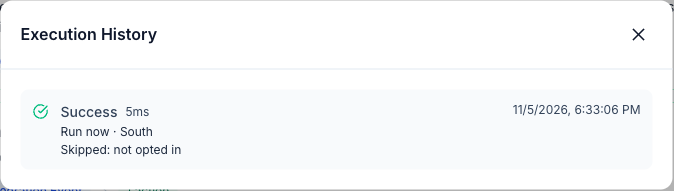
Rule history shows why a call wasn't placed. In Automation & AI, click View history on the rule:
It says | Why |
|---|---|
Skipped: not opted in | The person hasn't turned on automated calls. |
Skipped: opted out | The person turned calls off or replied STOP. |
Skipped: night hours | Outside the location's Automated calls between hours. |
Skipped: after the shift window | More than Call up to minutes after the shift started. |
Skipped: call limit reached | The person was already called 2 times for this shift (the manager: once). |
Skipped: not a person | The rule calls a phone number that isn't the location's own. |
The run itself still shows Success: the rule ran, and Mays chose not to dial.
Good to know
- Calling a phone number, not a person: a rule with Raw phone number as the Call recipient only calls the location's own number: its phone number on Basic Info, or the forwarding number of its AI receptionist. Any other number is skipped.
- One answer per business. Your answer is for the business you work for and all its locations. The question lists them.
- Who calls: the calls and texts come from Mays's own number, not your manager's phone.