Your checklist for the day is in the Tasks tab of the Mays app, under My Tasks. Tick off the simple ones with one tap, open the others to take a photo or enter a value, and your manager sees it straight away.
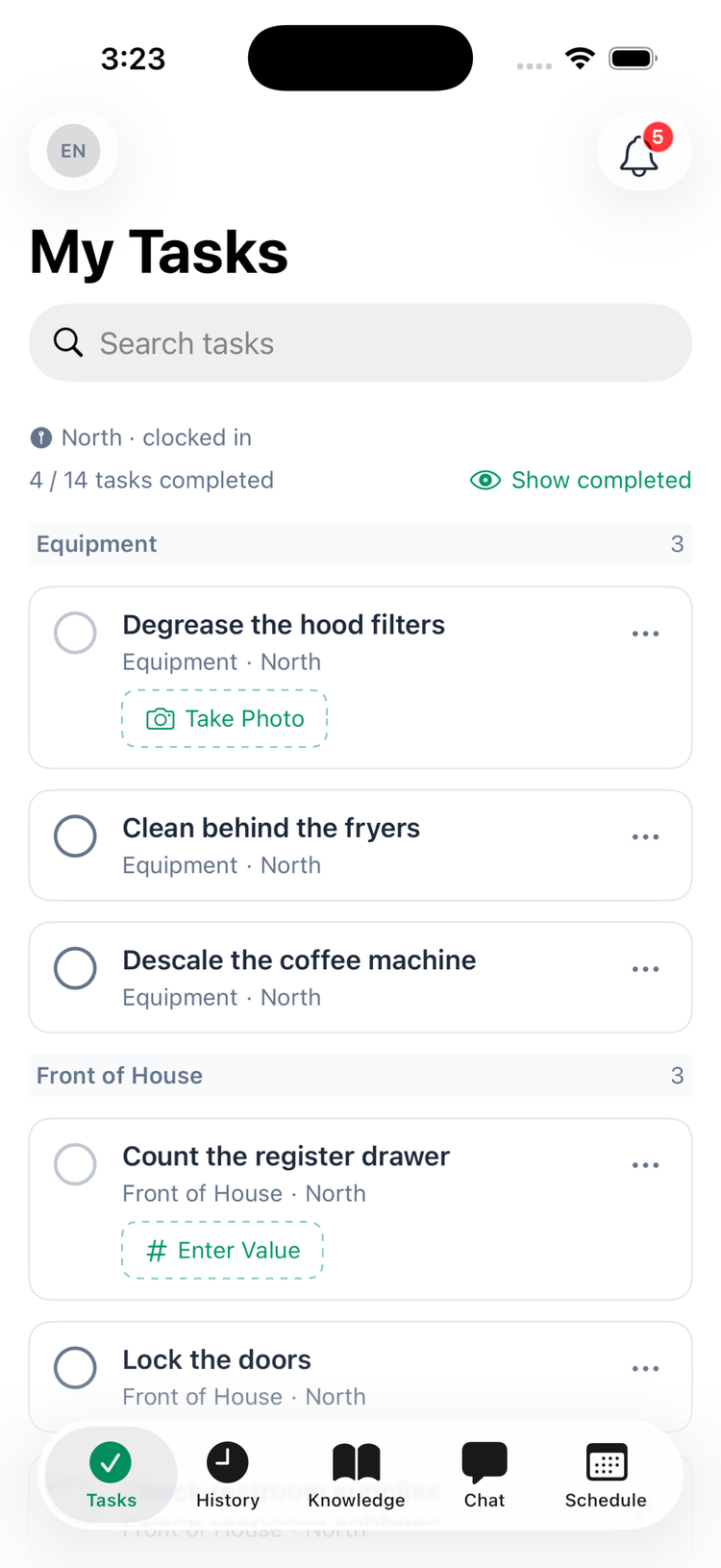
What's on your list
- Tasks are grouped by the section they belong to in the checklist (such as Kitchen or Front of House). Each shows its section and location underneath.
- The bar at the top shows how much of the list is done — for example 4 / 14 tasks completed (shared tasks count whoever finished them). Finished tasks are hidden; tap Show completed to see them (Hide completed hides them again).
- Search tasks at the top finds a task by name.
- Pull down to refresh.
- If your location asks you to be clocked in to work on tasks, you'll see North · clocked in above the list — and nothing but Clock in to see your tasks until you clock in. See Why can't I see my tasks?
You see today's tasks. Unfinished tasks from earlier in the week stay on the list if the checklist carries them over.
Complete a task
Checkbox tasks: tap the circle. That's it — the task is done and moves to the completed list.
Everything else: tap the button on the task (Take Photo, Enter Value, Add Text, Select Option, Capture Location, Fill out form or Respond), or tap the task itself. On the task's screen:
- Fill in Your Response:
- Photo: tap Take Photo and take the picture. Photos come from the camera only, not from your photo library. The photo uploads as soon as you take it; tap Retake Photo to replace it.
- Number or Text: type your answer.
- Multiple choice: tap one option.
- Location: tap Capture Location. The app asks for location access the first time.
- Inventory count: enter a count for every item. Items below their minimum are flagged.
- Form: fill in the fields; required ones are marked with *.
- Optionally add a note under Notes (optional).
- Tap Submit.
When a manager sends a task back
If a manager — or your company's AI photo check — rejects your task, you get a Task Rejected notification with the reason, and the task goes back into your My Tasks list. Open it: the History at the bottom shows who rejected it and why. Redo the task and tap Submit again.
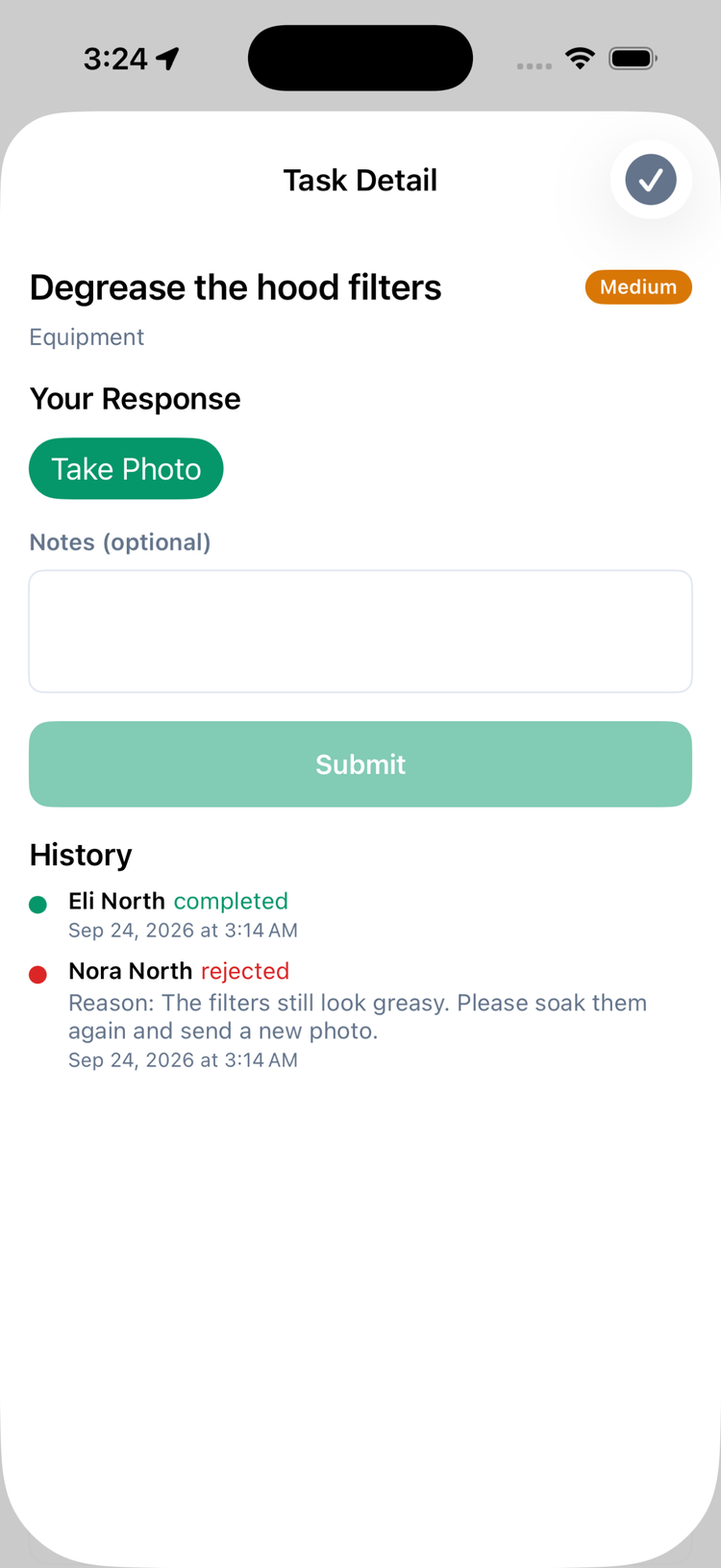
A rejected task looks like any other task in the list — the notification and the History are how you tell. In the History tab it has a red Rejected label.
If something goes wrong
- "Couldn't upload photo. Check your connection." Tap Try again — the app keeps your photo.
- "Couldn't submit. Check your connection and try again." Your answers are kept; tap Submit again when you're back online. Tapping it twice won't complete the task twice.
- A checkbox unticks itself. The tick didn't reach Mays (usually no signal, or you're not clocked in at that location). Tick it again once that's fixed.
- "This field isn't supported on mobile yet." Some form fields (picking an employee, an area or a vendor) can't be filled in the app yet. If one of them is required, you can't submit that form from a phone — ask your manager.
- "This task was due on an earlier day and can no longer be completed." Ask a manager to close it out.
There's no offline mode: you need a connection to submit.
For managers
The same Tasks tab has a few extras for managers and admins:
- Days: use the arrows or the date to look at earlier days (not future ones). Today jumps back.
- Locations: with more than one location, chips at the top filter the list.
- Create a task: the + button creates a one-off task for your location or one person.
- Review: open a completed task to see the answer and tap Reject Task to send it back — see Reviewing and rejecting completed tasks.
- Managers and admins can complete tasks without clocking in, and can close out tasks from earlier days.
Good to know
- iPhone and Android work the same way. On Android the screen for a task is titled with the task's name, and the Notes box says Add any additional notes....
- Barcodes: on Android, a barcode field in a form has a Scan button; on iPhone you type the code.
- Everything you complete also appears in the History tab, where your team can like and comment on it — see The Activity feed.