Everything your team completes — the tick, the photo, the number, the note — is on the web Tasks page and in the app. If something isn't done right, reject it on the web or in the app and it goes back to the person with your reason.
Admins and managers can review and reject tasks (managers for their own locations). Rejecting needs the Create custom tasks, reject submissions permission, which the built-in Manager and Admin roles have — tick it for a custom role that should reject work. Each time someone at your location completes a task, you also get a Task Completed notification in the app.
Review on the web
- Go to Tasks → Tasks. The page shows the location picked in the sidebar's location switcher, for today.
- Narrow it down with the status tabs (All, Pending, In Progress, Completed, Review), the search box, the group, source, answer type and assignee filters, or the date range. Clear resets them.
- Click a task to open Task Details: who it's assigned to, the location, due date and when it was completed, the Submitted Response (the photo, number, text or answer) with who submitted it, their Notes, the task's History, and likes and comments.
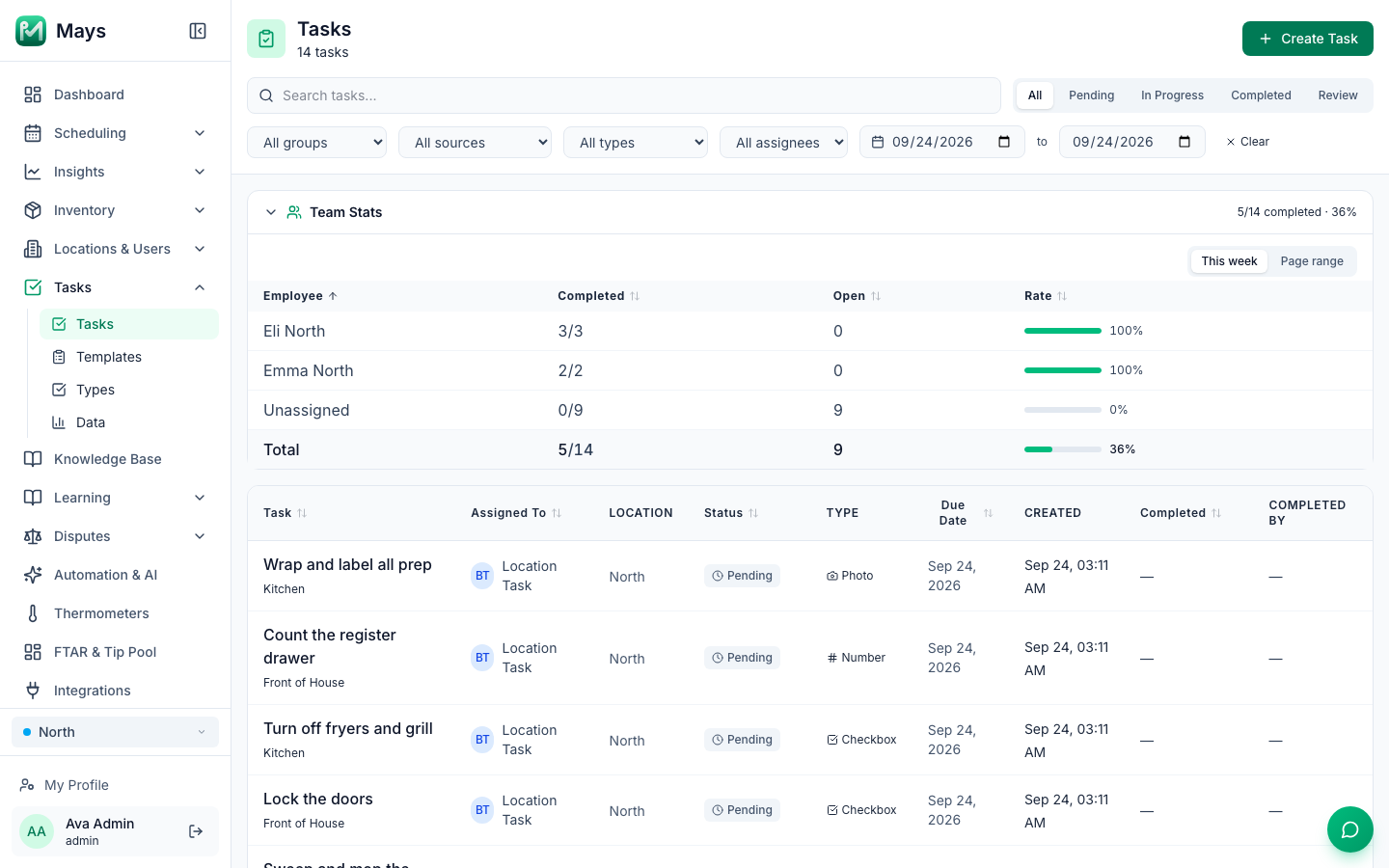
Team Stats at the top shows, per employee, how many tasks they completed and how many are still open, for This week or for the dates you picked (Page range). Open tasks that aren't assigned to anyone in particular count under Unassigned.
In the table, Carried marks a task still open from earlier this week, and Overdue one from a previous week that needs a manager to close it out.
Reject a task (in the app)
- In the Mays app, open the completed task — from the Tasks tab (tap Show completed) or from the History tab.
- Tap Reject Task.
- Type a reason under Reason (optional) and tap Reject.
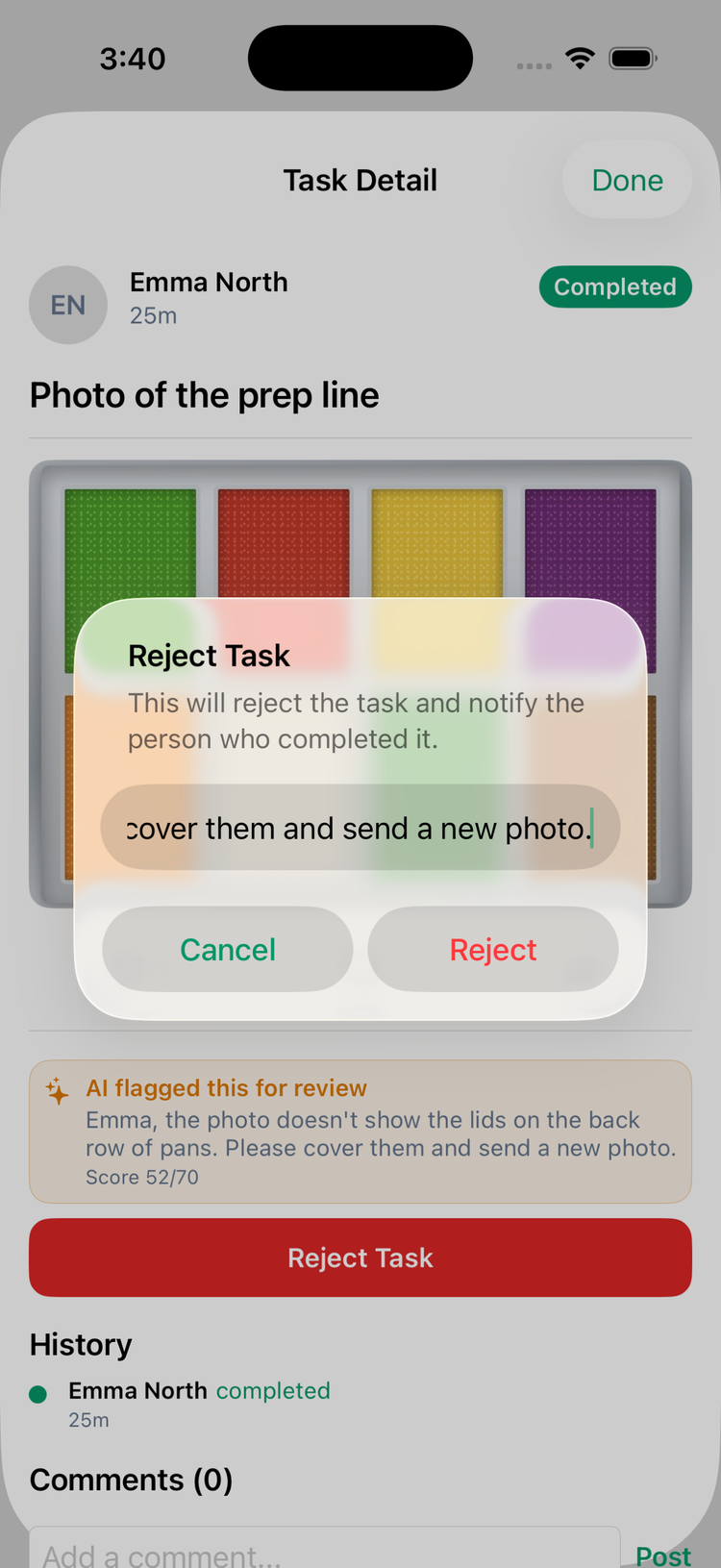
The person who completed it gets a Task Rejected notification with your reason, the task goes back on their list to redo, and it's marked Rejected in the History feed. When they resubmit, you get a new Task Completed notification. If the AI photo check flagged the photo, its note is already filled in as the reason — see AI photo verification.
Reject Task is shown to managers and admins, on completed tasks only. Mays refuses a rejection from anyone without Create custom tasks, reject submissions, and managers can only reject tasks at their own locations.
Send a task back from the web
In Task Details, Reject & Resend (on a completed task) opens Reject & resend task: type a Reason and click Reject & resend.
It works the same as rejecting in the app: the person who completed it gets a Task Rejected notification with your reason, the task goes back on their list to redo, and it's marked Rejected, with your reason in its History.
Other actions on the web
- Mark Completed (on a pending task) — close a task out yourself, for example one from an earlier day that staff can no longer complete.
- Reset to Pending (on a rejected task) — put it back on the list without a new rejection.
- Edit next to Submitted Response — correct an answer. Photos can only be retaken from the app.
Good to know
- Can't find a rejected task? There's no Rejected tab; rejected tasks are under All.
- Notifications: each person can turn off Task completed / reviewed under Profile → Notifications in the app — that silences both the Task Completed and the Task Rejected notifications. See Notifications.
- Past days: staff can't complete a task after its day unless its checklist carries tasks over; managers can still close it out.
- For a quick look at today across all locations, use the Operations Dashboard.