Every task has an answer type that decides how staff complete it: tick a box, take a photo, enter a number or text, pick an option, record a location, count stock or fill in a form.
The answer types
Type | Button on the task in the app | What staff do |
|---|---|---|
Checkbox | none, they tap the circle | Tap once to mark it done. |
Photo | Take Photo | Take a photo with the phone's camera. Photos from the library can't be used. Retake Photo replaces it. |
Number | Enter Value | Type a number, such as a temperature. A unit, if you set one, is shown next to it. |
GPS | Capture Location | Record where they are. Managers can open the spot in Maps. |
Multiple Choice | Select Option | Pick one of the options you set. |
Text | Add Text | Type a short answer. |
Inventory Count | Respond | Enter a count for each item on the list. |
Custom form | Fill out form | Fill in a form built under Tasks → Types. |
Staff can add a note to any of them before they tap Submit. For the steps in the app, see Completing your tasks in the app.
Choose the answer type
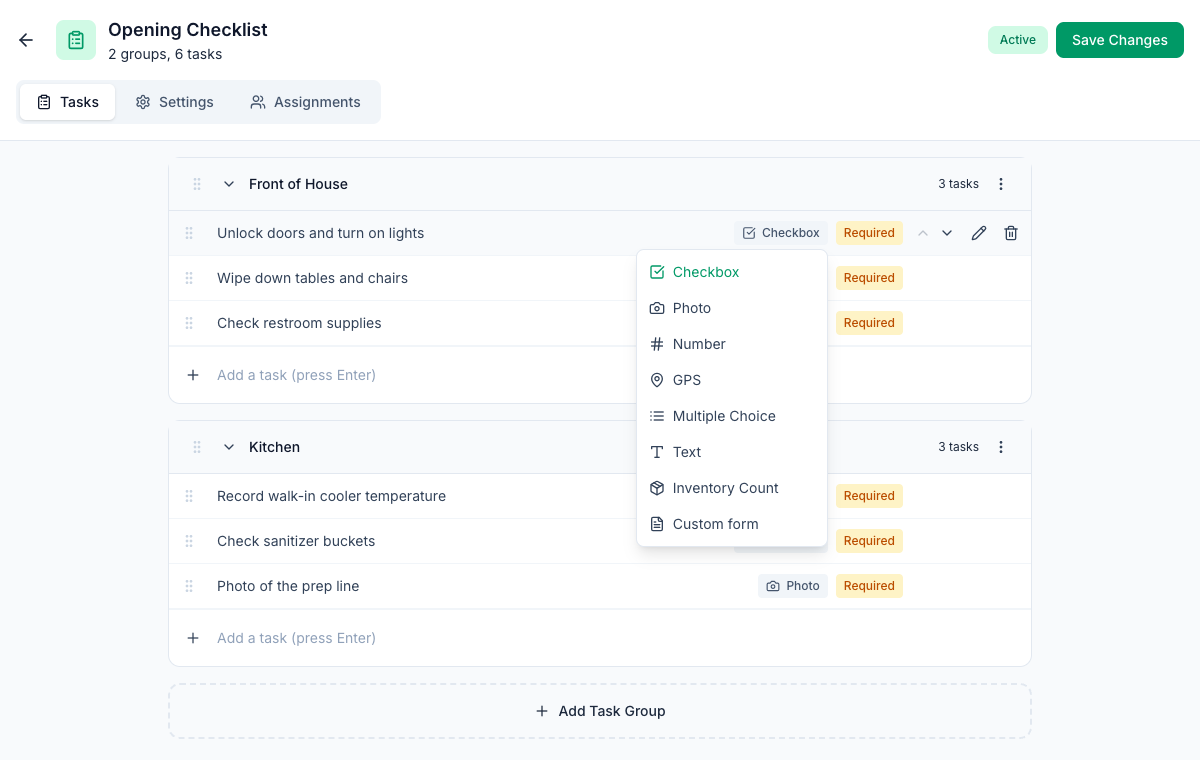
In a checklist template: click the answer type next to the task (it starts as Checkbox) and pick another. For a type's settings, hover over the task and click the pencil. See Creating a checklist template.
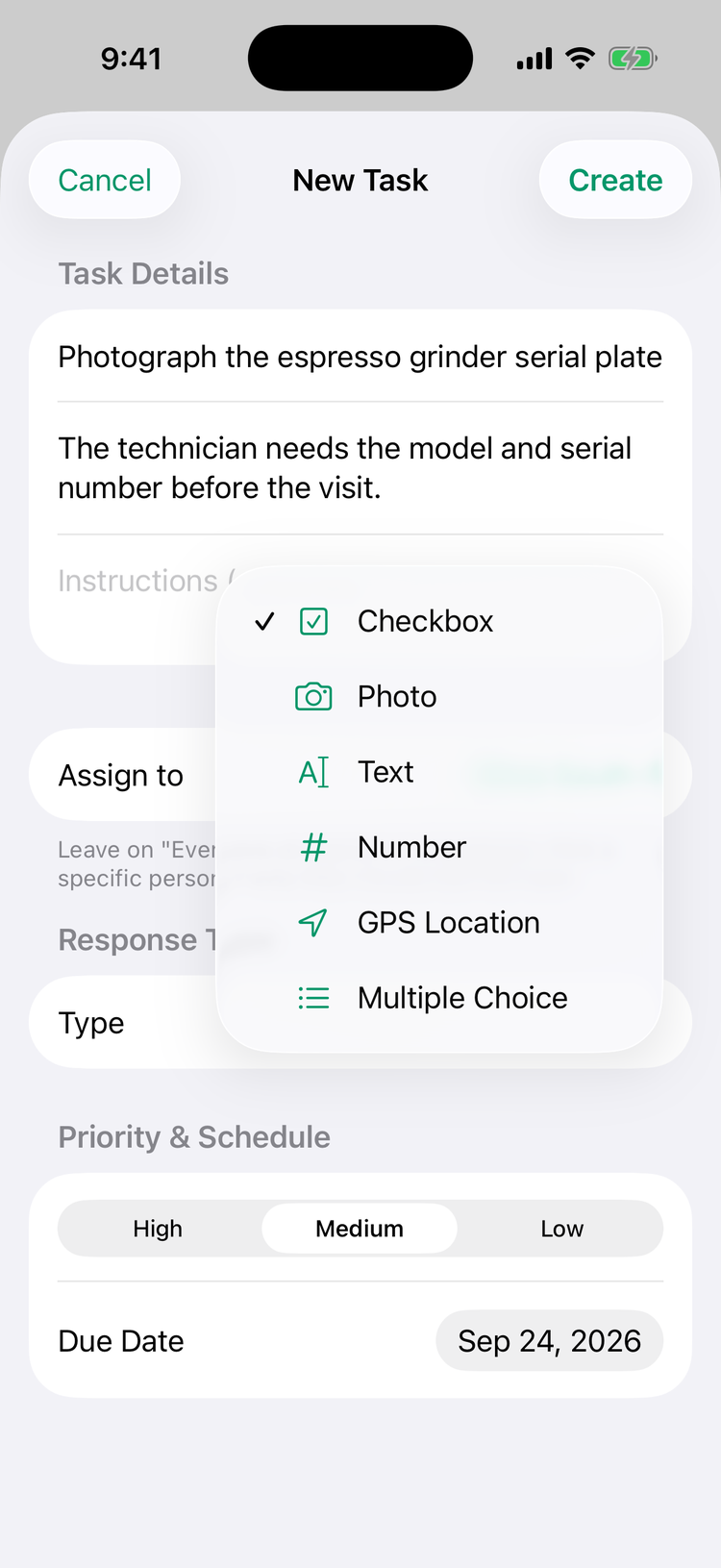
In a one-off task: pick the Response Type when you create it. See Creating one-off tasks.
Not every type can be used everywhere:
Where | Types |
|---|---|
Checklist template | All eight. Custom form only for people who can see Tasks → Types (admins, by default). |
One-off task on the web | All eight, but without their settings. Multiple Choice and Inventory Count need settings, so use them from the app or a template. |
One-off task in the app | Checkbox, Photo, Text, Number, GPS Location and Multiple Choice. |
Settings for each type
- Number: a Min Value and Max Value (in the app: a unit, Min and Max). Mays doesn't check answers against them yet, so staff can enter any number. Put the safe range in the task's name as well, for example Walk-in cooler temperature (33–41°F).
- Multiple Choice: the Options to choose from. Staff pick one.
- Text: in the app you can set a maximum length for a one-off task. Android stops typing at the limit. iPhone shows a counter but lets people go over.
- GPS: Mays records where the person was. It doesn't check how far they were from the store.
- Inventory Count: the items to count. Click the items button on the task (for example 0 items) and add each item with its Unit, Min Stock and Case Size.
- Custom form: pick which form under Task Type. To build forms, see Building custom forms (Task Types).
Inventory counts and restocking
While counting in the app, an item under its minimum shows Below minimum — need (number) more. When the count is submitted and some items are low:
- Mays adds a task called Restock Order - (location) - (date) to that location's list. It's for managers only, lists what to order and works out the number of cases.
- The location's managers get a Restock Needed notification.
See Inventory-count and restock tasks.
AI checks and credits
- Only Photo answers can be checked by AI. Checks happen when AI photo verification is on for your company. Photos inside a custom form aren't checked.
- Each check uses AI credits from the location's balance. No other answer type uses credits. See AI photo verification and AI credits.
Where you see the answers
- Web: Tasks → Tasks, then click a task. For inventory counts it shows how many items were below minimum. Photo and GPS answers can only be changed from the app.
- App: open the completed task to see the Submitted Response. Managers can tap Reject Task to send it back. See Reviewing and rejecting completed tasks.
- Custom forms: Tasks → Data (the Task Data page) lists every submission, and Export CSV downloads them. See Task Data: viewing and exporting form answers.
Good to know
- Checkbox tasks opened from the task's screen have a Mark as done switch, and Submit stays greyed out until it's on. (An app that hasn't been updated yet still lets someone submit with the switch off, which saves the task as not done.)
- Barcode fields in custom forms have a Scan button on Android. On iPhone, type the code.
- Changing a template's answer type takes effect from the next day's checklists. Tasks already on today's list keep their old type.