Need something done that isn't on a checklist? Managers and admins can create a one-off task for one person or the whole location, on the web or in the app, or from a chat message.
One-off tasks show up at the top of the list in the app, in a group called Custom. For work that repeats, build a checklist template instead. See Creating a checklist template.
Create a task on the web
- Go to Tasks → Tasks and click Create Task.
- Open the Custom Task tab.
- Enter the Task Title and, if you like, a Description.
- Pick the Response Type and the Priority (High, Medium or Low). For the answer types, see Task answer types.
- Pick the Location.
- Under Assign To, leave Location Task (any staff) or pick one person.
- Tick Carry unfinished duties through the week if it may take a few days. Otherwise the task drops off the list after today.
- Click Create Task.
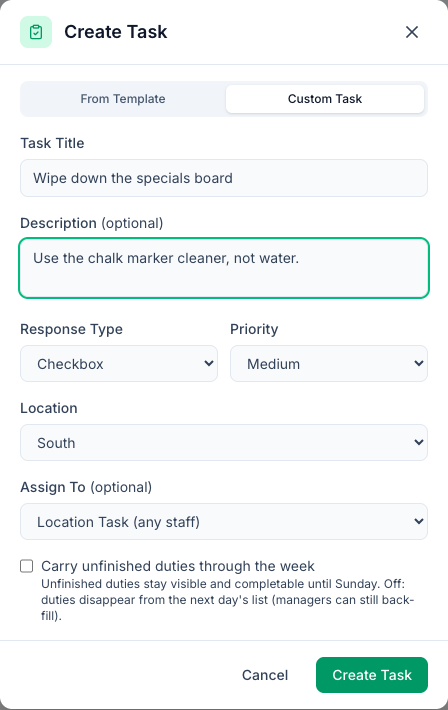
A task created on the web is always for today. To set another day, create it in the app.
The From Template tab adds all the tasks of a checklist template to a location's list for today, optionally for one person. Use it when you need an extra run of a checklist.
Create a task in the app
- In the Tasks tab, tap + (top right on iPhone, bottom right on Android). If you can also add vendor invoices, + asks what to add: choose New task.
- Enter the Title and, if you like, a Description and Instructions.
- If you have more than one location, pick the Branch.
- Under Assign to, leave Everyone at branch or pick one person.
- Pick the Response Type. Some types have extra settings:
- Number: a unit (for example boxes) and a Min and Max.
- Text: an optional maximum length.
- Multiple Choice: at least two options.
- Pick the priority and the Due Date. It starts on today.
- Tap Create.
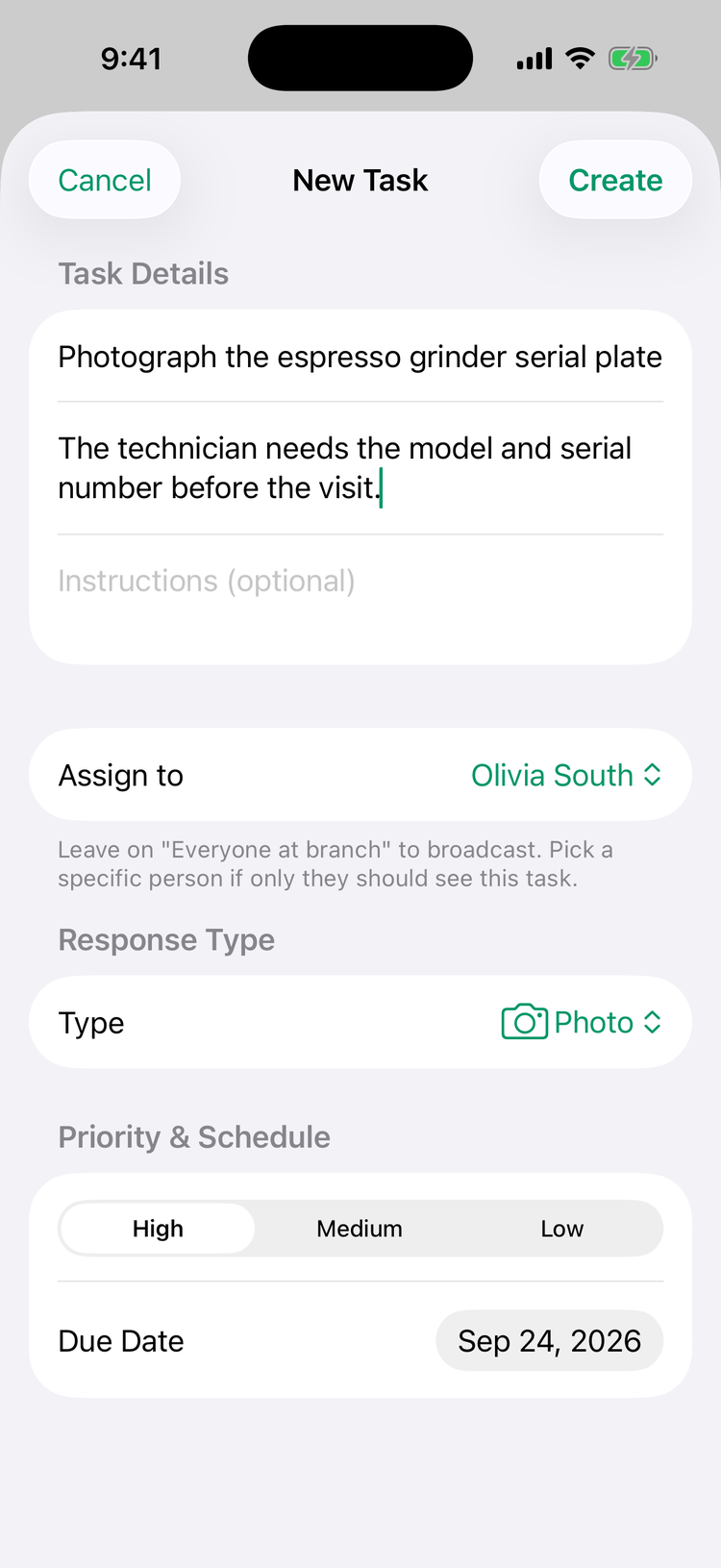
The task appears on the list for its due date.
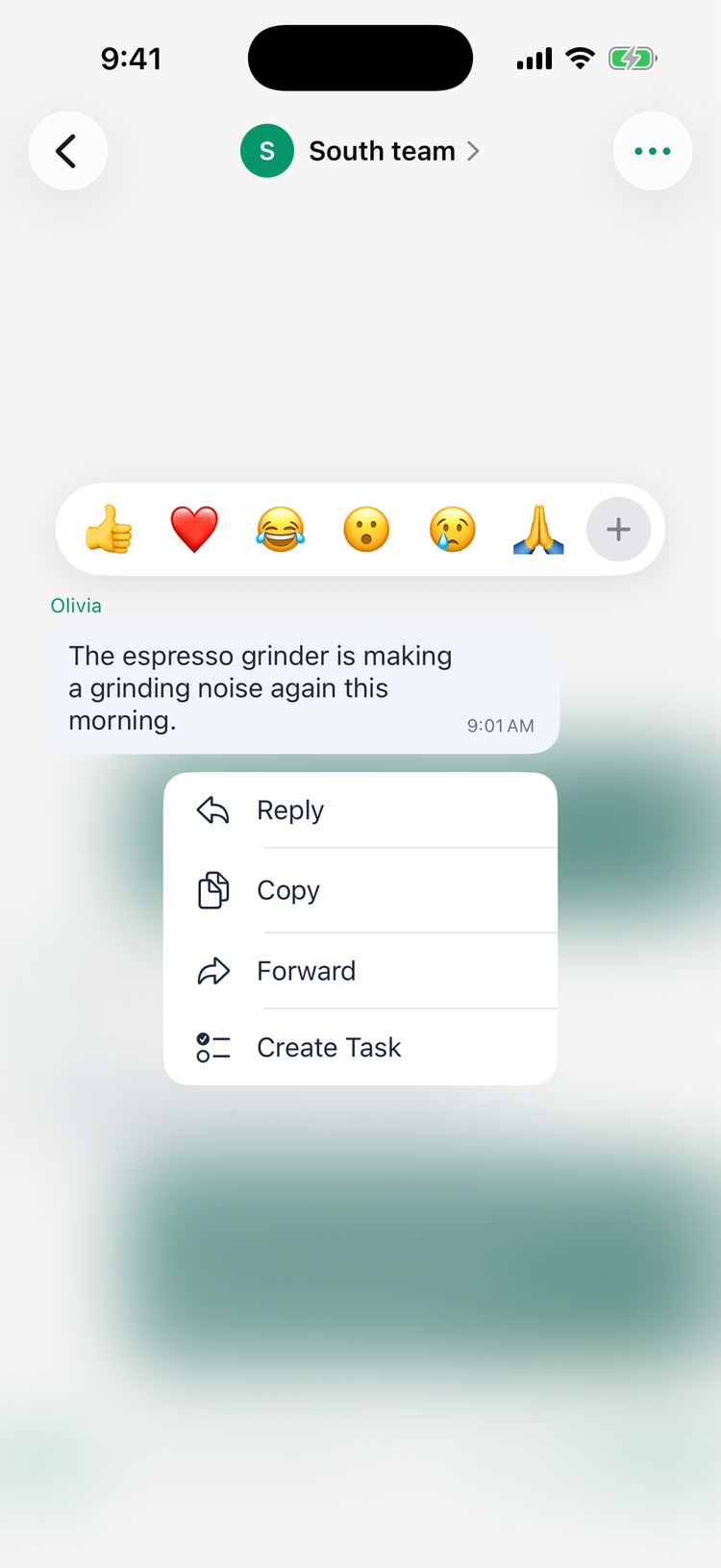
Create a task from a chat message (iPhone)
Press and hold a message, choose Create Task, and New Task opens with the message's text as the title. If the title is empty, type one. Then continue as above. On Android, Create Task in the chat menu doesn't work yet, so use the + in the Tasks tab.
Who sees it and who's told
Assigned to | Who sees it in the app | Notification |
|---|---|---|
One person | Only that person. | They get New Task Assigned: You have a new task: (title). |
Everyone at the location | Everyone at that location. | If it's due today, everyone with a published shift there right now gets New Task: Just added: (title). |
Staff whose location asks them to clock in first see the task once they're clocked in there. See Why can't I see my tasks?
In the app, managers see the location's tasks and their own, but not a task assigned to someone else. To follow those, use Tasks → Tasks on the web. The Custom (ad-hoc) filter shows one-off tasks only.
Change or delete a one-off task
You can change or delete a one-off task until someone completes it.
- Web: open it from Tasks → Tasks and use the Edit task or Delete task icon.
- iPhone: open the task, tap ⋯ and choose Edit task or Delete task.
- Android: open the task and tap the pencil or the bin.
Editing changes the title, description and instructions. To change anything else, delete the task and create it again. Deleting asks you to confirm and can't be undone.
Who can create one-off tasks
Managers, for their own locations, and admins. For a custom role, the permission is Create custom tasks, reject submissions.
Good to know
- Multiple choice and inventory counts from the web can't be completed. The web has no place for the options or the items, and the app needs them. Create a multiple-choice task in the app, and use a checklist template for inventory counts (see Inventory-count and restock tasks).
- Completed one-off tasks appear in History like any other task, and managers can review and reject them. See Reviewing and rejecting completed tasks.
- Photo answers can be checked by AI like any other photo task. See AI photo verification.