If the Tasks tab is empty or a checklist you expected isn't there, it's almost always one of these: you're not clocked in, it's outside the checklist's hours, or the checklist isn't meant for your role, department or location.
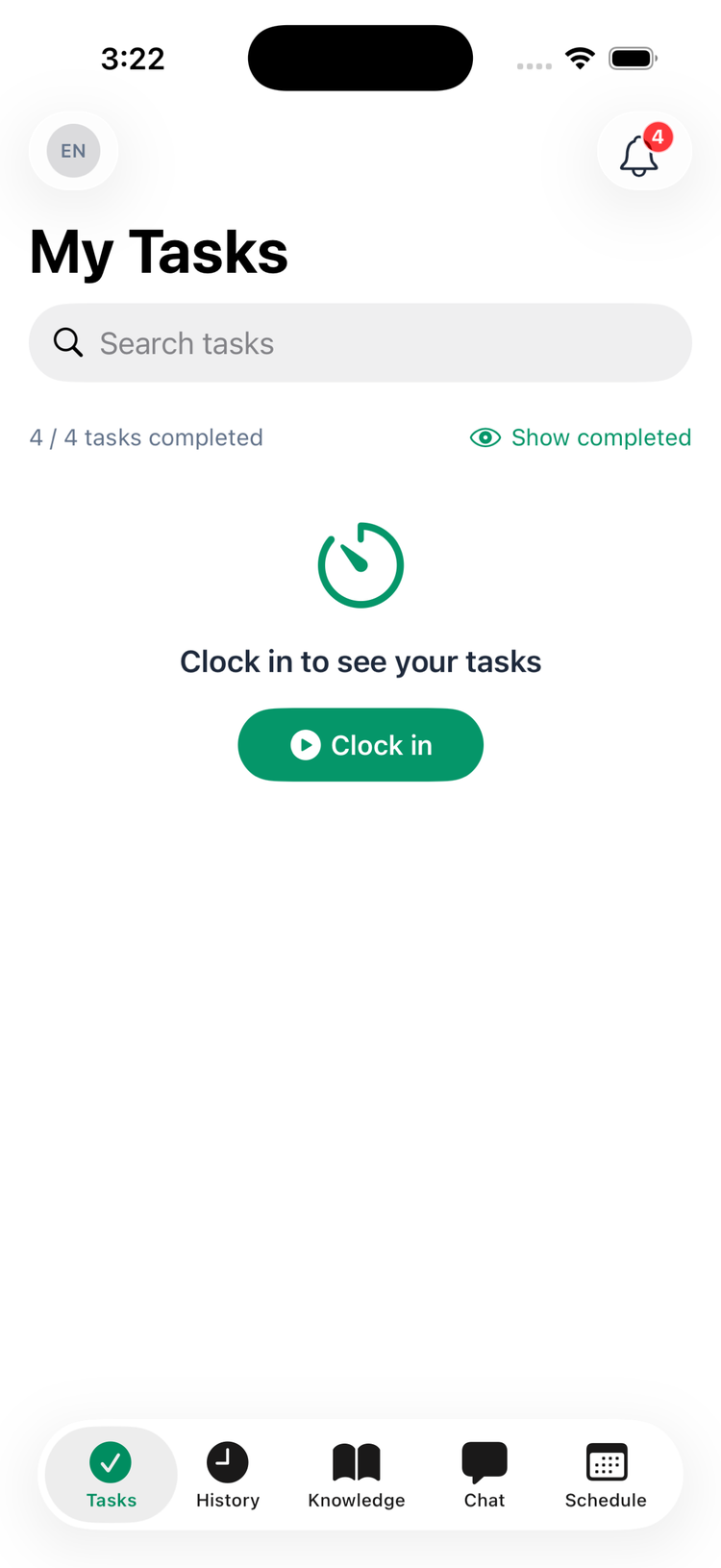
"Clock in to see your tasks"
Many locations only show their tasks to employees who are clocked in there. If you see Clock in to see your tasks, tap Clock in — it takes you to your punch card in the Schedule tab. Once you're clocked in, the list comes back with (your location) · clocked in above it.
- After you clock out you can still see and finish that location's tasks for a while — 30 minutes unless your location changed it — so closing checklists done after the punch-out still count.
- A break doesn't count as clocking out.
- Clocked in at one location, tasks at another? While you're clocked in at one location, you won't see the tasks of another location that also asks for a clock-in.
- If a task won't submit, the message says why — for example Clock in at (location) to work on this task. An Android app that hasn't been updated yet may only say Couldn't submit. Check your connection even when you're online; check that you're clocked in at that location.
Managers and admins always see their tasks, clocked in or not.
For admins and managers: the clock-in rule
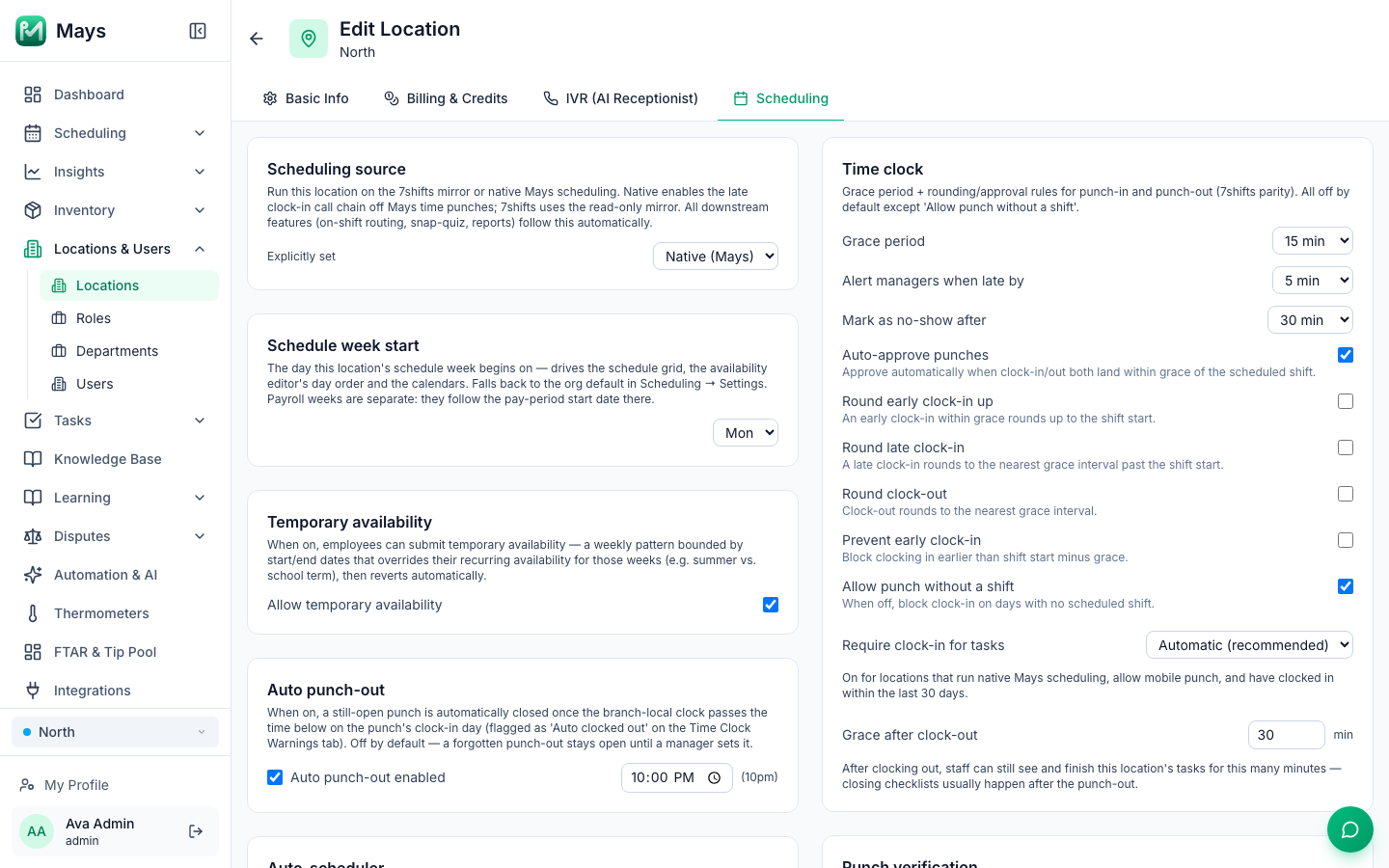
Each location decides whether its tasks need a clock-in. Go to Locations & Users → Locations, open the location, choose the Scheduling tab and find Require clock-in for tasks in the Time clock card:
Setting | What it means |
|---|---|
Automatic (recommended) | On for locations that run Mays scheduling, allow clocking in from a phone, and where someone has clocked in within the last 30 days. Otherwise off. |
Always | Employees must be clocked in here to see and complete this location's tasks. |
Never | Tasks at this location never need a clock-in. |
Grace after clock-out (minutes, 0 to 1440; 30 by default, 0 turns it off) is how long staff can keep working on tasks after they clock out. The setting saves as soon as you change it. The Scheduling tab only appears if your plan includes scheduling.
It's outside the checklist's hours
A checklist can have a Visibility Window — for example an opening checklist from 6:00 AM to 11:00 AM. Before and after those hours its tasks don't show for anyone, managers included. The times follow the location's time zone. An admin or manager can check or change the window on the template's Settings tab (see Scheduling and assigning checklists).
It isn't meant for you
- Role or department: a checklist given to certain roles or departments only shows for employees in them. Ask your manager to check your role and department on your profile, or the template's Assignments tab.
- Specific people: a checklist given to named people only shows for them.
- Location: you only see tasks for the locations you're assigned to. If you work at a second location, ask a manager to add it to your profile.
- Manager-only tasks (such as restock orders) don't show for employees.
It's from another day
- Employees see today's tasks. A task from an earlier day stays on the list only if its checklist carries unfinished tasks over, and then only until Sunday. Otherwise it disappears the next day and can't be completed any more — a manager can close it out.
- Managers can look back at earlier days with the date arrows at the top of My Tasks.
- Nobody sees tomorrow's checklists yet: each day's checklists are created that day.
For admins: show everything that's still open
In Settings → Organization, Show all open tasks on mobile changes the default list: instead of today's tasks plus this week's carry-over, everyone sees everything still waiting, overdue and upcoming alike. It's meant for onboarding-style programs whose checklists span weeks. The clock-in rule, the visibility window and assignments still apply. Only admins can change it.
It was never created
If nobody at the location can see a checklist, it may not have been created that day:
- The template is Inactive, or has no location selected on its Assignments tab.
- It's Weekly, Monthly or Quarterly and today isn't one of its days — or no days are ticked at all.
- Its frequency is Custom (on demand): it never runs by itself. A manager starts it from Tasks → Tasks → Create Task → From Template.
- It's given to roles or departments that nobody at that location has.
- It was created or changed today: changes apply from the next day. To get it today, a manager can use Tasks → Tasks → Create Task → From Template on the web.
Still missing?
- Finished tasks are hidden. Tap Show completed at the top of the list.
- Pull down to refresh the list.
- Update the app from the App Store or Google Play — older versions show tasks differently.
- Check you're signed in to the right business, in Profile, if you work for more than one.