Add an Inventory Count task to a checklist so staff count a short list of items. Anything under its minimum becomes a Restock Order task for managers.
This is a checklist feature, not part of Inventory:
- It works on every plan, including Basic.
- The items are names you type into the task. They aren't linked to Inventory → Items, and the counts don't change your stock on hand. For full stock counts, see Running stock counts.
Set up the task
- Open a checklist template under Tasks → Templates, or create one. See Creating a checklist template.
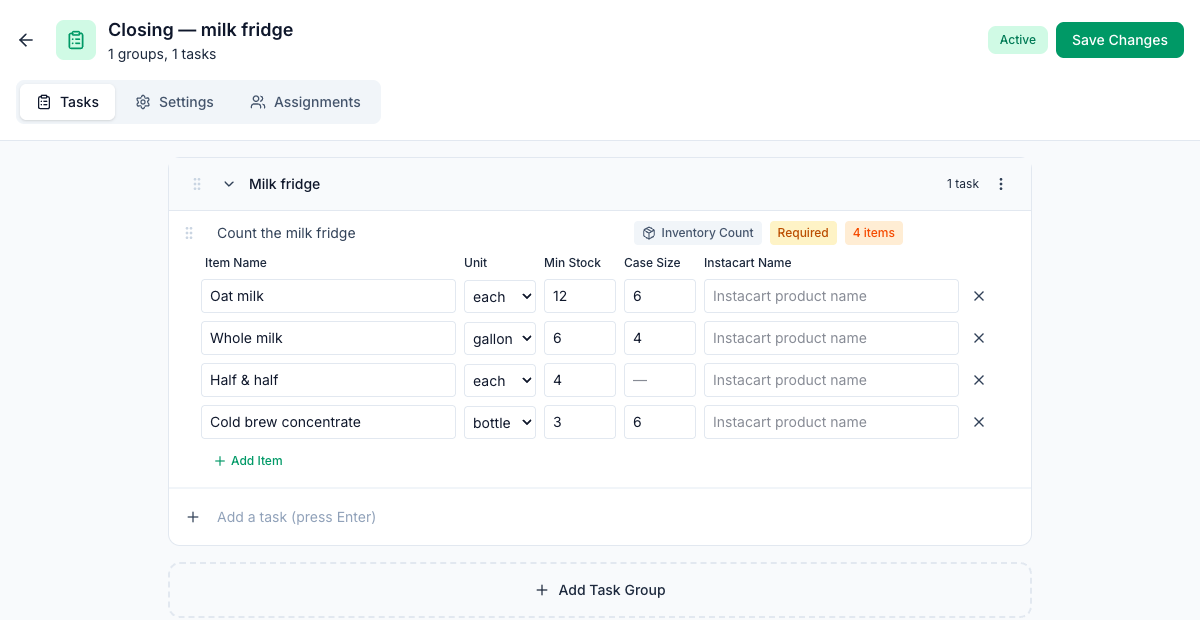
- Add a task, such as Count the milk fridge, and set its answer type to Inventory Count.
- Click the items button on the task (it starts at 0 items).
- Click Add Item for each thing to count and fill in:
- Item Name;
- Unit: each, pack, bottle, bunch, lb, oz, gallon, case, box or bag;
- Min Stock: the least you want on hand;
- Case Size (optional): how many units come in a case. Leave it empty for items you buy one at a time;
- Instacart Name (optional): saved with the item for your reference. Mays doesn't order from Instacart.
- Click Save Changes.
Count in the app
Whoever the task is assigned to counts in the Mays app:
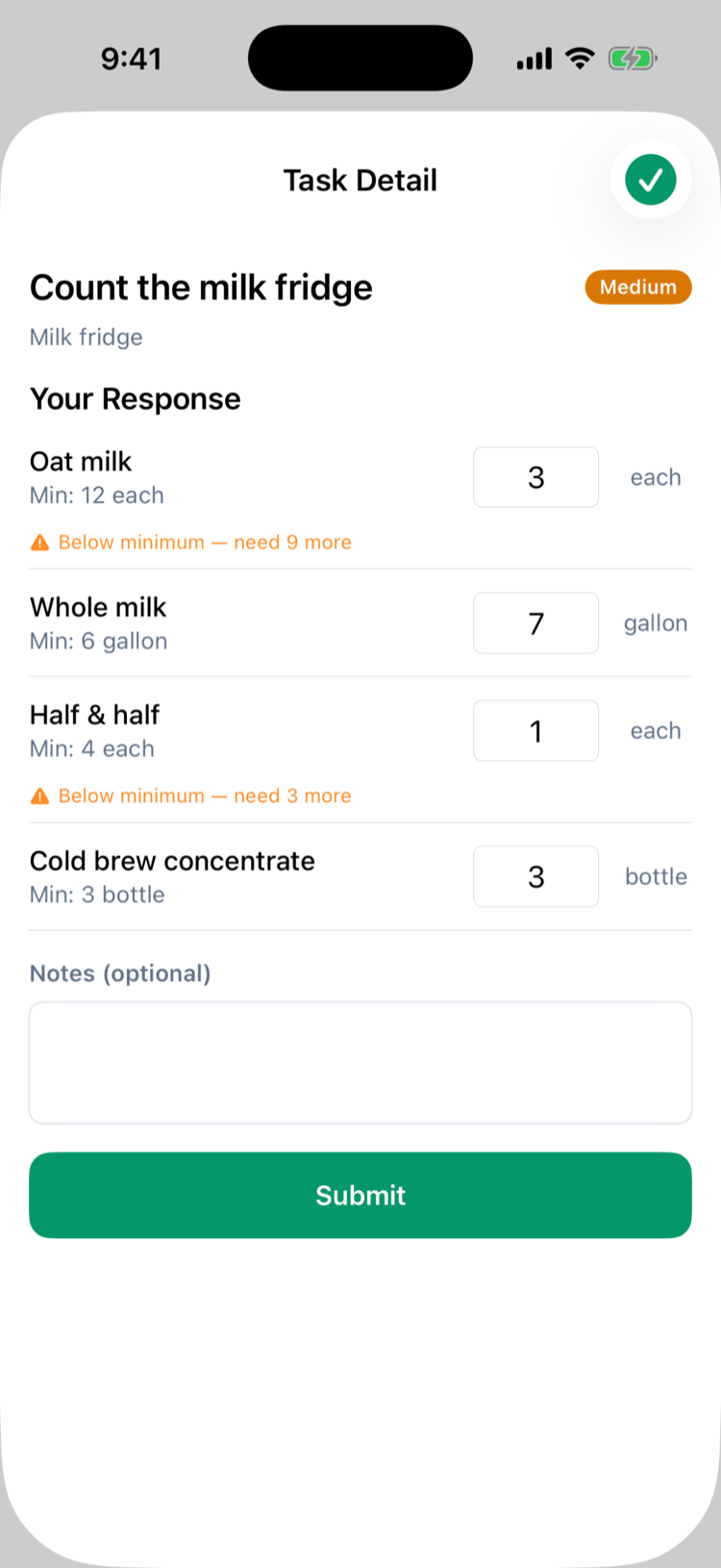
- Tap Respond on the task.
- Enter a count for every item. Submit stays greyed out until each item has a number.
- Items under their minimum show Below minimum — need (number) more.
- Tap Submit.
What happens when items are low
When the count is submitted and anything is under its minimum:
- A Restock Order task is added to the location's list, called Restock Order - (location) - (date). It's high priority and only managers and admins see it.
- An Order list on it shows each low item with its count, its minimum, its case size and how much to order: the minimum minus the count, rounded up to whole cases when the item has a case size. The top shows the total number of cases.
- The location's managers and admins get a notification, Restock Needed: (number) items are below minimum stock at (location). Tapping it in the app opens the restock task.
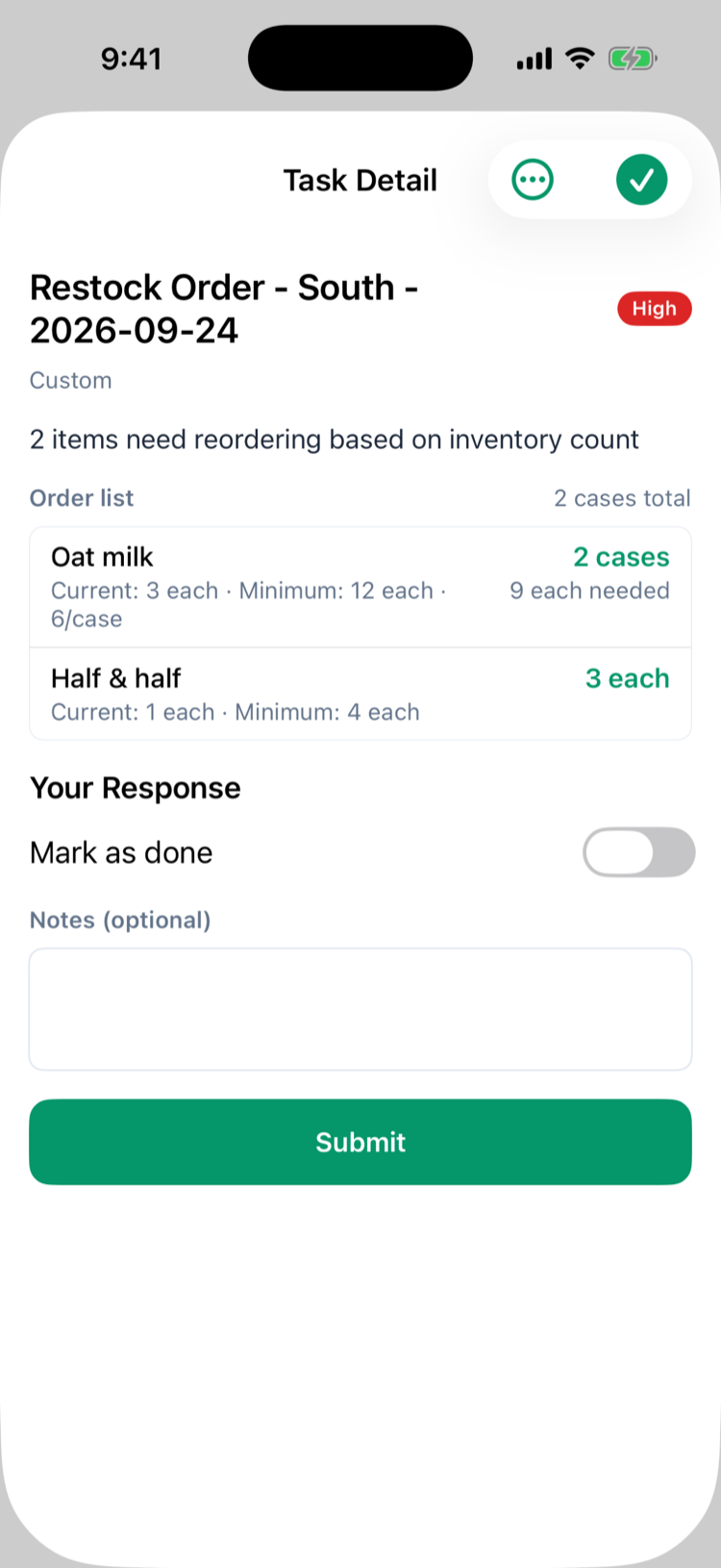
After placing the order, switch Mark as done on and tap Submit to complete the restock task.
The counts themselves are on the task's details: Tasks → Tasks on the web (click the task), or History in the app.
Good to know
- The amount to order brings you back to the minimum, not to a par level. Set Min Stock to the amount you want after a delivery if you order to par.
- Every submitted count can make a new Restock Order, for example when a count task is sent back and submitted again.
- Complete it from the app. An Inventory Count task created as a one-off task on the web can't be completed, because the web has nowhere to list its items. Use a checklist template. See Task answer types.
- Counts keep their decimals: a count of 3.5 against a minimum of 5 says need 1.5 more, the same 1.5 the restock task orders. Counts, minimums and amounts to order are rounded to at most two decimal places on the web and in the app: 17.8 lb counted against a minimum of 20 lb orders 2.2 lb.
- Employees can't see restock tasks. See Why can't I see my tasks?.