When someone can't make their shift, open it in the Mays app to see who's free. Then assign it to one person, offer it to the whole team, or ask the best matches if they can take it.
Finding cover is in the manager part of the app — the web has no Find cover screen. On the web, move the shift to someone else on the schedule grid or drag it to Open shifts (see Building the weekly schedule).
Open Find cover
- In the app, go to Schedule → Manage schedule (iPhone) or Schedule → Manager Schedule (Android). See Managing the schedule from your phone.
- Tap the shift.
- Under Cover, tap Find cover.
The button shows only on a published shift that has someone on it and hasn't started yet — not on a draft. For an open shift, just pick someone as the Employee. (Older versions of the app also show it on drafts, where it doesn't work — update the Mays app.)
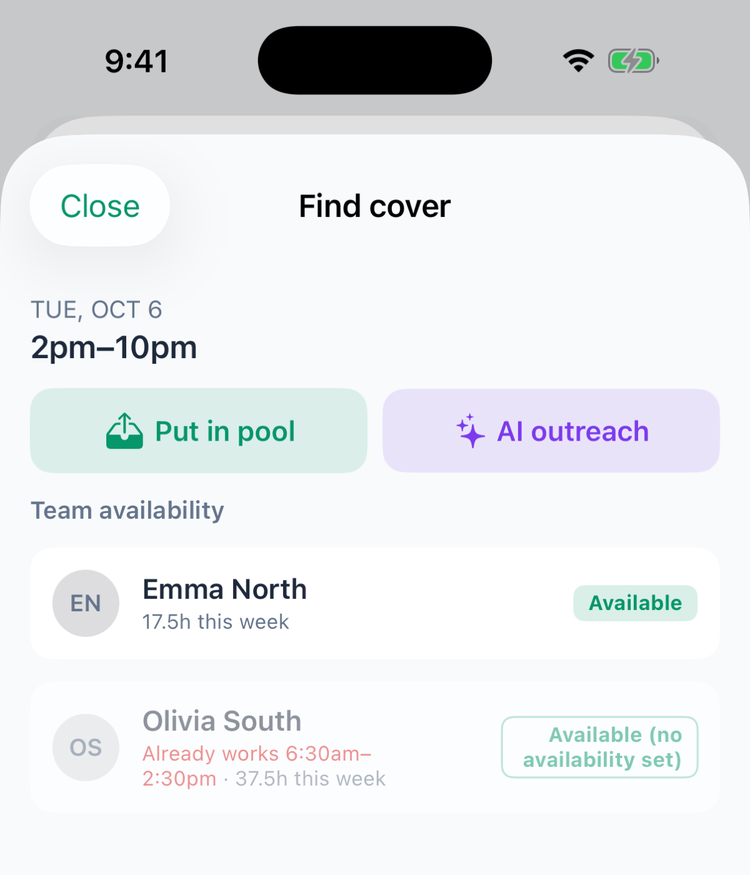
Who's free
The list (Team availability on iPhone, Candidates on Android) has everyone on the location's schedule except the person on the shift, best matches first:
You see | What it means |
|---|---|
Available | Their approved availability covers the shift. |
Partial: 9am – 3pm or Not available 3pm – 9:30pm | They're only free for part of the day. iPhone marks whether the shift fits; Android adds fits or doesn't fit. |
Available (no availability set) | They haven't told you when they can work. |
Unavailable | Their availability says they can't work that day. |
Already works … | They have another shift at that time. |
Time off | They have approved time off that day. |
32h this week | Their scheduled hours in the location's schedule week, drafts included, at every location. |
People who already work at that time or are off are greyed out and can't be picked. Pending availability and pending time off don't count.
Three ways to cover it
Assign it to someone. Tap a person and confirm (Assign to … on iPhone, Assign on Android). If the week is already published, the change waits until you publish it — then the person gets New shift assigned and the original person gets Shift reassigned. (Older Android versions say they'll be scheduled "right away" — they're not, until you publish; update the Mays app.)
Put in pool. Tap Put in pool and confirm. The shift is marked Up for grabs and everyone else on the location's schedule gets Shift up for grabs; the person on it gets Your shift was offered for cover. It stays their shift until you approve someone's claim in Approvals — see Open shifts and dropping a shift. To undo it, open the shift and tap Remove from shift pool. You can't put a shift in the pool once it has started, or while it's in a hand-off or swap waiting on a decision (This shift has a hand-off or swap waiting on a decision. Decline it in Approvals, or ask them to cancel it, first.).
AI outreach. Tap AI outreach, then Start outreach (iPhone) or Send outreach (Android). Mays picks up to five people on the location's schedule who are free then — not already working, not off, not unavailable — favouring those who have covered and confirmed shifts before and rarely no-show. It never asks you or the person whose shift it is. Each gets a push, Can you cover a shift? (Sat, Oct 10 8am at South needs cover — tap to answer.) It doesn't use AI credits.
What your team sees
Tapping Can you cover a shift? opens Cover request: the day and time, whose shift it is, the position, the location and the label, plus who else is Working that day. They tap Yes, I can or No, and can change their answer until the shift starts.
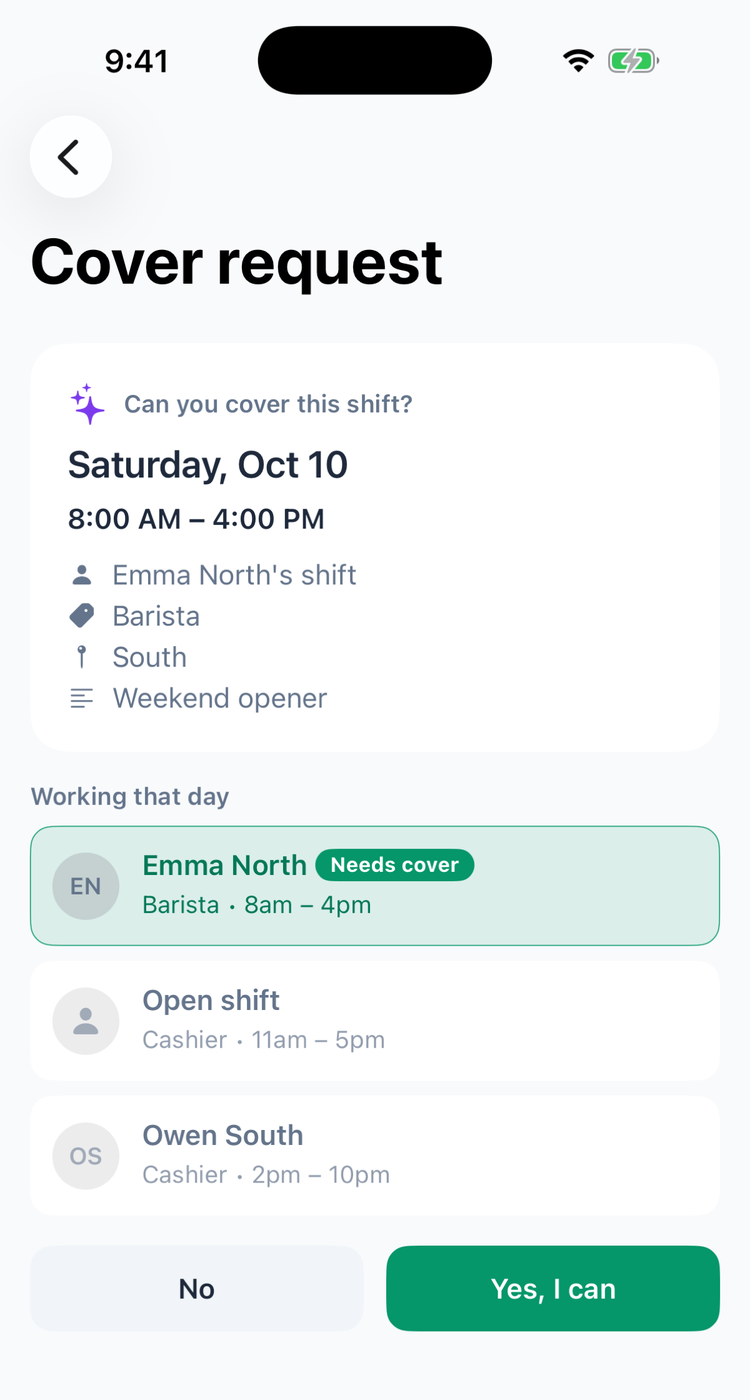
Answers come to you in Approvals. When someone taps Yes, I can, you and the location's other managers and admins get Cover offer (Olivia South can cover Emma North's Sat, Oct 10 8am–4pm shift. Approve it in Approvals.), and their answer waits in Approvals under Shift claims, marked Cover request — see The approvals inbox. Tap Approve to give them the shift: they get Shift claim approved, the person on it gets Your shift was picked up, and anyone else who said yes gets Shift no longer available. If they tap No before you decide, their answer leaves Approvals and you get Shift claim withdrawn. (Older versions of the app mark the card Open shift — update the Mays app.)
Good to know
- Publish first. Find cover works on published shifts; on a draft, AI outreach says Publish this shift before finding cover.
- On an older iPhone app, assigning puts back the shift's published time and position — update the Mays app, or assign from the shift's Employee field.
- On an older Android app, AI outreach can go out twice — the button stays on. Update the Mays app.
- Nothing is checked when you assign. Mays greys out clashes in the list, but it doesn't stop you from scheduling someone who's unavailable — staffing is your call.
- Staff can turn these pushes off under Profile → Notifications → Shift pool & trades — see Notifications.
- Who can do this: managers for their own locations, and admins. Scheduling is part of the Pro plan.