Can't work a shift and know who can? Offer it to that coworker as a hand-off (they take it) or a swap (you take one of theirs). They accept, then a manager approves.
Nothing changes on the schedule until the manager approves. Until then, you're still on your shift.
Offer a shift
- In the app, go to Schedule and find the shift under Upcoming shifts.
- Tap Hand off. (On iPhone you can also press and hold the shift and choose Hand off to a coworker.)
- At the top, choose Hand off or Swap.
- Hand off: tap the coworker's name (on Android, their Hand off button). The offer is sent straight away.
- Swap: tap the coworker (on Android, Choose), then pick one of their shifts under Take one of …'s shifts (on Android, its Swap button). You can pick from their shifts in the same week as yours and the week after.
- You'll see Handoff offered or Swap offered — Your manager will approve once your coworker accepts.
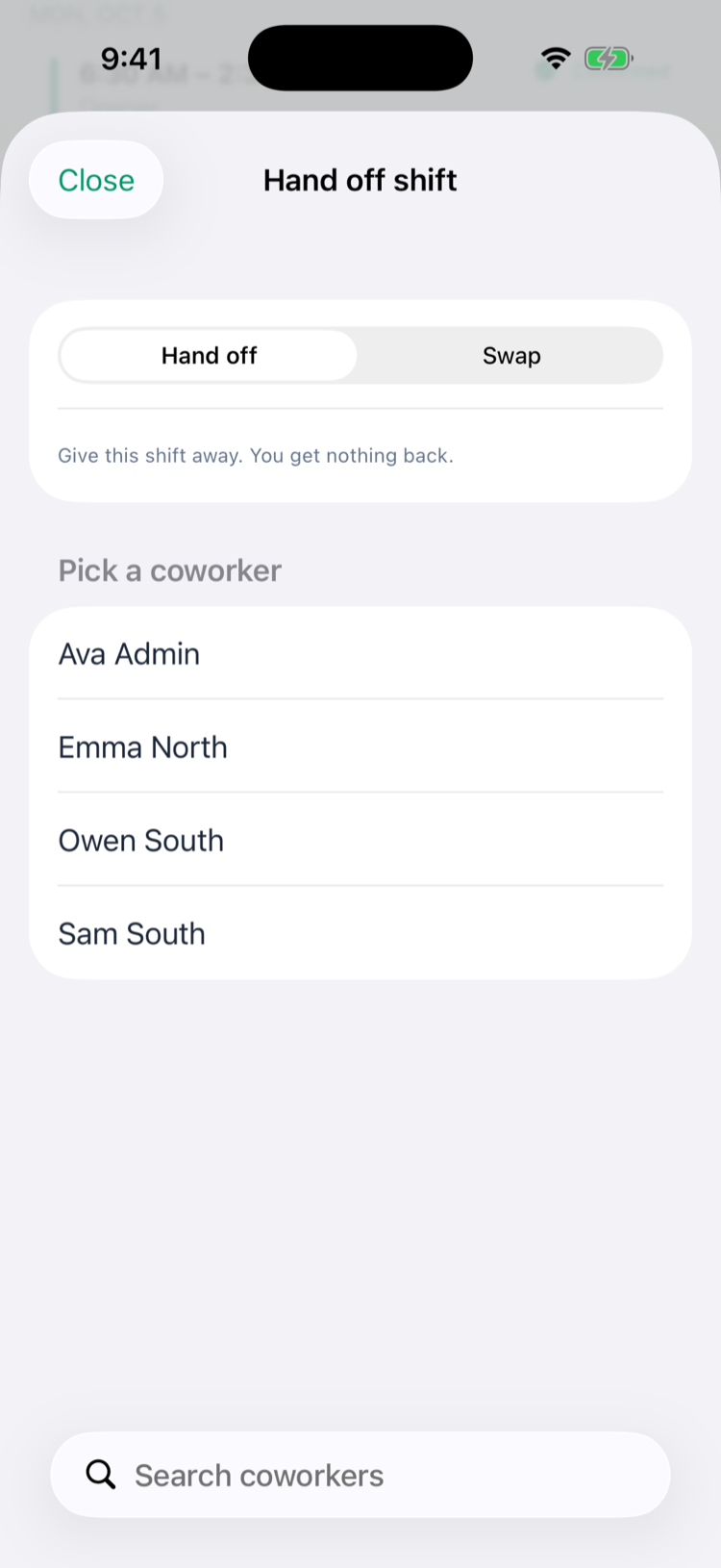
The list has everyone at your location — search it with Search coworkers. There's no message field, so tell your coworker why if you like.
Your shift then shows Hand-off to … — waiting for them to accept, and later — waiting on manager approval. Tap Cancel offer to withdraw it any time before the manager decides.
When a coworker offers you a shift
You get a notification, and the red number on Shift offers goes up.
- Tap Shift offers on the Schedule tab.
- Each offer shows who's asking, the shift (for a swap, You get: and You give up:) and its label.
- Tap I'll take it (or Swap) to accept, or No thanks.
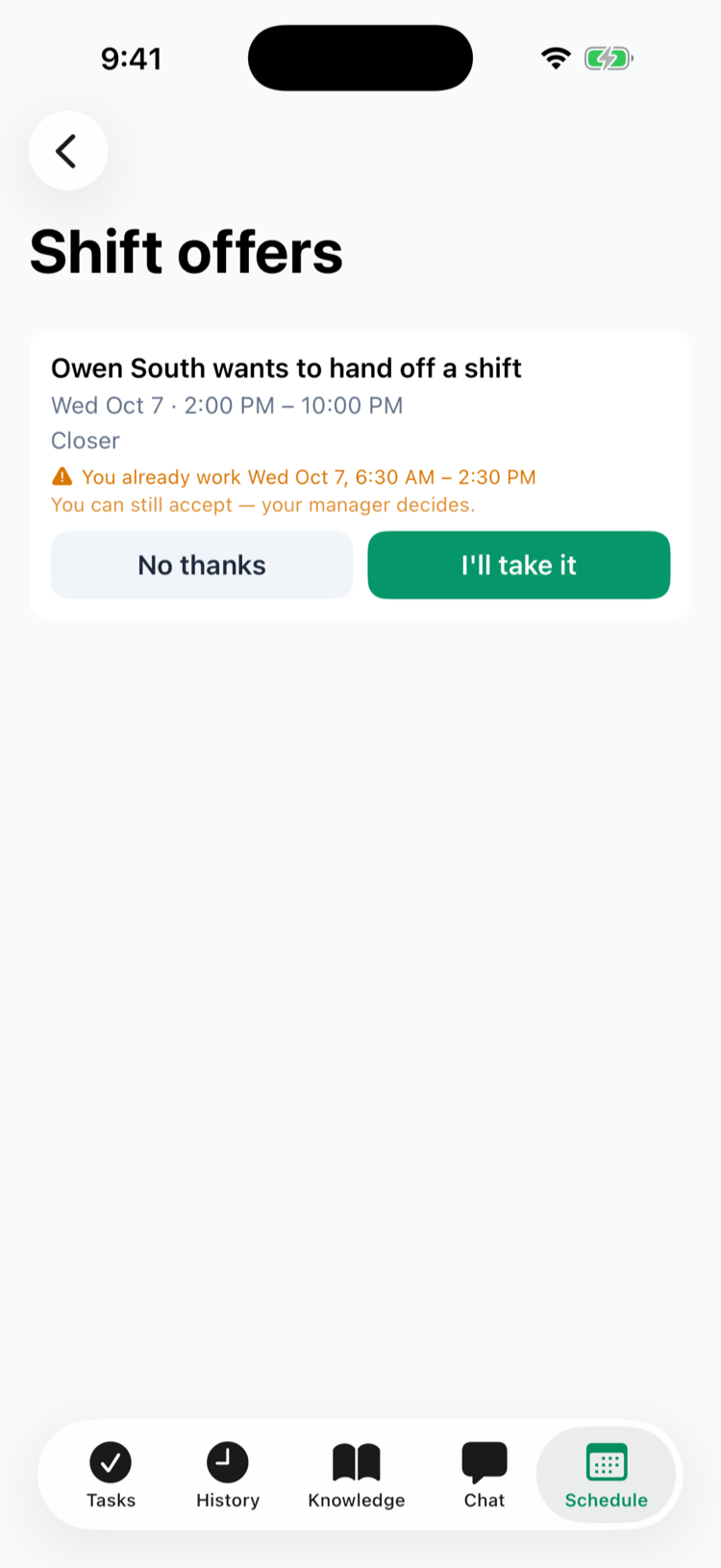
If you already work at that time, the offer says so — you can still accept, and your manager decides. Once you accept, the offer leaves your list; you'll hear back when the manager approves or declines.
For managers
Trades wait in the approvals inbox under Shift trades — Scheduling → Approvals on the web, Schedule → Approvals in the app.
- A trade still waiting for the coworker shows Waiting on … and has no buttons.
- Once the coworker accepts, it shows Coworker accepted — confirm to reassign the shift (on the web) or Coworker accepted (in the app), with Approve and Decline.
- If either person would end up on overlapping shifts, the card names them and the clashing shift, then You can still approve this.
- If several people asked for the same shift, the card says so — approving one cancels the others.
Approving moves the shift (both shifts, for a swap) to the new person, and both people are told. Their calendars follow at the next refresh. See The approvals inbox.
Managers get a Shift trade submitted notification when an offer is sent. The Approvals count in the app goes up once the coworker has accepted.
Notifications
Who | When | Notification |
|---|---|---|
The coworker | An offer is sent | … wants to hand off a shift (also used for swaps) |
You | Your coworker accepts | Trade accepted |
You | Your coworker says no | Shift trade declined |
Both of you | The manager approves or declines | Trade approved or Trade declined |
Good to know
- One request per shift. If you've already dropped a shift or offered it to someone, cancel that first (You already have an open request for this shift. Cancel it first.).
- Offers expire when the shift starts — nothing changes.
- Manager approval is always required for hand-offs and swaps.
- Working at more than one location? The coworker list comes from one of your locations (the first on your profile), even for a shift at another store. You can only hand off or swap with someone who works at the shift's location — anyone else is refused with You can only hand off or swap with a coworker at the same location. Ask your manager to move a shift at your other location.
- Employees trade shifts in the app only; managers approve on the web or in the app.
- Turn these notifications on or off under Profile → Notifications → Shift pool & trades — see Notifications.