A count records what's on your shelves. When you submit it, each counted item's stock on hand is set to what you counted, and Mays shows how far that was from what it expected.
Where: Inventory → Counts on the web (the page is called Counts / Audits), or in the app. See Counting inventory in the app. Counts started on a phone show up here too, and a draft can be finished on either.
Start a count
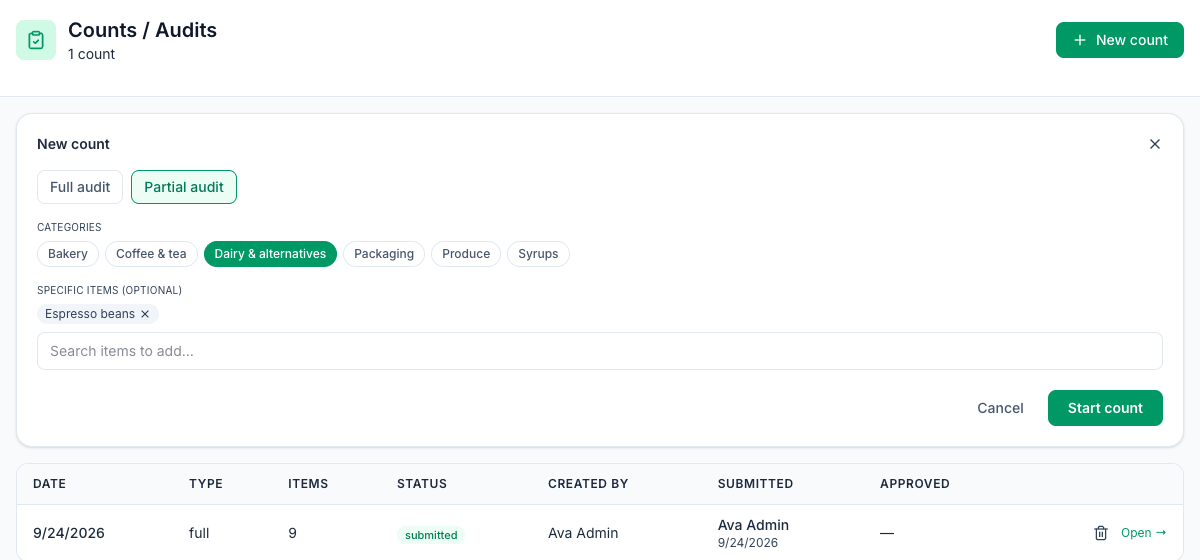
- Click New count.
- Choose the type:
- Full audit: every item at the location.
- Partial audit: pick one or more Categories and, under Specific items (optional), search for items to add. The count includes both.
- Click Start count.
A partial audit with nothing picked counts everything, and the page warns you: Pick at least one category or item, or this partial count will include everything.
Count
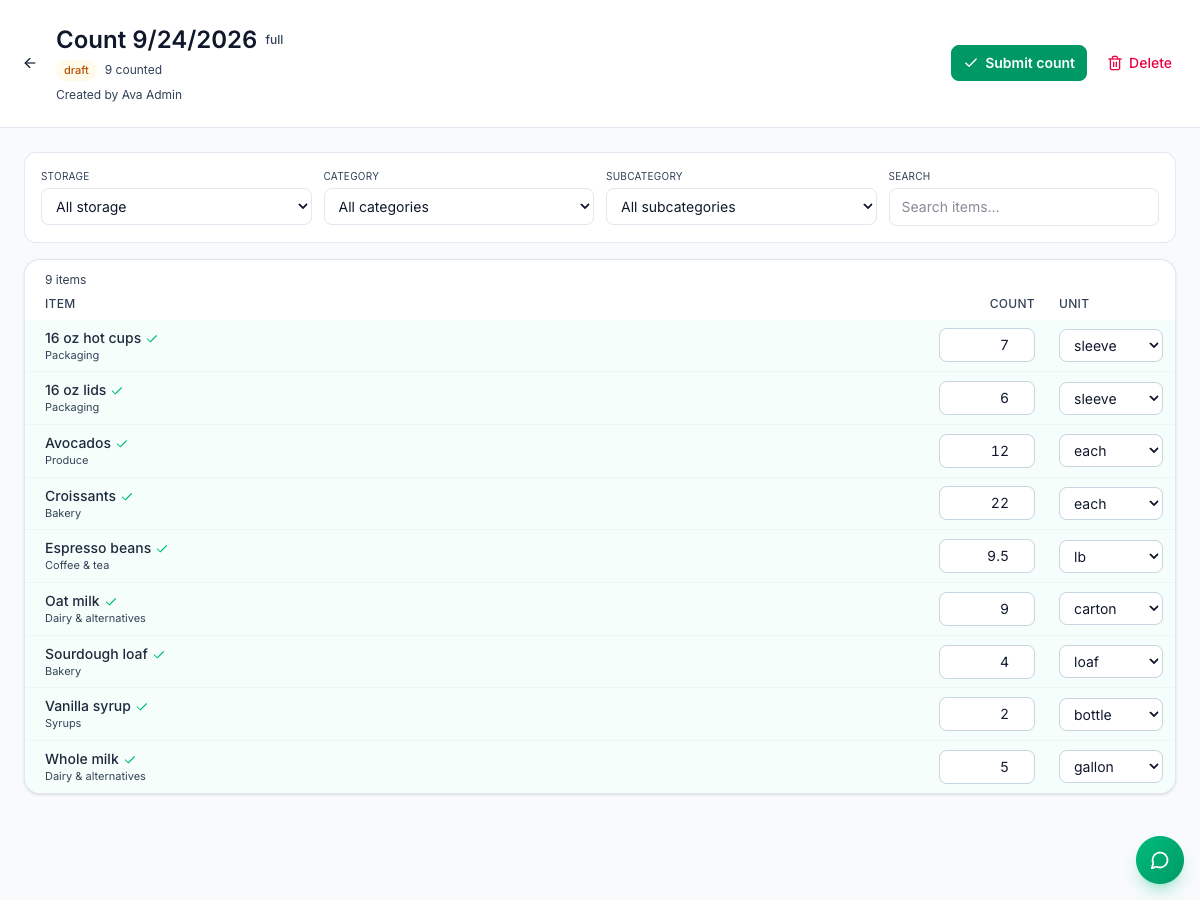
The count sheet lists the items in the count. Narrow it down with Storage, Category, Subcategory and Search.
- Type the amount in the item's Count box.
- Change the Unit if you counted in another unit, such as cases. Mays converts it to the item's count unit.
- Press Enter or click away. The line saves straight away, turns green and gets a ✓. The header shows how many items you've counted.
- When you're done, click Submit count.
What submitting does
For each item you counted:
- Expected is what Mays had on hand just before you submitted: your last count, plus deliveries, minus waste, sales and transfers since then, including the sales made earlier today.
- Variance is counted − expected. Red means less than expected; amber means more.
- On hand is set to what you counted, and the item's Last counted date on Inventory → Stock is updated. See Stock on hand.
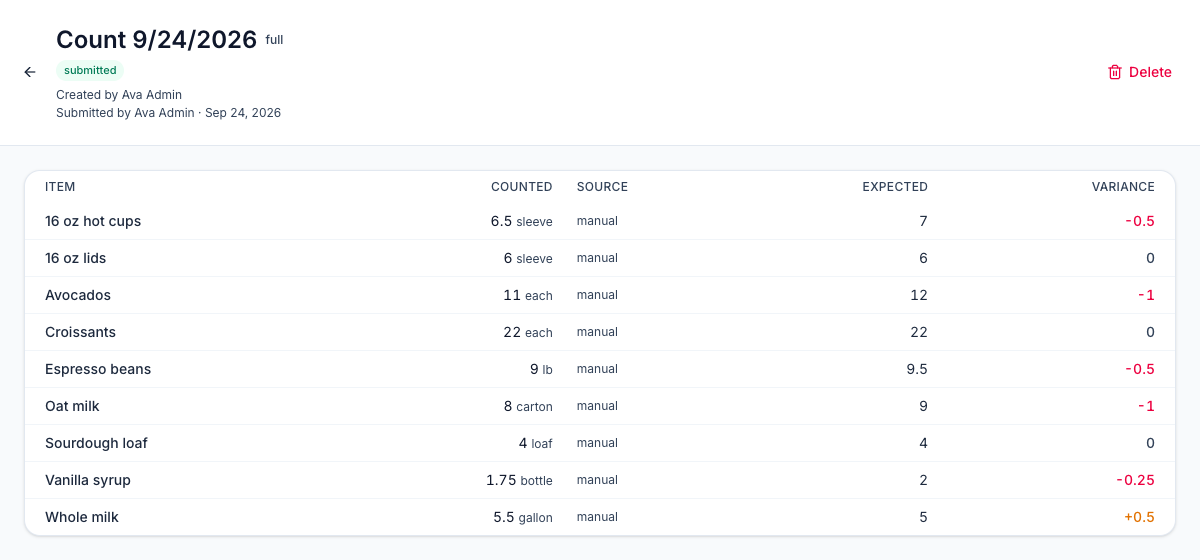
Items you didn't count keep their old on hand, even in a full audit. Leave an item blank only if you really didn't count it; type 0 if the shelf is empty.
Counting at close
You can count at any time of day, at close included. If the location sells through Square or Union:
- Submitting first takes every sale made so far out of stock, so Expected already has the day's sales out.
- Overnight, sales made before the count aren't taken out again. Only sales made after it are.
See POS mapping and automatic depletion.
Fix a mistake
A submitted count can't be edited. To correct it:
- Count the item again in a new count. The newest count wins.
- Or delete the count: click the trash icon on the Counts list, or Delete on the count. Delete this count? This will recalculate on-hand stock. Mays takes back the change the count made, except for items counted again since.
Approving counts
The Counts list has an Approved column, but counts can't be approved from the web or the apps yet. Until they can:
- the Approved column stays empty;
- the start and end inventory on the Theoretical page and the Actual vs theoretical report have no counts to use (see Theoretical vs actual usage);
- a count variance alert under Insights → Alerts & Reports doesn't fire, because it runs when a count is approved. See Alerts and scheduled reports.
Good to know
- Who: admins, and managers at their own locations.
- The Storage filter only lists storage areas that came in with an import. To count shelf by shelf, use Guided mode in the app.
- The count's date is the day it was started.
- Counting the same item on several shelves (in the app) adds the shelves together when you submit.
- Counts don't use AI credits, including counting by voice or photo in the app.