Managers and admins can count stock in the Mays app: shelf by shelf or from one list, by tapping, typing, scanning barcodes or saying the count out loud.
Who: admins and managers, when your plan includes Inventory. Employees don't see it; to have staff count a short list, see Inventory-count and restock tasks.
Where: tap the box icon (Inventory) at the top of the screen. On iPhone it's on the Tasks, History, Chat and Schedule tabs; on Android, on the Tasks tab. It opens Stock Counts, with your drafts and submitted counts. If your role can also add vendor invoices, the box opens a short menu first (iPhone and Android): tap Stock counts (the other choices are Add invoice and Invoices, see Vendor invoices). If you run more than one location, pick the location at the top first.
Start a count
- Tap + (iPhone) or Start count (Android).
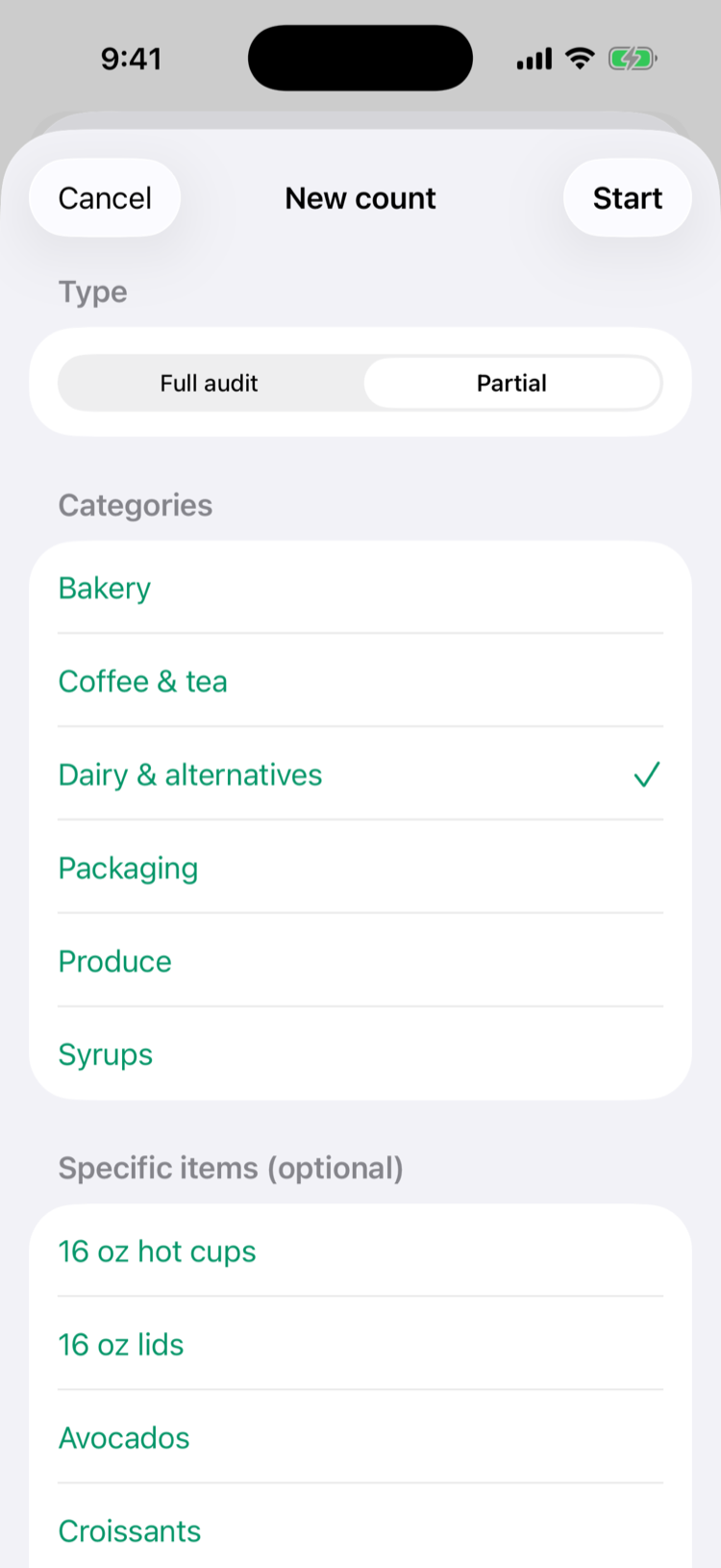
- Under Type, pick Full audit or Partial. For a partial count, tick one or more Categories. On iPhone you can also tick Specific items (optional).
- Under Flow, pick Guided (shelf by shelf) or Quick (one list). You can switch at any time.
- Tap Start.
To pick up a draft later, tap it in Stock Counts. On iPhone, swipe it to choose Guided or Quick; on Android, tap Quick or Guided on the row.
Guided: shelf by shelf
Guided mode uses the zones and shelves set up on the web under Inventory → Shelves, and each item's Home shelf. See Shelves and storage areas.
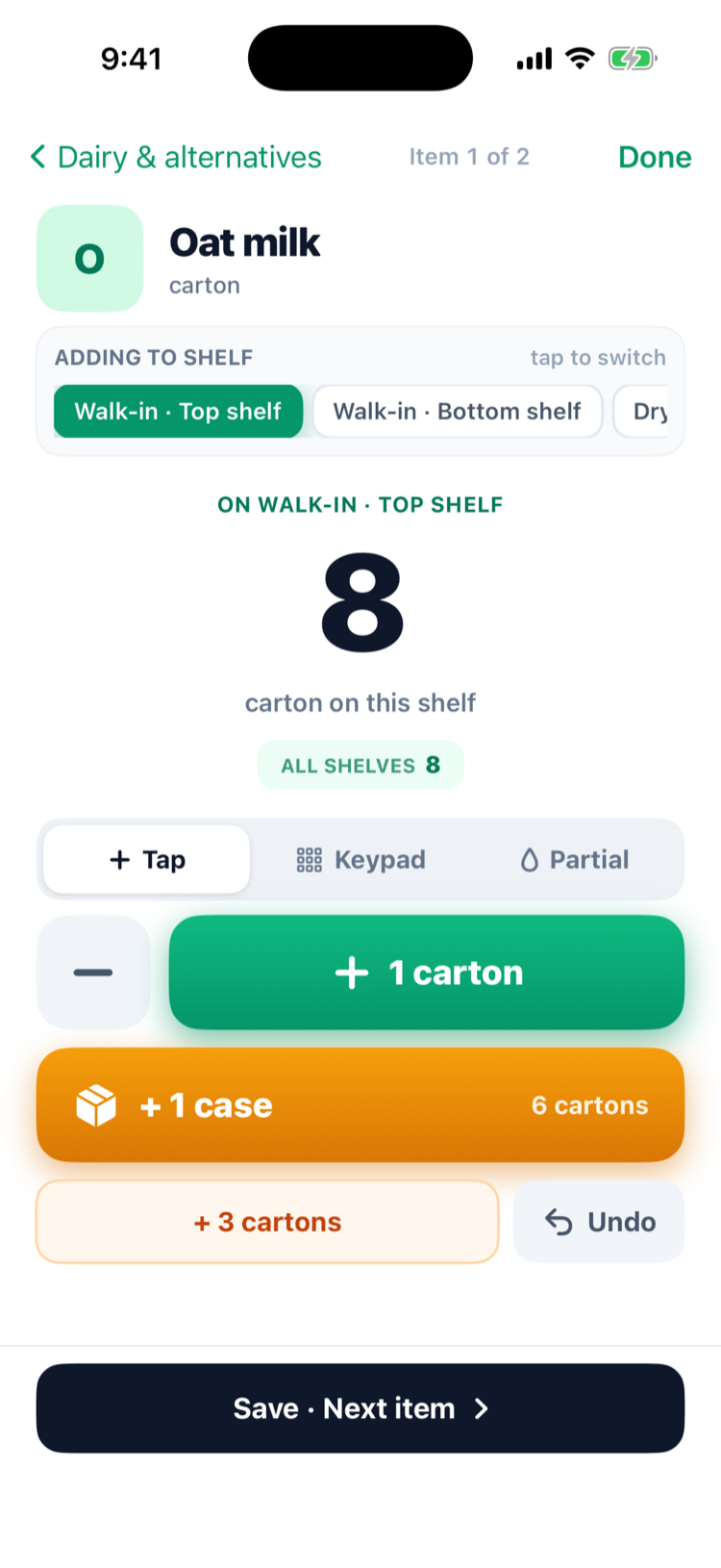
- Pick the shelf you're standing at under COUNTING ON THIS SHELF.
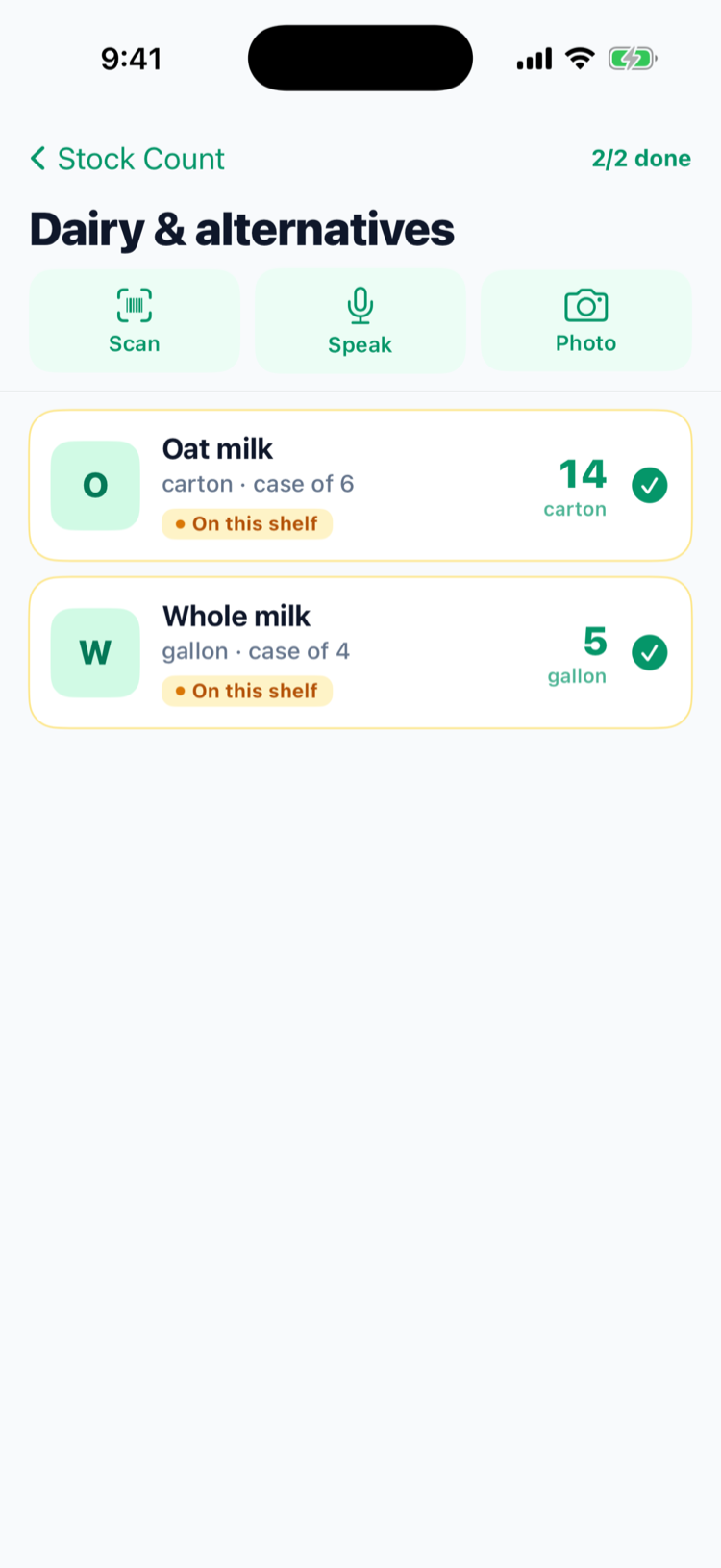
- Tap a category. Items that live on this shelf say On this shelf.
- Tap an item and count it:
- Tap: + 1 of the count unit, + 1 case, a half-case button, − and Undo.
- Keypad: type an amount in Each or in cases (Case ×6), or tap one of the 1 to 4 case buttons, then Add.
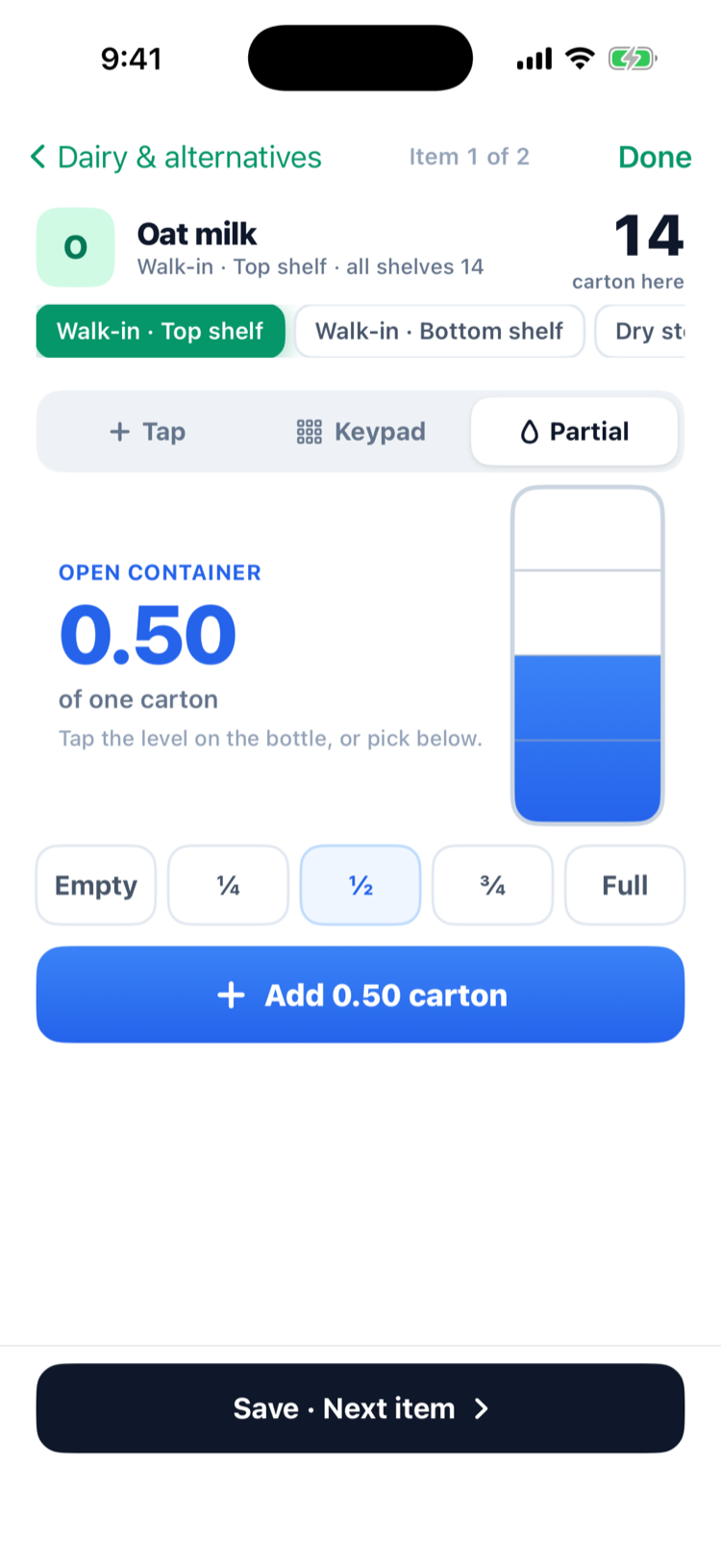
- Partial: for an open container, pick Empty, ¼, ½, ¾ or Full (on iPhone you can also drag the level on the bottle), then Add.
- Tap Save · Next item, or Done with the category on the last one.
Every tap adds to the shelf you picked and is saved straight away. ALL SHELVES shows the item's total across shelves.
Quick: one list
Quick mode lists every item in the count with − and + buttons. Tap the number to type an exact amount. Use Search items and Filters (Storage, Category, Subcategory) to find items. Changes save after a short pause.
Items you haven't counted show a grey number, and their − is off. Counted items move to the top of the list.
Counted, zero or not counted
- To record that you have none, type 0 in Quick mode. The item counts as zero, and submitting sets its on hand to 0. Guided mode only adds, so it can't record a zero.
- Clearing the number means the item isn't counted. It's left out of the count, and submitting doesn't change its on hand.
- Tapping − down to nothing, or Undo on the first tap, also puts the item back to not counted.
- − does nothing on an item, or a shelf, you haven't counted yet.
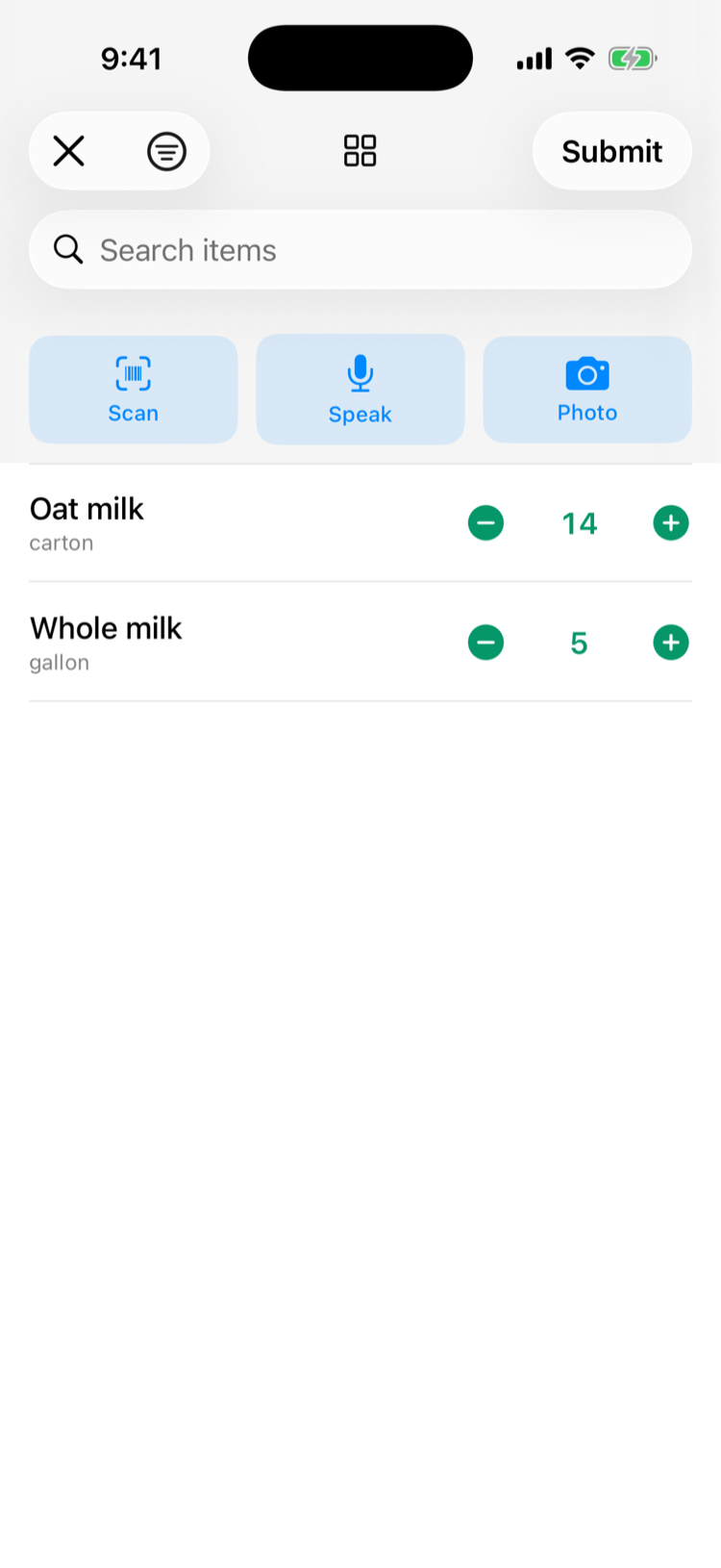
Scan, speak or take a photo
- Scan a barcode. The item's own barcode adds one; a vendor's pack barcode adds a whole pack. On iPhone in Guided mode, only the item's own barcode works, and it adds one.
- Speak your counts, for example "six cartons of oat milk". iPhone records in the app, in US English, and asks for microphone and speech recognition access the first time; Android uses the phone's own speech prompt.
- Photo: take a photo of a shelf and the AI suggests counts.
The results appear as suggestions. In Quick mode, and in Guided mode on Android, tap a suggestion to set that item's count. In Guided mode on iPhone, matched counts are added straight away, so check them. If nothing appears, the AI found no match or isn't available right now. Counting by voice or photo doesn't use AI credits.
Submit
Tap Submit. In Guided mode you need at least one item counted, and you see Count submitted with the time taken, items and units. Back to count returns to your list of counts.
Submitting works exactly as on the web: each counted item's on hand is set to your count. See Running stock counts.
Good to know
- Stay online. There's no offline mode. Each change saves as you go; a change that fails to save isn't retried, even though the screen still shows it. On a weak connection, check the count on the web before you submit.
- Don't correct a shelf-counted item in Quick mode. Quick mode saves a separate line, and the shelves and that line are added together when you submit. Fix it in Guided mode instead.
- Submitted counts can't be opened or deleted in the app. Use the web.
- Count whenever suits you, at close included, even if your POS takes sales out of stock. Sales made before you submit aren't taken out again overnight. See POS mapping and automatic depletion.