Found Mays in the Clover App Market? You can open it from Clover and have a working Mays account in about a minute. Mays reads your store from Clover, so there is very little to type.
Who: the store owner, or an admin on the Clover account. If you work at the store but aren't the owner or an admin in Clover, Mays says Ask the store owner to set up Mays. and creates nothing. Ask the owner to do it. When an account is created, Mays emails the store owner's Clover email address with who created it (name, email and mobile number).
Already have a Mays account? Skip to You already have Mays.
Open Mays from Clover
In your Clover dashboard, open Mays from your apps. Mays opens in a new tab and shows your store's name.
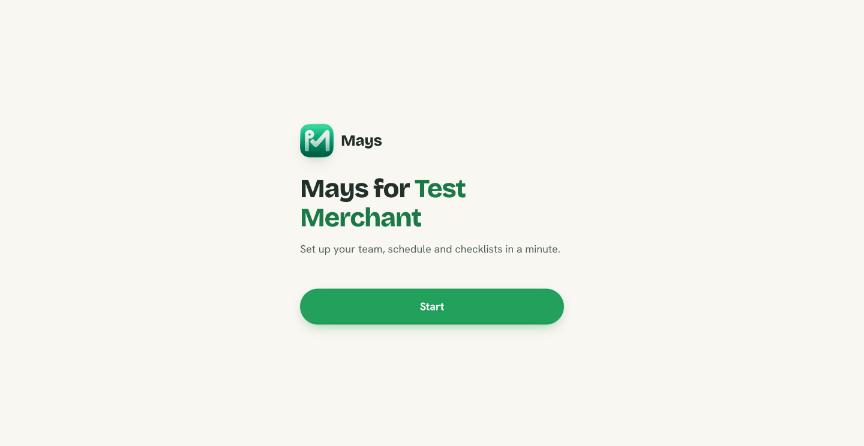
Click Start.
A few short questions
Clover already told Mays about your store, so you are not asked for its name, address or time zone. You'll see:
- What do you need most? Pick everything that fits, then Continue.
- Your name. Mays fills this in from your Clover account. Fix it if it's wrong.
- Your email. Also filled in from Clover when Clover has it.
- Your mobile number. Mays texts a sign-in code to this number. Message and data rates may apply, and you can reply STOP to opt out.
- Enter the code. Type the code from the text.
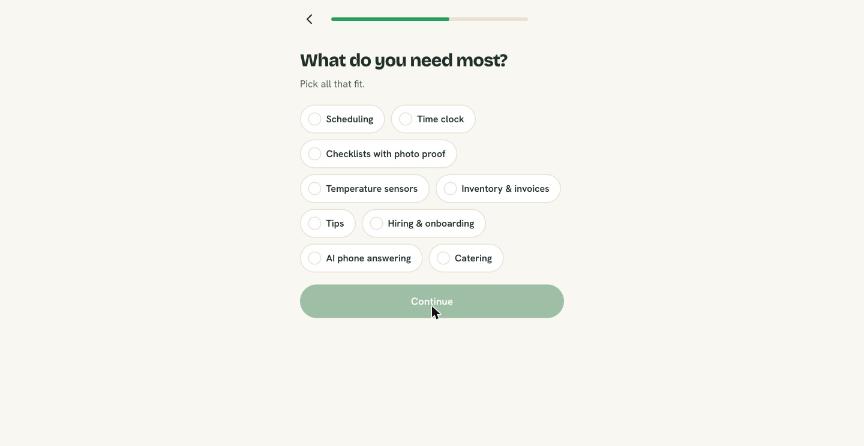
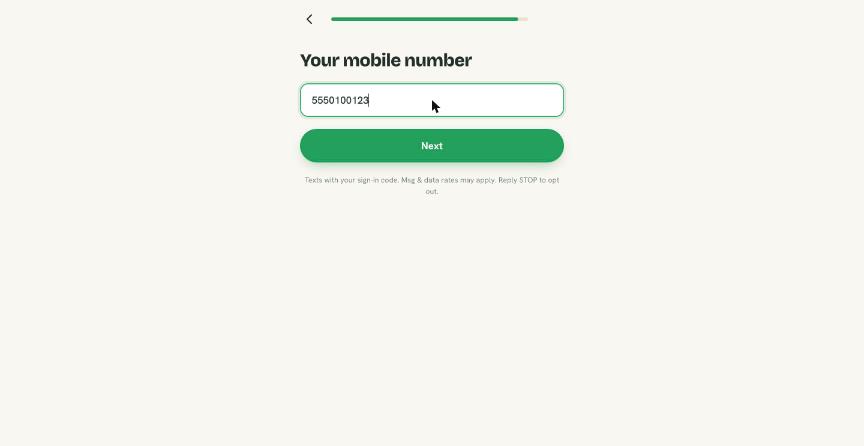
You'll use this mobile number to sign in to the Mays app. You can also create a password for the web at the end.
If Clover doesn't have your store's address (or its state), Mays asks for it on one extra screen: street address, city, state and ZIP. Pick the state from the list. It sets the pay rules for your location, such as minimum wage and overtime.
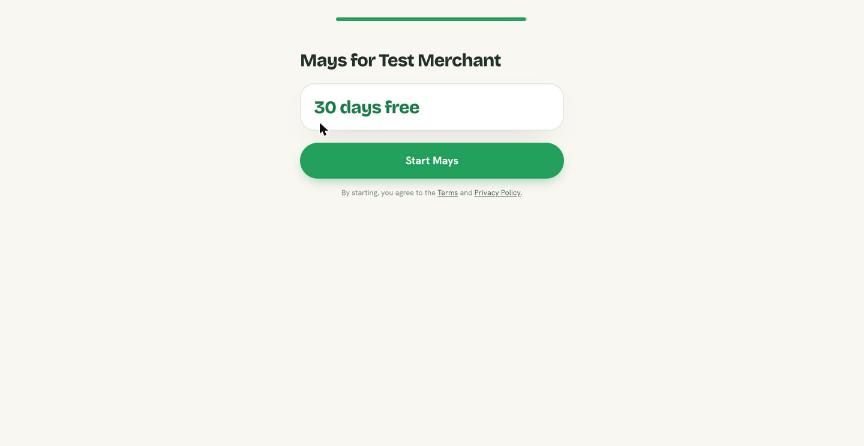
30 days free
The last screen shows your store and 30 days free. Click Start Mays. By starting, you agree to the Terms and Privacy Policy linked underneath.
When the 30 days are over, choose Basic or Pro in Clover (under Mays in the Clover App Market). Clover bills you for it, so you don't enter a card in Mays. The trial is shared by your whole account: a store you add later doesn't start a new 30 days.
What Mays sets up for you
Mays builds your account from Clover while you wait:
- Your location, with the name, address and time zone from your Clover store.
- Your staff, with the PINs they already use in Clover. They sign in to a Mays kiosk with the same PIN. See Shared kiosk devices and PINs.
- Your menu, with items, categories and which ones are sold out.
- The last 30 days of sales, so your dashboard has history from day one.
- Starter tasks to get you going.
You don't need to connect Clover yourself. It's already connected. See Connecting Clover for how syncing works afterwards.
Your Mays is ready
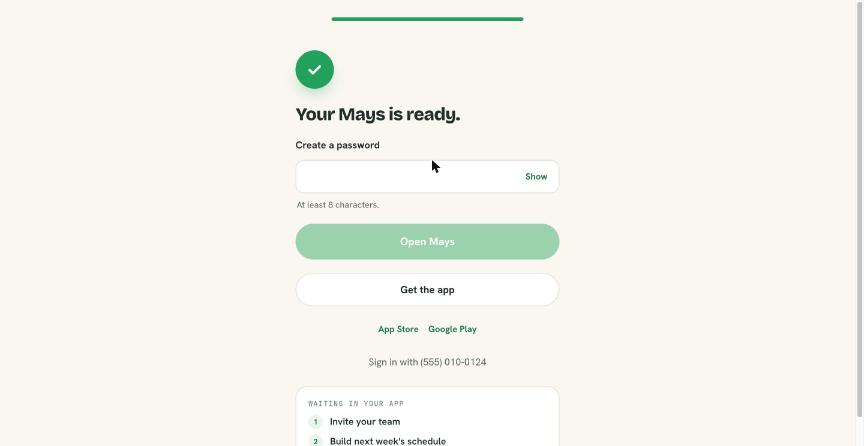
When it's done you'll see Your Mays is ready. To use Mays on the web right away, type a password under Create a password (at least 8 characters) and click Open Mays. You land on your dashboard, and from then on you can sign in on the web with your email and that password. Do it within an hour of finishing; after that, use Forgot password? on the sign-in page. Or click Get the app to download Mays for iPhone or Android, then sign in with the mobile number you gave. The tasks waiting in your app are listed on the same screen.
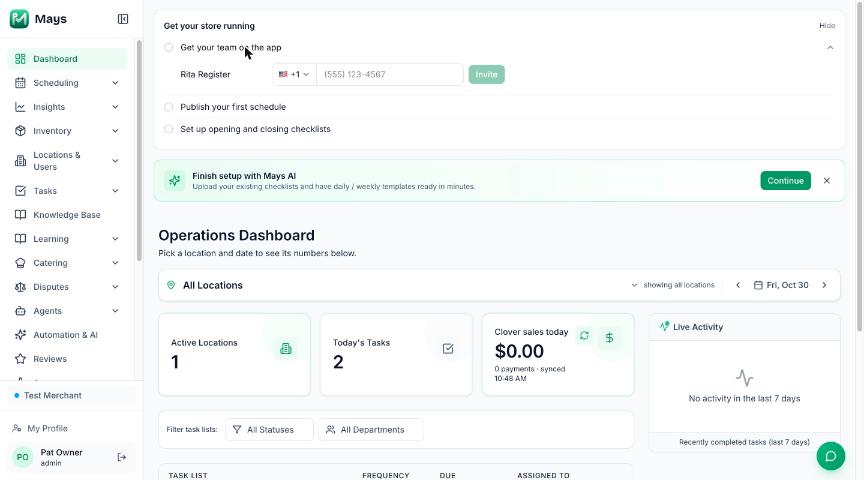
Get your store running
On the web, your dashboard shows a Get your store running card with the first things to do:
- Get your team on the app. Type phone numbers next to the people from Clover, then click Invite. They get a text to join.
- Publish your first schedule. See Build the schedule.
- Set up opening and closing checklists.
Each one checks itself off when you've done it. Click Hide at the top right if you don't want the card. See Adding team members for more on inviting people.
You already have Mays
If your phone number or email already belongs to a Mays account, Mays doesn't make a second one. It says You already have Mays. Sign in to connect your store. Click Sign in, and after you sign in you land on the Clover launch page to finish connecting.
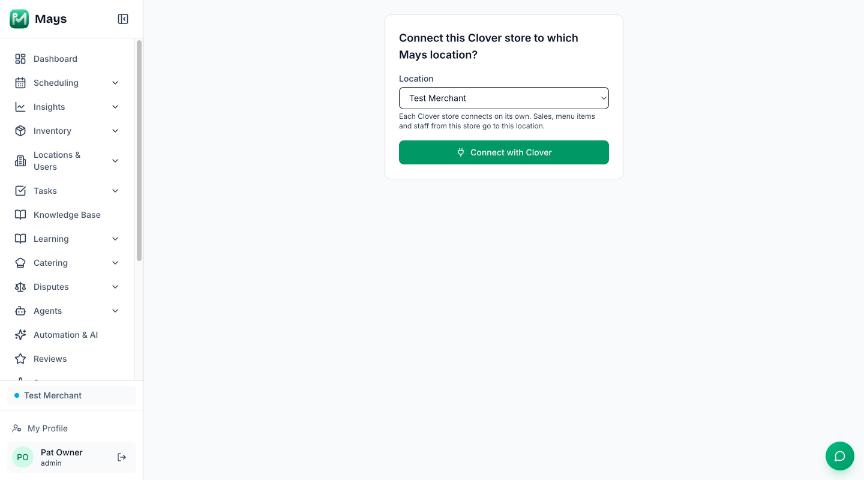
If you're already signed in to Mays when you open it from Clover, you go straight to Connect this Clover store to which Mays location?. Pick a location, or choose Add (your store) as a new location if you're an admin who can manage locations, then click Connect with Clover. If the store is already one of your locations, Mays starts on that location and doesn't offer a new one.
See Connecting Clover for the details.
Your store is already connected
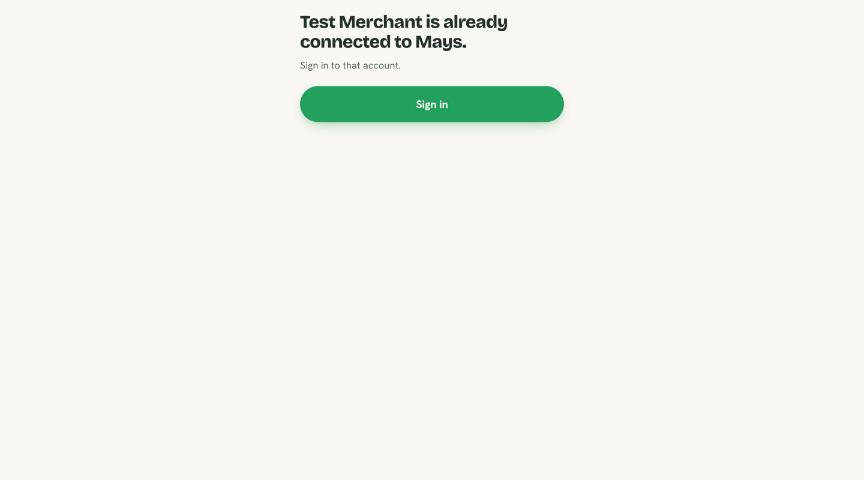
If the Clover store is already connected to a Mays account, Mays says (Your store) is already connected to Mays. and Sign in to that account. Click Sign in and use the account that was set up for the store. Mays never makes a second account for the same Clover store.
Not sure which account that is? Ask the person who first set up Mays for your store, or contact support.