Connect a Toast location with read-only keys from Toast Web, and Mays brings in its sales, payments, tips and refunds, its menu with the items that are sold out, and its team.
Who: admins, and managers for the locations they're assigned to. In a custom role, this is the Connect integrations for your locations permission. Toast is part of Integrations, which is in the Basic and Pro plans and the free trial.
Before you start, you need three things from Toast.
- Toast RMS Essentials or higher at the location. Toast API access is included in it.
- Someone with the Manage Integrations permission in Toast Web to create the keys. Usually the owner.
- The Toast location ID (a long code like
11111111-aaaa-4aaa-8aaa-000000000001). Mays can't look it up for you. Ask Toast support in their chat, or find it in the email Toast sent when API access was turned on.
Create the keys in Toast Web: go to Integrations → Toast API access, create credentials, and tick these scopes:
orders:readmenus:readstock:readrestaurants:readlabor.employees:readlabor:read
Tick the location on the credentials too. Mays only reads from Toast and never writes to it. Toast shows the client secret once, so copy it when you create the keys. (labor:read isn't used yet. It's for time clock history, so you won't need new keys later.)
Connect a location (admins)
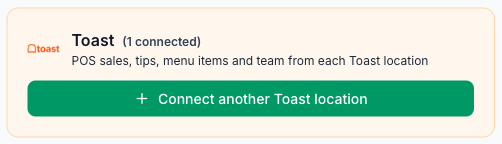
- Go to Integrations and find Toast under Add Integration.
- Click Connect. Once one location is connected, the button reads Connect another Toast location. If the new location uses keys that are already connected, click Add Toast location at the top of the window instead. See Add another location under the same keys.
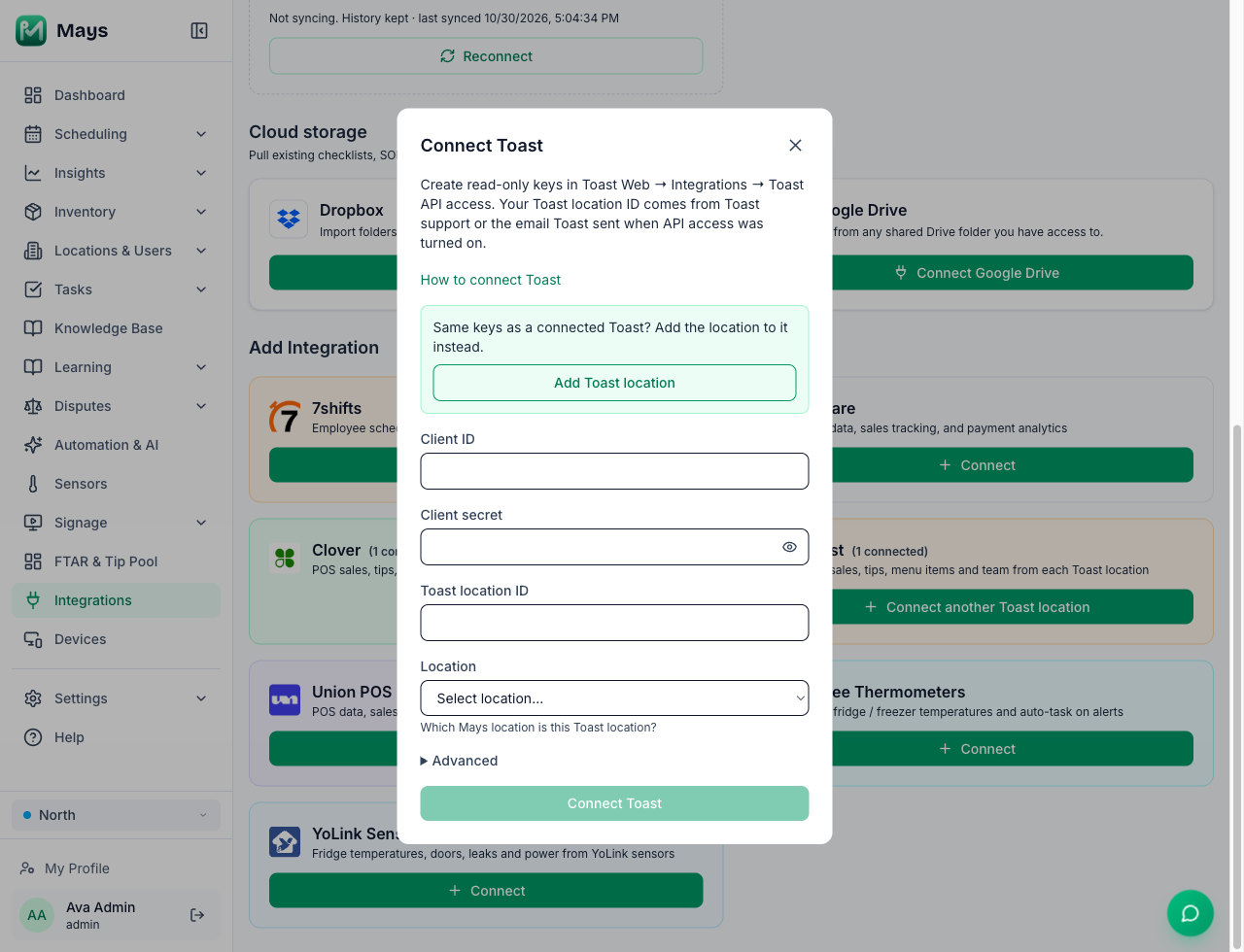
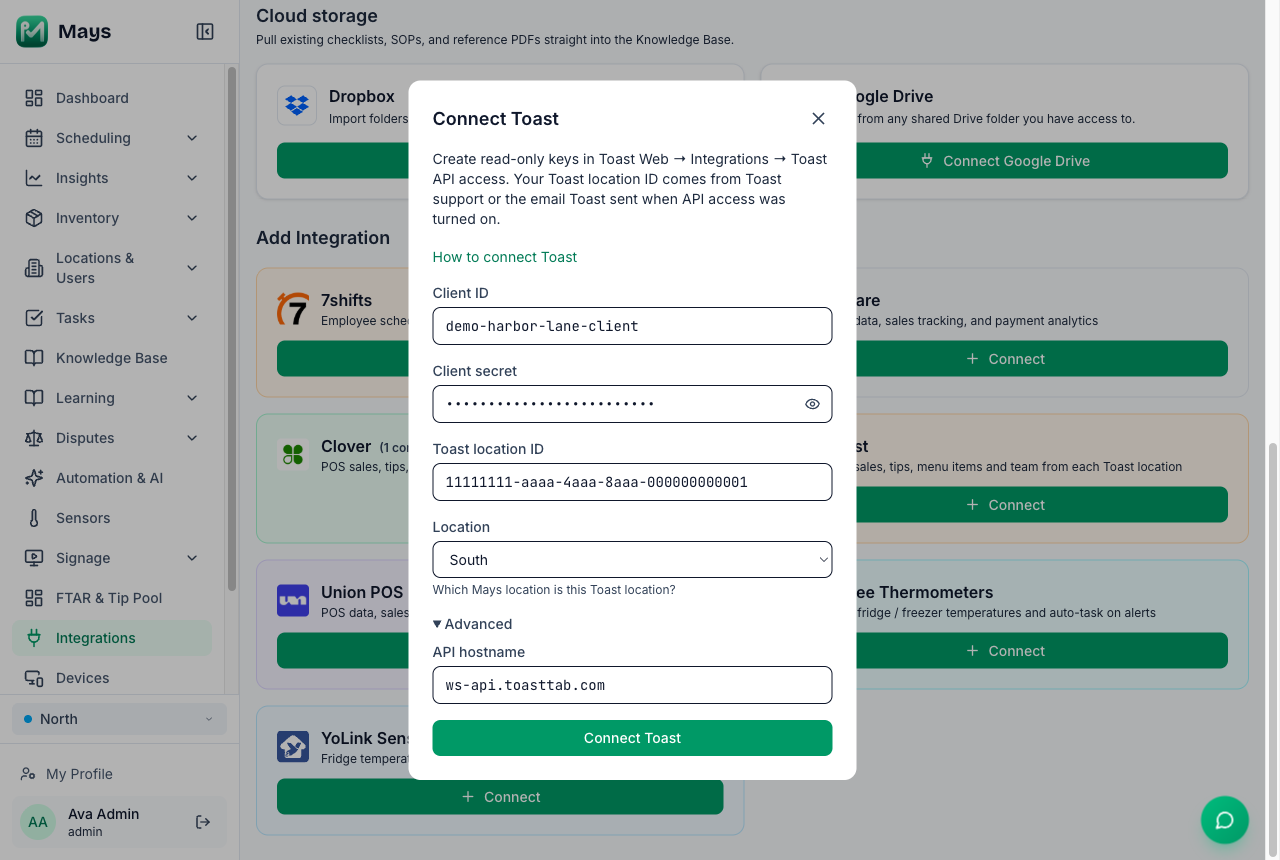
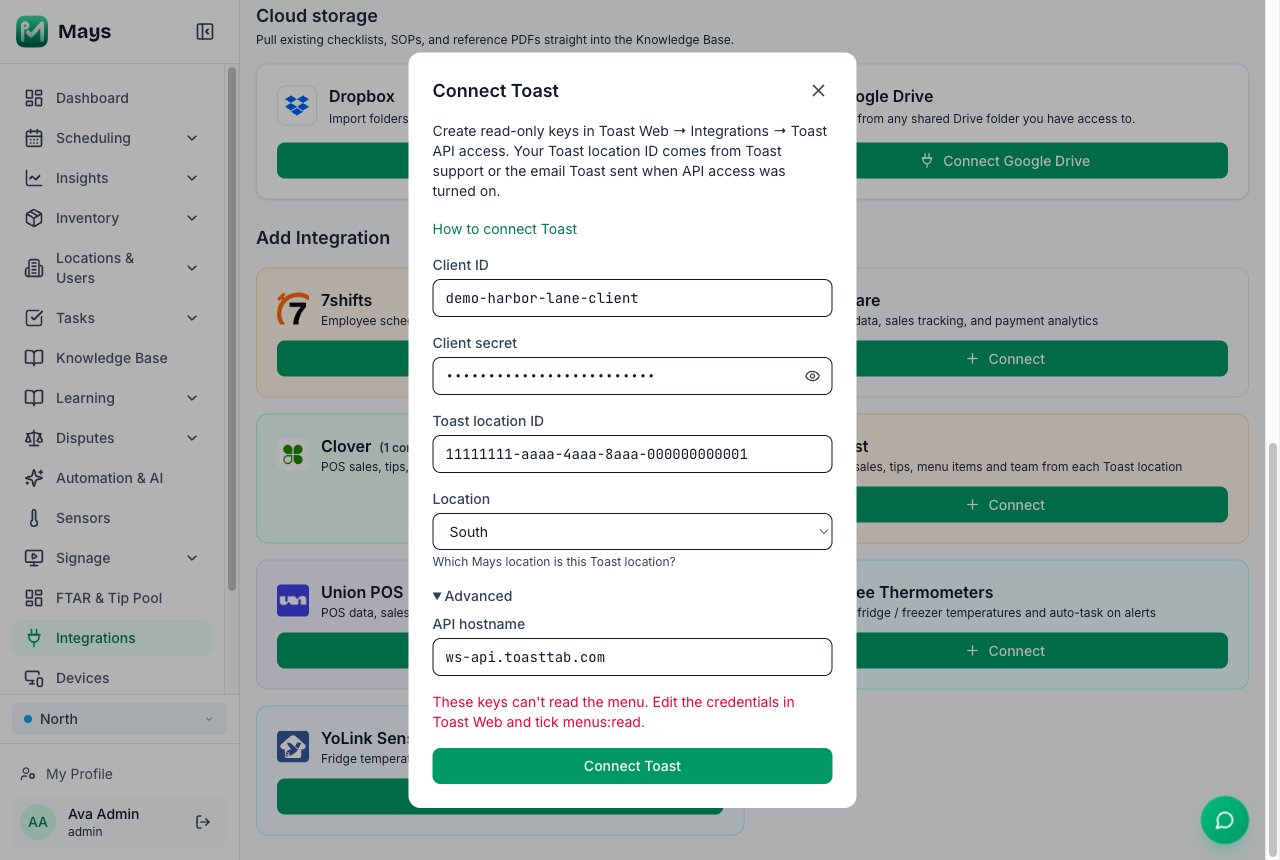
- In Connect Toast, type the Client ID and paste the Client secret. The eye icon shows what you pasted.
- Type the Toast location ID.
- Pick the Mays Location this Toast location is.
- Click Connect Toast. Mays checks the keys with Toast first (Checking the keys…), and saves nothing unless they work.
Advanced shows the API hostname, ws-api.toasttab.com. Leave it alone unless Toast gave your store a different one. It has to be a toasttab.com address.
The window closes, and Toast appears under Connected, named Toast · and the restaurant's name. Mays then loads the location's team, menu and last 30 days of payments and sales in the background.
If Toast says the location's time zone differs from the Mays location's, the window shows Toast says this location is in {zone}; Mays has {zone}. Sales days follow the Mays location's time zone. The connection is saved anyway. Click Done.
If it doesn't connect
The window says why. Nothing is saved when a connect fails.
- Toast rejected these keys — check the client ID and secret.
- These keys can't see that Toast location — check the location ID, and that the location is ticked on the credentials in Toast Web.
- These keys can't read the menu. Edit the credentials in Toast Web and tick menus:read. The same message names the other missing scope: orders (
orders:read), stock (stock:read) or the team (labor.employees:read). Edit the credentials in Toast Web, then try again. - That location already syncs sales from square. A location takes its sales from one POS only. Unmap it there first. See Integrations overview.
- That Toast location is already linked to {location}. One Toast location can feed only one Mays location. Unmap it there first under Configure → Location Mapping.
- Toast's login limit is used up for these keys — try again in 30 minutes. Toast limits how often Mays may sign in with a set of keys. Wait, then try again.
- Mays couldn't reach Toast to check these keys — try again in a few minutes.
- Too many Toast connect attempts — try again in a few minutes. Each organization can try 5 times in 15 minutes.
Connect your location (managers)
Managers see Toast for my locations on the Integrations page, with a row for each location they manage.
- Click Connect Toast.
- Fill in the window as above and pick your location.
A manager can connect and add only their own locations. If the same keys already serve other locations, a manager can't change them: ask an admin to add your location.
Add another location under the same keys
One set of keys can read several Toast locations. Mays keeps one connection per set of keys.
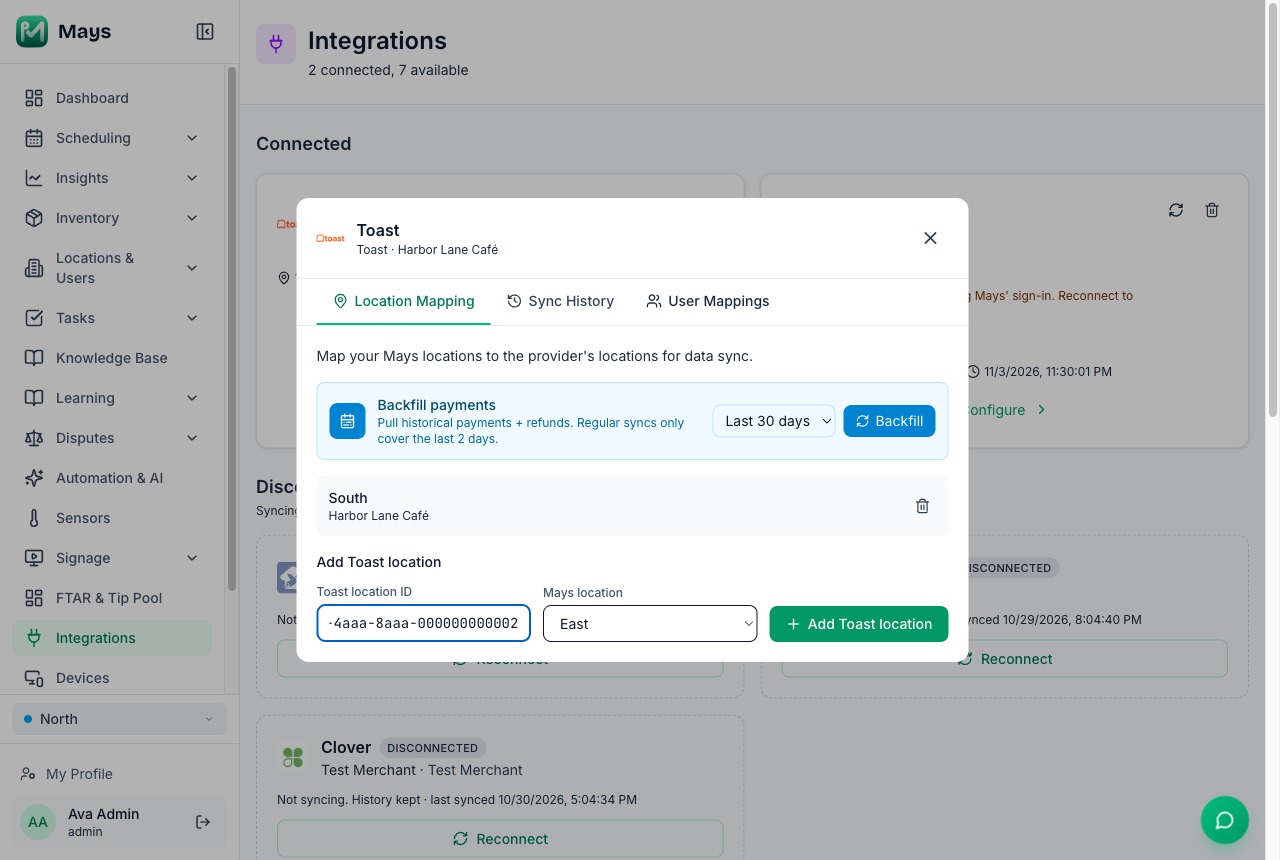
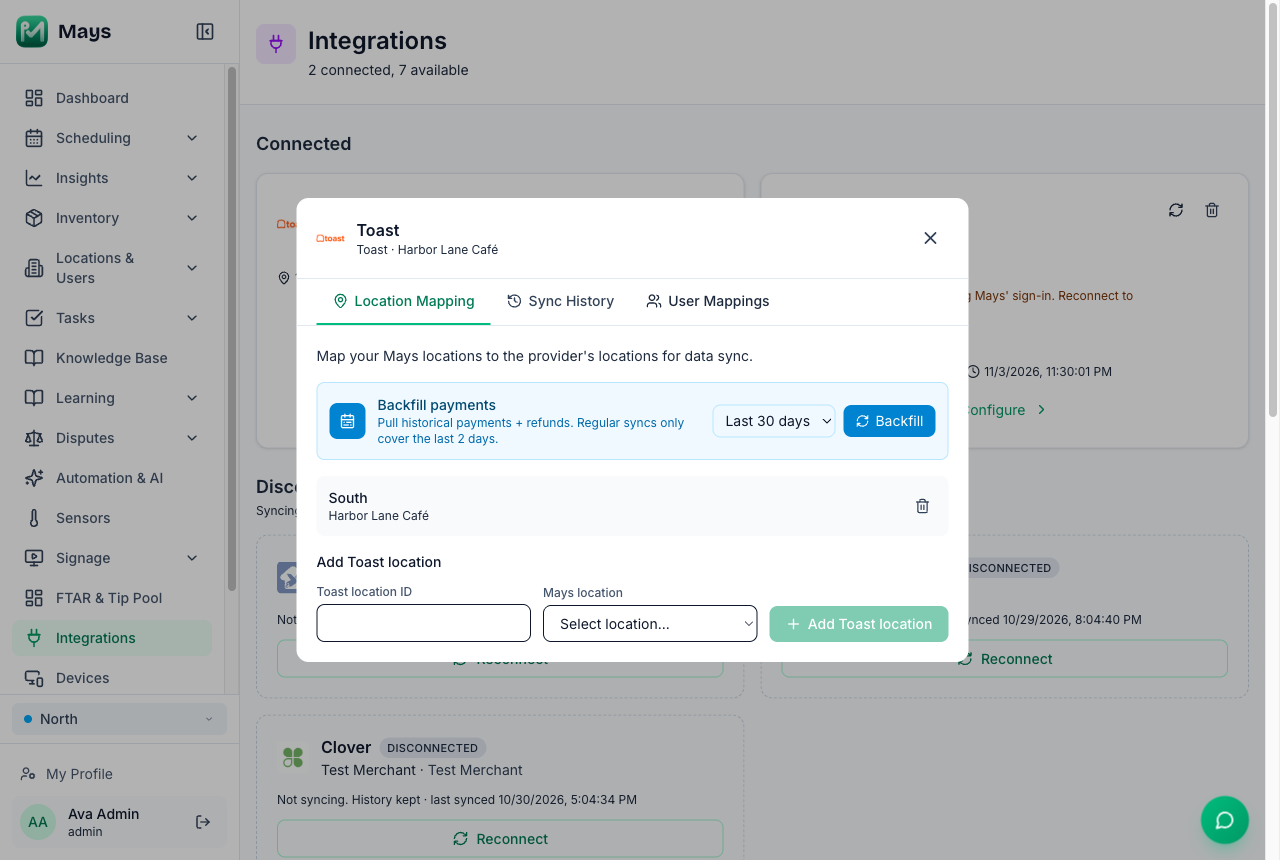
- Click Configure on the Toast card, then open Location Mapping.
- Under Add Toast location, type the Toast location ID and pick the Mays Location.
- Click Add Toast location.
Mays checks the new location with the same keys, then maps it and loads its team, menu, payments and sales. No new keys are needed.
To connect the same keys again, for example with a new secret, use Connect and type the same client ID. Mays updates the existing connection and keeps its locations.
What comes into Mays
What | How often |
|---|---|
Payments, with tips and refunds | Every 10 minutes |
Sales: orders and the items, modifiers and discounts on them | Every 15 minutes |
Menu: items, categories, modifiers and which are sold out | Every 30 minutes |
Your Toast team | Once a day |
Toast doesn't tell Mays about changes as they happen, so a new sale shows up at the next sync, not instantly.
- Only completed payments count. Voided, denied or failed payments never count toward dashboard sales, labor % or tips. Voided and deleted orders aren't counted as sales.
- Sold-out items: an item that Toast marks out of stock shows as sold out in Mays.
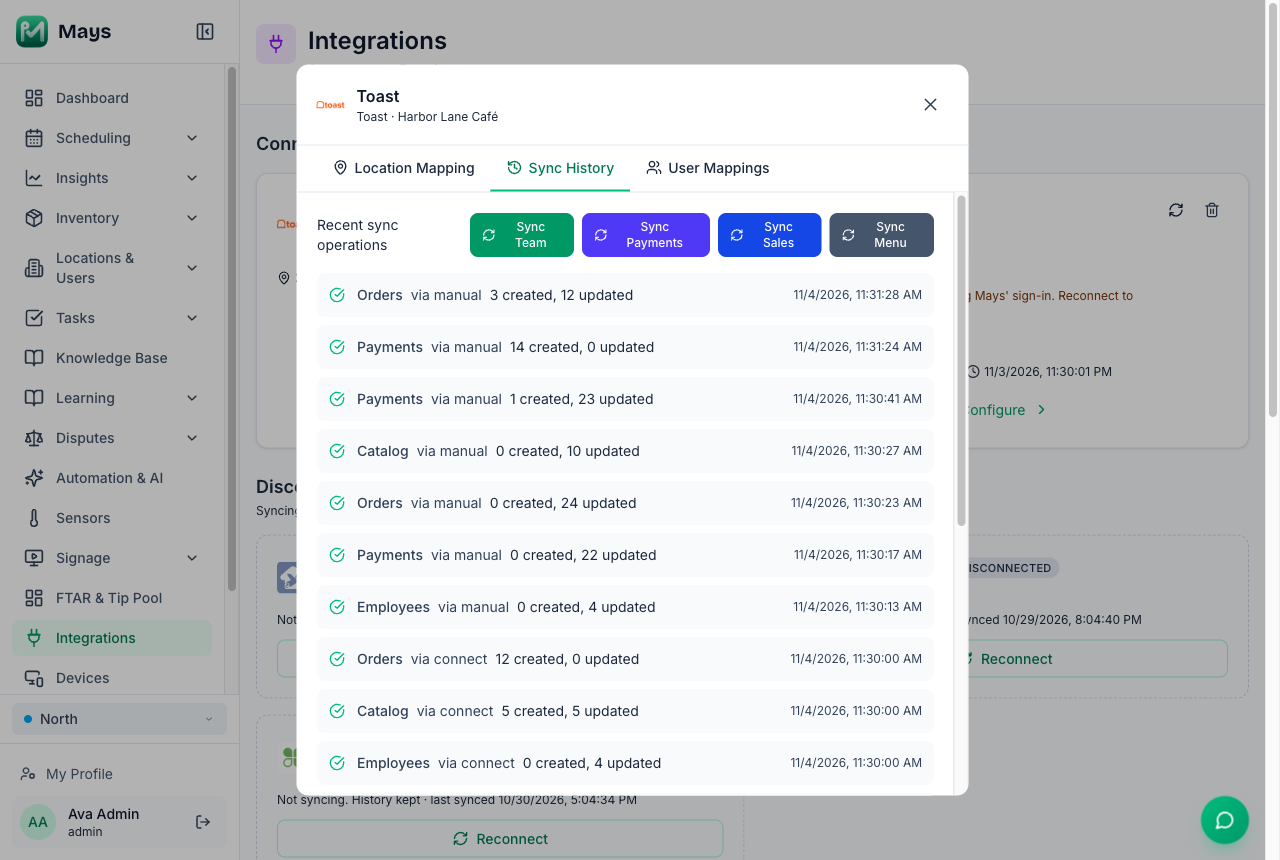
- Sync now: the sync icon on the Toast card brings in the latest sales. Admins can also click Configure and use Sync Team, Sync Payments, Sync Sales or Sync Menu on the Sync History tab.
- Managers can't sync by hand or see the sync history. Syncing happens on its own.
The first 30 days, and older history
When a location is connected, Mays loads its last 30 days of payments and sales in the background, so tips, labor % and forecasts have history from the first day.
To bring in older payments, click Configure on the Toast card, open Location Mapping, pick a period in Backfill payments (the list goes up to Last 90 days) and click Backfill.
Your team
People who work at the connected Toast location are added to Mays automatically, as employees at that location. Mays matches them by email. Someone who has left the Toast location is removed from that location at the next team sync. They're deactivated in Mays only if nothing else ties them to your organization, such as another location or another POS. Managers and admins are never deactivated this way.
- Toast PINs don't come across. Toast only shows a passcode when the employee is created, never afterwards, so there's nothing for Mays to import. Set a Kiosk PIN in Mays. See Shared kiosk devices and PINs.
- Someone without an email in Toast gets a placeholder email in Mays. Add their email in Toast and sync the team again, so Mays matches them to their real account.
- Removing someone from one Toast location only removes them from that location. They stay in Mays at any other location they work at.
A task for every refund
Connecting Toast also turns on an automation called Investigate Toast refund. Whenever a refund goes through at a location, Mays creates a high-priority task for whoever is on shift there, asking why. You can change or switch off the automation under Automation & AI. Older refunds, such as the ones in the first 30 days Mays loads when you connect, are added to the history only.
Needs reconnect
If Toast stops accepting the keys, for example because someone deleted them or changed the secret in Toast Web, the card shows a Needs reconnect badge. Syncing pauses until you reconnect.
Click Reconnect. In Connect Toast, enter the client ID and the new secret, type the Toast location ID, pick the Mays Location, and click Connect Toast. Mays carries on from where it stopped, and nothing already in Mays is lost.
Good to know
- One POS per location. If a location already gets its sales from Square, Clover or Union POS, unmap it there first, or its sales are counted twice. Mays won't link Toast to it until you do. See Integrations overview.
- Toast's sign-in limits. Mays reuses its Toast sign-in and signs in again only when it has expired, and never more often than Toast allows. If Toast's limit is hit, a sync waits for the next run, and nothing is flagged.
- Changed sales should be brought back in. Toast should return orders by the time they were last modified, so a tip added later, a void or a refund on an older order should arrive at the next sync. A refund on a past day updates the order and is counted once.
- Day and time zone: a sale counts on the day it happened in the Mays location's time zone. Check that the Mays location's time zone is right.
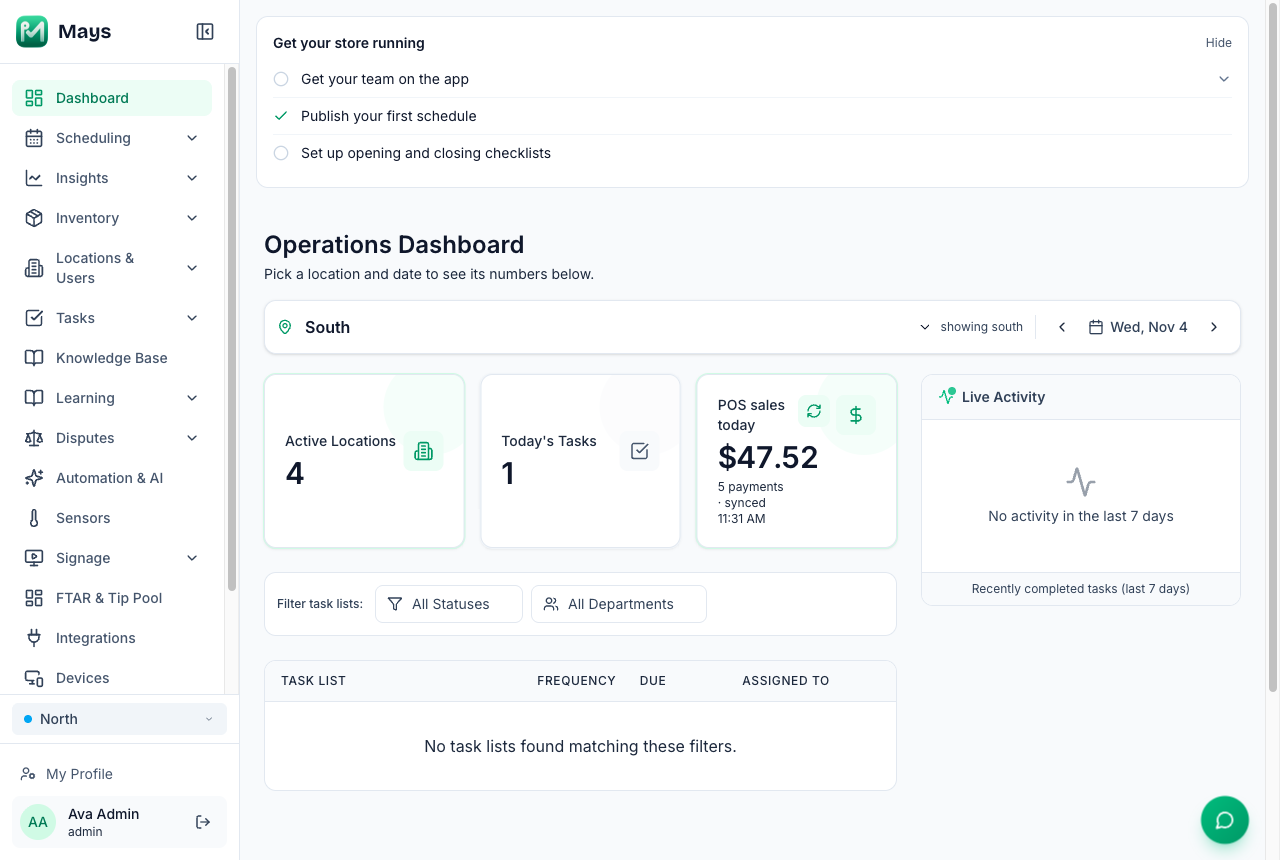
- Dashboard: the Operations Dashboard shows POS sales today for Toast locations. See Your dashboard.
- Inventory: with Inventory in your plan, sales can take ingredients out of stock. See POS mapping and automatic depletion.
- Not included: Mays doesn't read your guests' personal details, doesn't write to Toast, and doesn't yet bring in time clock entries.
Disconnect
Only admins can disconnect. Click the bin icon on the Toast card. Syncing stops, and the sales, payments, tips and refunds already in Mays stay. Connect with the same client ID again to carry on from there. See Integrations overview.