Connect your YoLink hub and sensors with a UAID and Secret Key from the YoLink app. Mays then reads fridge temperatures, doors, leaks and power failures, and puts each sensor at a location. Because Mays knows who is clocked in, a door opening becomes meaningful: an after-hours entry, a door left open with nobody there, or someone stepping out on a break.
Who: admins connect YoLink for the whole organization. Managers connect YoLink for the locations they manage, for example when each store buys and runs its own sensors. Plan: YoLink sensors are part of the same Pro plan feature as Thermometers; at a location whose plan doesn't include it, Mays doesn't read them or raise alerts. The sensors and hub are bought separately.
What you need
- A YoLink hub (YoLink Hub or SpeakerHub) that is online. The sensors talk to the hub, and the hub talks to YoLink.
- YoLink sensors added to that hub in the YoLink app: temperature and humidity sensors, door sensors, water leak sensors and power failure alarms.
- The YoLink app on your phone, signed in to the YoLink account the sensors are on.
Get your UAID and Secret Key
- Open the YoLink app.
- Go to Account → Advanced Settings → Personal Access Credentials.
- Tap +.
- Copy the UAID and Secret Key into Mays (next section).
Treat the Secret Key like a password. Mays asks for it only when you connect, never shows it again, and deletes it when the account is disconnected.
Connect: admins and managers
Admins
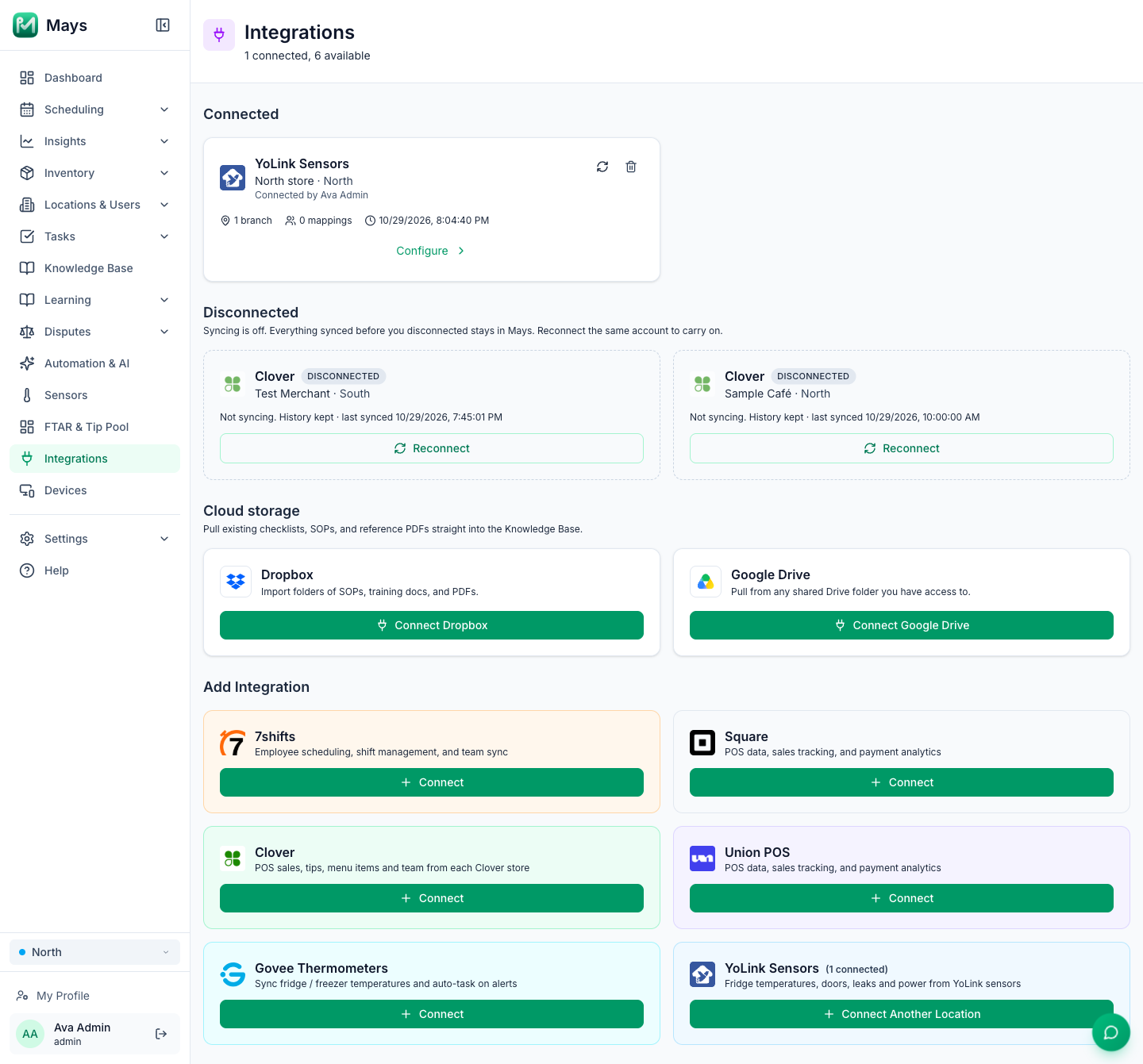
- On the web, go to Integrations.
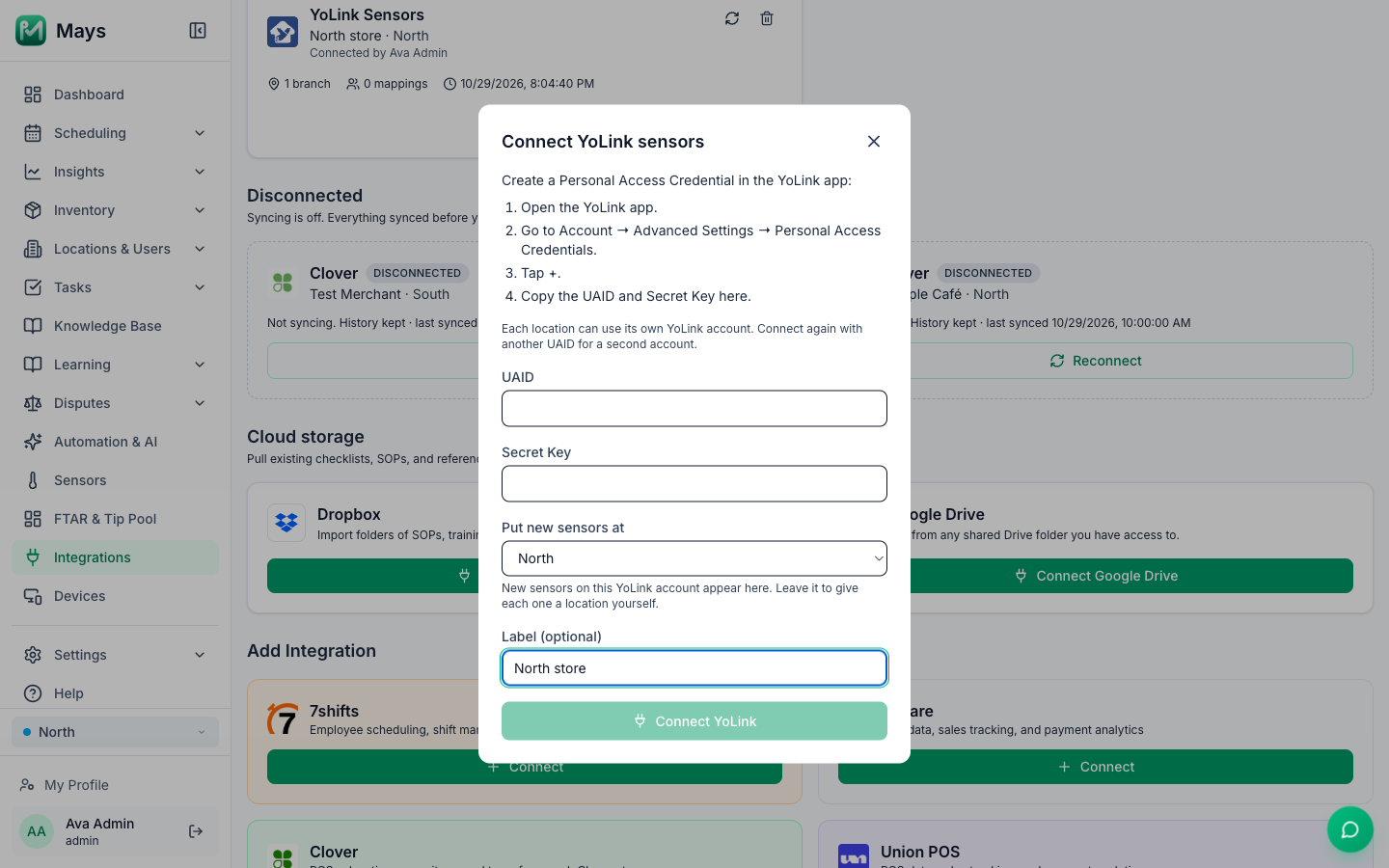
- On YoLink Sensors, click Connect (Connect Another Location once a YoLink account is connected).
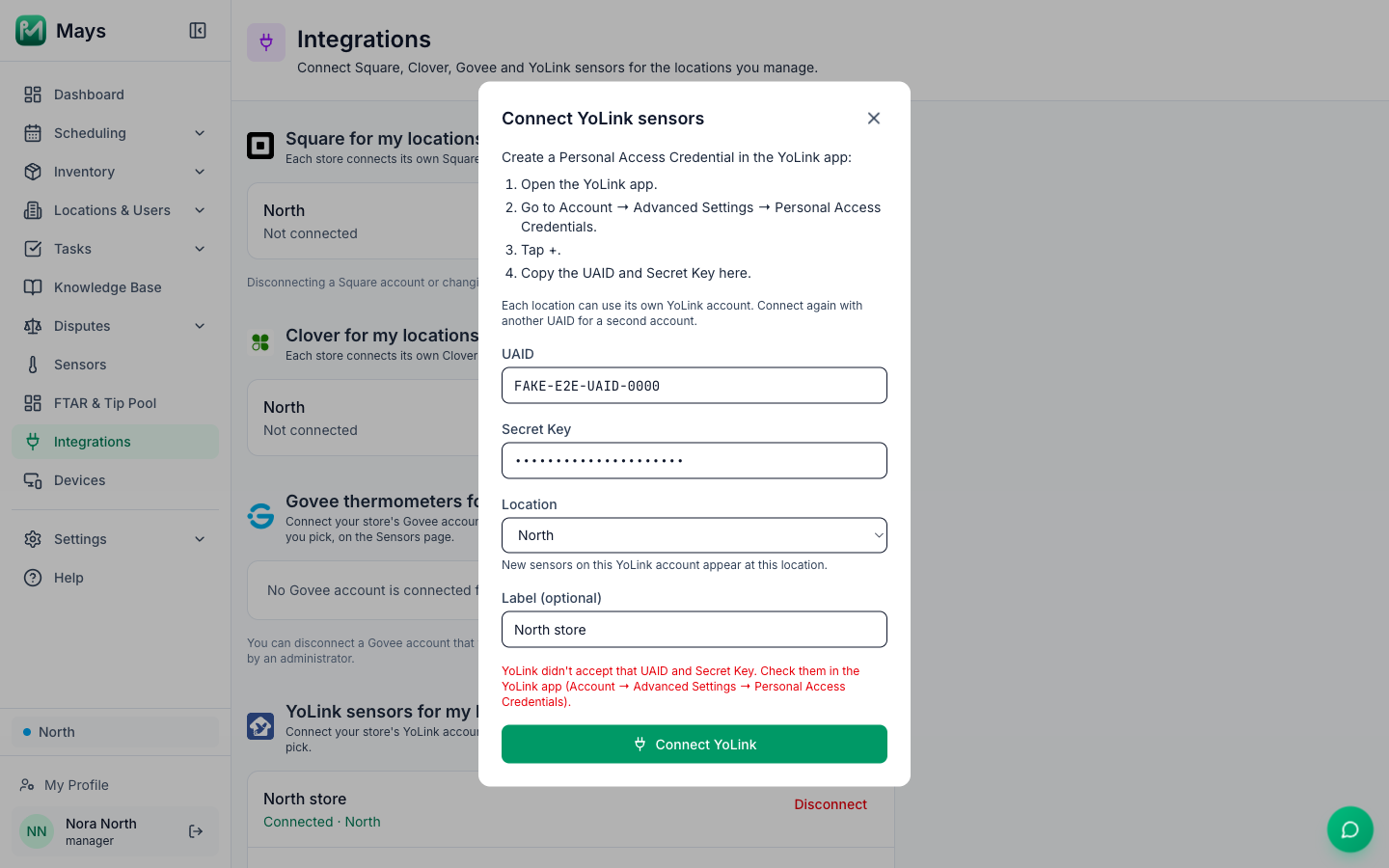
- Paste the UAID and the Secret Key.
- Under Put new sensors at, pick the location the sensors are at, or leave Don't assign yet to give each sensor a location yourself.
- Add a Label (optional), such as the store it's for.
- Click Connect YoLink.
Managers
Managers connect YoLink for the locations they manage.
- On the web, go to Integrations.
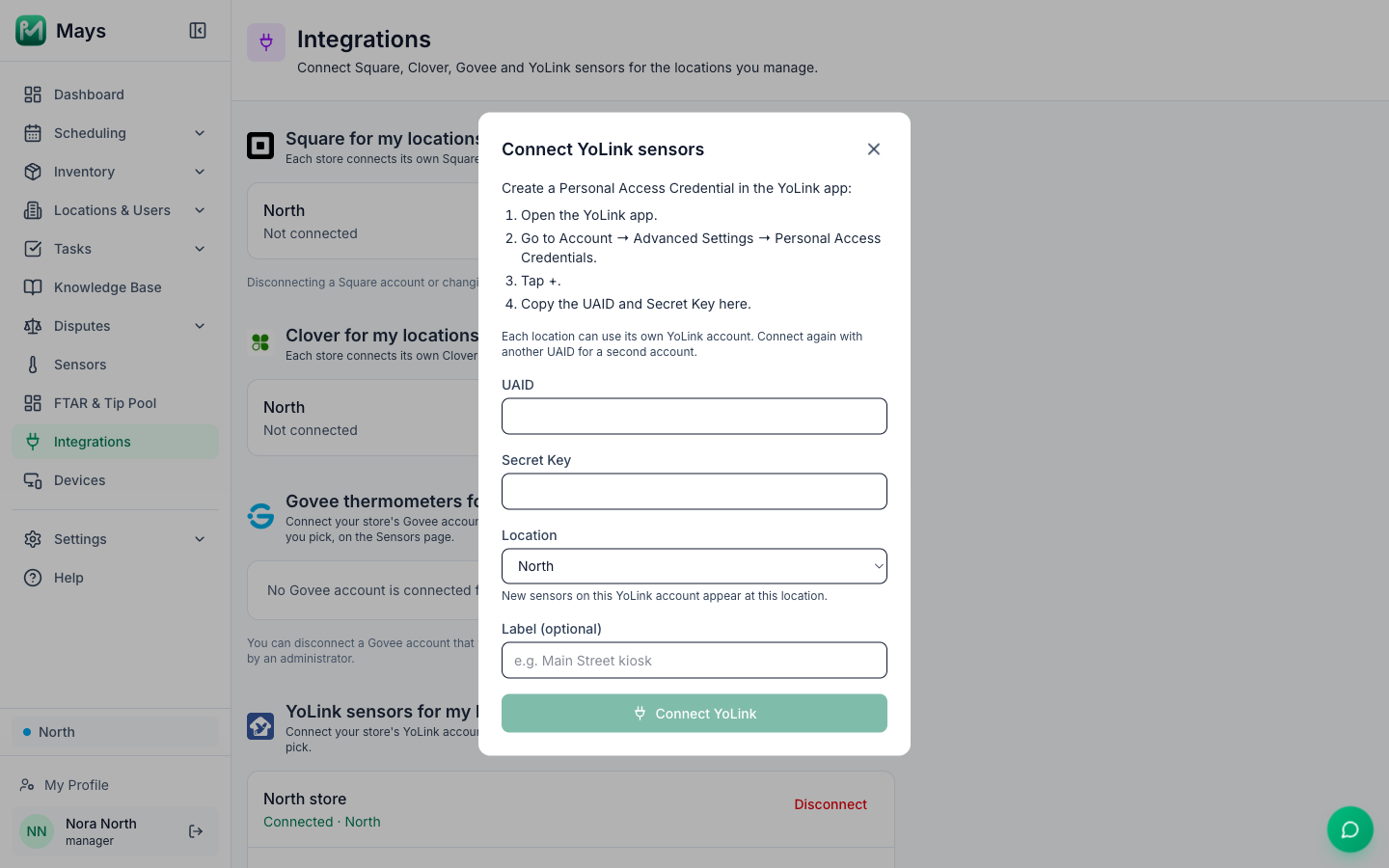
- Under YoLink sensors for my locations, click Connect YoLink.
- Paste the UAID and the Secret Key.
- Pick the Location the sensors are at. It's required, and only your own locations are listed. If you manage one location, it's already picked.
- Add a Label (optional) and click Connect YoLink.
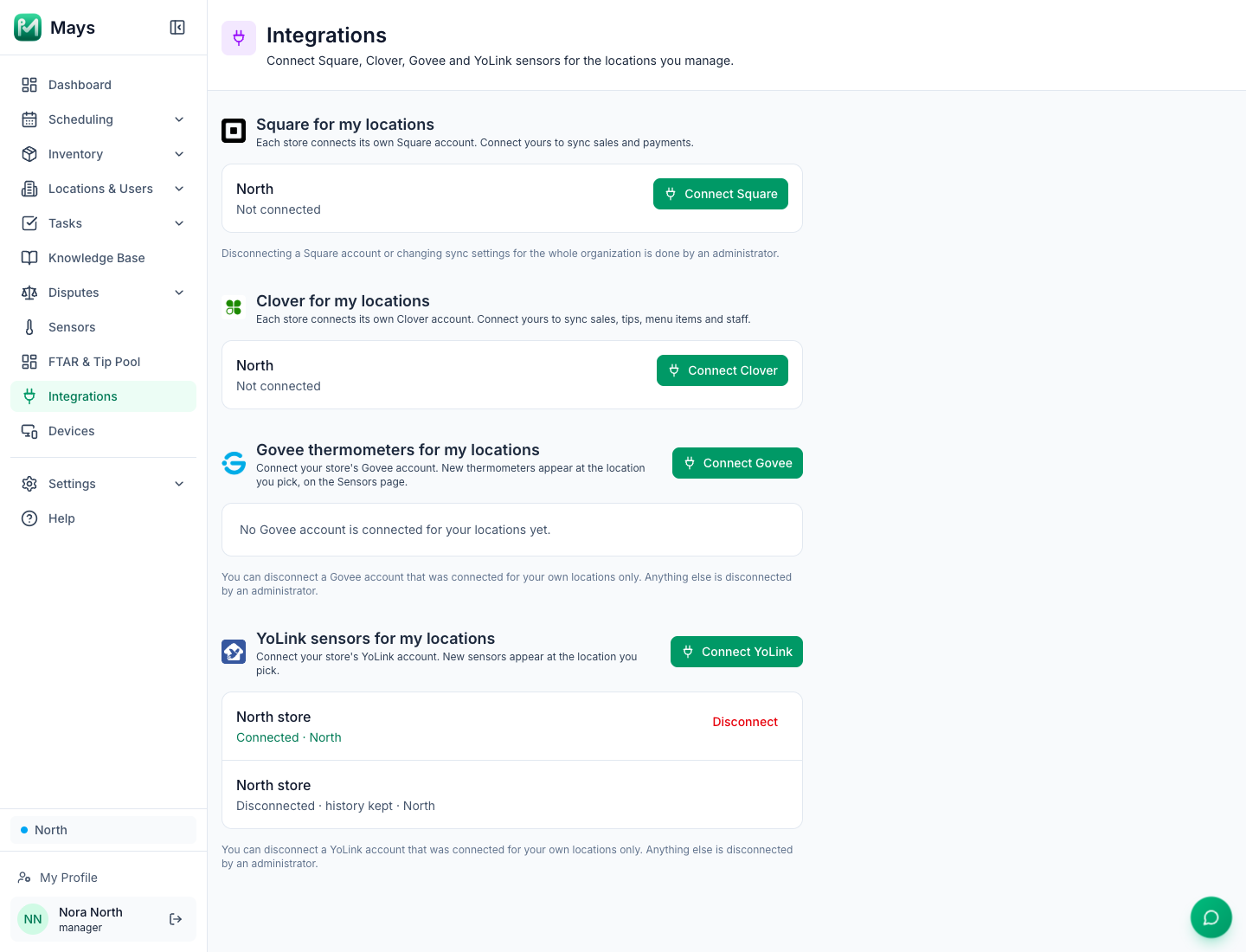
The YoLink accounts connected for your locations are listed under YoLink sensors for my locations, with the locations they're for.
What happens next
Mays checks the credentials with YoLink straight away. If YoLink doesn't accept them, the window says so and nothing is saved. If they work, the window closes and the sensors on that YoLink account appear a moment later, at the location picked when you connected.
The location is only used for sensors Mays hasn't seen before. Sensors already in Mays keep their location, name and settings.
Connecting a YoLink account that's already in Mays:
- Admins: connecting it again links it to the location you pick too. It doesn't move anyone's sensors.
- Managers: you can reconnect a YoLink account that was connected for your own locations. If an admin connected it, or another location's manager did, Mays says This YoLink account is managed by someone else. Ask an admin to put its sensors at your location. and nothing changes.
Several YoLink accounts? Connect again with the other UAID and Secret Key, for example one per store. Each account is listed separately on the Integrations page.
Which devices Mays supports
YoLink device | What Mays does with it |
|---|---|
Temperature and humidity sensor | Becomes a thermometer under Sensors → Temperature, with a safe range and temperature alerts, like a Govee thermometer. |
Door sensor | Listed under Sensors → Doors & alarms. Records when the door opens and closes, alerts when it opens after hours or is left open, and can prompt breaks. |
Water leak sensor | Listed under Sensors → Doors & alarms. Alerts when it detects water. |
Power failure alarm | Listed under Sensors → Doors & alarms. Alerts when the power goes out. |
Hub and SpeakerHub | Used to reach the sensors. They don't appear as sensors. |
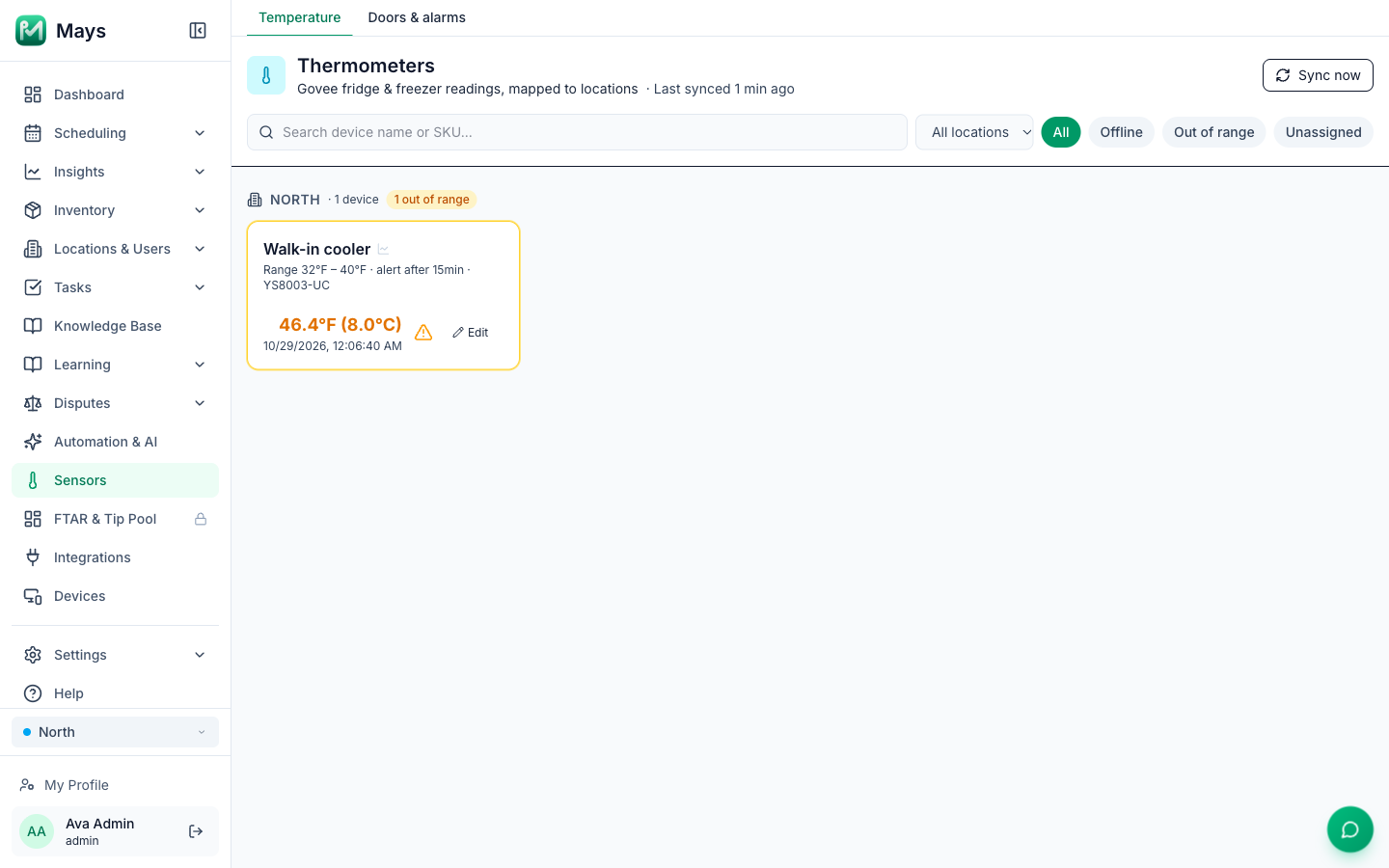
Not supported yet: any other YoLink device, such as motion, vibration, siren, lock, outlet or plug devices. Mays doesn't read or control them, and they keep working in the YoLink app as before. Doors & alarms lists them under Not supported yet, with their YoLink device type. Admins see the devices on every account; managers see those on the accounts they connected. Mays also alerts when a supported sensor's battery runs low or it stops reporting.
Where new sensors land
New sensors appear at the location picked when YoLink was connected. If no location was picked (Don't assign yet), they appear Unassigned, and only admins see them. A sensor that isn't assigned to a location still records, but it never raises an alert.
Sensors you add to the YoLink account later appear in Mays by themselves, within about half an hour, at the same location. Sync now on Sensors → Doors & alarms checks every YoLink account for new sensors straight away, including an account with only door, leak or power sensors. Admins sync every connected YoLink account. Managers sync the YoLink accounts connected for their locations; if there is none, they don't see Sync now. Sync now on the Temperature tab does the same for the accounts your thermometers are on, and for Govee. If YoLink can't be reached, a message says why.
Renaming a device in the YoLink app later doesn't change its name in Mays, and doesn't move it to another location.
Doors & alarms
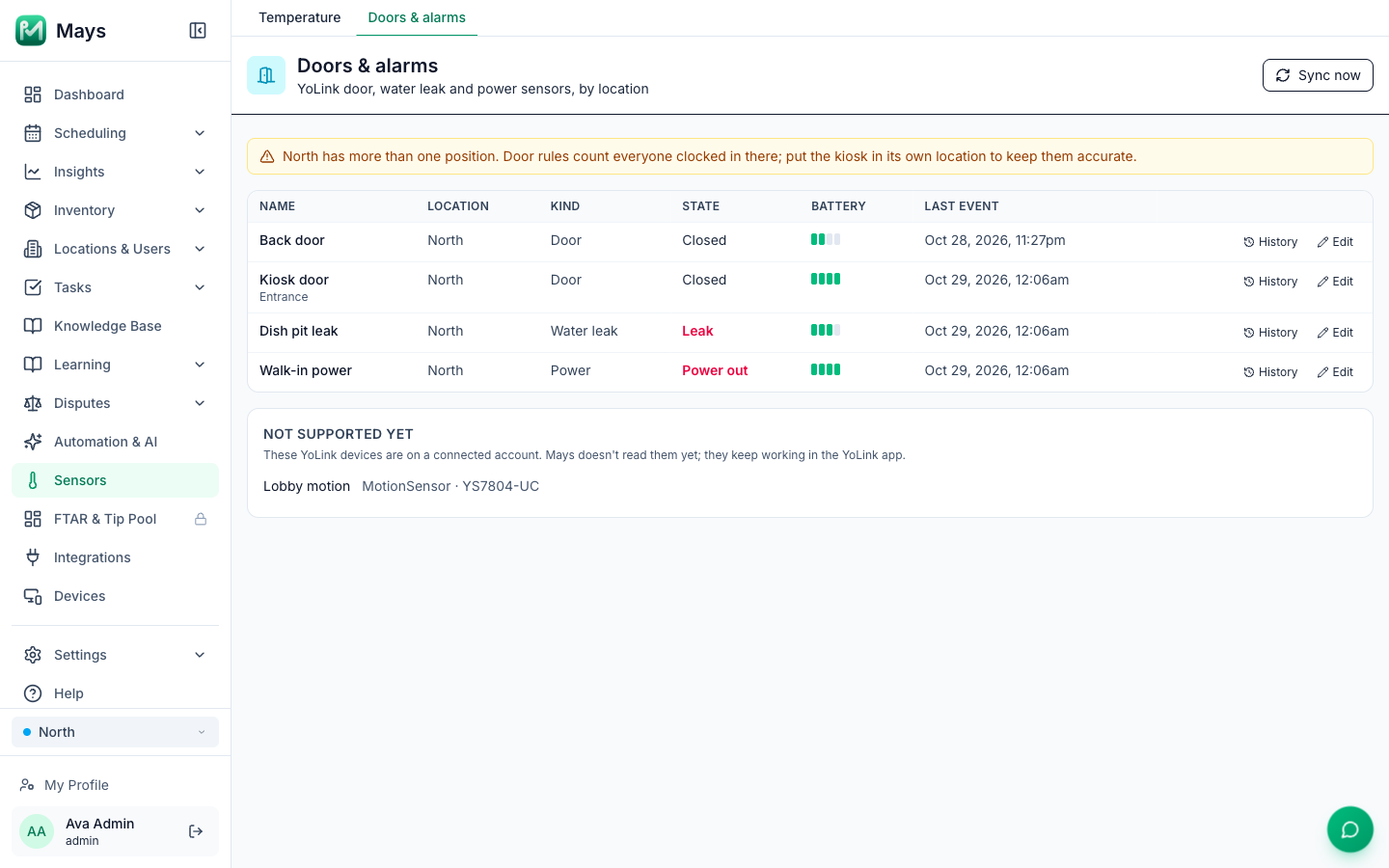
On the web, click Sensors in the sidebar. Temperature has your thermometers; Doors & alarms has the door, water leak and power sensors. Managers see the sensors at their own locations; admins see every location's.
Each sensor shows:
- Name and Location (or Unassigned).
- Kind: Door, Water leak or Power.
- State: Open or Closed for a door, Leak or Dry for a leak sensor, Power out or OK for a power failure alarm. Offline appears next to it when the sensor has stopped reporting. If the sensor's YoLink account is disconnected, Disconnected shows instead: its last state would be out of date.
- Battery: four bars, from full to empty (a dash while its account is disconnected).
- Last event: when it last reported something, on your own device's clock.
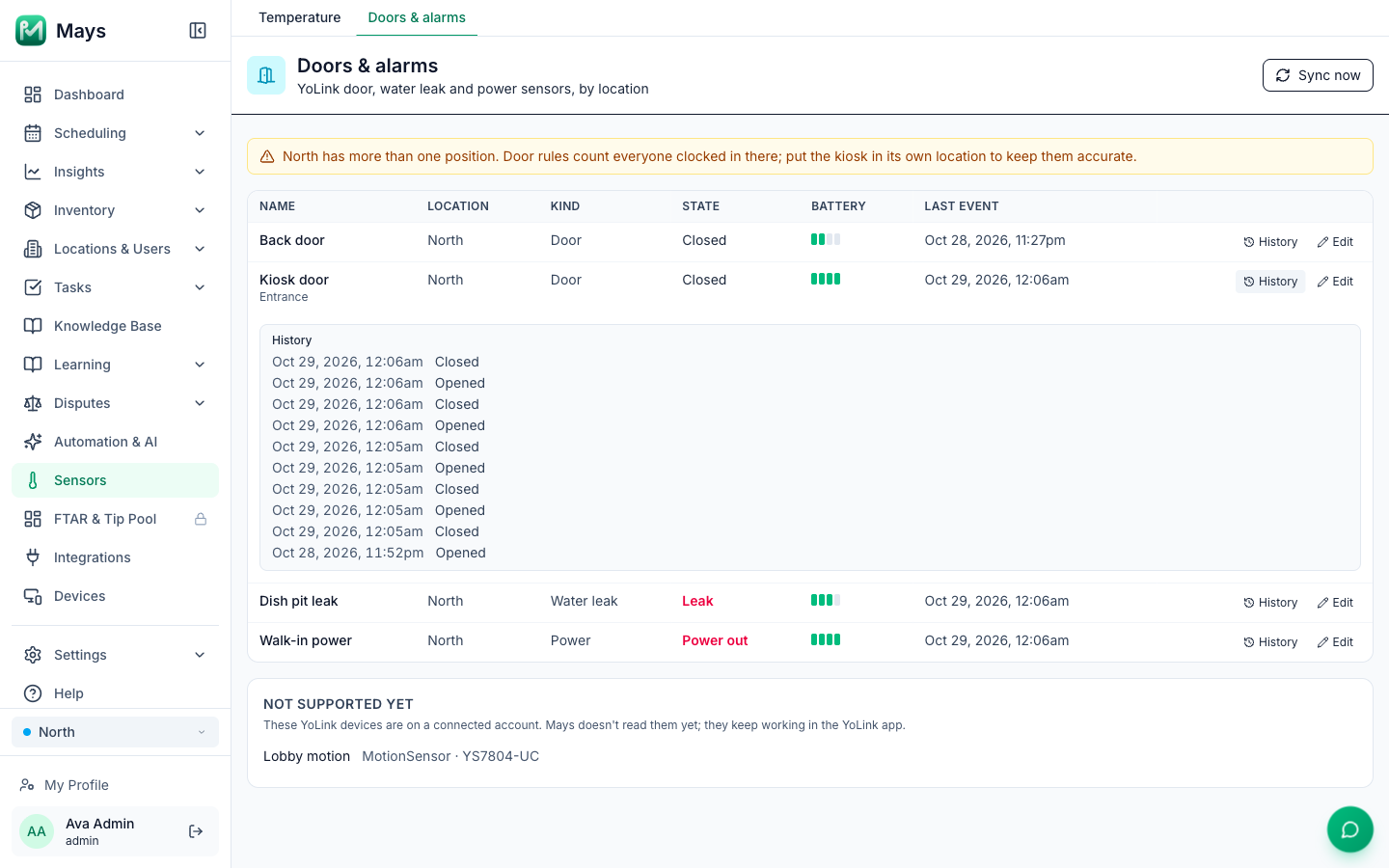
Click History to see a sensor's latest events, newest first: opened, closed, water detected, power lost, stopped reporting and so on.
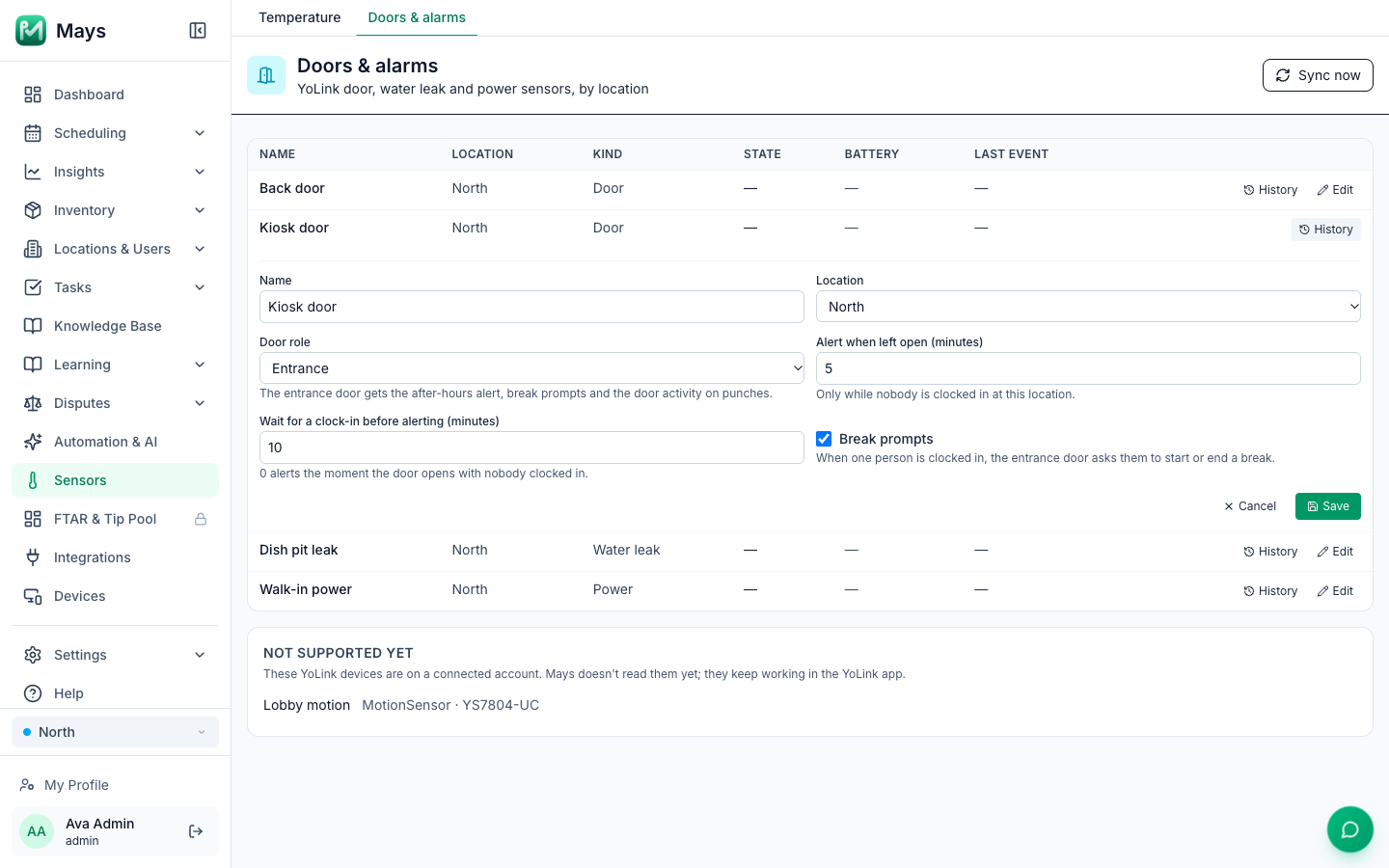
Edit a sensor
Admins, and managers for the sensors at their locations, click Edit. Managers on a custom role need Configure thresholds & alerts.
- Name and Location. Only admins can set a sensor back to — Unassigned —.
- Door role (doors only): Entrance or Other. New doors start as Other. The after-hours alert, break prompts and the door activity on punches use the Entrance door only.
- Alert when left open (minutes) (doors only): 5 by default.
- Wait for a clock-in before alerting (minutes) (doors only): 10 by default. 0 alerts the moment the door opens with nobody clocked in.
- Break prompts (doors only): on by default.
Click Save. A leak sensor or power failure alarm only has a name and a location.
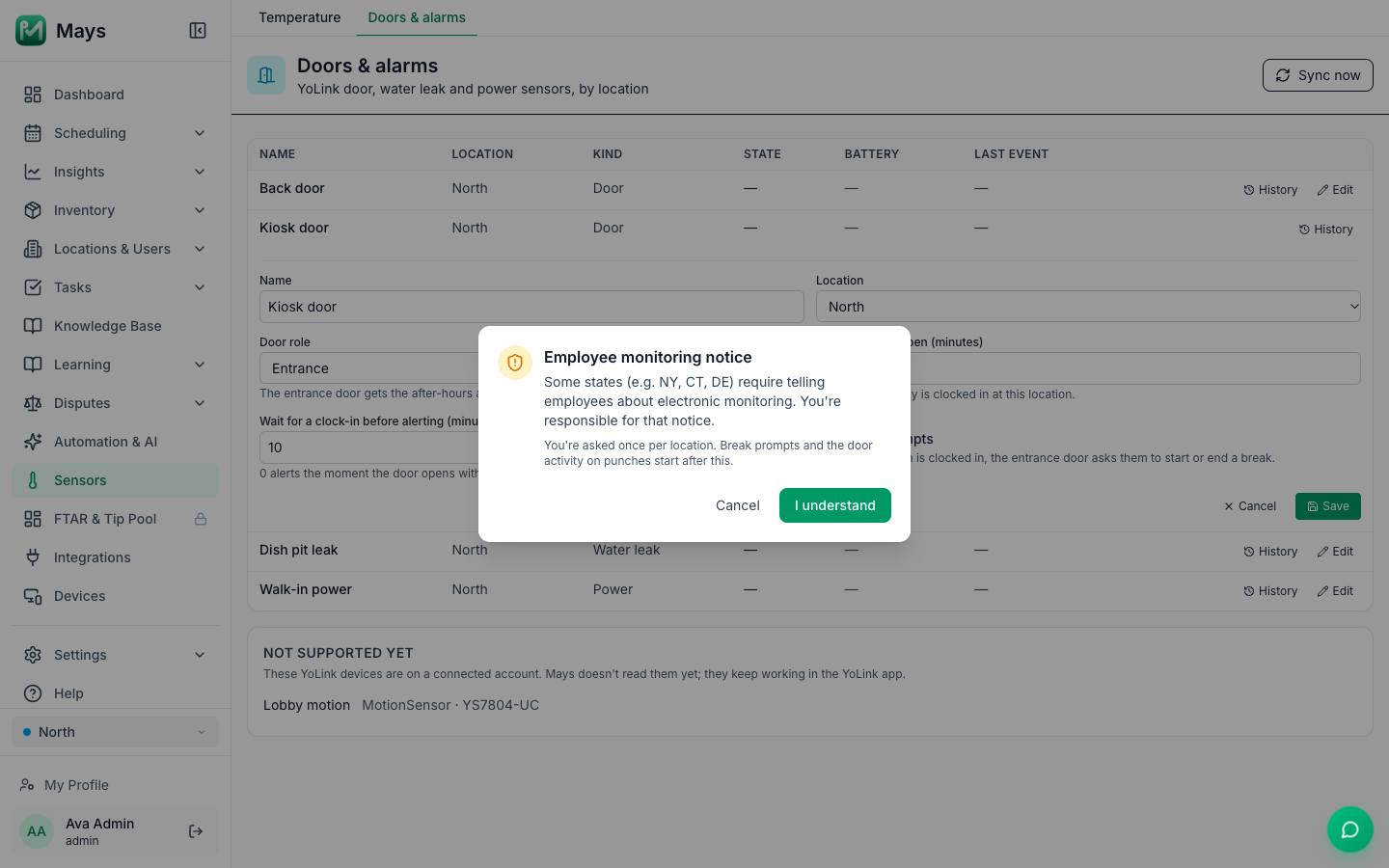
The employee monitoring notice
Break prompts and the door activity on punches watch when people step out. The first time someone makes a door the Entrance with Break prompts on, or turns Break prompts on for an entrance door, Mays shows this notice for that location:
Some states (e.g. NY, CT, DE) require telling employees about electronic monitoring. You're responsible for that notice.
Click I understand to save the change. Mays keeps who acknowledged it and when, and doesn't ask again for that location. Cancel saves nothing. Until someone at the location acknowledges the notice, its door sends no break prompts and punches show no door activity.
Alerts
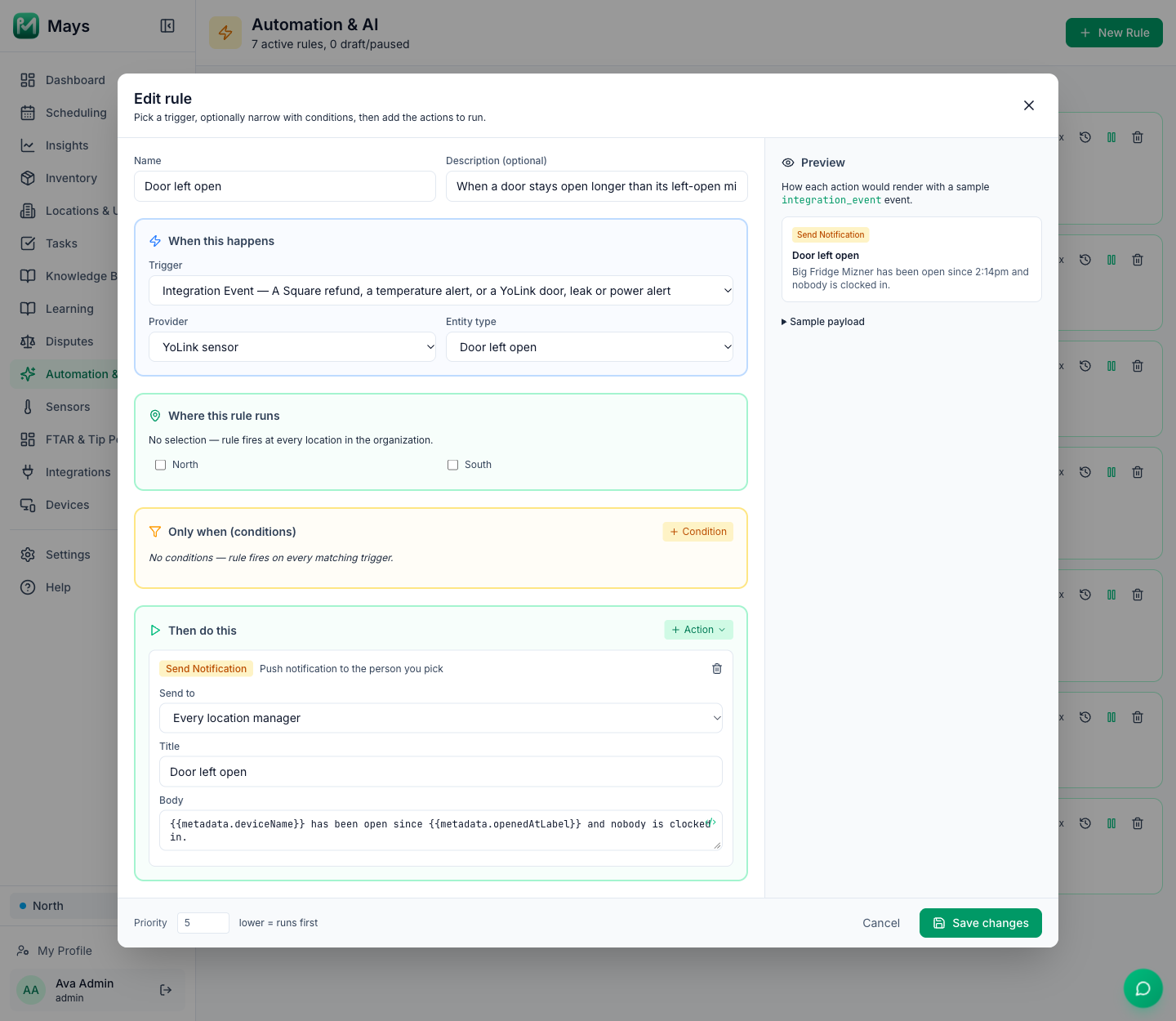
Every alert is a rule under Automation & AI, added when you connect YoLink, with the name below. You can change who gets it, or pause it, like any rule; see Automation triggers and actions.
Rule | When | What Mays does |
|---|---|---|
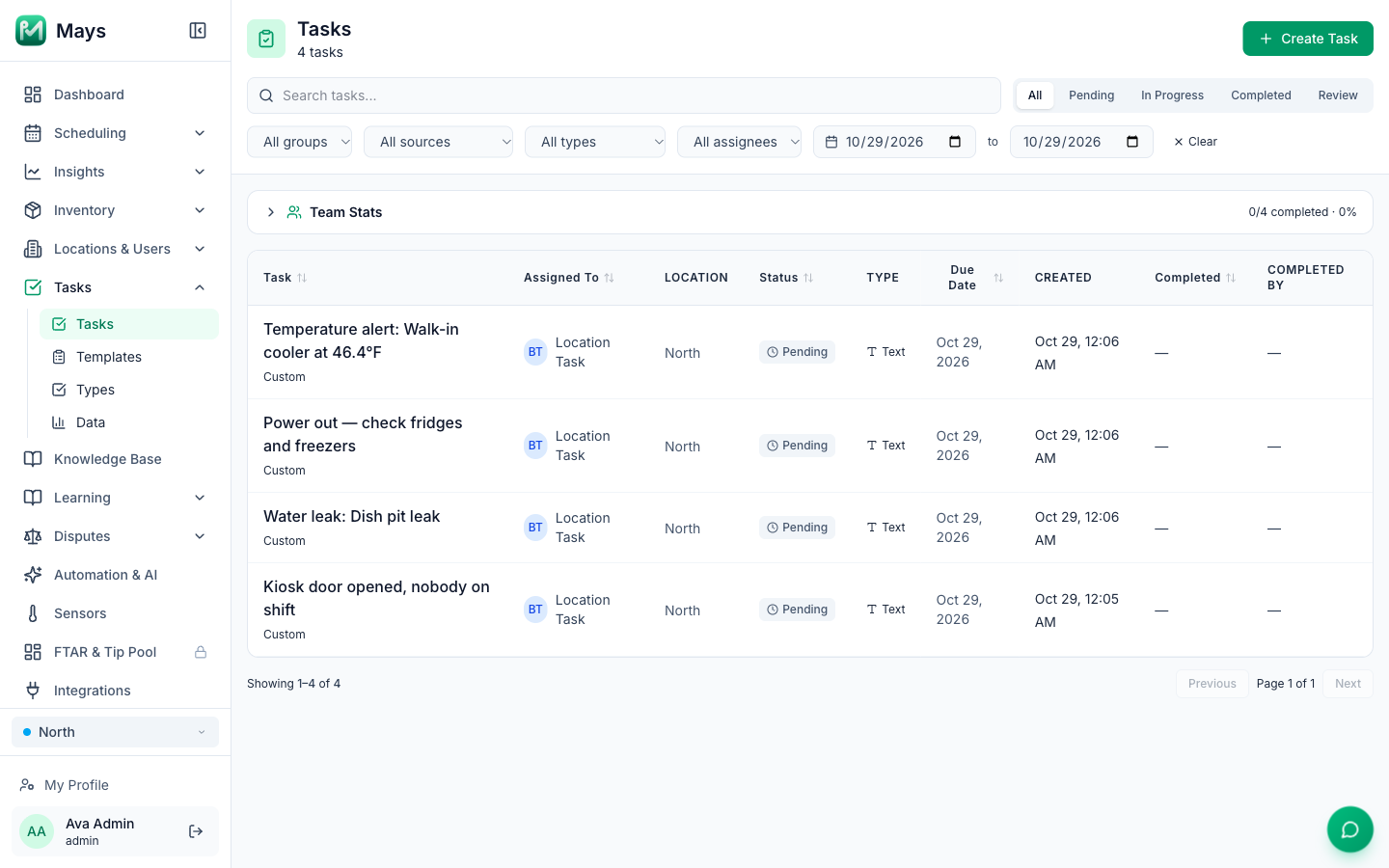
Investigate temperature alert | A YoLink thermometer stays outside its safe range. | A high-priority task, Temperature alert: (thermometer) at (temperature)°F, at its location, and a notification to whoever is scheduled to work at that time (otherwise the location's managers). See Temperature thresholds and alerts. |
Kiosk door opened after hours | The entrance door opens while nobody is clocked in at its location, and nobody clocks in within the Wait for a clock-in before alerting minutes. | A high-priority task, Kiosk door opened, nobody on shift, and a notification to the location's managers. |
Door left open | A door stays open longer than its Alert when left open minutes while nobody is clocked in at its location. An open door during a shift is normal. | A notification, Door left open, to every manager of the location. |
Water leak | A leak sensor detects water. | A high-priority task, Water leak: (sensor), and a notification to the location's managers. |
Power out | A power failure alarm reports that the power is out. | A high-priority task, Power out — check fridges and freezers, and a notification to the location's managers. |
Sensor offline | A sensor or YoLink thermometer sends nothing for 9 hours, or has sent nothing 9 hours after it was added. | A task, Sensor offline: (sensor), and a notification to the location's managers. Once, until it reports again. |
Low sensor battery | A sensor's battery runs low. | A task, Replace the battery: (sensor), and a notification to the location's managers. Once, until the battery is replaced. |
- No alert spam: the same sensor raises the same alert at most once every 30 minutes, and a door left open alerts once however long it stays open.
- Opening up and closing down: an opener who unlocks the door and clocks in within the wait doesn't set off an alert, and neither does a closer who clocks out and then leaves.
- A punch left open: someone clocked in for more than 16 hours doesn't count as on shift, so a forgotten clock-out doesn't silence after-hours alerts.
- After a connection drop: when YoLink comes back, Mays records what it missed at the time it happened, but doesn't alert about anything older than 15 minutes. A door that is still open is still caught. A sensor YoLink lists as offline doesn't count as reporting, so it is still flagged Sensor offline.
- Unassigned sensors never alert. Put them at a location first.
Break prompts (entrance door)
When exactly one person is clocked in at the location and not on a break, and the entrance door opens and closes, Mays sends that person a notification: Stepping out? Tap to start your break. If they're on a break and the door opens again: Back? Tap to end your break. Tapping it opens their clock-in card in the Mays app, where they start or end the break. See Taking breaks.
- At most one prompt every 20 minutes per person.
- With two or more people clocked in there are no prompts, because Mays can't tell who left. The door's opens and closes are still recorded.
- The prompt is a notification from the Mays app on the person's phone. Someone without the app on their phone, for example who only clocks in on a shared kiosk device, gets no prompt.
- Door data never changes anyone's punches or breaks.
- Switch prompts off for a door with Break prompts in its Edit.
Door activity on punches
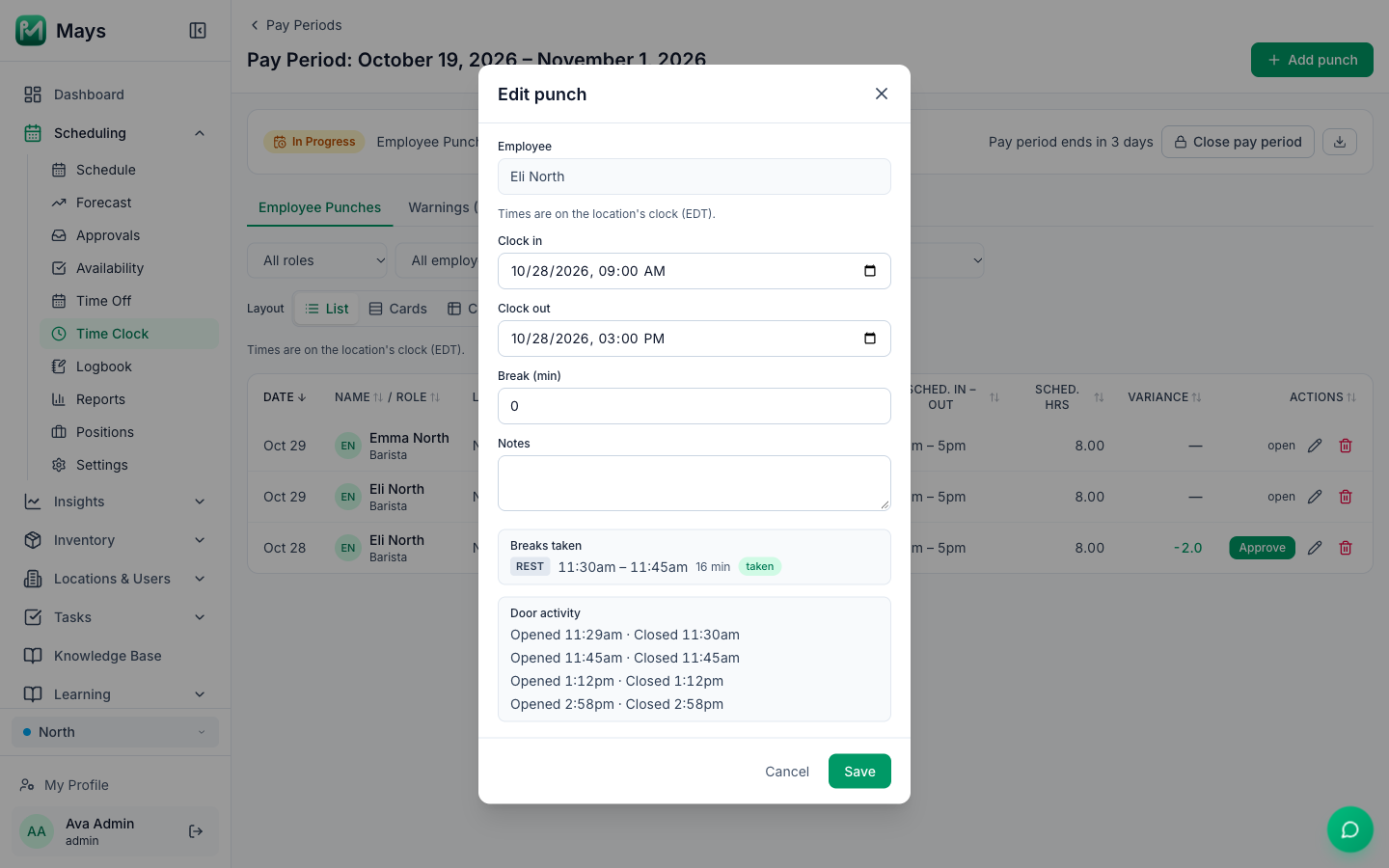
When you edit a punch in a pay period (the pencil), the window shows Door activity under the breaks: each time the entrance door opened and closed during that punch, for example Opened 2:14pm · Closed 2:31pm, on the location's clock. Compare the door gaps with the breaks taken. See Timesheets and pay periods.
- It shows for people who can see sensors, at a location that has acknowledged the monitoring notice.
- For a punch that's still open, it covers up to 16 hours after the clock-in.
- A punch with a very busy door shows the first 500 events, with Showing the first 500 events.
- It's for reference only. Mays doesn't flag or change anything from it.
Locations whose punches come from 7shifts
At a location whose punches come from 7shifts, the door rules that need to know who's clocked in are off: the after-hours alert, Door left open and break prompts. 7shifts punches reach Mays late, so these would page your managers every morning. The doors still record opens and closes, the door activity still shows on punches, and leak, power, offline and battery alerts work as usual. Doors & alarms says Door rules are off at (location): its punches come from 7shifts. See Connecting 7shifts.
Put a kiosk in its own location
Door rules count everyone clocked in at the door's location. If a kiosk shares a location with a store, someone working in the store counts as on shift at the kiosk, and one person at the kiosk is never alone. Give each kiosk its own location in Mays (see Add and manage locations). When a door's location has more than one position, Doors & alarms warns: (location) has more than one position. Door rules count everyone clocked in there; put the kiosk in its own location to keep them accurate.
Disconnect
- Admins can disconnect any YoLink account, on its card under Integrations.
- Managers can disconnect a YoLink account that was connected for their own locations only, from YoLink sensors for my locations. A YoLink account an admin connected, or one that's also linked to a location they don't manage, is disconnected by an admin.
- Disconnecting keeps your sensors and their history. Readings, door events, alerts and break prompts stop, and the Secret Key is deleted from Mays. On Doors & alarms its sensors show Disconnected. You can still view history and download temperature logs. See Integrations overview.
- Reconnecting with the same UAID, or a new Secret Key for the same account, carries on in the same sensors: names, settings, locations and history. Click Reconnect on the account's card. Managers see Reconnect only on accounts they may disconnect.