Scheduling → Reports has ten ready-made reports on sales, labor, hours and your team. Pick a report and a date range, and download it as a spreadsheet.
Reports are on the web, for the location picked at the bottom of the sidebar.
Run a report
- Go to Scheduling → Reports.
- Pick a report from the list on the left.
- Pick the dates: This week, Last week, This month, Last month, or Custom for your own start and end dates.
- Click Export CSV to download it, totals row included. Copy link copies a link to this report and date range to share with another manager.
The reports
Report | What it shows |
|---|---|
Actuals | Per day: Projected sales, Actual sales, Actual labor and Labor %. Sales come from Square or Union. |
Variance | Per person: scheduled hours and cost against worked hours and cost, and the difference (Δ hrs, Δ $; a negative amount reads −$2.74). |
Worked Hours & Wages | Per person: punches (Shifts), Worked hrs, Wages $ (overtime included — the same as the pay summary for the same days), Premiums $ (only where the location's Compliance fees in labor reports is on — the same premiums as the pay summary) and Tips $. |
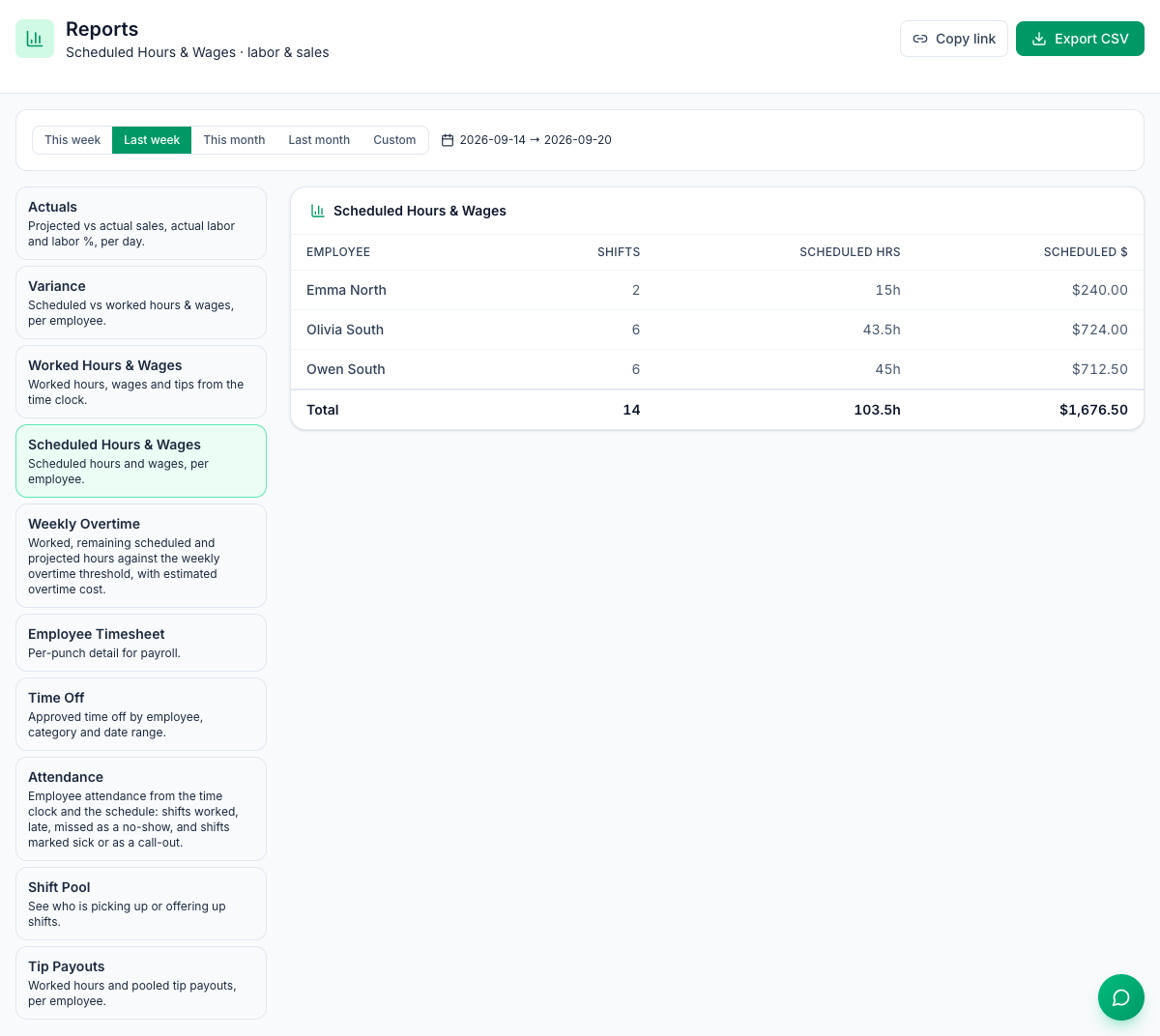
Scheduled Hours & Wages | Per person: shifts, scheduled hours (minus breaks) and their cost, with weekly, daily and 7th-day overtime priced in. |
Weekly Overtime | Per person: hours worked, scheduled hours still to come, projected hours, overtime hours (weekly, daily and 7th-day), double-time hours where the location pays double time, and estimated overtime cost. |
Employee Timesheet | Every punch: date, clock in and out, break, hours and wages. |
Time Off | Approved time off in the range: category, dates, partial day, hours and the manager's note. |
Attendance | Per person: scheduled shifts and how many were Sick, No-show, Late, Call-outs or Left late, with an Attendance %. Late and no-show come from the time clock as well as your marks. |
Shift Pool | Per person: shifts scheduled, offered up, picked up, traded and worked. |
Tip Payouts | Per person: worked hours and their share of the tip pool, plus a Card surcharge $ column when the location shares one out — the same amounts the pay period and payroll export pay for those days. See Tip pooling. |
Read them with care
- Worked wages come from the wage saved on each punch. Actual labor and Labor % in Actuals, Worked $ in Variance, and Wages $ in Worked Hours & Wages and Employee Timesheet use it. Punches made in Mays save it at clock-in — the person's own hourly wage, or else their position's (their main position's when the punch has none). A punch made in Mays with no wage saved, such as an older one from before late September 2026, uses the wage on file today while its pay period is open, as the pay summary does; in a closed period it stays at $0.00. Punches for salaried staff or anyone with no wage set show $0.00. Scheduled costs always use each person's current wage — for a shift with no position, their main position's (see Positions and wages). Scheduled Hours & Wages, Worked Hours & Wages and Variance include overtime, priced the same way as the pay summary: by your overtime settings in Scheduling → Settings and, with Labor law compliance's Overtime law on at the location, by the law at its address where it's more protective (see Labor & compliance). Each person's total is rounded once, so Wages $ in Worked Hours & Wages matches the pay summary to the cent. Actuals and Employee Timesheet count every hour at the saved wage, without overtime. See Exporting payroll (CSV and Gusto).
- Tips $ in Worked Hours & Wages only has tips imported from 7shifts. For your POS tips shared through the tip pool, use Tip Payouts.
- Attendance reads each shift like the schedule's attendance chips: a manager's mark wins; otherwise a late clock-in counts as Late (even after the person clocked out) and no clock-in after the location's no-show time counts as a No-show — except the second shift of a double that one clock-in covered. Sick, Call-outs and Left late only come from marks. See Attendance, late and no-show alerts.
- Scheduled numbers include draft shifts you haven't published.
- Weekly Overtime is for planning a week before it starts. Once it's under way, shifts already worked are counted both as worked and as still scheduled, so the projected and overtime hours come out too high. It uses the location's overtime rules, priced the same way as the pay summary — your overtime settings in Scheduling → Settings or, with Labor law compliance's Overtime law on, the more protective of those and the law at the location's address, or the location's own rules — and your payroll weeks. That includes daily overtime, double time and the 7th day where the location has them: a 13-hour day in Colorado shows 1 overtime hour even in a short week. Each hour counts once, at the highest rate that applies. Overtime cost $ is those hours at the person's current wage times their multiplier. The Double time hrs column shows only at a location that pays double time.
- Time Off shows each request's full hours even when only part of it falls in the range. Someone who works at two locations has their time off under one of them.
- Offered up in Shift Pool only counts shifts still waiting in the pool — once someone picks one up, it's counted under Picked up for them.
Dates and times
- This week always runs Monday to Sunday, whatever your schedule week is.
- Scheduled Hours & Wages, Worked Hours & Wages, Variance and Tip Payouts use your location's own days, like the pay summary. Tip Payouts also leaves out anyone still on the clock until they clock out, as payroll does. The other reports split days at midnight UTC — 8 PM Eastern in summer, 5 PM Pacific. Evening hours at the start and end of a range can land in the neighbouring range, and an evening punch can show the next day's date in the Employee Timesheet. The payroll export uses your location's own days, so use it for payroll.
- Clock times are shown in your computer's time zone.
Good to know
- One location at a time — switch at the bottom of the sidebar. There's no filter by person or position; export and filter in your spreadsheet.
- Who can see reports: anyone who can open the schedule — managers and admins by default. Reports include wages.
- Scheduling is part of the Pro plan. For org-wide labor and sales trends, see Insights in the sidebar: Labor cost insights and Prime cost.