My Hours in the Mays app shows the hours you've worked in each pay period, every clock-in and clock-out, and a rough estimate of your pay before taxes.
Open My Hours
- Go to the Schedule tab.
- Tap My Hours. (On Android the screen is called My Hours & Pay.)
Each card is one pay period, newest first, with:
- the dates, for example Sep 21 – Oct 4;
- In progress, or Closed once your manager has finished the period for payroll;
- your total hours, for example 22.8h;
- your estimated pay, for example ≈ $364.32 before taxes.
Tap a period's header to open it and see each shift.
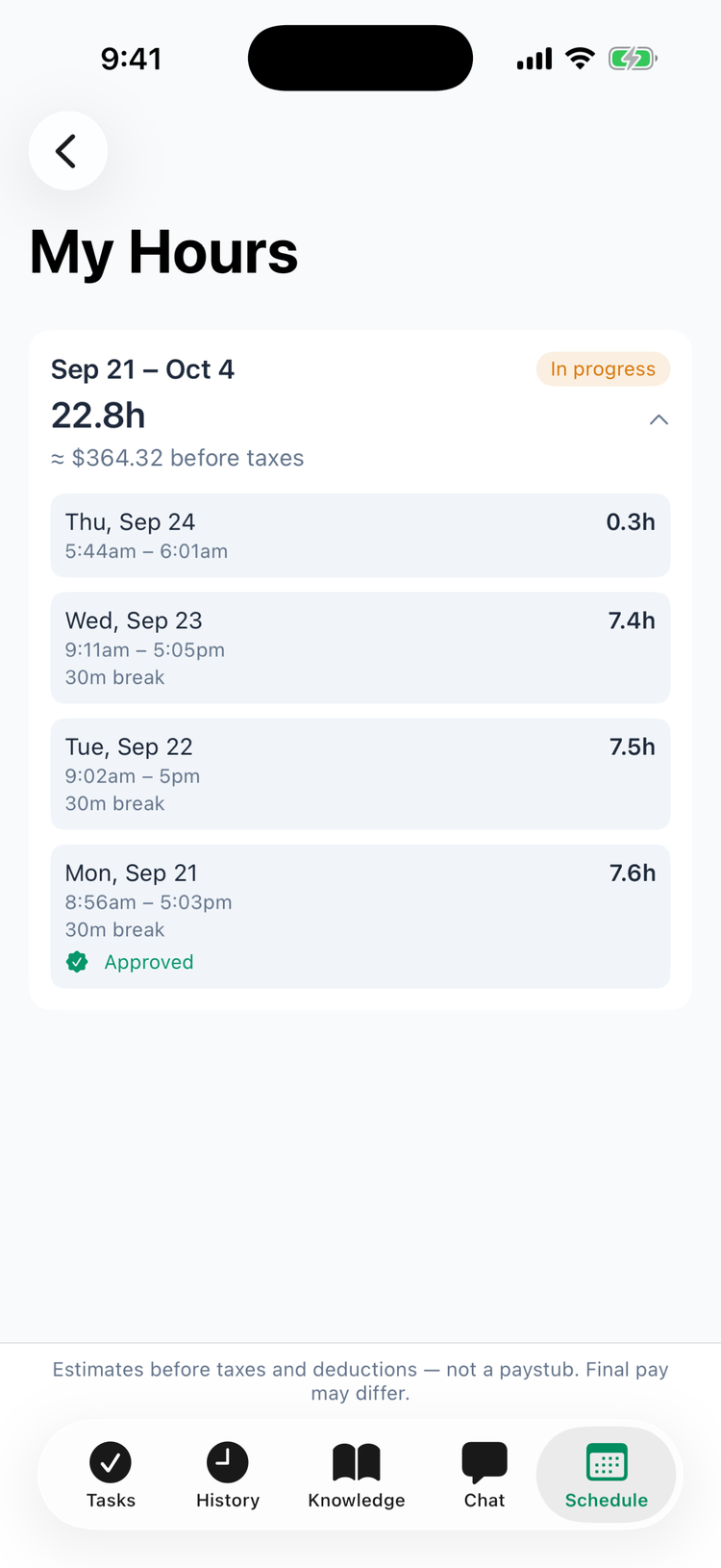
Each shift
- The day and your clock-in and clock-out times. A shift you're still working shows – open and isn't counted yet.
- Your unpaid break time, for example 30m break. Paid breaks count as time worked.
- The hours for that shift.
- Approved once your manager has approved it, and Auto clock-out if the store clocked you out automatically — check that time with your manager.
How the estimate works
The estimate is your hours times the wage saved on each shift when you clocked in — your own hourly wage, or your position's wage if you don't have one. It's before taxes and deductions — not a paystub, and your final pay may differ. It doesn't include:
- overtime pay — all hours are counted at your normal rate;
- tips;
- anything your manager adds or changes in payroll.
If you're paid a salary, the card shows your salary for the period instead (marked weekly salary). If neither you nor your position has a wage in Mays, you see your hours but no estimate.
Good to know
- You can't change punches here. If a time is wrong or a shift is missing, tell your manager — they can fix it, and you'll get a notification when they do (Time punch edited, Time punch added).
- The last six pay periods you worked are shown. A period with no shifts doesn't appear.
- Notifications about your punches open this screen when you tap them.
- Refresh: go back to the Schedule tab and open My Hours again.
- Tip declarations (Wisconsin, when your organization has Labor law compliance on). At a Wisconsin location, My Hours starts with Confirm your tips after each pay period: confirm the tips Mays recorded for you, or correct them with a note — see Tip declarations.