FTAR & Tip Pool shows how often each person's tasks are accepted the first time, how productive they are, and has a tip pool calculator that splits the location's tips exactly like payroll.
Who: admins and managers. In a custom role, it comes with the View users permission. FTAR & Tip Pool is part of the Basic and Pro plans and the free trial, on the web app only. The tip amounts only show for people who can see pay (the Build & manage native schedule permission, which managers and admins have by default); others see the cards and the performance table.
What FTAR means
FTAR is the first-time acceptance rate: of the tasks someone submitted, the share that were never rejected.
FTAR = accepted ÷ (accepted + rejected) × 100
- A task counts as rejected if it was ever rejected: by a manager, by an automation, or by the AI photo check. It stays rejected even after it's redone and accepted.
- Every other submitted task counts as accepted, including tasks still waiting for review.
- Every kind of task answer counts: checkboxes, photos, numbers, custom forms and the rest.
Open the report
- Click FTAR & Tip Pool in the sidebar.
- It shows the location picked at the bottom of the sidebar. Switch location there.
- Pick the dates: This week (the default), Last week, This month, Last month, or Custom with a start and end date. Weeks run Monday to Sunday.
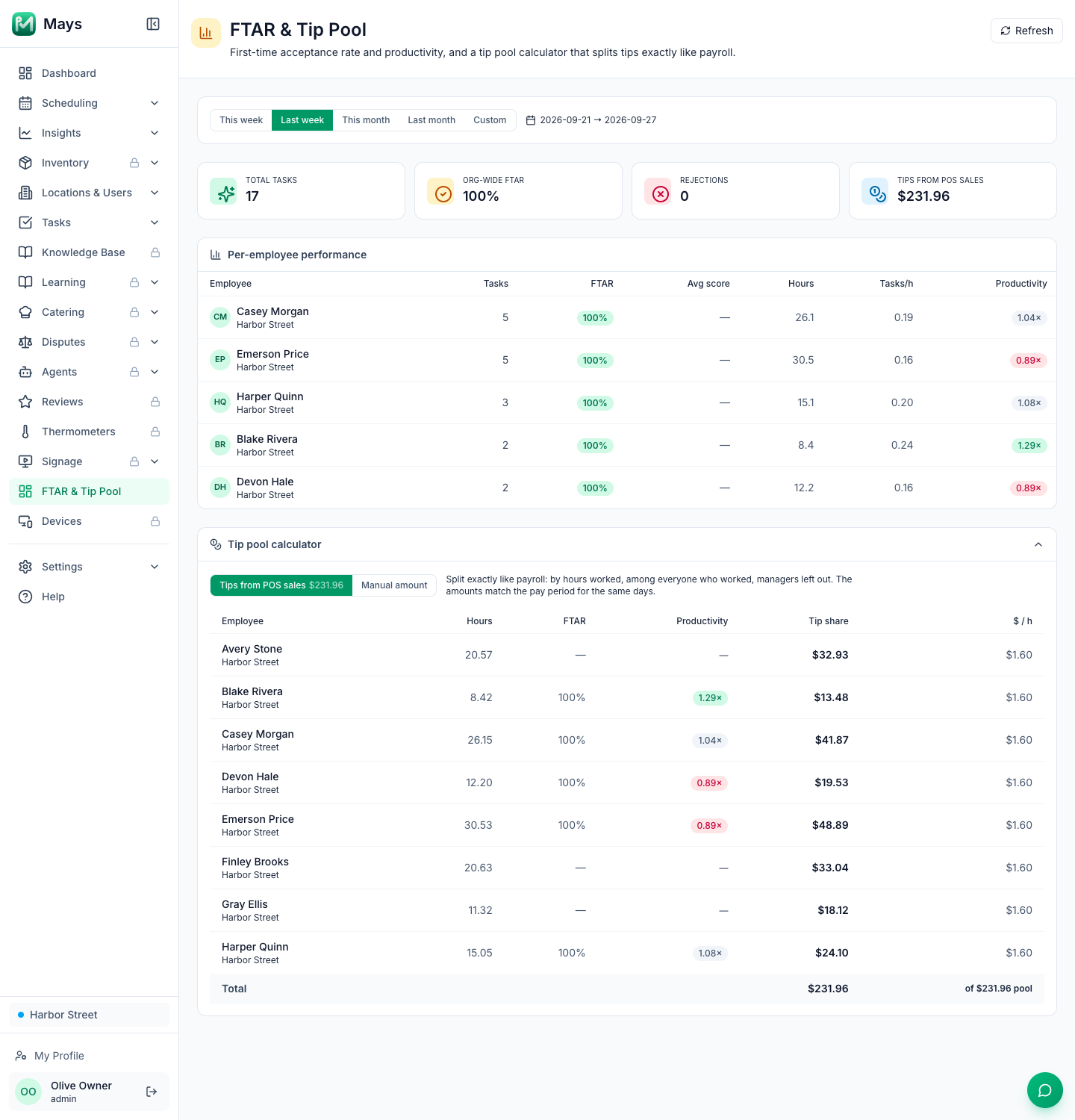
The cards at the top show Total tasks, Org-wide FTAR, Rejections, and Hours worked, or, if you can see pay, the tips payroll pools for those dates: Tips from POS sales when they come from your POS (Square or Union), or Tips on time punches. They cover the location you're looking at, even though the card says "Org-wide".
Per-employee performance has a row for each person who submitted at least one task in the period, most tasks first:
Column | What it is |
|---|---|
Tasks | Tasks they submitted in the period |
FTAR | Their first-time acceptance rate: green at 90% or more, amber from 75%, red below |
Avg score | The average score the AI photo check gave their photos, out of 100. — when no photo was checked |
Hours | Hours they worked (see below) |
Tasks/h | Tasks divided by hours |
Productivity | Their tasks per hour compared with the location's. 1.00× is average; green from 1.10×, red below 0.90× |
Where the hours come from: time clock punches, when anyone at the location clocked in and out during the period. If nobody did, Mays uses the schedule instead, including shifts that aren't published yet and without taking breaks off.
Tip pool calculator
The Tip pool calculator splits tips exactly like payroll: the same tips, the location's Tip pool card settings and the location's own days, among everyone who worked. For the same location and days, each person's Tip share is the amount on the pay period's Tips tab. Nothing on this page is saved or goes to payroll.
- The first button shows the tips payroll pools for the dates, for example Tips from POS sales $231.96. To see how another sum would split, such as cash tips, click Manual amount and type it. Manual amount splits by the rules of the location picked at the bottom of the sidebar, over the whole range.
- The table has a row for everyone who worked: Hours, FTAR, Productivity, Tip share and $ / h, and the Total. Someone who submitted no tasks still gets their share, with — for FTAR and Productivity. The hours are the pay period's hours.
How it splits: the line next to the buttons says how, for example Split exactly like payroll: by hours worked, among everyone who worked, managers left out. It follows the location's Tip pool card, as payroll does: Distribute (By hours, Equally or By FTAR score, where someone with no tasks counts at the team average), Granularity, Who receives, leaving managers out, and the card processing fee (the Tip share is after the fee, as in payroll). With Pool tips off, each person keeps the tips on their own time punches.
To change how tips are paid out, change the location's Tip pool card. See Tip pooling.
Good to know
- The performance table uses UTC days. In US time zones, evening tasks and punches can count toward the next day there, and on Sunday evening This week already shows the week ahead. The tip pool calculator uses each location's own days, like the pay period.
- The tips are the ones payroll pools: the tips on the sales your POS (Square or Union) sends Mays, or the tips on time punches. When you connect a POS, Mays brings in the location's last 30 days of sales. If staff worked on days with no sales from your POS, the pay period shows a yellow note and those days' tips are missing here too; see Timesheets and pay periods.
- Managers see only their own locations, in the performance table and the tip pool calculator, and when they ask Mays AI in ChatGPT or Claude about tips. A request for another location is refused and shows no names, hours or tips. Admins see every location.
- Manual amount with no amount typed shows payroll's split.
- Totals can be a few cents off the amount, because each share is rounded on its own.
- To lower rejections, see Reviewing and rejecting completed tasks and AI photo verification.