Chat with several coworkers at once, such as your closing crew or everyone at one store. Anyone can start a group. Group chats are in the iPhone and Android apps only.
Start a group
- Tap Chat, then + at the top.
- Tap New Group.
- Type a name under Group name (optional). Without one, the group is called Group Chat.
- Tap the people you want. They appear as chips at the top; tap a chip's x to take someone out again. Search contacts helps in a long list.
- Tap Create Group. The button shows how many people you picked.
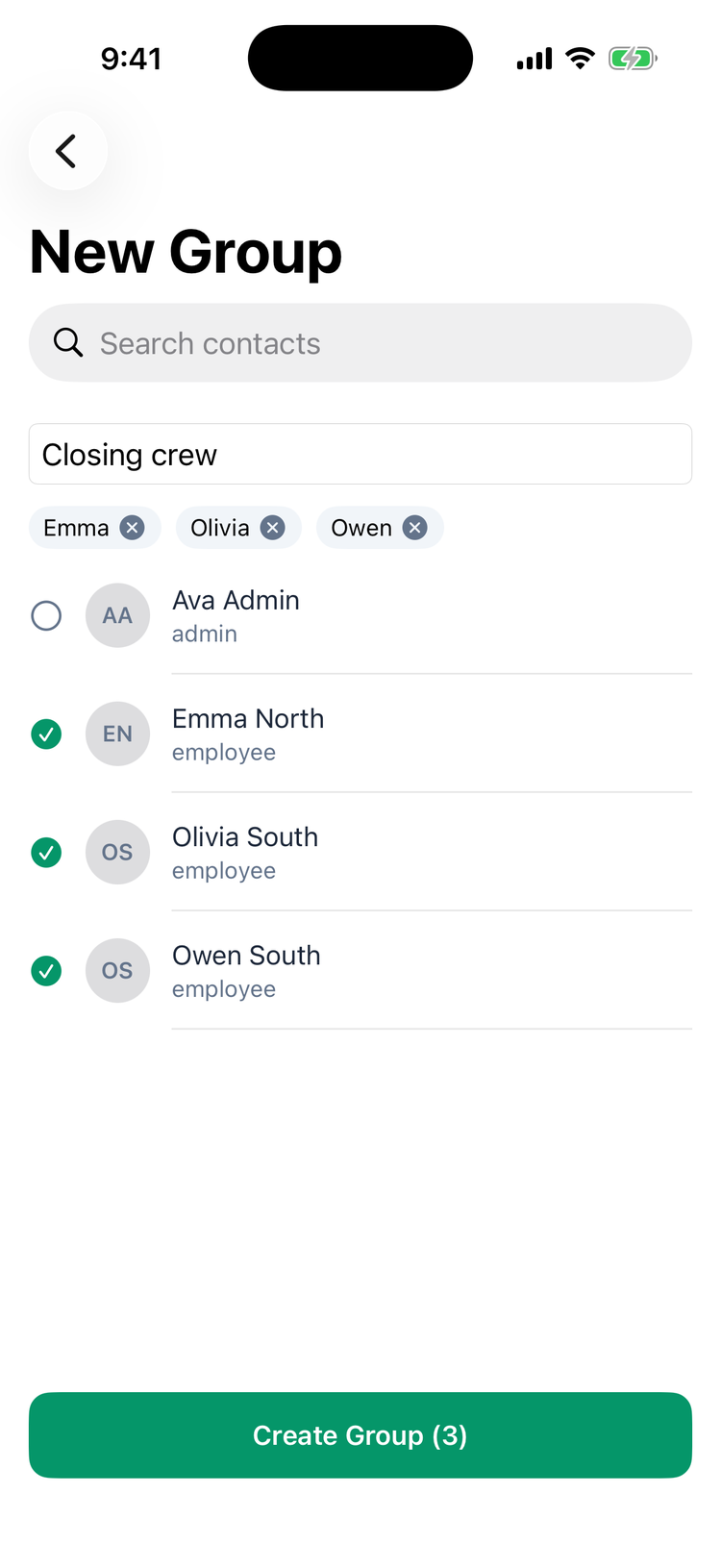
The group opens straight away. You need at least one other person, and there's no limit on how many. You can add anyone you could message on their own: the people who share a location with you, or everyone if you're an admin.
Group Info
Tap the group's name at the top of the chat to open Group Info. It has the group's photo, its name, the members and:
- Search in Conversation, to find a message in this group.
- Delete Conversation (managers and admins). See below.
Managers and admins can also:
- Rename the group: tap the pencil next to the name, type, and tap Save.
- Change the photo (iPhone): tap the group photo and pick one from your library. Android can't change the photo.
Other members don't see the pencil or the camera button, and can't rename the group or change its photo.
The Admin or Manager tag next to a member's name is their role in your company, not in the group. A Group admin tag means they run this group (see below): the two are separate, so an employee can be a group admin and a manager can be a plain member.
Group admins
Whoever creates a group is its first group admin. Group admins decide who's in the group. Being a manager or admin in your company doesn't make you a group admin: only another group admin can make you one.
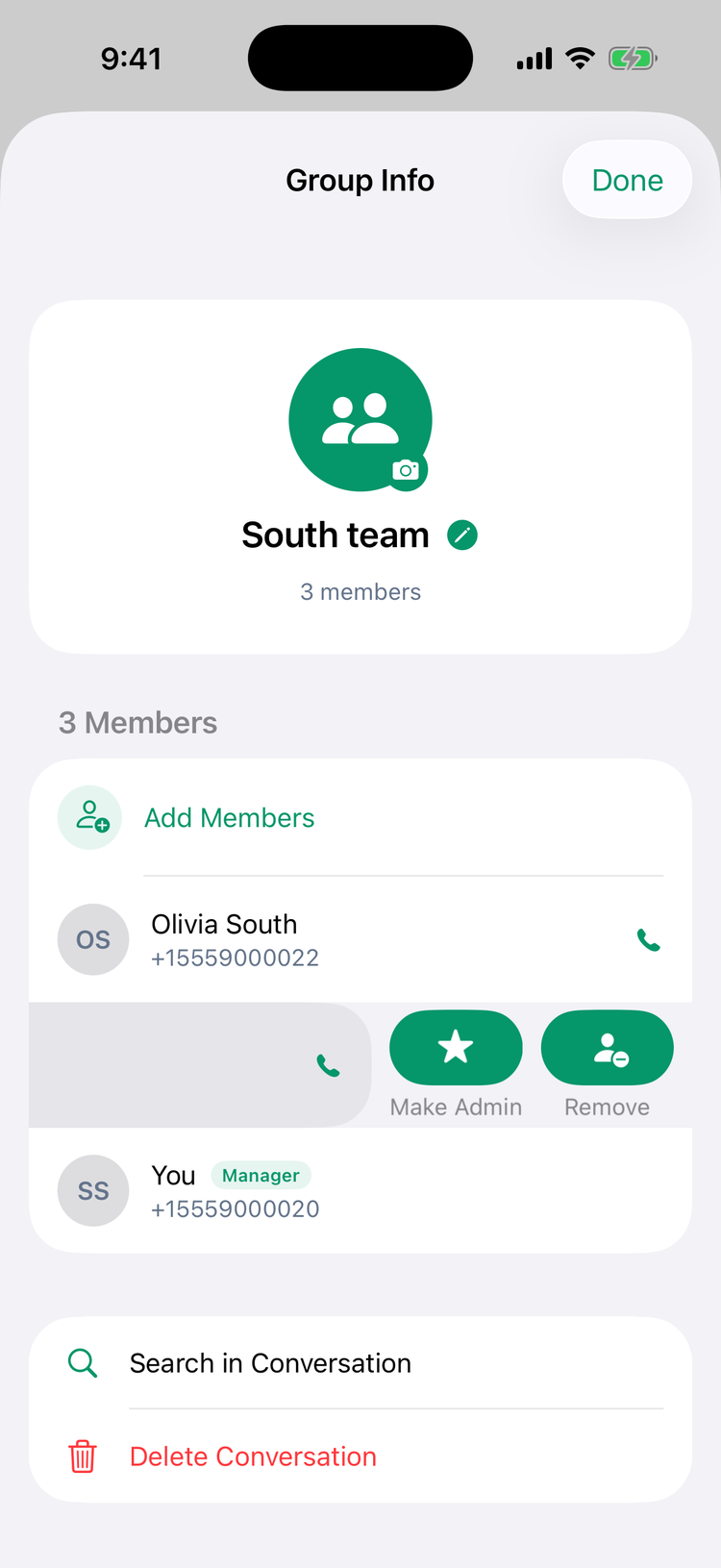
- Who can add or remove people: only the group's admins. If you're not one, Group Info says Only group admins can add or remove members in place of the Add Members button and names the admins to ask. Ask one of them to add the person, or to make you a group admin.
- Add people (group admins): tap Add Members and tap + next to each person. The row shows a tick and Added once they're in. You can only add people you could message on their own: the people who share a location with you, or everyone if you're an admin in your company. If the app can't add someone, it tells you why, for example You can only add people from your locations.
- Remove someone or make them a group admin (group admins):
- iPhone: swipe left on the member and tap Remove, Make Admin or Demote.
- Android: tap ⋮ next to the member and choose Remove, Make admin or Demote to member.
- There's no confirmation when you remove someone or change who's an admin, so tap carefully.
- A group always keeps at least one admin. To remove or demote the last admin, make someone else an admin first.
Everyone in the group sees a note when someone is added or removed or becomes an admin, for example Owen South was added to the group. It appears the next time the chat loads.
New members see the whole conversation, including messages from before they joined. People you remove lose the group and its messages.
Mute a group
Mute a busy group the same way as any conversation: ••• (iPhone) or ⋮ (Android) at the top right of the chat. See Messaging your team.
Leave a group
There's no Leave button. Ask one of the group's admins to remove you, or mute the group.
Delete a group
- Open Group Info.
- Tap Delete Conversation.
- Confirm with Delete. The message warns that this can't be undone.
The group disappears for everyone, and nobody can write in it again. Only managers and admins can delete a group from the app.
Good to know
- There are no broadcast channels. To reach a whole team, make a group with everyone in it.
- @mentions: in a group, type @ and pick a person. They get a notification with @ and your name. See Replies, reactions and other message actions.
- Read receipts: in a group, the ticks turn blue once everyone has read your message. To see who read it, use Info, also described in that article.
- When someone leaves your company, deactivating them cuts them off from their groups straight away: they can't open them and get no messages or notifications. They're still listed as a member until you remove them, and the group's read ticks still wait for them, so new messages never turn blue. Remove them from each group as well to keep the member list accurate. See Deactivating team members and deleting accounts.
- Photos, voice notes and files work in groups too. See Photos, files and sharing in chat.