Your shifts are in the Schedule tab of the Mays app. It lists the shifts coming up, lets you confirm them, and has shortcuts to everything else about your schedule.
The Schedule tab appears when your company uses scheduling in Mays. If you don't have one, ask your manager — see also A tour of the app.
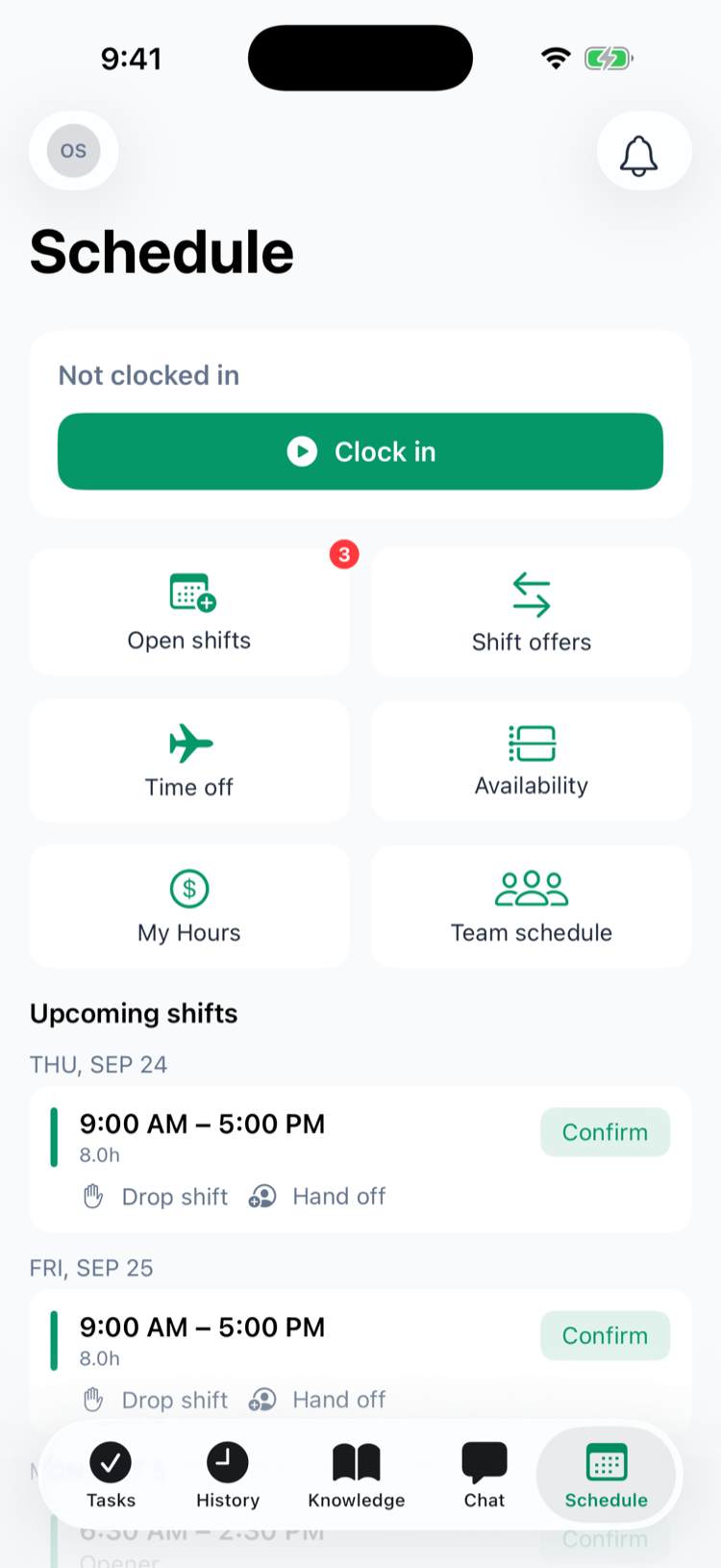
What's on the Schedule tab
From the top:
- Clocking in and out — Clock in, breaks and Clock out.
- Six shortcuts:
Card | What it's for |
|---|---|
Open shifts | Shifts you can pick up. The red number counts them. See Open shifts and dropping a shift. |
Shift offers | Coworkers asking you to take or swap a shift. See Handing off and swapping shifts. |
Time off | Ask for days off and see your requests. See Requesting and approving time off. |
Availability | Tell your manager when you can work. See Setting your availability. |
My Hours | Your hours and estimated pay. On Android it's called My Hours & Pay. |
Team schedule | Who's working each day this week. |
- Upcoming shifts — your shifts, grouped by day.
Your upcoming shifts
Each shift shows its time, the label your manager gave it (such as Opener), any notes, and the paid hours with the break, for example 7.5h · 30m break. Under it are Drop shift and Hand off — see the articles linked above.
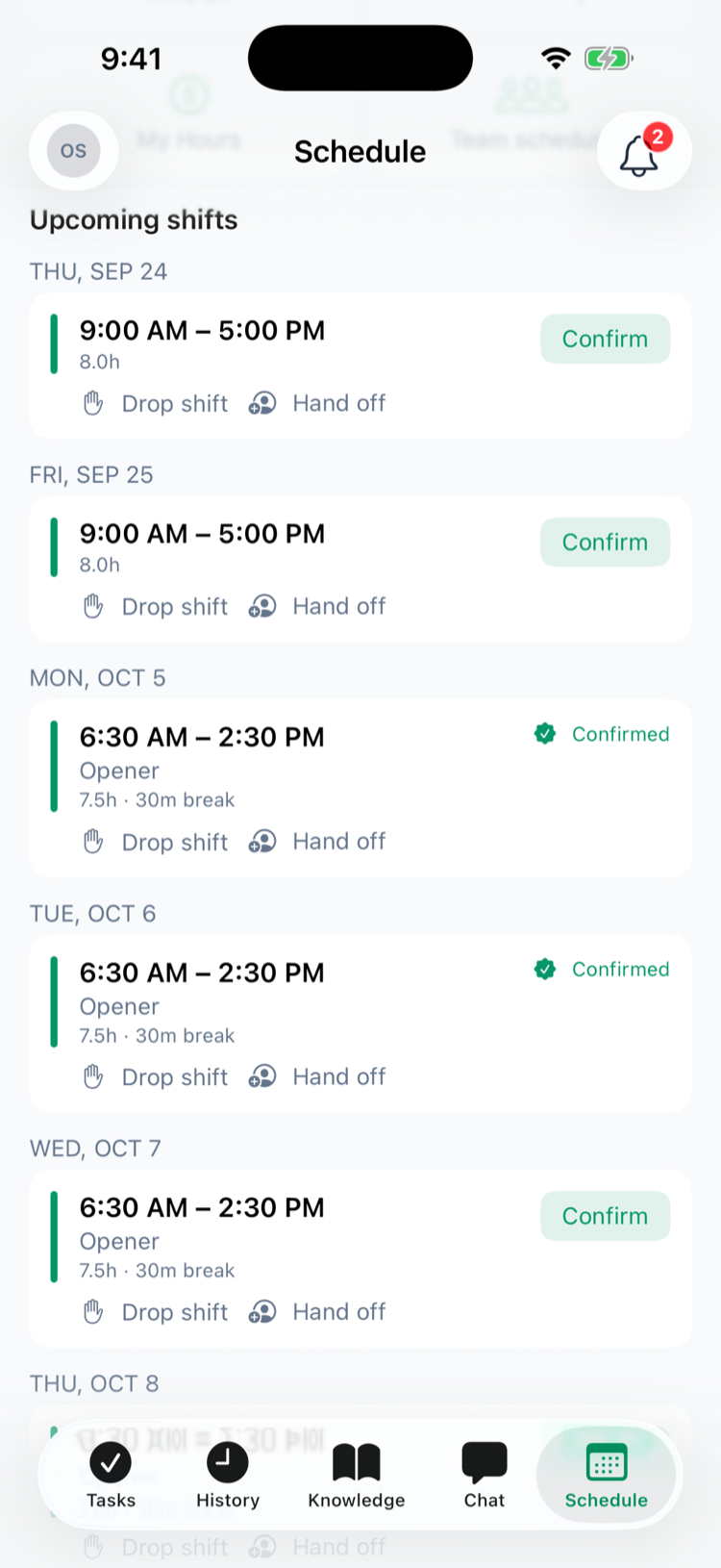
- You only see published shifts. While your manager is still building the week, you won't see it — you'll get a Your schedule is ready notification when it's published.
- A shift disappears from the list once it starts.
- The list covers the next 3 weeks.
- The card doesn't show the position or the location. If you work at more than one location, check the Team schedule for each store.
Confirm your shifts
If your location asks you to confirm shifts, each one has a Confirm button.
- Tap Confirm.
- The shift shows Confirmed with a green check.
If your manager changes the time, the position or who's working a confirmed shift, it needs confirming again. You'll get a Confirm your shift reminder when a shift you haven't confirmed is less than a day away. Locations that don't use confirmations show no button.
See who's working
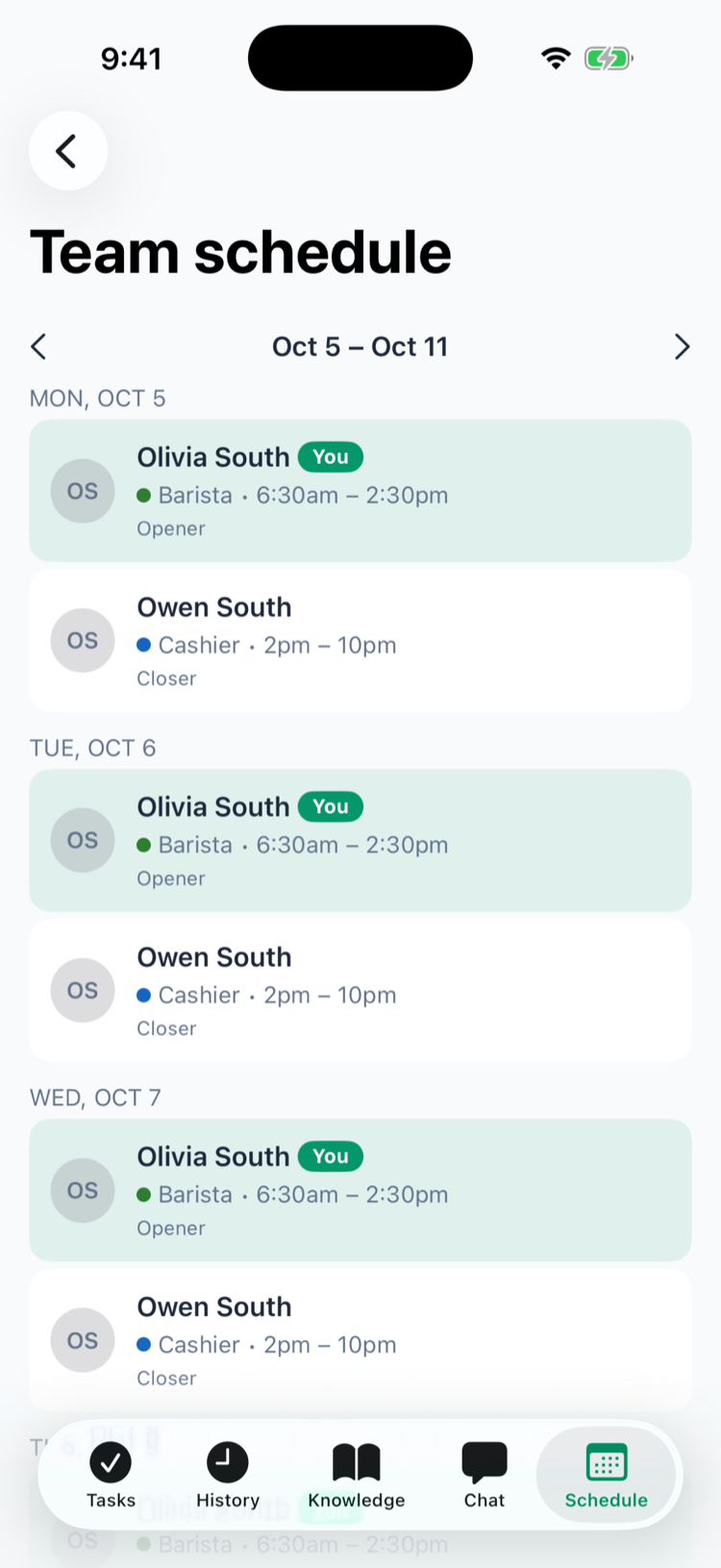
Tap Team schedule to see every published shift at your location, day by day, for the week — names, positions, times and labels. Your own shifts are highlighted with a green You; unassigned shifts show as Open shift. Nobody's pay or shift notes are shown.
- Use the arrows to move between weeks.
- If you work at more than one location, switch between them at the top.
Notifications you may get
Notification | When |
|---|---|
Your schedule is ready | A week with your shifts was published. |
New shift assigned, Shift updated, Shift removed | Your manager changed your shifts and published. |
Confirm your shift | A shift less than a day away isn't confirmed yet. |
Shift starting soon | Your shift is about to start. |
Tapping one opens the Schedule tab. You can turn them off under Profile → Notifications → Schedule — see Notifications.
Good to know
- Refresh: on iPhone, pull down on the Schedule tab. On Android, leave the tab and come back.
- Add your shifts to your phone's calendar — see Calendar sync.
- Your company uses 7shifts? If your location still builds its schedule in 7shifts, keep using 7shifts to see your shifts — the Mays app only shows shifts made in Mays.
- Managers also see a Today at … card at the top and an Approvals row; see The approvals inbox.