The logbook is a daily journal for each location. Managers leave notes for the next shift — a broken cooler, a big catering order — then comment and flag what still needs doing.
Where: Scheduling → Logbook on the web; Schedule → Logbook in the app. It shows the location picked at the bottom of the sidebar (web) or at the top of the screen (app, when you have more than one).
Write an entry
On the web:
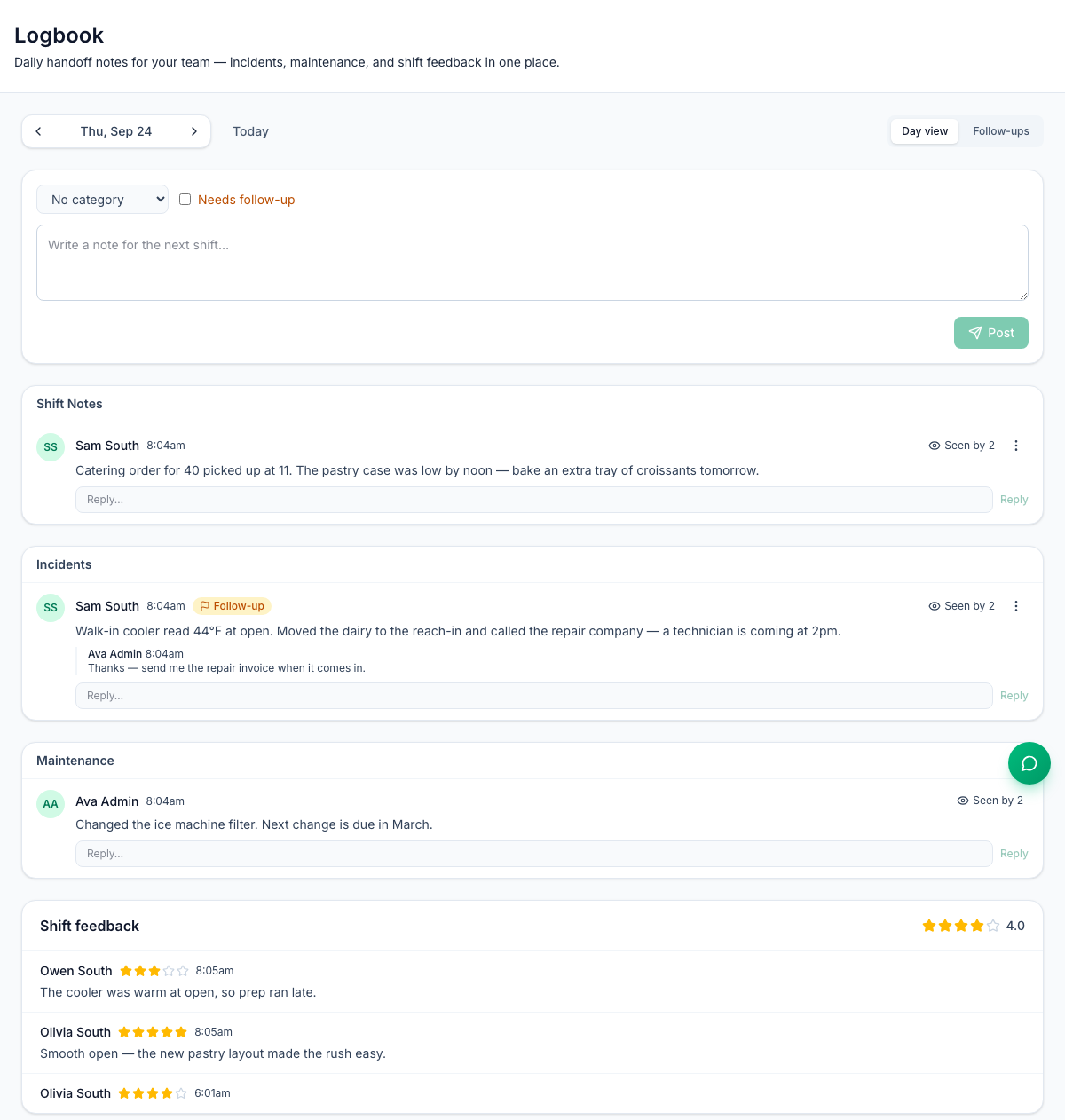
- Go to the day with the arrows (it opens on today; Today jumps back). The entry is filed under the day on screen.
- Pick a category — Shift Notes, Incidents, Maintenance, Staff, Customer or Health & Safety — or leave No category.
- Tick Needs follow-up if something still has to be done.
- Type the note (Write a note for the next shift…) and click Post.
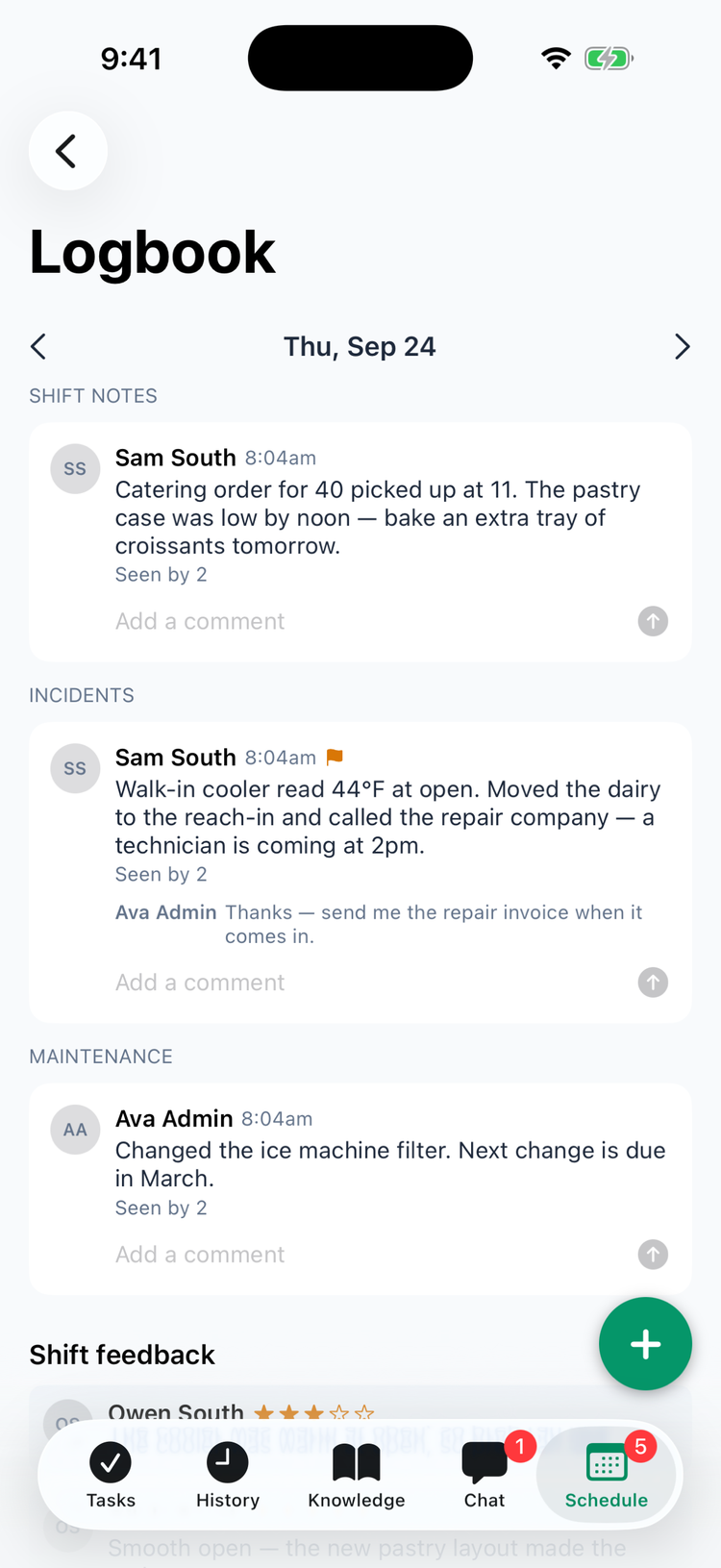
In the app: tap +, pick a Category, write the note, turn on Needs follow-up if needed, and tap Post (iPhone) or Add entry (Android).
The other managers and admins assigned to that location get a New log book entry notification with the start of your note.
Read and reply
- Entries are grouped by category, oldest first. Ones without a category are under Uncategorized on the web and General in the app.
- Seen by counts who has opened that day's logbook since the entry was posted — including the person who wrote it. On the web, hover over it to see the names.
- Reply under any entry (Reply on the web, Add a comment on iPhone, Comment on Android). Replies don't send a notification.
- On the web, the ⋮ menu on an entry has Edit (the text only) and Delete. Only the person who wrote it, or an admin, can use them. Delete has no confirmation. The app can't edit or delete.
Follow-ups
On the web, Follow-ups lists every entry flagged Needs follow-up at the location, from any day, newest first.
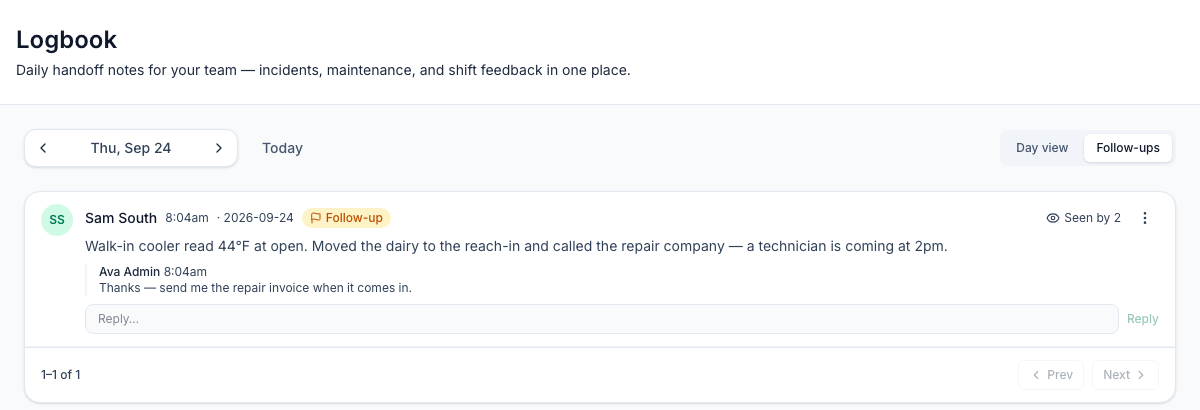
There's no way to mark a follow-up done yet. Editing an entry changes only its text, so the flag stays on and the entry stays in Follow-ups. For now, reply on the entry to say it's sorted (for example Fixed — technician replaced the fan). Deleting the entry clears it from the list, but also deletes the note. The app shows the flag on the entry but has no Follow-ups list.
Shift feedback
When someone clocks out in the app, they're asked How was your shift? — one to five stars and an optional comment, or Skip. The ratings show at the bottom of that day's logbook under Shift feedback, with the day's average, each person's name, stars and comment. They're not anonymous.
People aren't asked when they clock out on a shared kiosk, or with an NFC tag on Android. See Clocking in and out on your phone.
Good to know
- Who can use it: managers and admins. Employees don't see the logbook. With custom roles, View log book lets someone read and comment, and Manage log book lets them post — see Roles and permissions. In the app, the Logbook row shows for the Manager and Admin roles only.
- Categories are the six above. They can't be renamed, added or removed from any screen.
- No photos — the logbook is text only.
- Notifications for new entries can't be turned off in the app's notification settings yet.
- On iPhone in the evening, the logbook can open on tomorrow's date (from 8 PM Eastern or 5 PM Pacific in summer), and a new entry goes under that date. Tap the left arrow to go back to today before you post.
- Scheduling, which includes the logbook, is part of the Pro plan.