Send a published training module to whole locations, roles, departments or single people, with an optional due date, then see who has taken it, their best score and every answer.
Where: Learning → Modules on the web, in the module. Who: admins. The module must be Published first, see Creating training modules.
Assign a module
- Open the module and click Assign.
- Pick any mix of Branches (your locations), Roles, Departments and People. Use Search… to find a name. What you pick turns solid.
- Optionally pick a Due date.
- Click Assign (the button shows how many you picked).
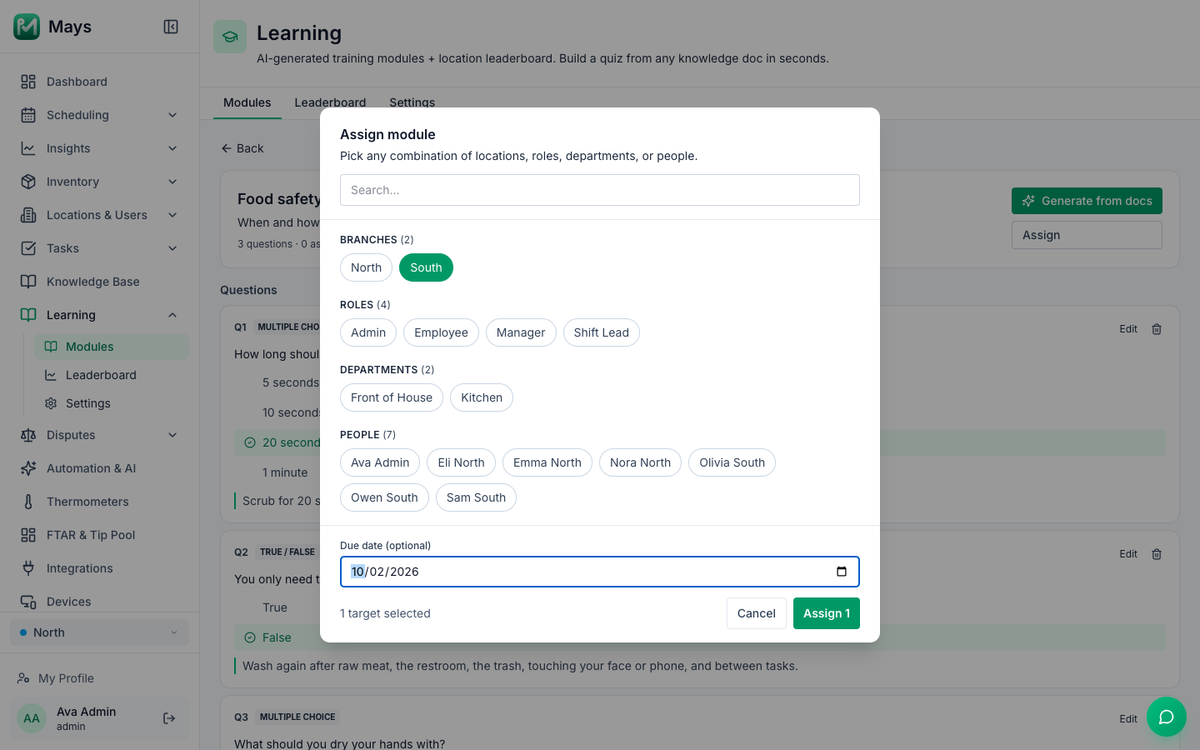
Everyone who matches at least one of your picks sees the module under Learning in the Mays app. It works like a rule, not a list:
- People who join later get it too. Assign a module to the Barista role or a location once, and every new hire in it sees it.
- Locations include everyone assigned to that location, managers and admins too.
- Someone matched twice (their location and their department, say) sees the module once, with the earliest due date.
Nobody is notified when you assign a module. Tell your team, or let pop quizzes remind them during their shifts.
See and remove assignments
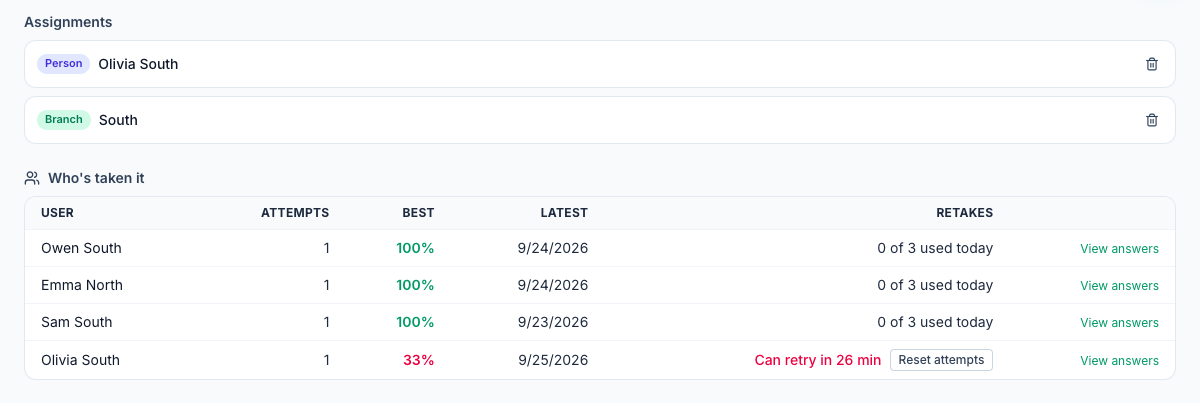
Each pick is listed under Assignments in the module, with its type (Branch, Role, Dept or Person) and the due date. Click the bin next to one to remove it; the module disappears from those people's lists, and results they already have are kept.
Due dates show as the day you picked: due Oct 2, 2026 here, and due Oct 2 next to the module in your team's app. Mays doesn't send reminders before a due date or flag late modules, so follow up yourself.
See who has taken it
Under Who's taken it, every person who has finished the quiz at least once is listed with:
- Attempts — how many times they've taken it;
- Best — their best score;
- Latest — the date of their last attempt;
- Retakes (compliance modules only) — how many of today's tries they've used, or how long until they can try again after a failed one (3 of 3 used today, Can retry in 23 min), with Reset attempts to let them start again straight away (see Creating training modules);
- View answers — their last attempt, question by question.
View answers opens the Attempt detail: the score against the passing score, PASSED or FAILED, when it was completed, and each question with the correct answer ticked and the person's pick marked ← picked.
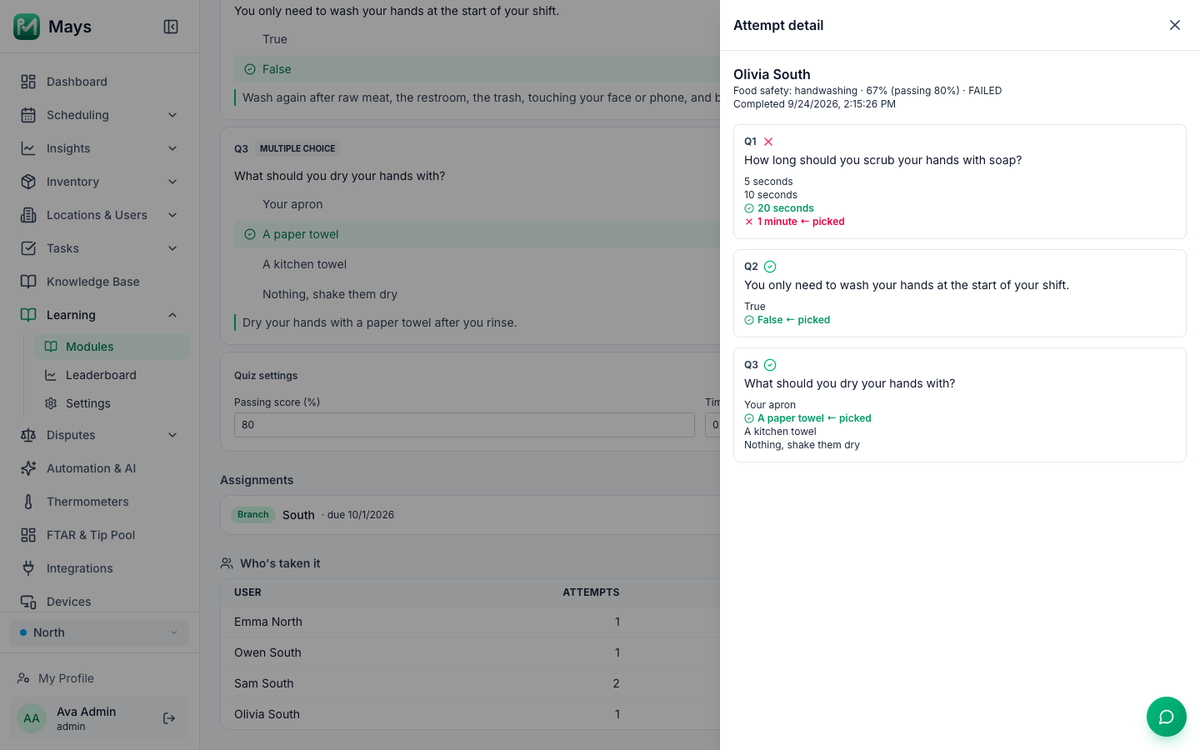
If everyone misses the same question, check the question and the article it came from before you retrain people.
Good to know
- People who haven't started aren't listed under Who's taken it. Compare the list with the people you assigned.
- Retakes: someone who fails can take the quiz again as often as they like. Once they pass, the module shows a green tick in the app and can't be taken again.
- Removing a person from a location, role or department takes away modules assigned through it. Their past results stay under Who's taken it.
- Managers don't see Learning on the web, so only admins can assign modules and see results. A custom role doesn't change that.