The Forecast page projects each day's sales from your point-of-sale history, so you can staff to demand. Set a weekly labor budget on the schedule and Mays tells you when you go over it.
Where: Scheduling → Forecast, on the web. It shows the location picked at the bottom of the sidebar, one week at a time.
You need a connected POS. Projections come from the sales your Square or Union account sends to Mays — see Connecting Square. When you connect, Mays brings in the location's last 30 days of sales in the background and then collects new sales as they come in, so the first projections use those four weeks and fill out over the next few. To bring in older sales (up to 90 days), write to support — Backfill payments on the Square card brings in payments, not the sales the forecast uses.
Read the forecast
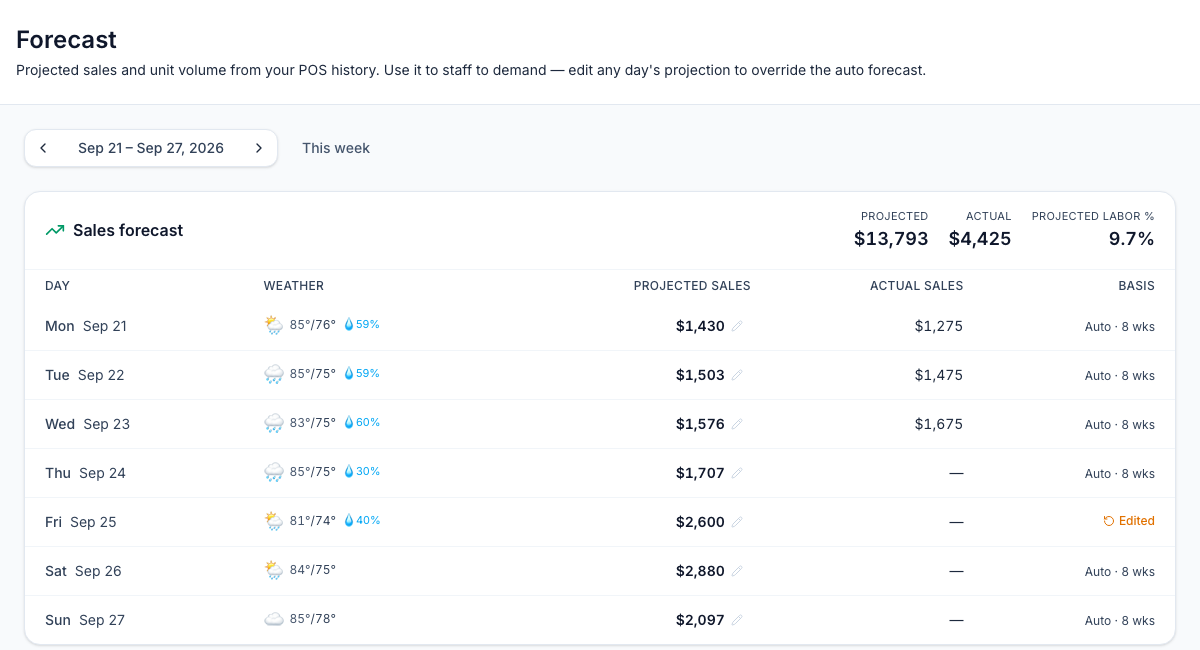
The Sales forecast card shows one row per day:
Column | What it shows |
|---|---|
Weather | The forecast high and low (°F) and, when it's 30% or more, the chance of rain. Hover for the conditions. |
Projected sales | What Mays expects you to sell that day. |
Actual sales | What you've sold, for past days and today so far. |
Basis | Auto · 8 wks — how many past weeks the projection uses; Edited — someone typed it in; No history — no sales on that weekday yet. |
At the top: the week's Projected and Actual totals, and Projected labor % — the labor cost of the shifts on the schedule (drafts included) as a share of projected sales.
How it projects: the average of the same weekday over the last 8 weeks, with recent weeks counting more. Sales are before tax and tips; cancelled orders don't count. Weather doesn't change the numbers, and neither do holidays — adjust those days yourself.
Change a day's projection
Expecting a busy Friday, or a quiet holiday?
- Click the day's amount under Projected sales.
- Type the new amount and press Enter (Esc cancels).
The day is marked Edited, and everyone at the location sees your number. To go back to the automatic projection, click Edited.
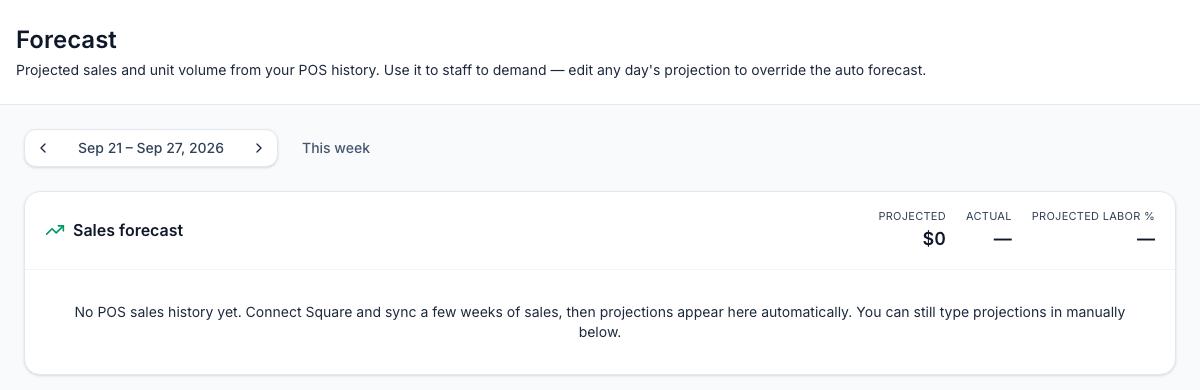
Without POS history you can't enter projections. The page says No POS sales history yet… You can still type projections in manually below, but there are no day rows to type into. Connect Square or Union first.
Unit forecast
For stores that staff by item count — smoothies, bowls, coffees — the Unit forecast card shows how many of chosen items sell each hour.
- Click Select items, tick the products that count as a unit, and click Save. The list comes from your Square item library for that location.
- Pick a day to see Projected units, Actual units and the Peak hour, with an hourly chart of actual and projected sales.
It needs Square — Union locations can't pick items yet. When you move to another week, pick the day again: the day list changes, but the chart stays on the day you had.
Set a weekly labor budget
The budget lives on the schedule, not the Forecast page.
- Go to Scheduling → Schedule and the week you're building.
- On the Weekly budget card, click Set (or Edit), type an amount and press Enter or click Save.
The card says within budget or turns amber with over budget when the Scheduled labor total goes over. A budget covers one week at one location — set it again for each week. Clear the box to remove it.
The Labor % card on the schedule is different from the Forecast's Projected labor %: it compares scheduled labor with the week's actual Square payments, so it only has a number once the week is under way, and only with Square. See Building the weekly schedule.
Good to know
- Labor costs come from wages. Set pay on each person or position — see Positions and wages.
- Weeks far ahead (more than about 8 weeks out) show the No POS sales history yet message even with history.
- The auto-scheduler doesn't use the forecast or the budget — it copies last week. See Auto-schedule with AI.
- Scheduling → Reports → Actuals compares projected and actual sales day by day — see Scheduling reports.
- Who can change it: managers for their own locations, and admins. Anyone else who can open the schedule sees the page, but their changes don't save. Scheduling is part of the Pro plan; the forecast is on the web only.