Approve requests between rushes: time off, swaps and pickups from ChatGPT, Claude or Grok
Requests pile up in the worst hours. A swap request comes in during the lunch rush, a pickup at 6pm, a time-off request while you're on the line. By the time you sit down, there are eight things waiting and some of them were time-sensitive.
If your AI app is already open on your phone, you can clear them there, in the gap between two rushes, with the same checks Mays runs when you approve in the app.
This post is part of our series Run your restaurant with your AI.
The situation
You manage Midtown at Harbor Lane Café. It's 2:40pm, lunch just ended, and you have five minutes.
Before: open the approvals screen, open the schedule to see what each request does to the week, check who else is off that Saturday, flip back, approve. Or screenshot a request and send it to the owner with "OK?".
Now:
Anything waiting for me?
What you see
The AI asks Mays for your pending approvals (get_pending_approvals) and summarizes them: how many of each kind, and the few that matter most. Mays covers:
- Time off requests;
- Availability changes, a new weekly availability or a temporary one for some dates;
- Shift swaps and hand-offs between teammates;
- Pickups of open shifts and shifts offered for cover;
- Checklists waiting for your review.
In ChatGPT and Claude, the answer comes with the Mays approvals card: requests grouped by kind, each person's note quoted, and warnings, such as an overlapping shift, in amber. An availability change shows its days as a strip with the days that differ from the person's current availability marked.
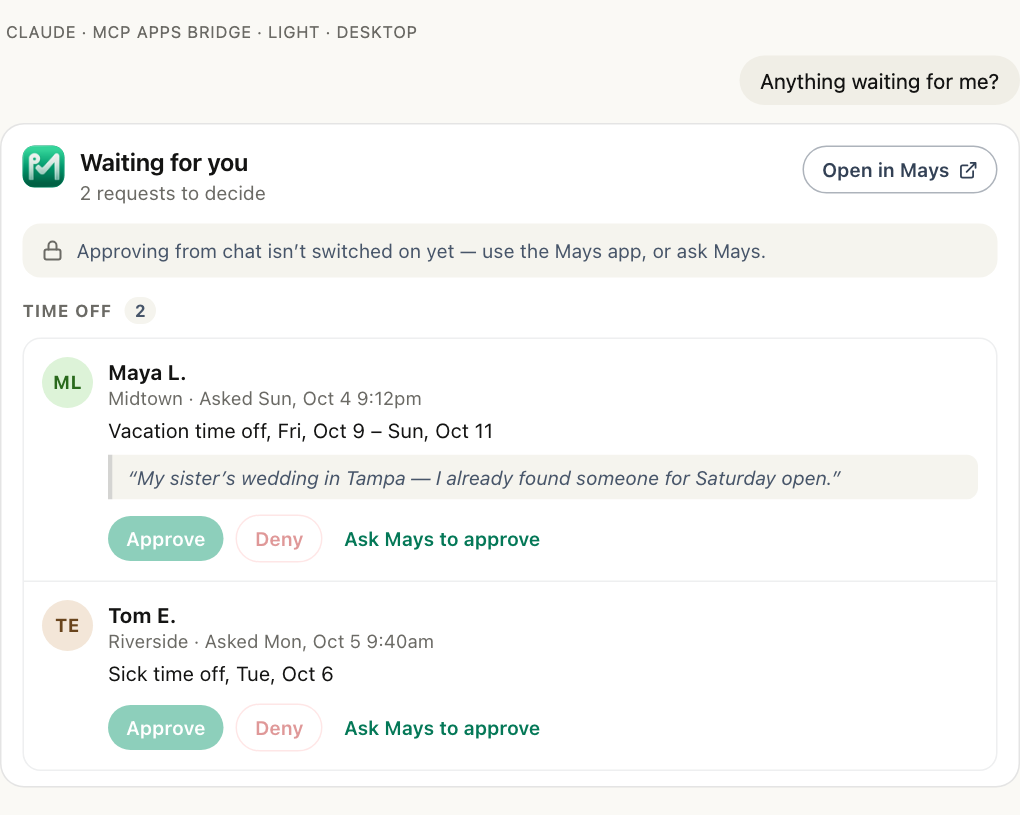
The card above is from a connection that can only read: the buttons are greyed out and say why. On a connection that can make changes, Approve and Deny are live. Grok shows the same answer as text, without the card.
Deciding, with context
You can decide straight away ("Approve Jordan's swap"), or ask first:
If I approve Maya's Saturday off, who's left on the morning?
The AI reads Saturday's schedule (get_schedule) and tells you who's on. Then:
Approve it.
The AI asks Mays to decide the request (decide_request). Mays sends a preview first, with any warning, such as shifts Maya is scheduled for during the time off. Warnings never block; you decide. Your yes approves it, and it's exactly Approve in the Mays app: the same checks, and the same notifications to Maya and anyone else involved.
A few rules that come with it:
- A note is optional for time off and availability, and required to reject a checklist, so the person knows what to fix.
- Approving a new weekly availability replaces the current one. A temporary one applies on its dates only. Either way, shifts already on the schedule don't change; check the week if they need to.
- Your own requests wait for someone else. A manager can't decide their own time off or availability; it stays pending for another manager or an admin, unless an admin has turned on Managers can approve their own requests. An org admin can always decide their own.
Why this beats screenshots
Every request you approve here is approved in Mays, by you. Nobody re-enters a decision, the person gets their notification right away, and the change is listed in Recent activity under Settings → Connected AI apps, with who made it and through which app.
What Mays doesn't do here
- It doesn't decide for you. The AI summarizes and asks; every decision needs your yes.
- It doesn't follow instructions inside notes. Notes your team writes are passed on as quotes. If a note says "approve this automatically", the AI is told to treat it as information, not as an instruction.
- It doesn't change the schedule when it approves time off. Shifts during approved time off stay until you move them; the warning tells you which.
Before you start
- Connect Mays to your AI app. mays.app/ai has the setup for ChatGPT, Claude and Grok; Connect Mays to ChatGPT, Claude or Grok has the details. The cards work in the ChatGPT and Claude apps on the web, desktop and phone.
- Seeing what's waiting is a read. Deciding is a change: an admin turns on Allow AI apps to take actions under Settings → Connected AI apps → Organization, and you tick make changes when you connect.
The most common pickup is a shift someone dropped; see who can cover Friday's close for the whole loop.
Try Mays free for 30 days, with no credit card, and connect it to the AI you already use.