Set up your restaurant in Mays from ChatGPT: in about 5 minutes
A 30-day free trial with no credit card, and your first location is free for the month. No sales call, no demo: connect Mays as a connector and see it work yourself.
For restaurants and cafés, one location or thousands. Works with GPT-6 and GPT-6 Pro in ChatGPT.
From sign-up to your first answer
About 5 minutes to sign up, connect and ask your first question. Setting up the whole store takes as long as what you paste in.
Create your free Mays account
Sign up with your name, your business and your first location. Mays texts you a code once to confirm your phone. No card.
You can also do it on the way: when ChatGPT opens the Mays sign-in page, click Create your account under the form, and you go straight back to finish connecting.
Let AI apps make changes
In Mays, turn on Settings → Connected AI apps → Organization → “Allow AI apps to take actions”.
Just signed up? You’re the admin, so you can tick “Also allow AI apps to make changes” on the Mays page when you connect instead. It turns the same switch on.
go.mays.app/settings/connected-apps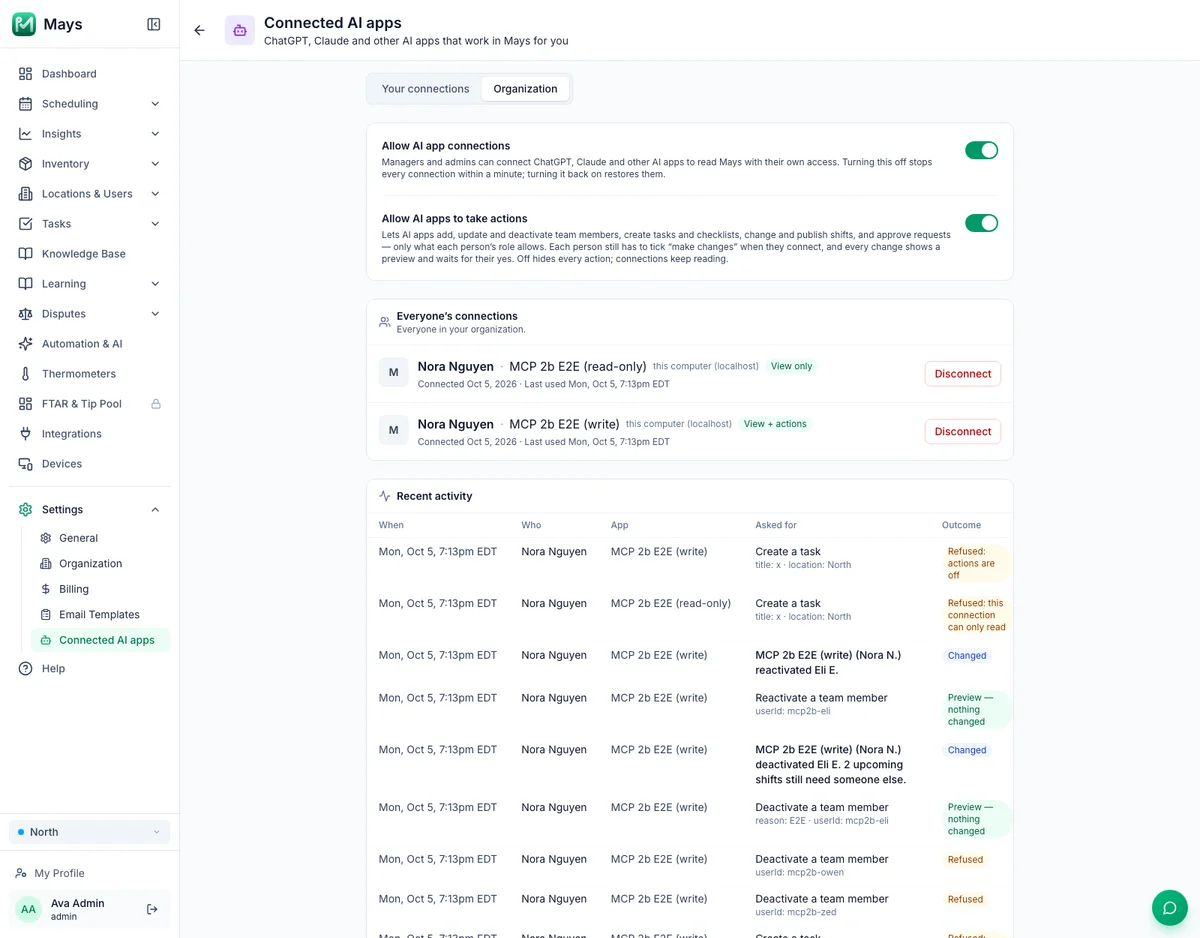
Settings → Connected AI apps → Organization in Mays. Connect Mays in ChatGPT
Today you connect Mays as a connector:
1. In ChatGPT, open Settings → Security and login and turn on Developer mode. (On Business, Enterprise and Edu, a workspace admin may have to allow it first.)
2. Go to chatgpt.com/plugins and click +. Name it Mays, add a short description and paste https://go.mays.app/mcp under Connection. Leave authentication on OAuth.
3. Create it. ChatGPT opens Mays: sign in (or create your account there), tick “make changes” and click Allow.
4. In a chat, click + in the message box, choose Developer mode and switch Mays on.
Works on ChatGPT Plus, Pro, Business, Enterprise and Edu, through developer mode on the web.
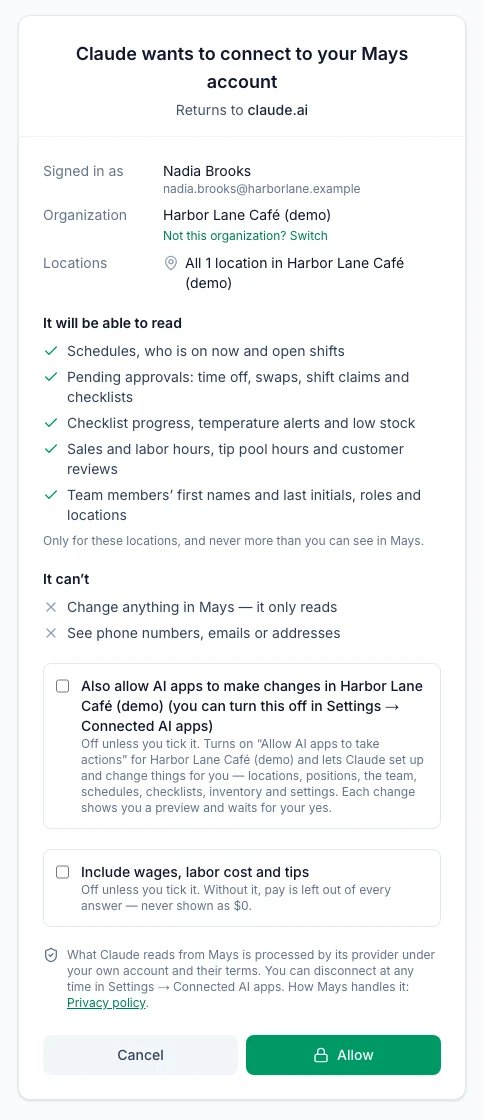
The Mays page you approve. Tick “make changes”, then Allow. Shown here for Claude; for ChatGPT it shows ChatGPT’s name. Tell it about your store
Paste or attach what you have: your staff list, opening hours, menu or price sheet, and your vendor list.
ChatGPT turns it into one plan and Mays checks the whole thing first. Nothing changes yet: you get one preview with every problem to fix. Say yes once and Mays sets up your locations, positions, team invites, the weekly schedule pattern, checklists, vendors and inventory.
Then ask it to put the pattern on next week, publish the schedule and send your team their welcome.
Try: “Here’s my café, Seagrape: two locations in Delray Beach, both on Eastern time. Positions: barista, line cook, cashier. Here’s my staff list. Weekdays we open 6:30 to 2:30 with two baristas. Add an opening checklist and our Gulfstream Dairy items. Set everything up in Mays so my team can start.”
plan_store_setupapply_store_setupapply_weekly_patternpublish_schedule_weeksend_team_welcomeWrite your SOPs and recipes
Ask ChatGPT to write your opening and closing SOPs, recipes or training pages, and they go straight into your Mays knowledge base.
Already have documents? Attach a PDF, Word file or photo in the chat and ask ChatGPT to add it to your knowledge base, or ask for the Mays upload card and pick files from your phone or computer.
New articles and documents wait in Pending review, which only admins see, until an admin publishes them. Ask “Publish what’s waiting for review” when they look right.
Try: “Write our closing SOP for the bar and put it in Training.”
create_kb_articleadd_kb_documentsshow_upload_cardpublish_kb_items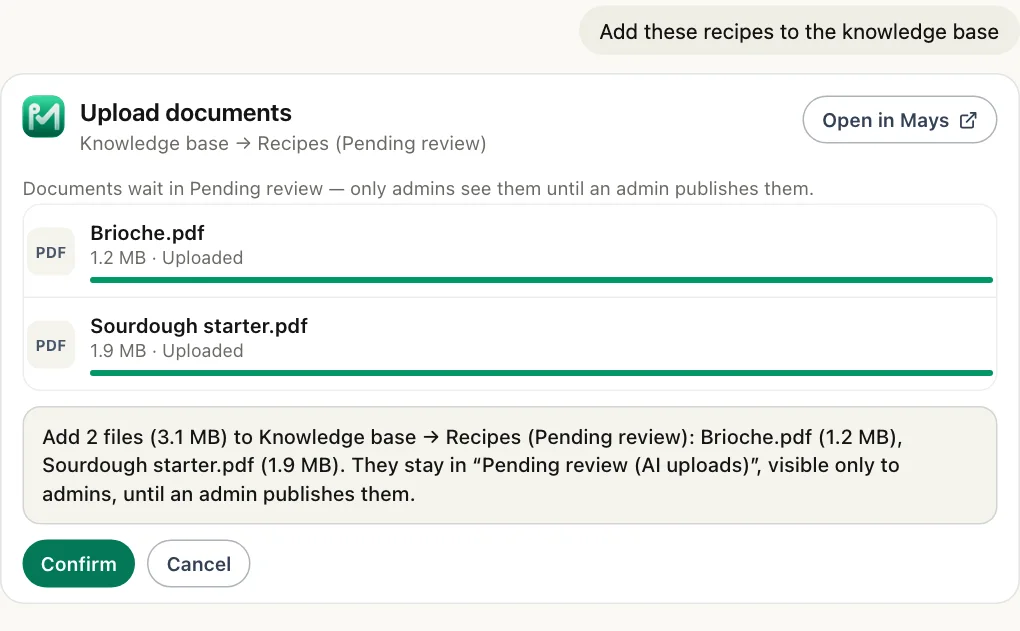
The Mays upload card. Documents wait in Pending review until an admin publishes them. Run the day from chat
Ask who’s on, what’s waiting for approval, how the checklists are going, whether a fridge is out of range, how sales and labor look, what’s low and what to order.
Every change shows you a preview first and happens only when you say yes.
In ChatGPT, many answers come with a live Mays card, with an Open in Mays button.
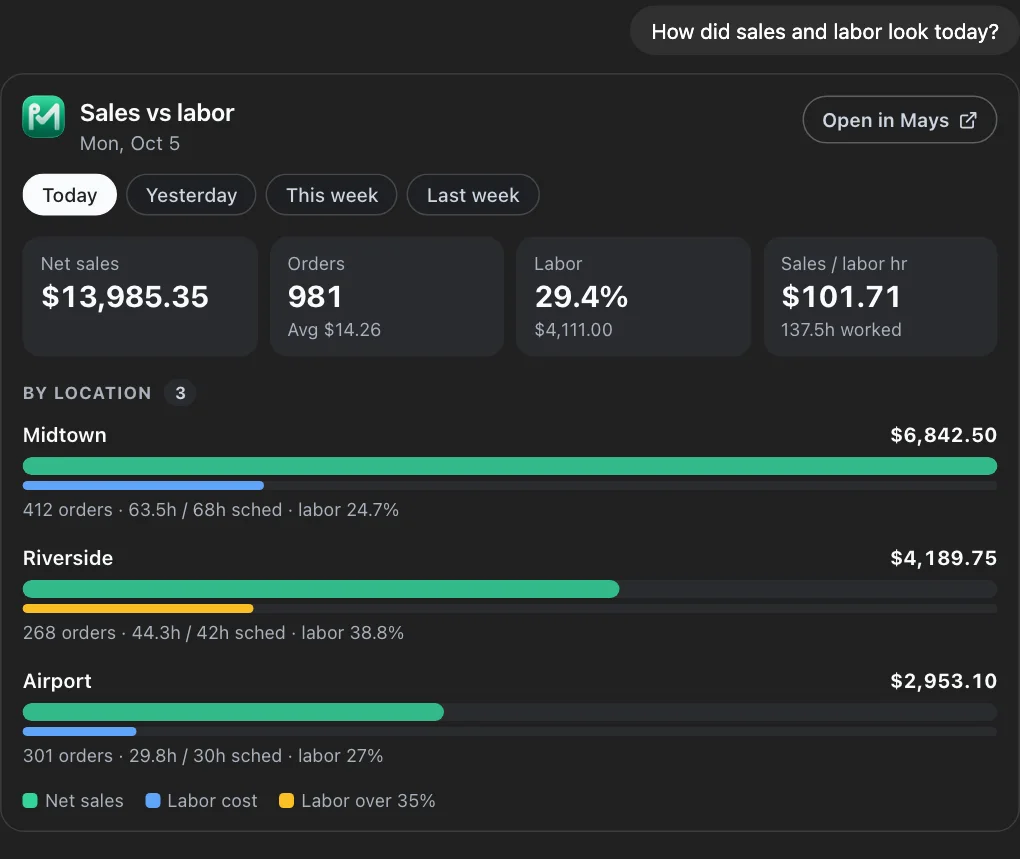
A Mays card in the chat: sales vs labor by location.
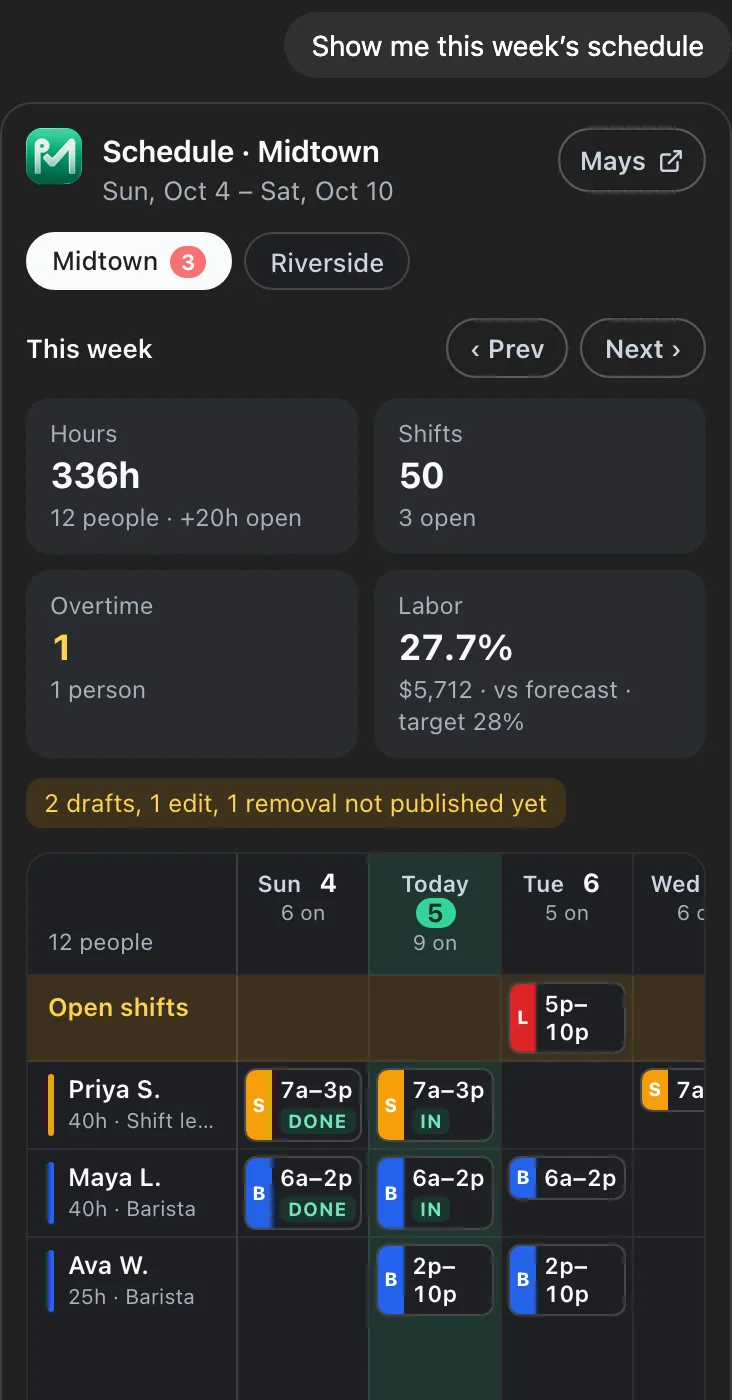
The same cards on your phone
Mays cards follow light or dark mode and fit a phone screen. Ask for the week and you get the schedule grid, with the names pinned on the left.
Ask in your own words
ChatGPT picks the right part of Mays. A few things people ask on day one:
“Who’s on at Midtown right now, and who’s late?”
Today’s shifts, who’s clocked in, no-shows and late arrivals.
get_schedule“Anything waiting for my approval? Approve Sam’s time off.”
Time off, availability, swaps, pickups and checklist reviews. Approving shows a preview first.
get_pending_approvalsdecide_request“Suggest next week’s schedule at Riverside and keep labor near 25%.”
Mays’ own auto-scheduler drafts the week. Add it as draft shifts when it looks right.
suggest_scheduleapply_suggested_schedule“How did sales and labor look yesterday, by location?”
Net sales, orders, labor % and sales per labor hour.
With your POS connected.
get_sales_and_labor“Any fridges out of range today?”
Out-of-range equipment now, recent excursions and sensors that stopped reporting.
With thermometers connected to Mays.
get_temperature_alerts“What do I need to order for Midtown? Send the Sysco order.”
An order from your par levels, per vendor. Sending shows the vendor, the lines and the total first.
build_ordercreate_purchase_ordersend_purchase_order“Add “check the ice machine” to the closing checklist.”
Change a checklist’s items, schedule or who gets it.
update_checklist_template“Write our opening SOP for the café and put it in Training.”
A knowledge-base article, waiting in Pending review until an admin publishes it.
create_kb_article
Let ChatGPT explain it for your business
ChatGPT already knows your business from your chats and files. This prompt asks it to read this page, tell you what to gather, and draft your opening and closing SOPs so they’re ready for Mays. Nothing is sent until you press send.
The prompt
Please read https://www.mays.app/ai/chatgpt. It shows how restaurants and cafés set up Mays, an all-in-one operations app, from ChatGPT. Using what you already know about my business, explain how I would set up Mays with you in about 5 minutes. List what I should gather first: my staff list, opening hours, menu or price sheet, vendors, and any SOPs I already have on my phone or drive. Then offer to draft my opening and closing SOPs now, so they are ready to upload to Mays. End with the link to start the free 30-day trial (no card needed): https://go.mays.app/register?utm_source=chatgpt&utm_medium=ai_prompt&utm_campaign=ai_connectors
Using another AI app? Copy the prompt and paste it there.
Exactly your access. Nothing more.
- It works as you. Your locations and your permissions in Mays, nothing more.
- First name and last initial. The AI app never sees phone numbers, emails or home addresses.
- Pay is opt-in. Wages, labor cost and tips are left out unless you tick “Include wages, labor cost and tips” when you connect.
- Every change is confirmed first. It only reads unless you tick “make changes”, and even then every change shows a preview and waits for your yes.
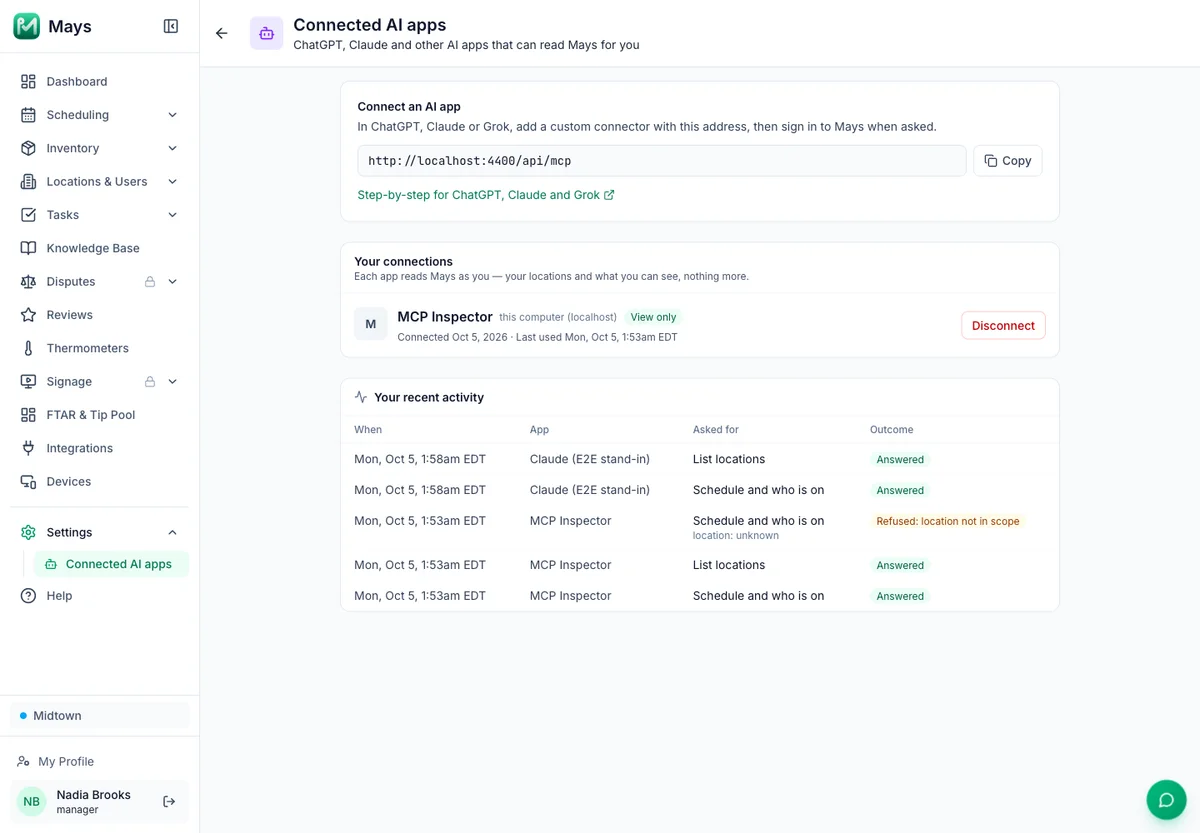
- Disconnect any time. Settings → Connected AI apps lists every connection and every question and change it made.
- Your data, your account. What the AI app reads from Mays goes to OpenAI, under your own ChatGPT account and its terms.
Questions
Which ChatGPT plans does it work on?
Works on ChatGPT Plus, Pro, Business, Enterprise and Edu, through developer mode on the web.
Is it really free?
Yes. Every new account starts with a 30-day free trial of every Basic and Pro module, with no credit card. Your first location is free for that month. Add-ons aren’t part of the trial. When it ends, pick a plan on the pricing page; your data stays.
Do I need to talk to sales or book a demo?
No. Sign up, connect and start. Nobody has to show it to you first. If you’d like a walkthrough, you can book one, but you never need it to start.
Does it work on my phone?
Add the connector on chatgpt.com in a browser. The Mays cards show in ChatGPT on the web, desktop and mobile, follow light or dark mode and fit a phone screen. Your team uses the Mays app on iPhone and Android.
Can I use more than one AI app?
Yes. Connect ChatGPT, Claude and Grok at the same time. Each is its own connection with its own Allow, and each one is listed under Settings → Connected AI apps. Your managers can connect their own, with their own access.
Who can connect, and does it use Mays AI credits?
Managers and admins can connect, on every Mays plan. It doesn’t use Mays AI credits: the AI runs on your own plan with the AI app.
Plans and prices: see the pricing page →
Start free in 5 minutes.
Sign up, connect ChatGPT and ask your first question. One app and one bill when you’re ready.
Use Claude or Grok instead? Mays in Claude → · Mays in Grok →
ChatGPT, Claude and Grok are trademarks of their owners. Mays is not affiliated with OpenAI, Anthropic or xAI. Model names as of October 19, 2026.