Clock in and out from the Schedule tab of the Mays app. The card at the top shows whether you're on the clock, and has your break and clock-out buttons.
The time clock is part of scheduling in Mays. If your app has no Schedule tab, your company doesn't use it — ask your manager how to record your hours.
Clock in
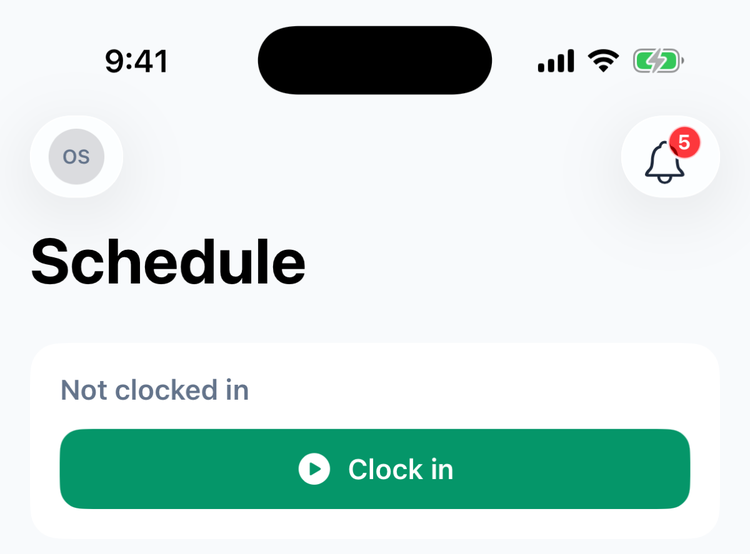
- Open the Schedule tab. The card at the top says Not clocked in.
- Tap Clock in.
- The first time, your phone asks to share your location with Mays. Your location is only checked at the moment you clock in.
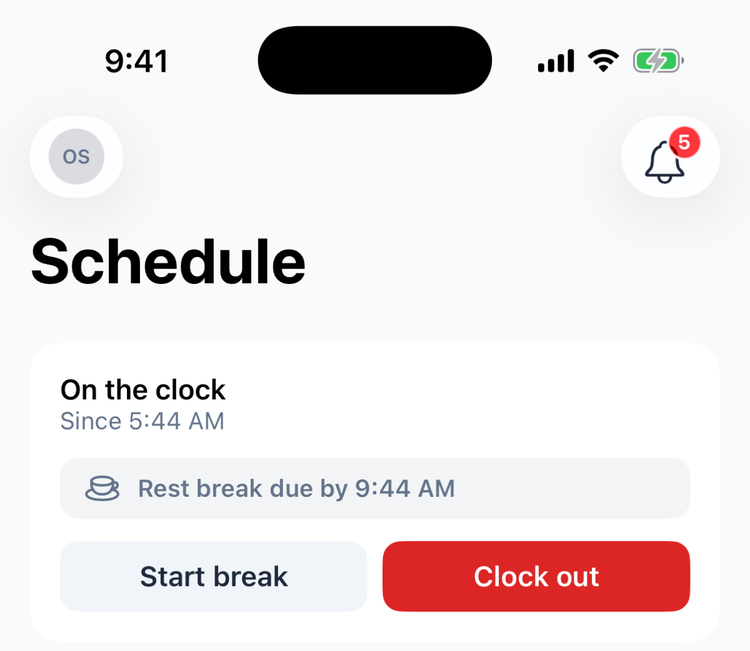
The card changes to On the clock with the time you started — for example Since 5:44 AM — and you get a Clocked in notification.
Take a break
Tap Start break, and End break when you're back. Your location may ask you to pick which break you're taking, or make you take a break's full length — see Taking breaks.
Clock out
- Tap Clock out.
- If your location asks, answer the question about your breaks — see Taking breaks.
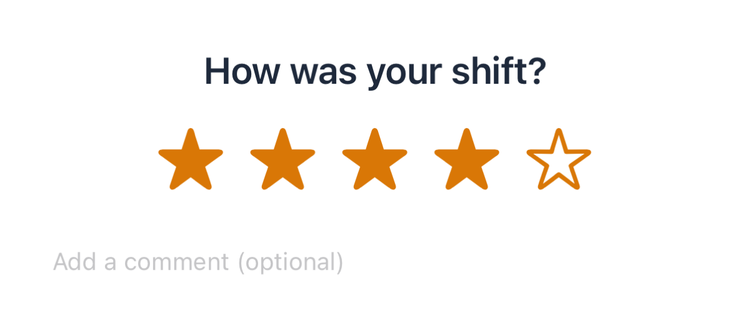
- You may be asked How was your shift? Pick one to five stars, add a comment if you like, and tap Submit — or tap Skip. Your manager sees your rating and comment in the logbook for that day.
You get a Clocked out notification, and the shift appears under My Hours — see My Hours and estimated pay.
When the app won't let you clock in
Your manager decides how and when you can clock in. Instead of the Clock in button you might see:
Message | What it means |
|---|---|
Use the kiosk to clock in. | Your store clocks in only on its shared kiosk. See Shared kiosk devices and PINs. |
Tap the store tag to clock in, or use the kiosk. | Tap your phone on the store's NFC tag. See Clocking in with NFC tags. |
Or, after you tap Clock in, one of these:
Message | What to do |
|---|---|
You can punch in at 8:45am. | You're too early for your shift. Try again at that time. |
No shift scheduled today. | Your store only lets people clock in on days they're scheduled. Talk to your manager. |
You're too far from South to punch in. | You need to be at the store. If you are, move near a window or step outside for a better GPS signal and try again. |
You are already clocked in. | You're still on the clock from earlier — maybe at another store or on the kiosk. Clock out first, or ask your manager to fix it. |
Android and iPhone both show the store's own reason.
Good to know
- Outside store next to On the clock means your phone was away from the store when you clocked in. You're still clocked in; your manager just sees it flagged.
- You can always take breaks and clock out on your phone, even at stores where you must clock in on the kiosk or with a tag.
- Working at more than one location? The app always clocks you in at your first location — the one shown on your Profile. To clock in at a different store, use that store's kiosk or NFC tag.
- Your manager changed how you clock in? The app picks up the change the next time you open it or go back to the Schedule tab — there's no need to sign out.
- Can't clock out? This shift is in a closed pay period, so it can't be changed. Ask a manager to reopen the period. means payroll for that shift is already done. Ask your manager, who can reopen the period and fix your time.
- Forgot to clock out? Tell your manager, who can fix the time. Some stores close forgotten punches automatically at a set time; you'd get a notification saying You were automatically clocked out at 10pm — contact your manager if this is wrong.
- Notifications about your punches can be turned off under Profile → Notifications → Time clock — see Notifications.
- Tasks: at some stores you only see the day's tasks once you're clocked in — see Why can't I see my tasks?.