Message your coworkers from the Chat tab of the Mays app: one-to-one or in a group, with photos, voice notes and more. Chat is in the iPhone and Android apps only, not on the web.
Your conversations
Tap Chat at the bottom of the app. The Messages screen lists your conversations, newest first. Each row shows:
- the person's or group's name;
- the last message;
- when it was sent;
- a green number for messages you haven't read yet.
The red number on the Chat tab adds up all your unread messages.
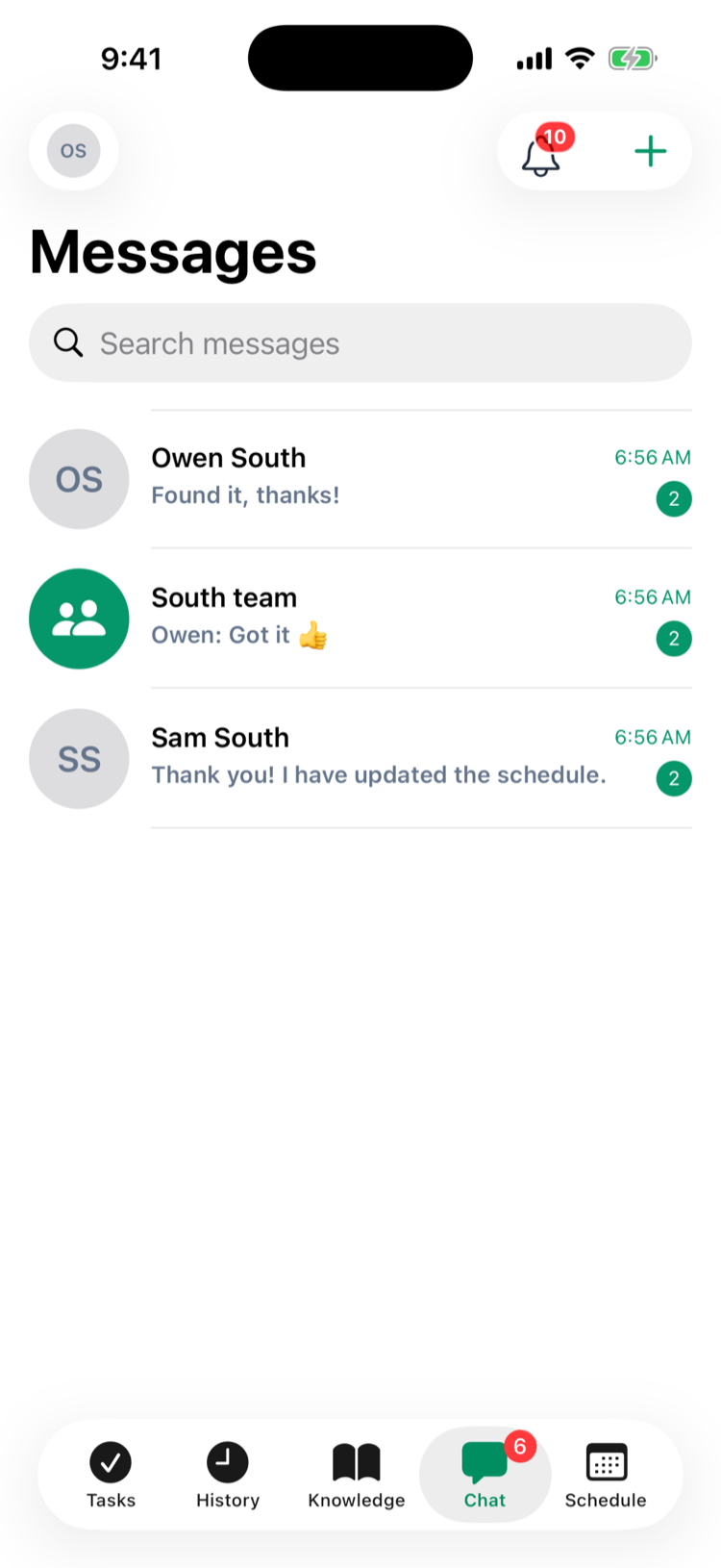
Tap a conversation to open it.
Start a conversation
- On Messages, tap + at the top. The screen is called New Message on iPhone and New Conversation on Android.
- Tap the person you want to message. People are grouped by location, with their role under their name. Search contacts helps in a long list.
If you've messaged that person before, your earlier conversation opens. Otherwise a new one starts.
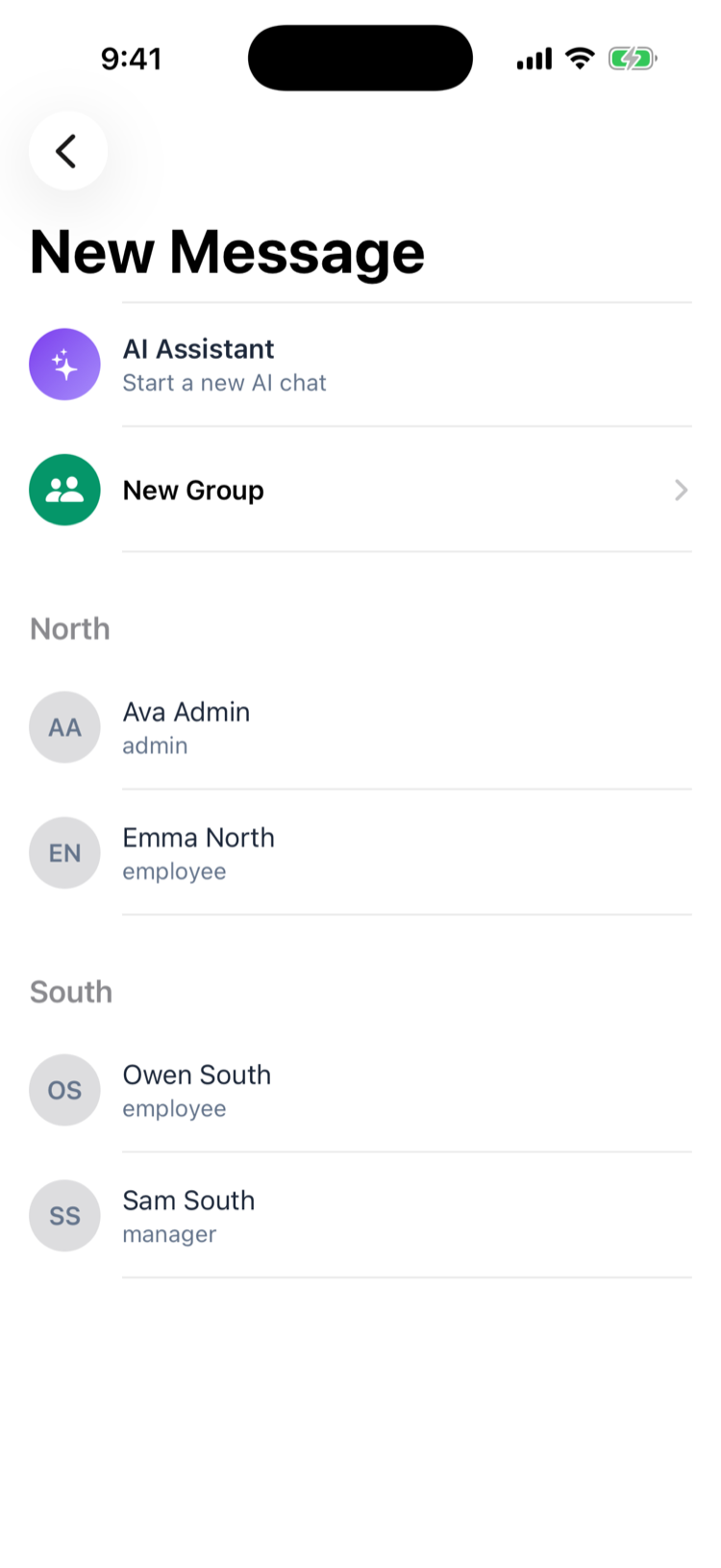
Who's on the list? The people who work at your locations. Admins can message everyone in the organization.
The same screen has:
- AI Assistant, which starts a chat with Mays's AI. It answers from your company's Knowledge Base and uses the location's AI credits. See The AI Assistant in chat.
- New Group, which starts a group chat with several people. See Group chats.
Send a message
Type in the box at the bottom (Type a message... on iPhone, Message on Android) and tap send.
The buttons around the box add more:
- + opens photos, video, camera, documents, your location, a task or a Knowledge Base article.
- The smiley face adds a GIF or sticker, if it's available in your app.
- The camera button takes a photo.
- The microphone button records a voice note.
See Photos, files and sharing in chat.
To reply to one message, swipe it.
Did they read it? The ticks next to the time on your own messages tell you:
Ticks | Meaning |
|---|---|
A clock (iPhone) or an hourglass (Android) | Still sending. |
✓ grey | Sent. |
✓✓ grey | Delivered to everyone in the conversation. |
✓✓ blue | Read by everyone in the conversation. |
A red warning sign | Not sent. Tap Retry or Delete under it. |
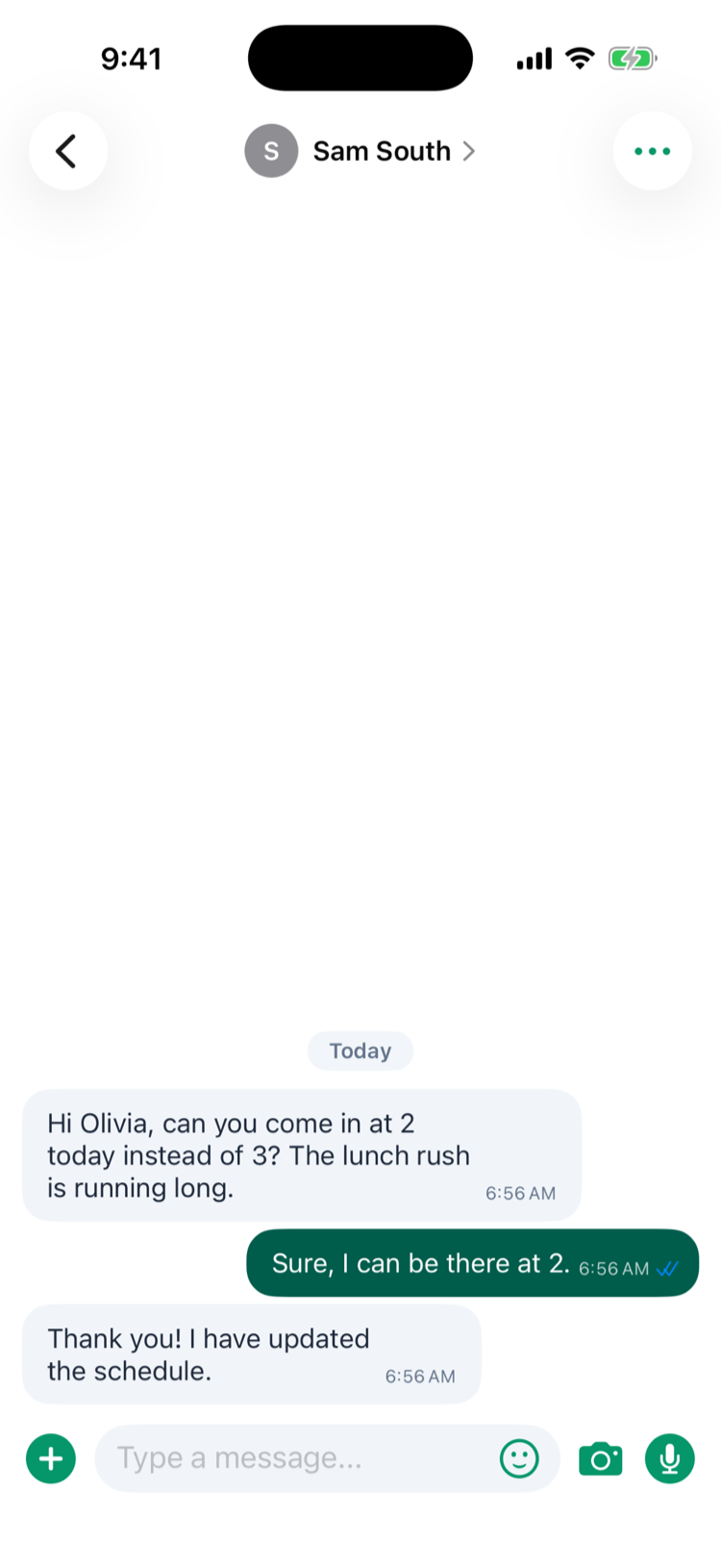
Your phone needs an internet connection to send messages.
Find an old message
Type at least two letters into Search messages at the top of Messages. You get two kinds of result:
- People you already have a conversation with.
- Messages whose text matches. You get the 20 most recent, with who sent each one.
Tap a result to open it. Photos, voice notes and files aren't searched, only the text of messages.
Mute a busy conversation
- Open the conversation.
- Tap ••• (iPhone) or ⋮ (Android) at the top right.
- Choose Mute 1 hour, Mute 8 hours, Mute 24 hours, Mute 1 week or Mute forever.
A muted conversation shows a speaker with a line through it, and it doesn't send you notifications. To hear from it again, choose Unmute from the same menu.
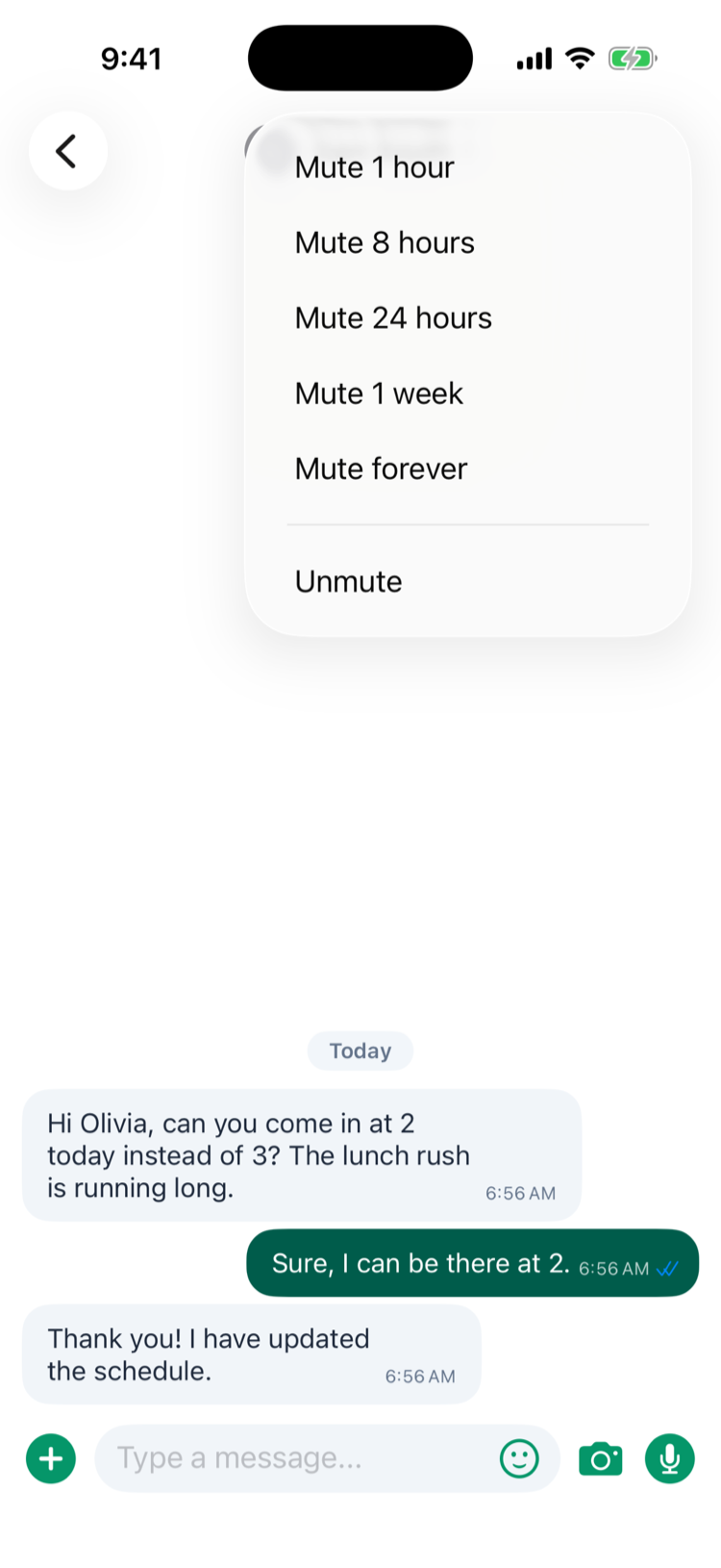
On Android, if a mute or unmute doesn't go through (for example, with no signal), the speaker icon goes back to how it was and you see Couldn't mute this chat. Try again. or Couldn't unmute this chat. Try again. Nothing changed, so try again.
Good to know
- There are no broadcast channels. To reach a whole team, create a group with New Group.
- Some messages come from Mays itself. For example, a manager may get a message from the AI Assistant about a task's photo.
- Deleting a one-to-one conversation deletes it for both of you. Open the chat, tap the name at the top, then Delete Conversation. It comes back if either of you writes again. In a group, only managers and admins can delete the conversation.
- Edit or delete a message by pressing and holding it. You can only change or remove your own messages. See Replies, reactions and other message actions.
- Shared kiosk tablets don't have Chat. Messages are personal, so use your own phone.