Send photos, videos, voice notes, files, your location, GIFs, tasks and Knowledge Base articles in chat. You can also share photos, text and links into Mays from other apps.
The + menu
Tap + next to the message box. You get:
Item | What it sends |
|---|---|
Photos | A photo from your library. On iPhone, videos are listed too. |
Video | A video from your library. |
Camera | A photo you take now. On iPhone you can also record a video of up to 2 minutes. |
Document | A file, such as a PDF or a spreadsheet. |
Location | Where you are right now. |
Task | A card for one of your tasks. |
Article | A card for a Knowledge Base article. |
GIF (iPhone) or GIF / Sticker (Android) | A GIF, sticker or animated emoji from GIPHY. |
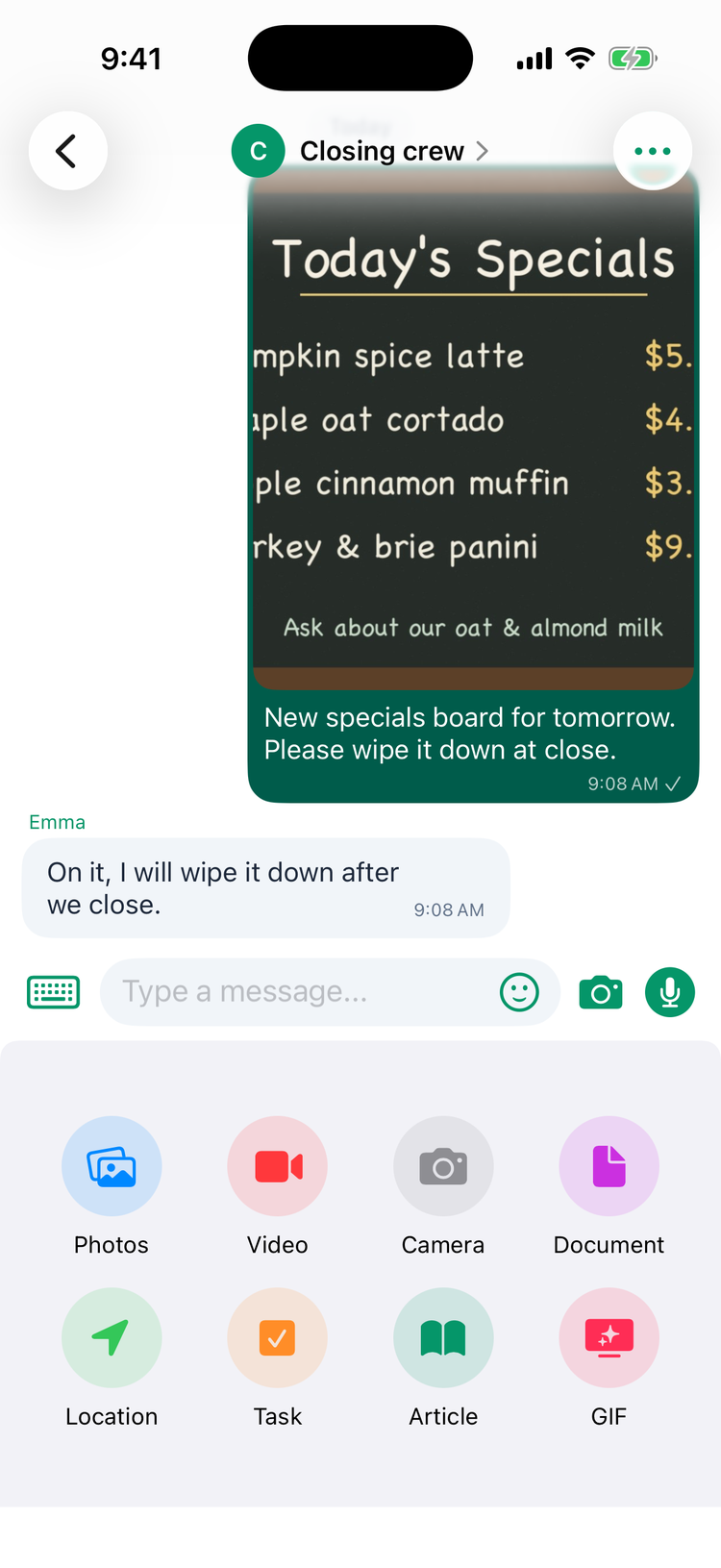
The camera button next to the message box also takes a photo straight away. In a chat with the AI Assistant, only the camera is there.
Send a photo or video
- Tap + → Photos (or Video) and pick one. You send one at a time.
- Type a caption under Add a caption… if you like. You can @mention people in a group.
- To mark up a photo, tap the pencil at the top right:
- iPhone: draw, crop and rotate, add text, or pixelate a part of the photo.
- Android: Draw, Add text, Crop and rotate and Undo.
- Tap the send arrow.
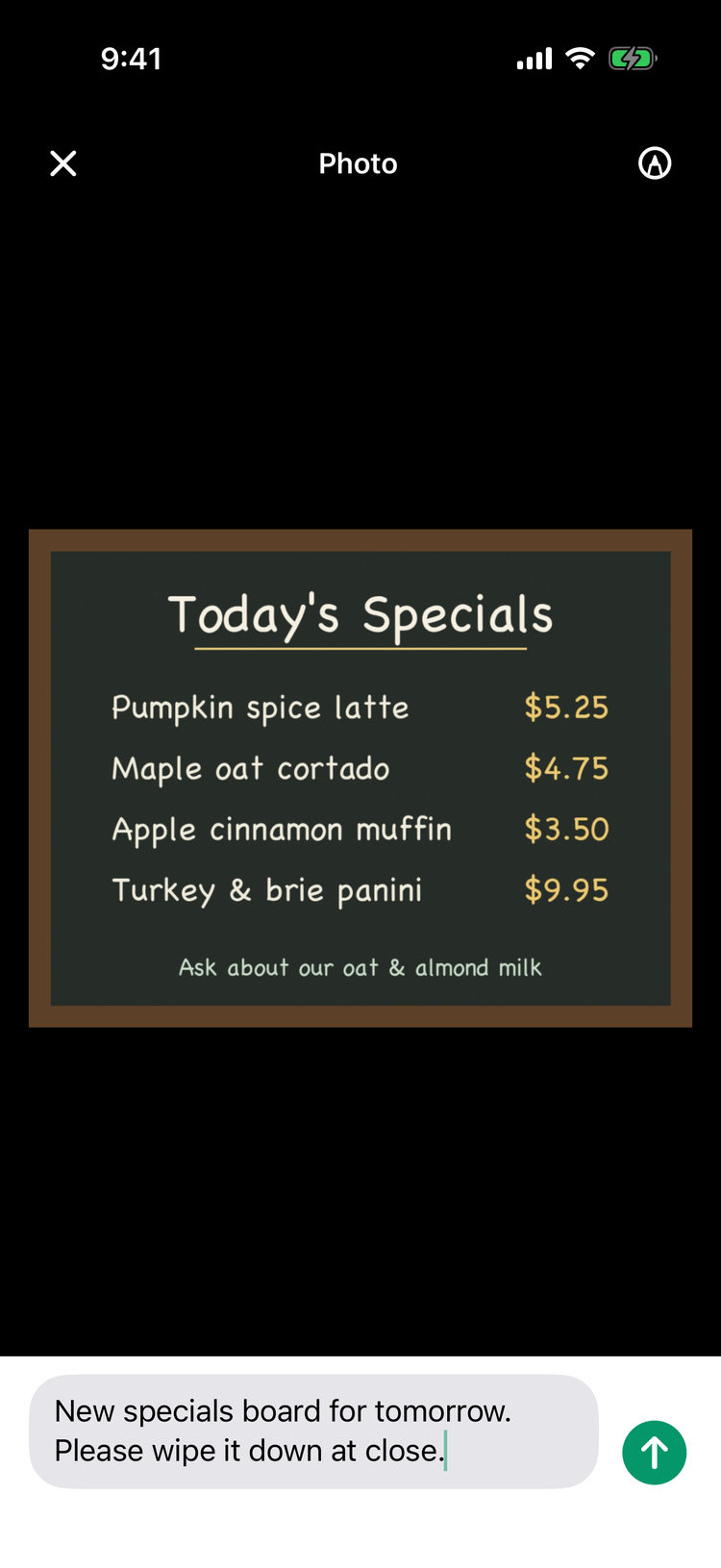
Videos can't be edited. To change a caption after sending, press and hold the photo and choose Edit.
Size: photos and files can be up to 10 MB each. Keep videos short: a video over about 35 MB doesn't send.
If a photo doesn't send on iPhone, it shows Failed to send with Retry and Delete. Tap Delete and send the photo again.
Voice notes
- Tap the microphone. The first time, allow microphone access.
- Speak. A timer shows how long you've been recording.
- Tap the send button to send, or X to throw it away.
You don't need to hold the button down. On iPhone, tap play on a voice note to listen to it. On Android, voice notes can't be played yet.
Files
Tap + → Document and pick a file, up to 10 MB. On iPhone the file's name is shown, and tapping it opens it. On Android, files you receive can't be opened yet, and files sent from Android arrive without their name.
Your location
Tap + → Location, wait for your position, then tap Send Current Location. On iPhone you see it on a map first; Android shows the coordinates. It's a one-time location, not live tracking. Whoever receives it can tap it and then Navigate to get directions.
GIFs and stickers
Tap the smiley in the message box, or + → GIF. Search GIPHY and choose from GIFs, Stickers, Emoji and Text. A GIF plays three times and then shows a GIF button to play it again.
Share a task or an article
- Task: + → Task opens Share Task with your Pending and Completed tasks. Tap one to send it.
- Article: + → Article opens Share Article. Pick a category, then an article.
Whoever receives it taps the card to open the task or article. Tasks and articles shared from Android arrive as their title only.
To share a completed task from the History tab, tap its share arrow, pick one or more chats under Forward to and tap Send. See The Activity feed.
Share into Mays from another app
iPhone:
- In Photos, Safari or another app, tap Share and choose Mays.
- On Send to, tick one or more chats under Recent, or search a name to reach someone you haven't chatted with yet.
- Add a caption under Add a caption… if you like, and tap Send.
You can share up to 10 photos, some text or a web link. You need to be signed in to the Mays app first. Otherwise you see Open Mays and sign in first, then try sharing again.
Android:
- In another app, tap Share and choose Mays.
- On Share to conversation, tick one or more conversations.
- Tap Send to 1 conversation (or however many you picked).
You can share one or more photos, or text. There's no caption, and each photo arrives as its own message. If you aren't signed in, the screen appears after you sign in.
Videos and files can't be shared into Mays this way. Send them from the chat's + menu instead.
Save or pass on a photo you received
Tap a photo or video to see it full screen. Pinch to zoom, and swipe down to close. Use the share button to send it to another app, or the save button to keep it in your photo library.
Good to know
- Notifications show what was sent, for example 📷 Photo, 🎙️ Voice message or 📍 Location. A photo shows a preview. See Notifications.
- Search finds text messages only, not photos, captions or files.
- Photos are made smaller before they're sent from an iPhone, to save data.