Press and hold a message to react to it, reply, forward, copy, edit or delete it, see who read it, or turn it into a task. Here's what each action does.
The message menu
Press and hold a message. A row of reactions appears above it and a menu below.
Action | Shown for | What it does |
|---|---|---|
Reply | Every message | Quotes the message in your answer. |
Copy | Text messages | Copies the text. |
Forward | Every message | Sends a copy to other chats. |
Create Task | Managers and admins | Starts a one-off task from the message. |
Edit | Your own messages: text, and photo or video captions | Lets you change what you wrote. |
Info | Your own messages in a group | Shows who has read it. |
Delete | Your own messages | Deletes it for everyone. |
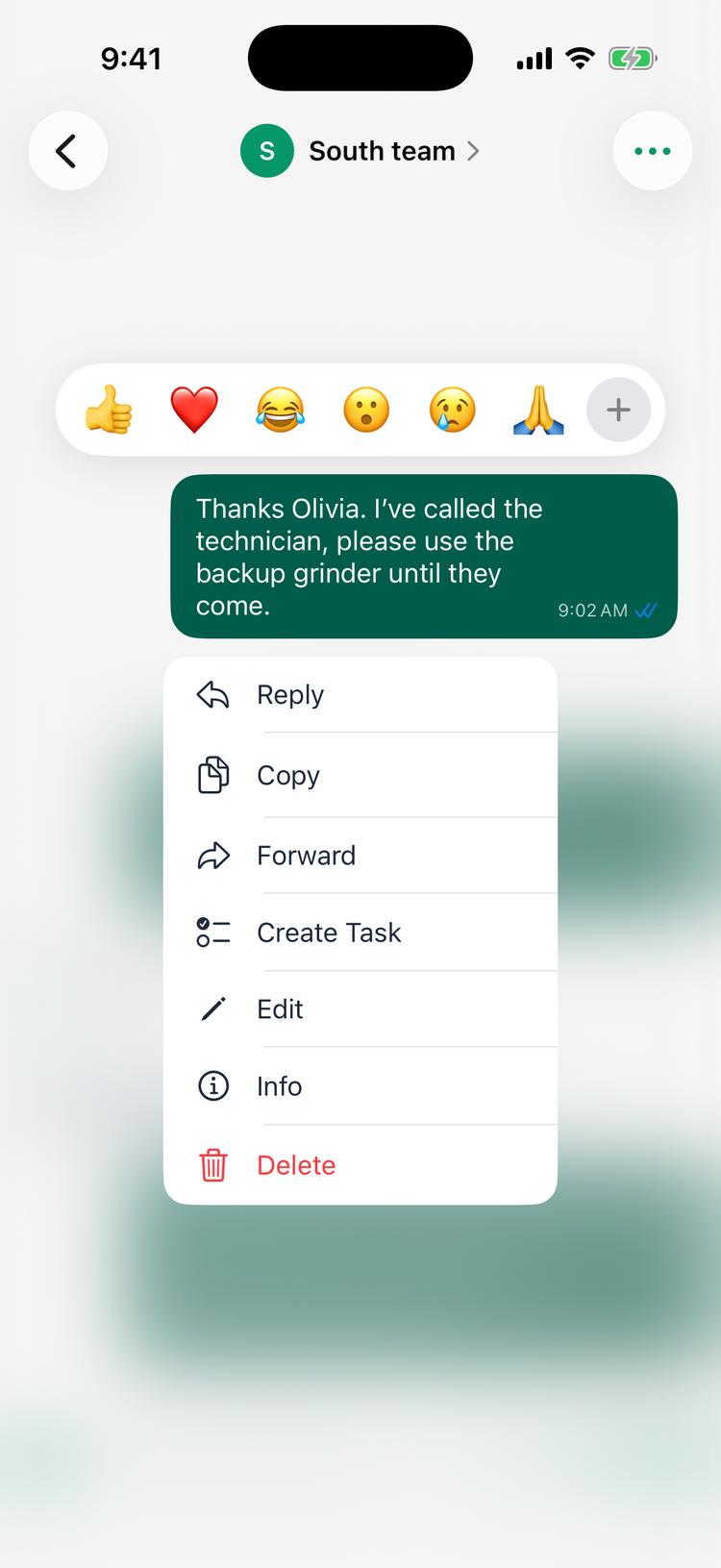
On Android, Delete is also shown on other people's messages, but only your own can be deleted. Someone else's message disappears for a moment and then comes back.
React to a message
Tap one of 👍 ❤️ 😂 😮 😢 🙏. On iPhone, + opens every emoji.
- Everyone can leave one reaction per message. Choosing another replaces yours, and choosing the same one again removes it.
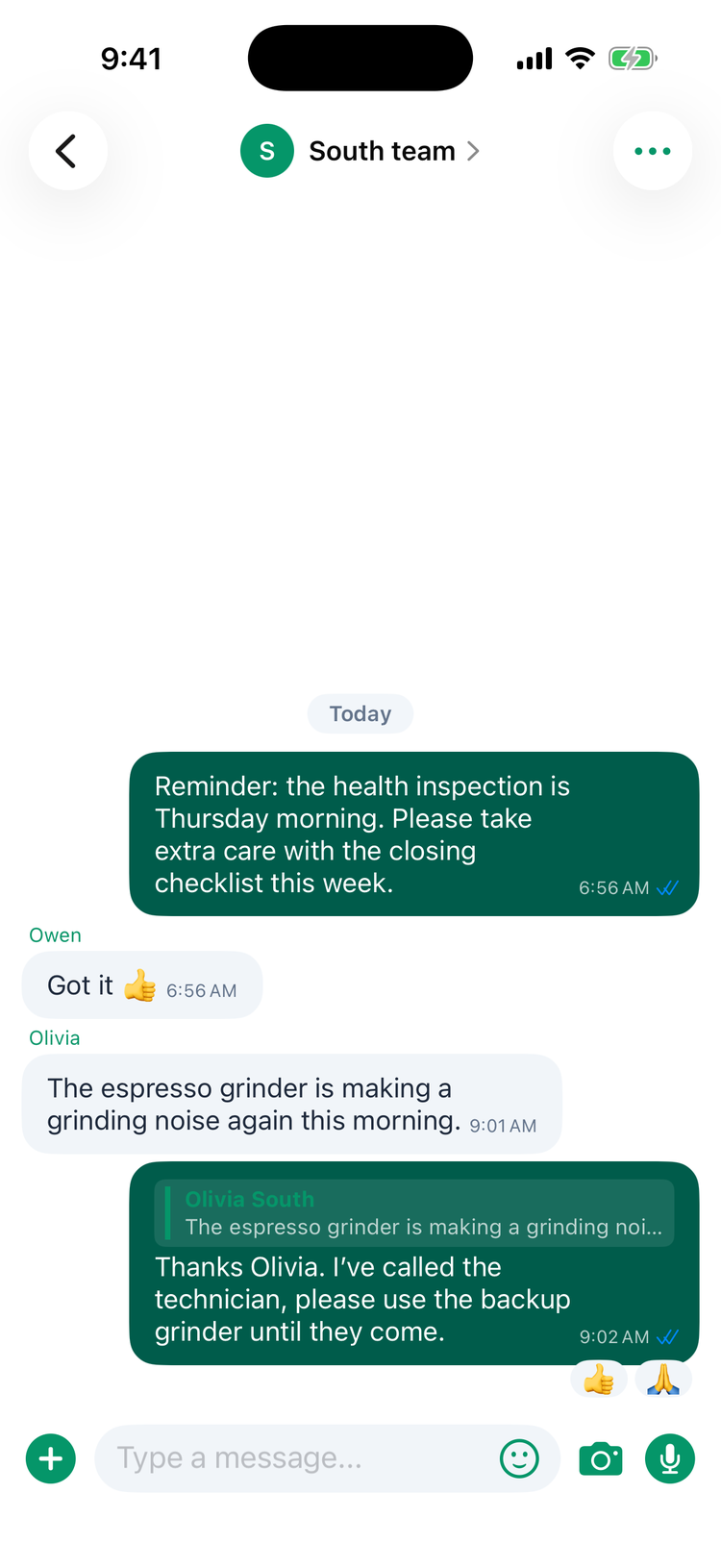
- Reactions show under the message with a count. Yours has a green outline. Tap a reaction under a message to add or remove the same one.
- The person who wrote the message gets a notification, for example Reacted 👍 to "Thanks Olivia…", unless they muted the chat.
Reply to a message
Swipe the message to the right, or choose Reply. A bar above the message box shows who and what you're replying to; tap x to cancel. Your answer shows the quote on top. Tap the quote to jump to the original message.
Forward a message
- Choose Forward.
- Tick one or more chats. Search conversations helps you find them.
- Tap Send. The button shows how many chats you picked.
The copy is marked Forwarded. It doesn't say who wrote the original.
Edit a message
Choose Edit. The bar above the message box says Editing message. Change the text and tap send. The message is marked edited, and everyone sees the new text. Nobody gets a new notification.
There's no time limit. A text message can't be left empty. Delete it instead. A photo's caption can be cleared.
Delete a message
Choose Delete. The message disappears for everyone straight away. There's no confirmation, no undo and no time limit. You can only delete your own messages: group admins and managers can't delete other people's.
See who read your message
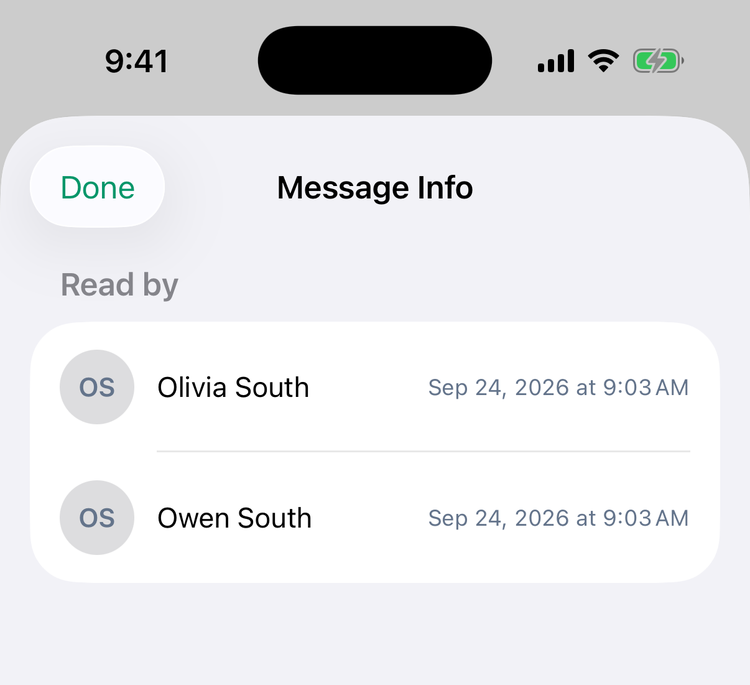
In a group, choose Info on one of your own messages. Message Info lists who it was Read by and Delivered to, with the times, and who it was only Sent to so far.
In a one-to-one chat, the ticks next to the time tell you. See Messaging your team.
Mention someone
In a group, type @ and pick a person from the list. Their name is added to your message, their notification starts with @ and your name, and the message is highlighted for them. Muting a chat also silences mentions.
Turn a message into a task (managers and admins)
On iPhone:
- Press and hold the message and choose Create Task.
- New Task opens with the message's text as the Title. If the title is empty, type one.
- Choose who it's for under Assign to, the answer type, priority and due date.
- Tap Create.
A photo in the message isn't attached to the task, and the person who wrote it isn't assigned automatically. See Creating one-off tasks.
On Android, Create Task is in the menu but doesn't do anything yet. Use the + button in the Tasks tab instead.
Good to know
- Typing: on iPhone, dots next to someone's picture show they're typing. Android says so in words, for example Olivia is typing....
- Not available: pinning or starring messages, selecting several at once, online status, and turning read receipts off.