Describe the report you want to Mays AI, save the answer, and share it with your team. Saved reports live under Insights → Custom Reports.
Who: admins and managers. Managers' reports only ever include their own locations. Custom reports are part of every plan, on the web app only. Building a report uses AI credits.
Managers: Insights isn't in your sidebar yet. Open Custom Reports at go.mays.app/insights/reports, or build reports straight from Mays AI.
Build a report
- Go to Insights → Custom Reports and click New report (or Build your first report). The Mays AI panel opens with Build a report that shows already typed in.
- Finish the sentence, for example net sales by location for last month, and press Enter.
- Mays AI works out the report and shows the first rows in the chat, with a Save this report button.
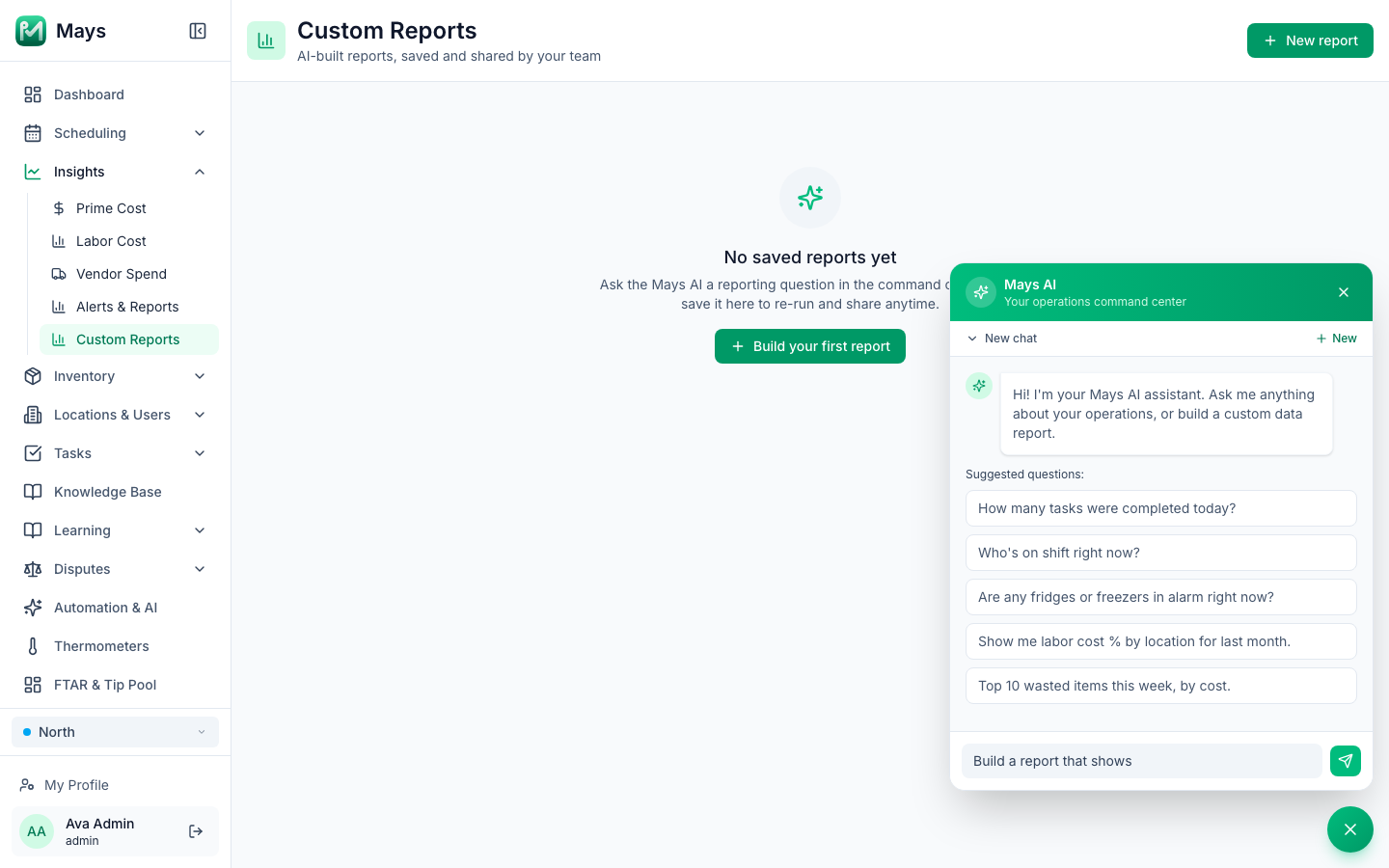
You can also ask for a report from Mays AI on any page; see Asking Mays AI on the web.
What a report can cover: sales from your POS, time clock punches, scheduled shifts, availability and time off, inventory items, stock levels, inventory used (by sales, waste and transfers), vendor invoices and their lines, your staff's names and roles, and your locations.
It can't report on tasks and checklists, custom forms, reviews, the logbook, catering, training, recipes, purchase orders, or forecasts and budgets.
Save and share it
- Under the report in the chat, click Save this report.
- Give it a Name. It starts as your question.
- Under Share with, choose Just me, Everyone in the org (anyone with access to reports) or Specific people, and pick them.
- Click Save report.
Save it before you leave the page: the table in the chat isn't kept.
Your saved reports
Each saved report is a card on Custom Reports, marked Your report or Shared with you, and Org-wide when it's shared with everyone. The card shows your question, a chart when the numbers suit one, and the first rows of the table.
Each time the page opens, every card runs its report again, so the numbers are up to date. This doesn't ask Mays AI again: the saved report runs as it was built.
- Iterate in chat opens Mays AI with the report's question, so you can change it and ask again.
- ⋮ → Open in chat does the same. Edit changes the name and who it's shared with. Delete removes it after you confirm. Only the person who saved it, or an admin, can edit or delete it.
To change what a report shows, use Iterate in chat, then save the new answer with Save this report. Edit doesn't change the report itself.
AI credits
Each answer in Mays AI uses AI credits, including the ones that build a report. It shows as Dashboard Chat under Usage by Feature. Running a saved report again doesn't use the AI or any credits. See AI credits.
Good to know
- Dates are in UTC. "Today", "this week" and daily totals follow UTC days, so late-evening sales in US time zones count toward the next day. Dates in the table can show a day early.
- Reports follow the viewer's locations. When a manager opens a report someone else shared, it only shows the manager's own locations.
- Managers save what Mays AI built. A manager can save a report only from a Mays AI answer they got themselves. A report a manager saved some other way shows This report's SQL wasn't written by Mays AI; ask Mays AI for it again and save the new answer.
- Up to 5,000 rows. A report that takes longer than 5 seconds stops with The report query took too long and was cancelled. Ask for fewer rows or a shorter period.
- There's no export to CSV or a spreadsheet.
- Check the numbers that matter. Mays AI reads your data, but it can misread a question. For payroll and money, compare with the matching report, such as Prime cost.
- If the page says Custom reports aren't enabled for this workspace yet, write to Mays support.