Every template has two more tabs: Settings decides which days it runs and when staff can see it, and Assignments decides where it runs and who does it. Mays then puts the checklist on your team's task list by itself, every day it's due.
To get there, open a template under Tasks → Templates (or create one — see Creating a checklist template). Click Save Changes when you're done.
Choose the days
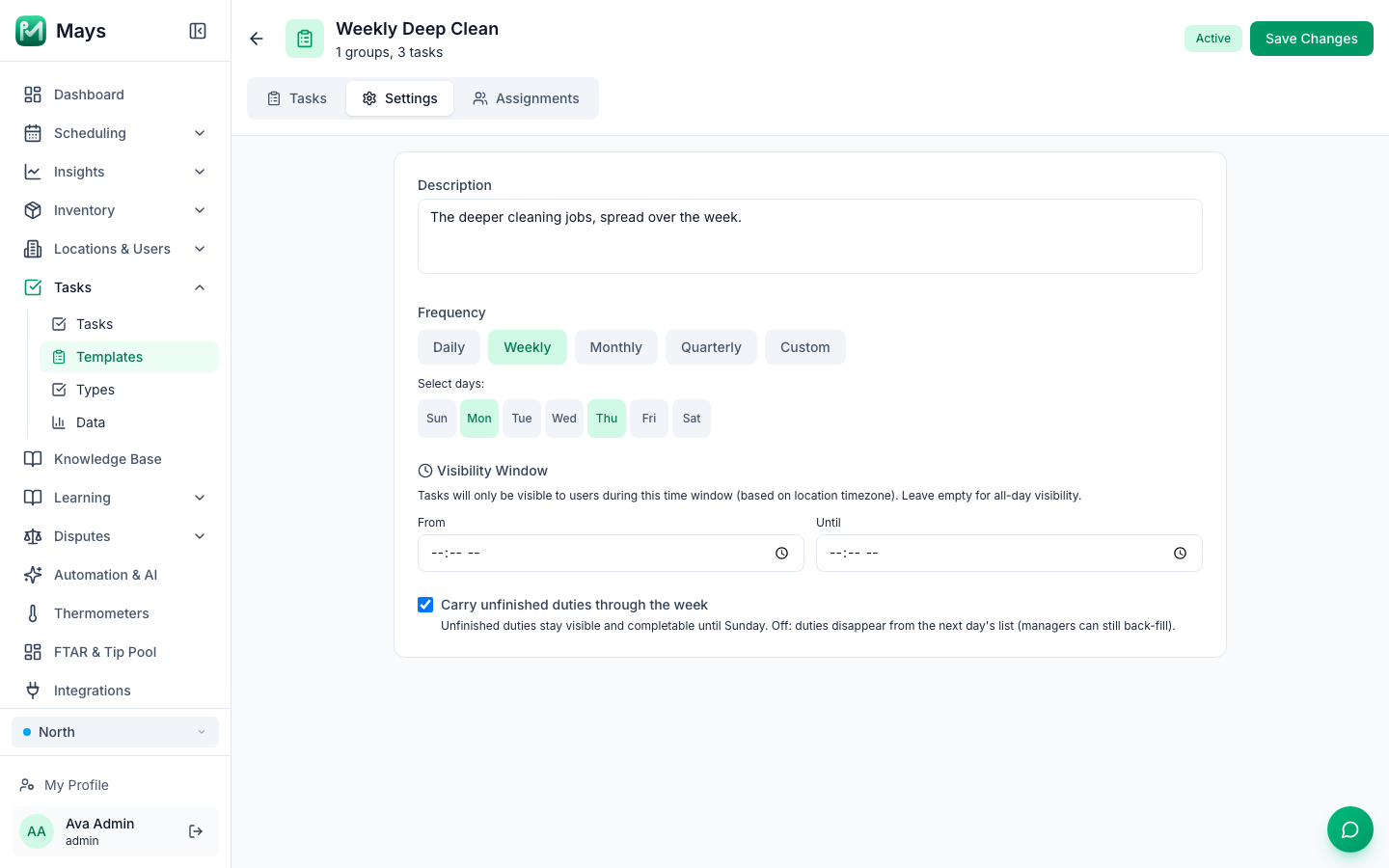
On the Settings tab, under Frequency:
Frequency | When the checklist is created |
|---|---|
Daily | Every day. |
Weekly | On the days you tick under Select days: (Sun to Sat). |
Monthly | On the dates you tick (1 to 31 — you can pick several). A month without a 29th, 30th or 31st skips that date. |
Quarterly | On the dates you tick, every three months, starting from the months you pick under Starting quarter: Jan / Apr / Jul / Oct, Feb / May / Aug / Nov or Mar / Jun / Sep / Dec. |
Custom | Never on a schedule — it's for checklists you start when you need them, such as new employee onboarding. Start one from Tasks → Tasks → Create Task → From Template (see below). |
A Weekly, Monthly or Quarterly template with no day ticked saves without a warning but never runs, so check the days before you save.
Choose the hours staff can see it
Under Visibility Window, set From and Until — for example 6:00 AM to 11:00 AM for an opening checklist. Outside those hours its tasks don't appear in the app. Times are in each location's own time zone, a window can run past midnight (10:00 PM to 2:00 AM), and leaving both empty means all day. Click ✕ to clear it.
The window applies to everyone, managers included. It's kept on each day's tasks when they're created, so a change shows from the next day.
Let unfinished tasks carry over
Tick Carry unfinished duties through the week for jobs that can slip a day, like a deep clean:
- On: a task nobody finished stays on the list, and anyone can still complete it, until the end of the week (Sunday). On the web Tasks page it shows a Carried badge.
- Off (the default): an unfinished task drops off the next day's list. Staff can't complete it any more; a manager can still close it out from Tasks → Tasks.
Weeks for carry-over always run Monday to Sunday.
Choose where it runs and who does it
On the Assignments tab:
- Where does this run? Click every location that should get the checklist. This is required — with no location, nothing is ever created.
- Who does it? Pick one:
- A role or department — one shared checklist per location. Anyone in the chosen roles or departments can pick up a task and complete it.
- Specific people — each person you add gets their own private copy at every selected location they work at, and only they can complete it.
- Then choose the roles or departments (Which roles? / …or which departments?), or search for the people under Which people?
The Result line at the bottom sums up what will happen, for example One shared checklist per location, for everyone who works there.
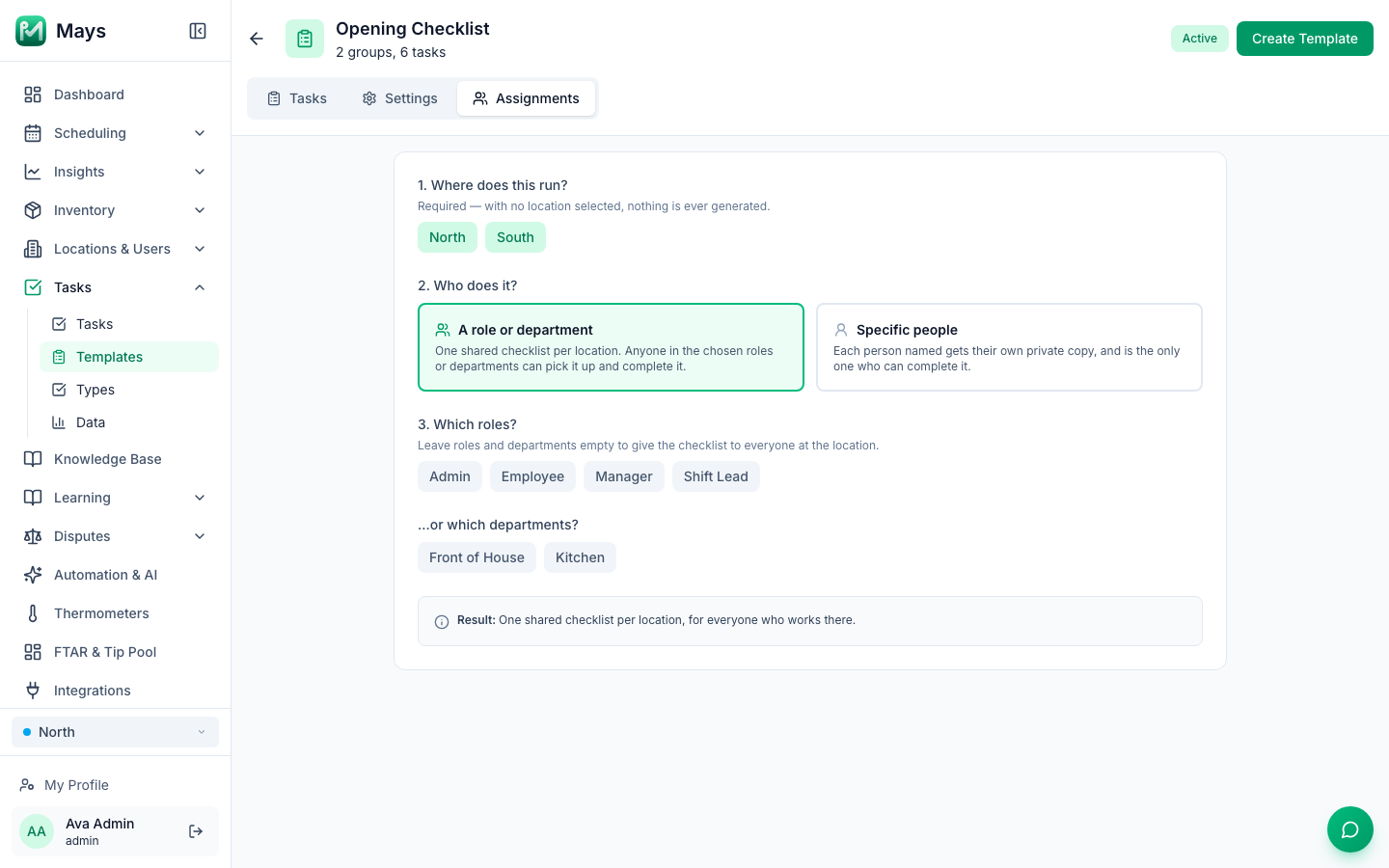
- Leave roles and departments empty to give the checklist to everyone at the location.
- With roles or departments chosen, employees see the checklist only if their role or department matches. Managers and admins see every shared checklist at their locations.
- A location where nobody matches the chosen roles or departments doesn't get the checklist that day.
- Deactivated people are skipped.
Give one task to one person
A single task can go to a specific person while the rest of the checklist follows the template's assignment: open the task's pencil on the Tasks tab and choose someone under Assign to person (optional). They get that task at the locations they belong to; at other locations it goes to whoever the template is assigned to.
When checklists appear
Mays creates each day's checklists automatically, once a day, for each location's own date. A new template, or a change to one, shows up in the next day's checklists.
Need a checklist today? Go to Tasks → Tasks, click Create Task and choose From Template. Pick the Template, the Location and optionally a person under Assign To (it starts on Location Task (any staff)), and every task in the template is created for today, straight away. This ignores the template's days and its visibility window.
Good to know
- Managers can only choose locations they're assigned to, and must choose at least one.
- Inactive templates don't run and don't appear under From Template.
- To see how each day's checklists went, use the Operations Dashboard or Tasks → Tasks — see Reviewing and rejecting completed tasks.
- If someone says a checklist is missing from their app, see Why can't I see my tasks?