A department groups people by the part of the business they work in, such as Front of House or Kitchen. Use departments to give checklists to the right people and to compare labor costs.
Departments are set up on the web by admins. They apply to your whole organization, so Kitchen is the same department at every location.
Add a department
- Go to Locations & Users → Departments.
- Click Add Department. A new row appears at the top of the list.
- Type the name, for example Front of House, and, if you like, a short description.
- Click Create.
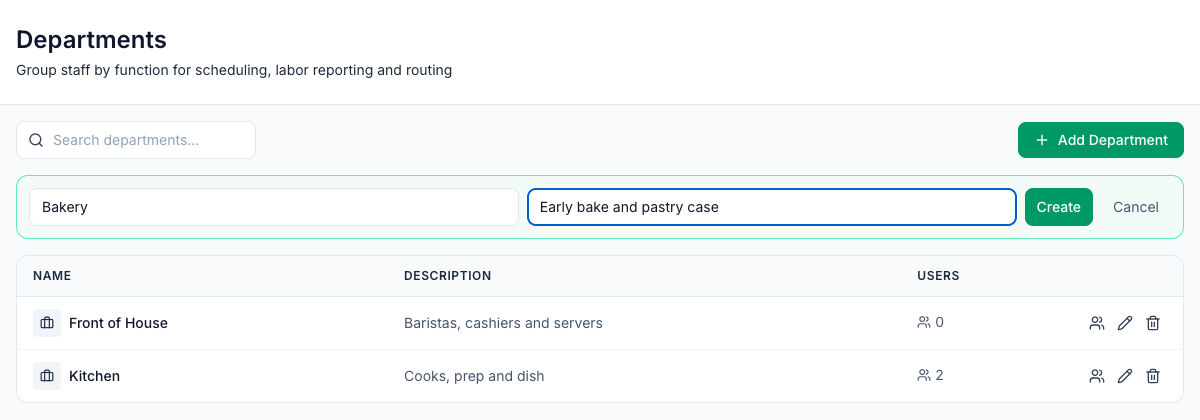
Each name can be used only once. If it's taken, Mays says A department with that name already exists.
Put people in a department
- Go to Locations & Users → Users and open the person.
- On the Locations & pay tab, pick their Department. Choose No department to take them out of one.
- Click Save Changes.
You can also pick the department when you add someone on the web. A person belongs to one department at most.
To see who's in a department, click its name, or the people icon on its row. That opens Team members filtered to that department. The Users column counts active and pending people, not deactivated ones.
Where departments are used
Where | What the department does |
|---|---|
Checklist templates, Assignments tab | Under Who does it?, choose A role or department, then pick departments under …or which departments? Employees in those departments see the checklist. Managers and admins at the location see it too. See Scheduling and assigning checklists. |
Dashboard | The All Departments filter next to Filter task lists: shows only the checklists assigned to one department. |
Team members | The All Departments filter lists the people in one department. |
Task Templates | The All departments filter shows the templates assigned to one department. |
Insights → Labor Cost | The Departments filter and the breakdown by department on the Labor Variance tab. People without a department are counted as Unassigned. See Labor cost insights. |
Learning | You can assign a training module to a whole department. See Assigning training. |
The app | Your department is shown on your Profile, and on a coworker's profile when you tap their picture in History. |
When a checklist is given to both roles and departments, anyone in one of the chosen roles or one of the chosen departments gets it.
Rename or delete a department
- Rename: click the pencil on its row, change the name or description, then press Enter or click Save. Press Esc to cancel.
- Delete: click the trash icon and confirm. You can't delete a department while people are in it. Mays tells you how many, for example Kitchen has 2 users assigned. Reassign them first. You also can't delete one that a checklist template is assigned to. Remove it from those templates first.
Who can do what
- Admins create, rename and delete departments.
- Managers see the list, but it's read-only for them. They can set the department of the people they edit, such as employees at their locations.
- For a custom role, the permission is Create / edit / delete departments. It's an admin-level permission, so managers can't give it to anyone. See Roles and permissions.
Good to know
- Departments aren't roles or positions. A role decides what someone can do in Mays. A position is the job they work on the schedule. A department is the part of the business they belong to.
- The app has no department field. People added from the app or with Import employees start with no department. Set it on the web afterwards.
- If you use 7shifts, Mays creates departments from your 7shifts roles. A person with no department gets one from their main 7shifts position. Mays never changes a department someone already has.
- The schedule's department filter uses the department of each shift's position. Only positions brought in from 7shifts have a department, so for positions you create in Mays the filter doesn't appear.