Put your logo, brand color and business name on the emails Mays sends for you, and change the wording of five of them to sound like you.
Where: Settings → Email Templates. The page is called Email customization. Only people with the built-in Admin role can use it; anyone else sees Only organization admins can manage email settings.
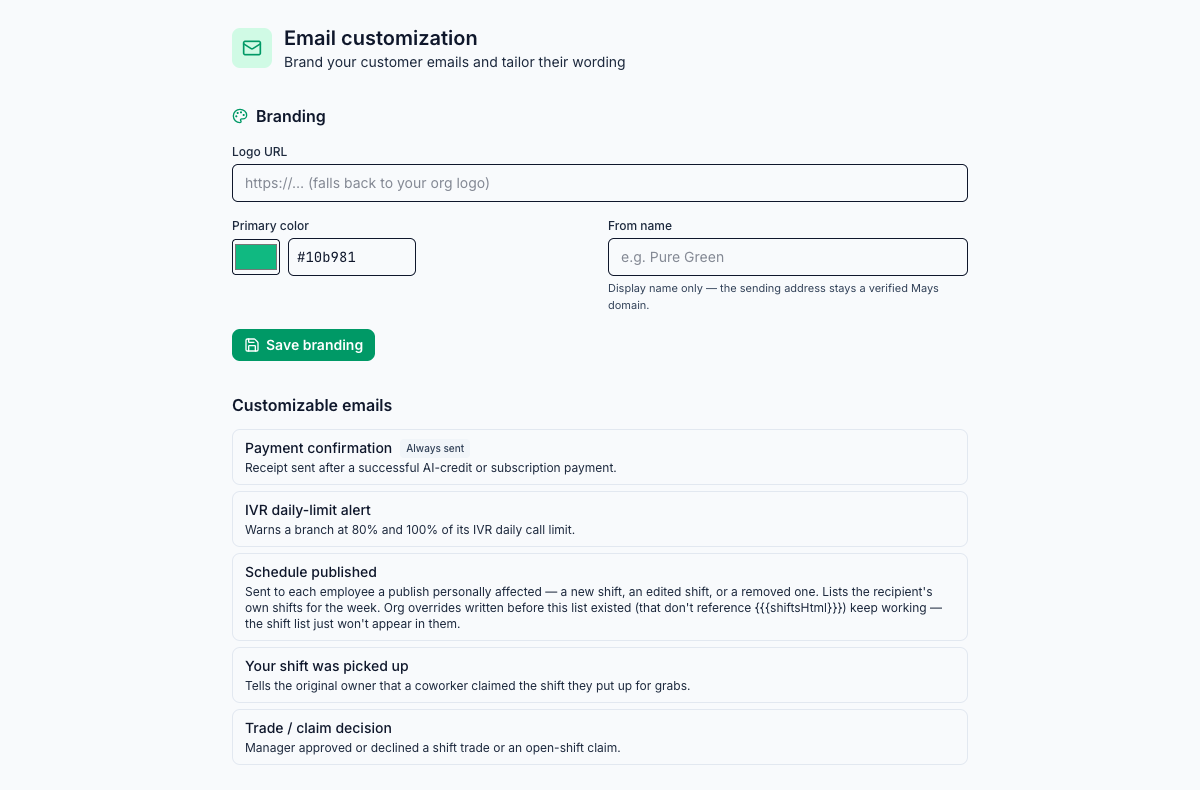
Brand your emails
- Under Branding, fill in:
- Logo URL: a link to your logo image, starting with https://. The logo appears at the top of each email.
- Primary color: your brand color. It's used for the buttons in the emails. Pick it with the color swatch or type a code like #10b981.
- From name: the name people see as the sender, for example your business name. The email address it comes from stays a Mays address.
- Click Save branding.
Which emails you can change
Who gets it | |
|---|---|
Payment confirmation | Your admins and the location's billing contact, after a payment for a plan or AI credits. |
IVR daily-limit alert | The location's email address and your admins, when its AI phone receptionist reaches 80% and then 100% of the day's call limit. See AI phone receptionist. |
Schedule published | Each employee whose shifts a published schedule added, changed or removed. It lists their shifts for the week. |
Your shift was picked up | The person whose shift a coworker picked up. |
Trade / claim decision | The people involved when a manager approves or declines a shift trade or an open-shift claim. |
Your branding goes on these five emails. Invitations, password resets, support ticket emails and billing notices keep the standard Mays look, and their wording can't be changed.
Change an email's wording
- Click the email in the Customizable emails list.
- Edit the Subject and the Body. The toolbar has bold, italic, underline, headings, lists, links, a button and Variable.
- Click Preview to see the email as people will get it, with your branding and example details.
- Click Save.
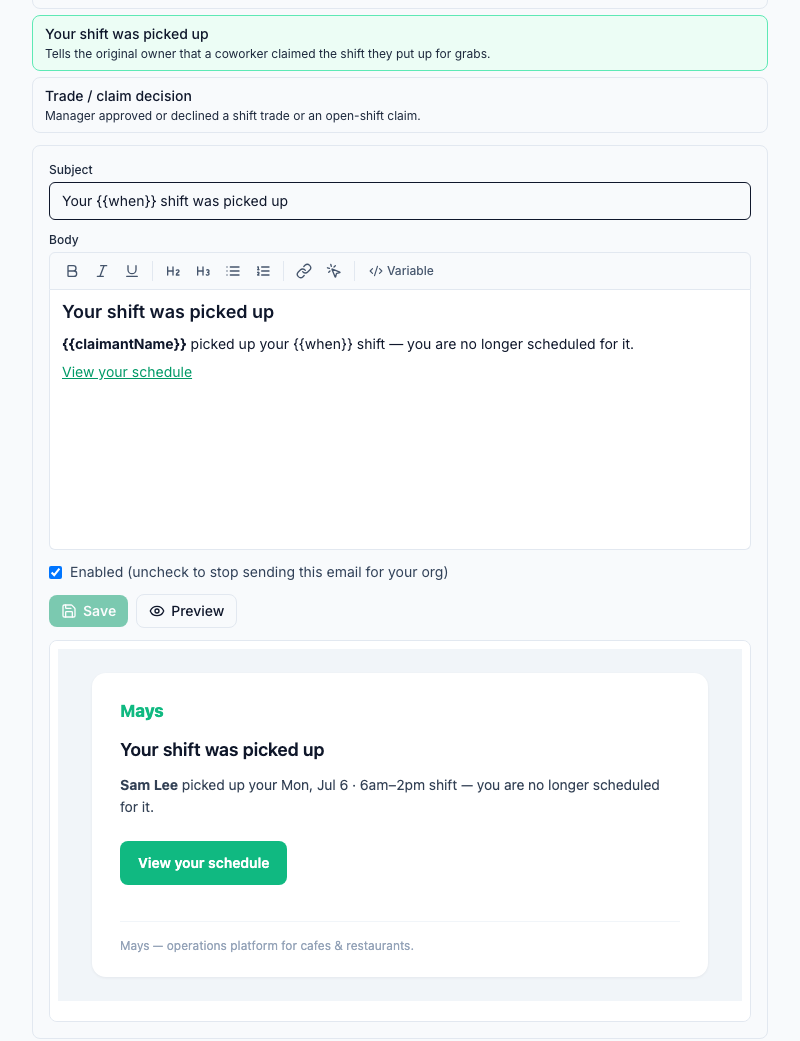
Words in double curly braces, like {{claimantName}} or {{when}}, are variables. Mays fills them in with the real details when it sends the email. Keep the ones you need. To add another, use Variable and pick from the list for that email.
An email you've changed is marked Customized in the list. To go back to Mays's wording, open it and click Reset, then confirm Reset to the Mays default for your org?
Stop sending an email
Open the email, untick Enabled (uncheck to stop sending this email for your org) and click Save. The list marks it Disabled.
This works for every email in the list except Payment confirmation. Receipts are always sent, so it has no Enabled box and the list marks it Always sent. You can still change its wording.
Good to know
- Use a public link for your logo, like the logo image on your website. If the link needs a sign-in, the logo won't show.
- The schedule email lists each person's shifts. If you rewrite it, keep the
{{{shiftsHtml}}}variable (with three braces) or the shift list won't appear. - Branding covers your whole organization. Every location uses the same logo, color and sender name.