Put Mays on a TV: open the Mays Player app or a web browser on the TV, then enter the 6-character code it shows under Signage → Screens → Add screen.
Who: admins, and managers for their own locations, on the web. Before you start: the location needs a digital signage subscription.
What you need
- A screen with one of these:
- the Mays Player app on an Android TV or a Fire TV device;
- a web browser: a smart TV's browser, a Chromebook, or a computer plugged into the TV. The address is go.mays.app/signage/player.
- Internet at the TV, over Wi-Fi or a cable.
If you can't find Mays Player in your TV's app store, use the browser, or contact support.
1. Show the code on the TV
Open Mays Player on the TV, or go to go.mays.app/signage/player in the browser and make it full screen. The screen says Pair this screen and shows a 6-character code.
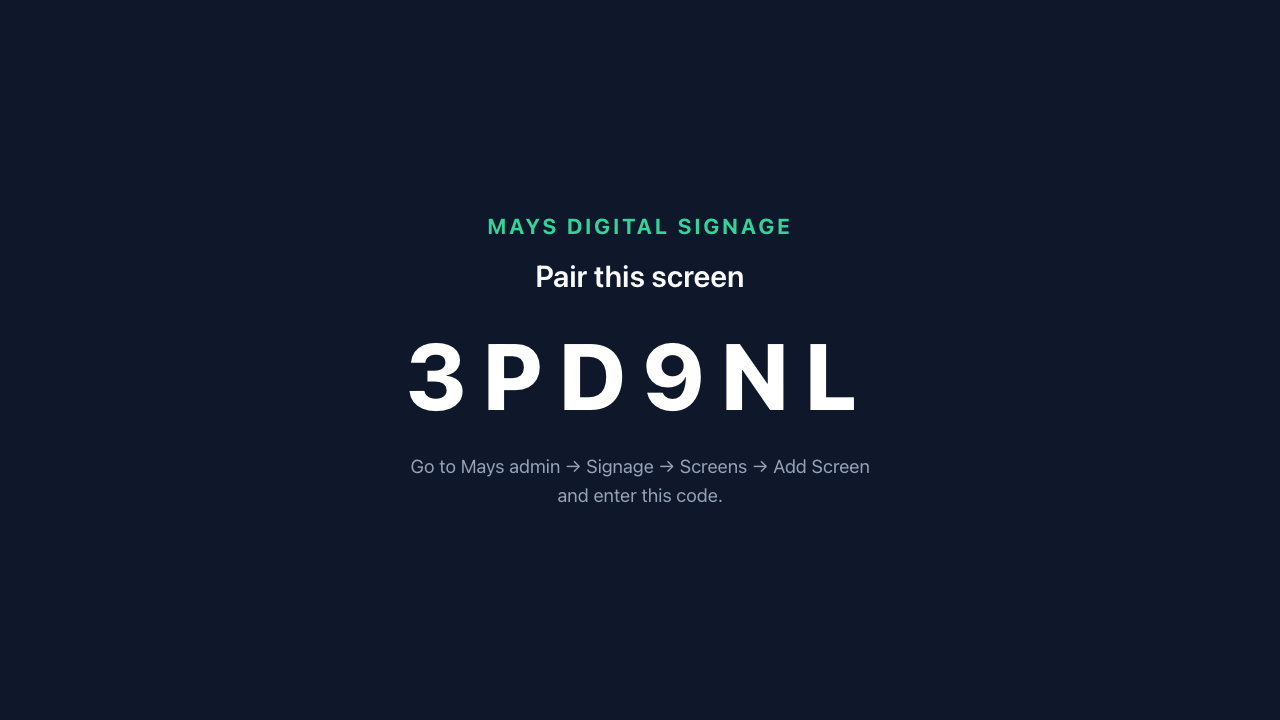
A code lasts 10 minutes. After that the TV shows a new one by itself.
2. Add the screen in Mays
- On the web, pick the TV's location in the location switcher at the bottom of the sidebar.
- Go to Signage → Screens and click Add screen.
- Type the Pairing code from the TV.
- Give it a Screen name, such as Front counter menu board.
- Click Add screen.
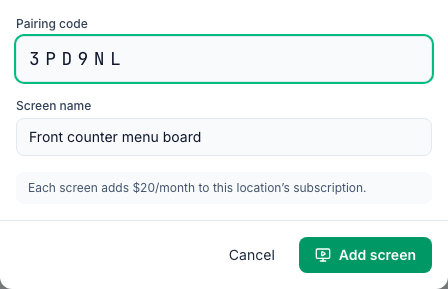
Mays says Screen added — the TV will start playing shortly, and within a few seconds the TV starts playing. Each screen adds one screen to the location's bill.
3. Check it on the Screens page
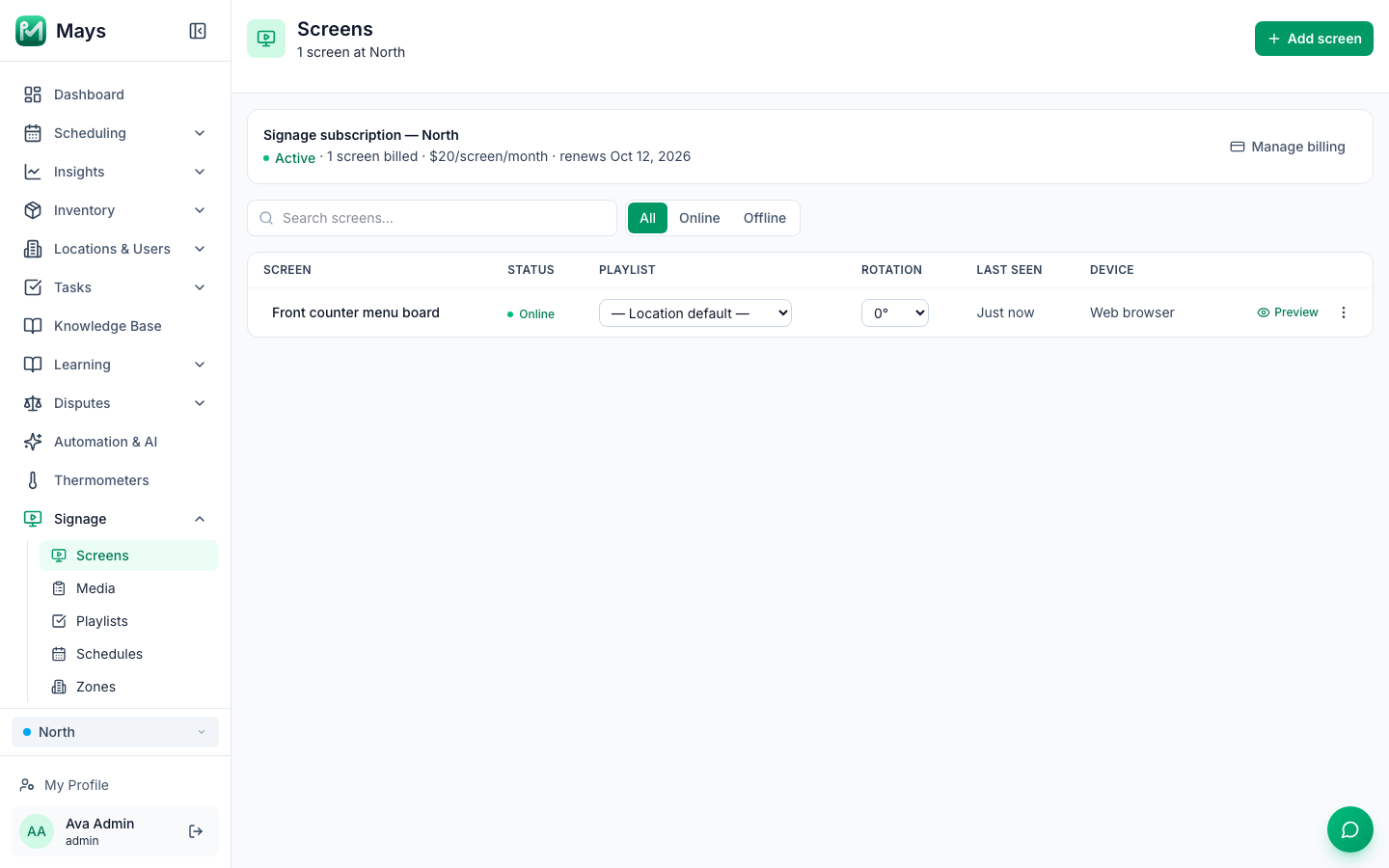
Column | What it shows |
|---|---|
Screen | The name. Click it to rename the screen. |
Status | Online if the TV has checked in during the last 2 minutes, otherwise Offline. |
Playlist | The playlist this screen plays when no schedule is on. — Location default — uses the location's default playlist. |
Rotation | 0°, 90°, 180° or 270°. Use 90° or 270° for a TV mounted on its side. |
Last seen | When the TV last checked in. |
Device | Android TV (with the app's version) or Web browser. |
Preview shows the playlist the screen should be playing now. With the Mays Player app, Capture now also shows a picture of what's really on the TV. A browser can't send one.
Remove a screen
On the screen's row, click ⋮ → Remove screen, then OK. The TV goes back to showing a pairing code, and the location's bill drops by one screen. Removing a location's last screen ends its subscription at the end of the month you've paid for.
If the internet or power goes out
- Internet down: the TV keeps showing what it had already loaded and keeps trying to reconnect, waiting a little longer each time, up to 10 minutes. Your changes appear once it's back online. When it's online, a screen checks for changes about every 10 seconds.
- Power cut: Mays Player tries to start by itself when the device turns back on. That works on many Fire TV and older Android TV devices. On newer Android TVs you may need to open the app again. A browser needs the page opened again.
- No internet when it starts: the app shows Waiting for network… until the connection is back.
Good to know
- Don't clear the app's data or uninstall it. The TV would need to be paired again. In a browser, clearing the site's data or using a private window does the same.
- To leave the app, press Back twice on the remote.
- A screen belongs to one location. To move a TV to another location, remove it and pair it again there.
- Browser screens: keep the page in full screen, and stop the computer or TV from going to sleep.