Schedules decide which playlist plays when, by time of day, day of the week and dates. Admins can also group locations into zones and send one playlist to all of them.
Who: admins, and managers for their own locations, on the web. Only admins use zones. You need a digital signage subscription.
How a screen decides what to play
- A schedule that's on right now for the screen, its whole location, or a zone its location is in. If more than one is on, the highest Priority wins. On a tie, a schedule for one screen beats one for the whole location, which beats a zone's. After that, the most recently created one wins.
- The screen's own playlist, chosen on the Screens page.
- The location default playlist.
- Nothing: the screen shows No content scheduled.
Times follow the location's time zone.
Create a schedule
- Pick the location in the location switcher, then go to Signage → Schedules.
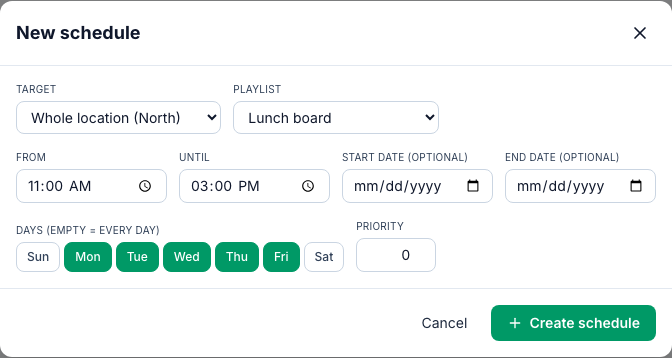
- Click New schedule.
- Target: Whole location, One screen (then pick the Screen), or, for admins, Zone (group of locations) (then pick the Zone).
- Playlist: the one to play.
- From and Until: the time of day. It starts as all day, 12:00 AM to 11:59 PM.
- Start date and End date (optional): the first and last day it runs.
- Days: click the days it plays. Leave them all off for every day.
- Priority: a higher number wins when schedules overlap. It starts at 0.
- Click Create schedule.
The Schedules page lists each schedule with its playlist, target, times, days, dates and priority. To change one, delete it (⋮ → Delete) and create it again.
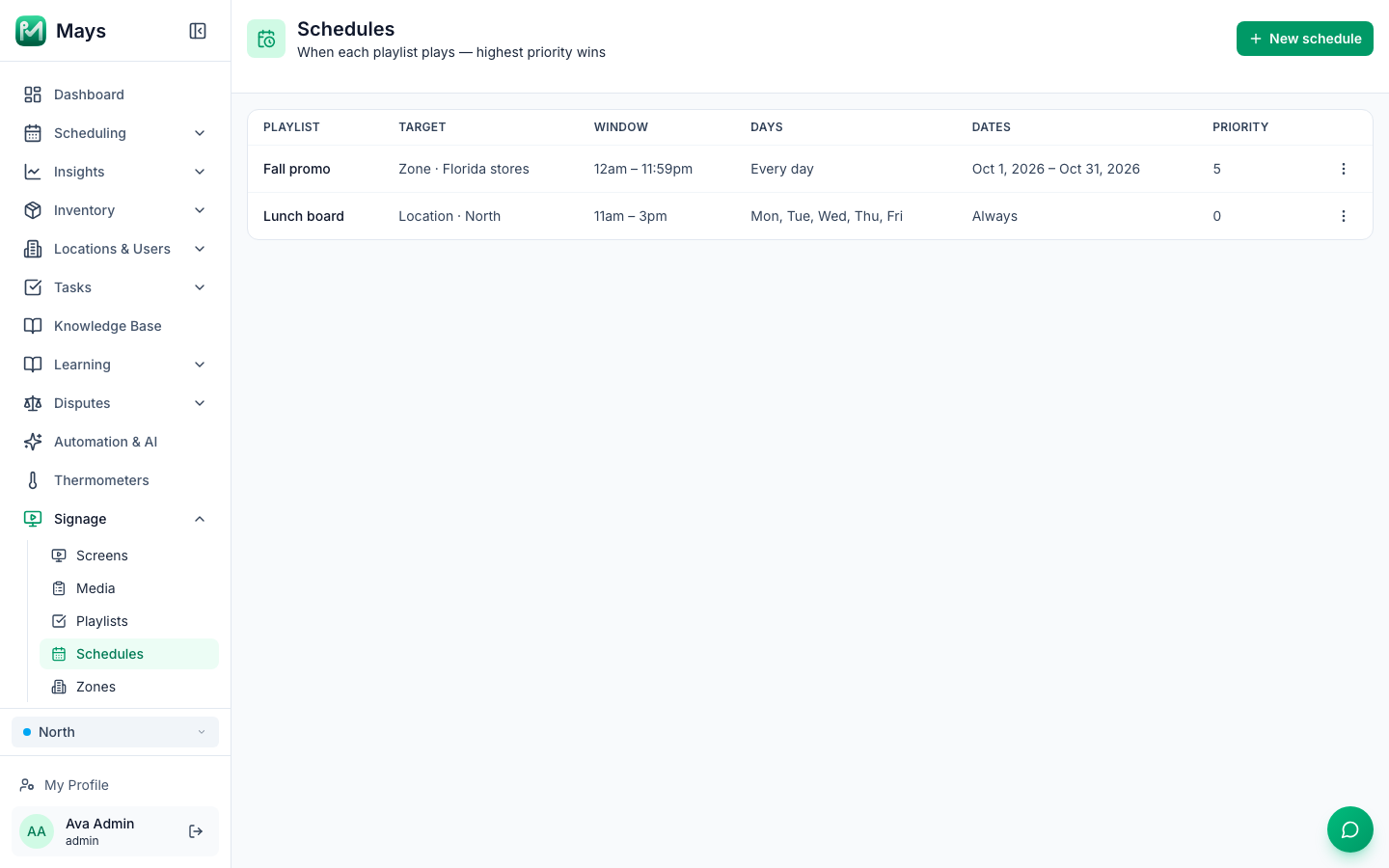
An example
What you set up | What the North screens play |
|---|---|
Breakfast board is North's location default | Breakfast, whenever nothing else is on |
Lunch board for the whole location, 11:00 AM to 3:00 PM, Monday to Friday, priority 0 | Lunch on weekday lunchtimes |
Fall promo for the Florida stores zone, October 1 to 31, all day, priority 5 | The promo all day in October, even at lunchtime, because 5 beats 0 |
Zones
A zone is a group of locations, such as all your Florida stores. A schedule for a zone plays on every screen at every location in it.
- Go to Signage → Zones (admins only). Open it from the sidebar.
- Click New zone, type a Zone name, and click Create zone.
- Use + Add location… to add each location. × next to a location takes it out.
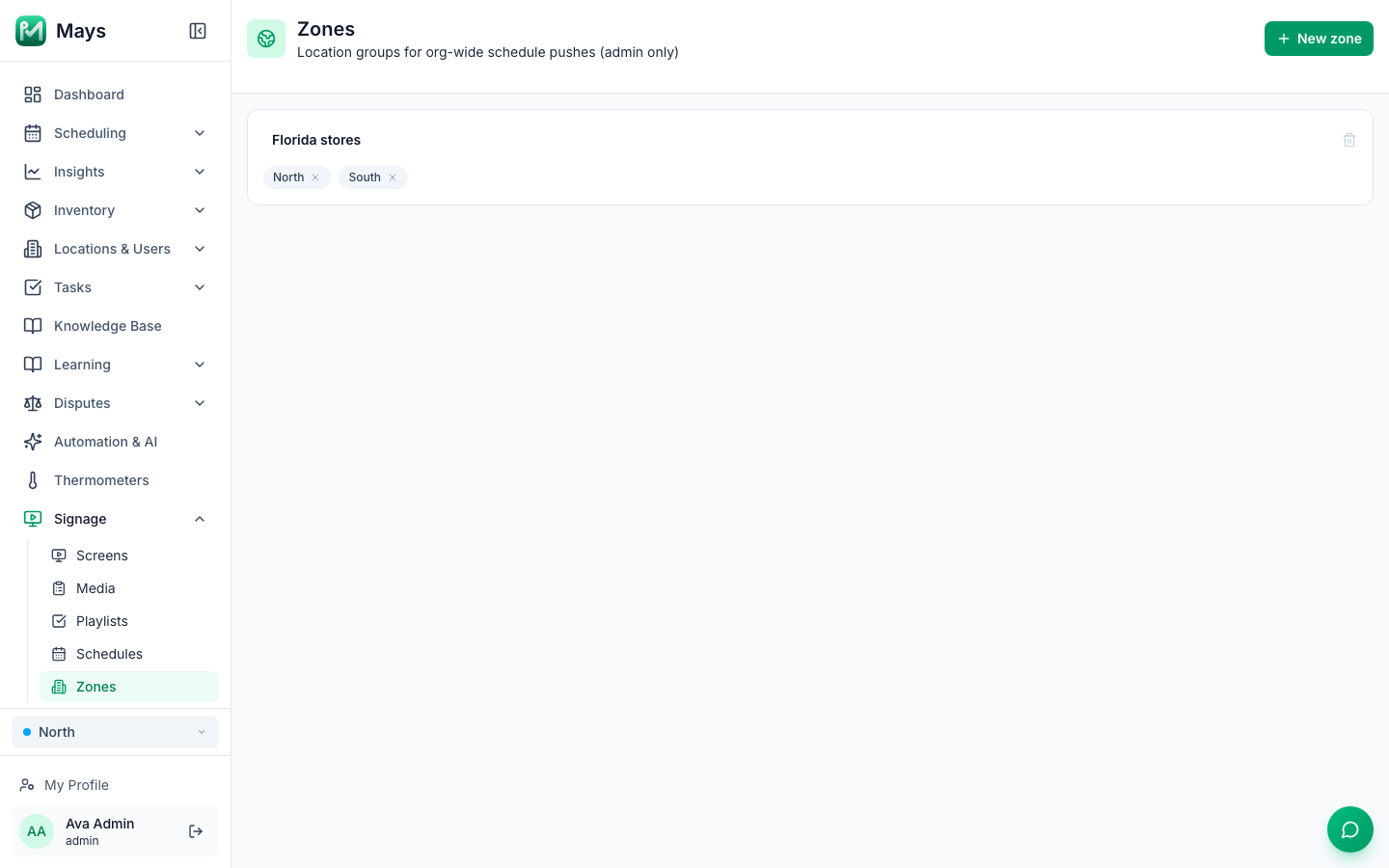
- Rename a zone by clicking its name. The bin deletes it, and its schedules stop.
- A zone schedule needs an All locations playlist. See Signage media and playlists.
- It plays only at locations in the zone that have a signage subscription and a paired screen.
Check what a screen is playing
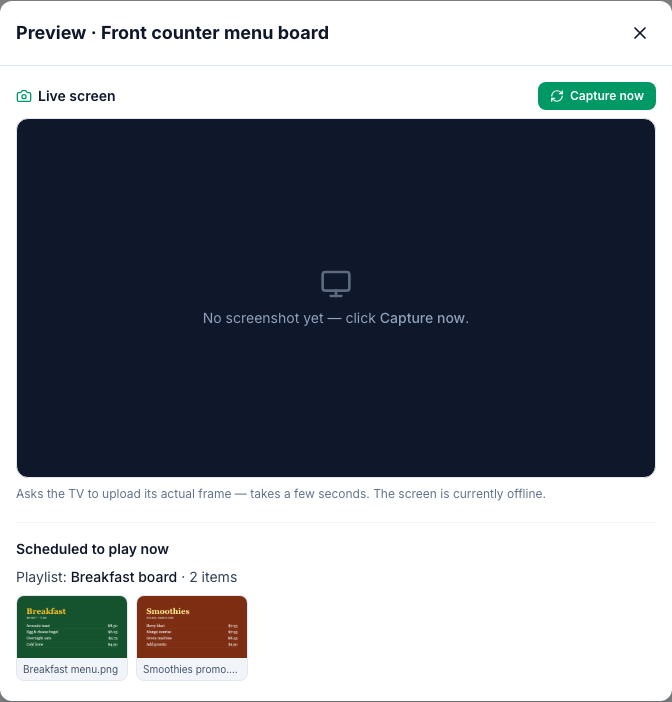
On Signage → Screens, click Preview on the screen. Scheduled to play now shows the playlist it should be playing and its items.
Good to know
- Overnight: set From later than Until, such as 10:00 PM to 2:00 AM, and it runs past midnight. After midnight it's the next day, so if you picked days, tick that one too.
- Managers don't see zone schedules in their list, but zone schedules still play on their locations' screens.
- Open Zones from the sidebar. Opening its address directly, or reloading the page, takes you back to Screens.
- Screens pick up a new schedule within about 10 seconds.