Upload the images and videos your screens show, then put them into playlists: the order they play in and how long each image stays on the screen.
Who: admins, and managers for their own locations, on the web. Only admins can make media and playlists for all locations. You need a digital signage subscription.
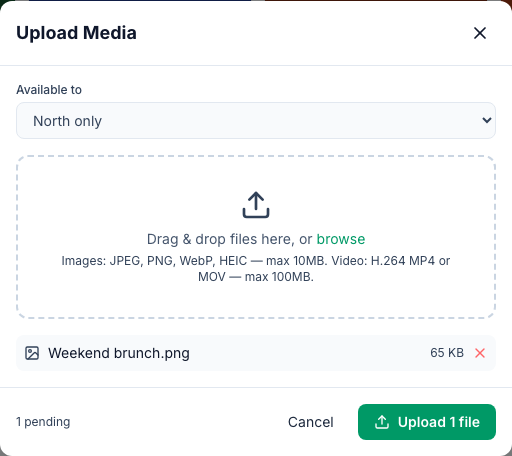
Upload media
- Pick the location in the location switcher, then go to Signage → Media.
- Click Upload media.
- Admins choose who can use it under Available to: (location) only or All locations (org-wide). Managers' uploads are for the location they have picked.
- Drag files into the window, or click browse:
- Images: JPEG, PNG, WebP or HEIC, up to 10 MB each.
- Videos: H.264 MP4 or MOV, up to 100 MB each. HEVC (H.265), VP9 and animated GIFs don't work.
- Click Upload (for example Upload 1 file).
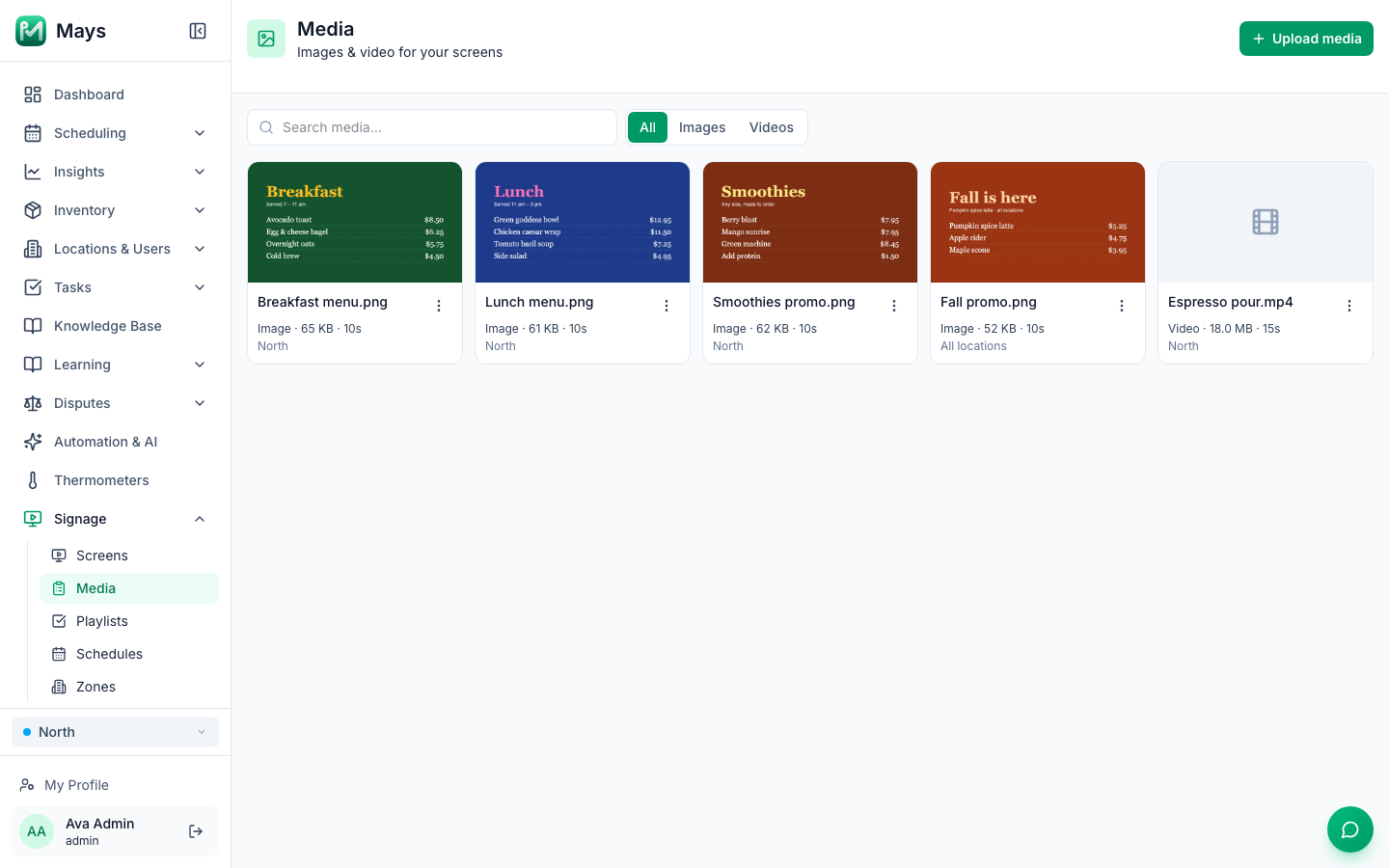
The Media page shows each file with its type, size, how long it plays and who can use it (a location's name, or All locations). All, Images and Videos filter the list.
- Edit (⋮ → Edit): change the Name, the Default duration (seconds) an image stays on screen, and, for admins, Available to.
- Delete (⋮ → Delete): the file comes out of every playlist, and screens stop showing it.
Make a playlist
- Go to Signage → Playlists and click New playlist.
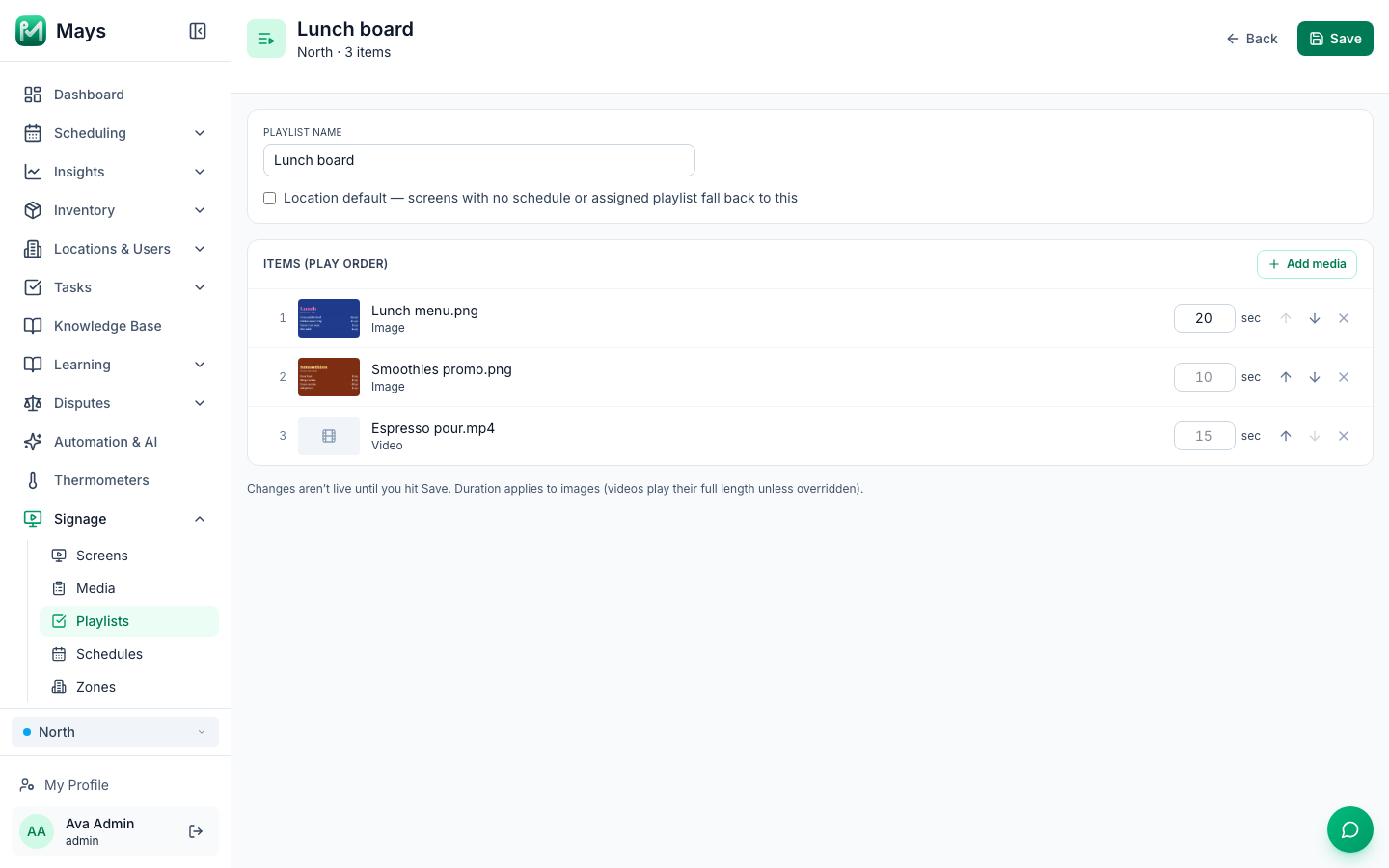
- Give it a Name, such as Lunch board. Admins choose Available to.
- Click Create playlist. The playlist opens.
- Click Add media and pick a file. Repeat for each file. A file can be in a playlist only once.
- Put them in order with the up and down arrows. × takes one out.
- In the sec box, set how long each image stays up in this playlist. Leave it empty to use the file's default duration.
- For a location playlist, tick Location default to make it what the location's screens play when nothing else is set.
- Click Save. Nothing changes on the screens until you save.
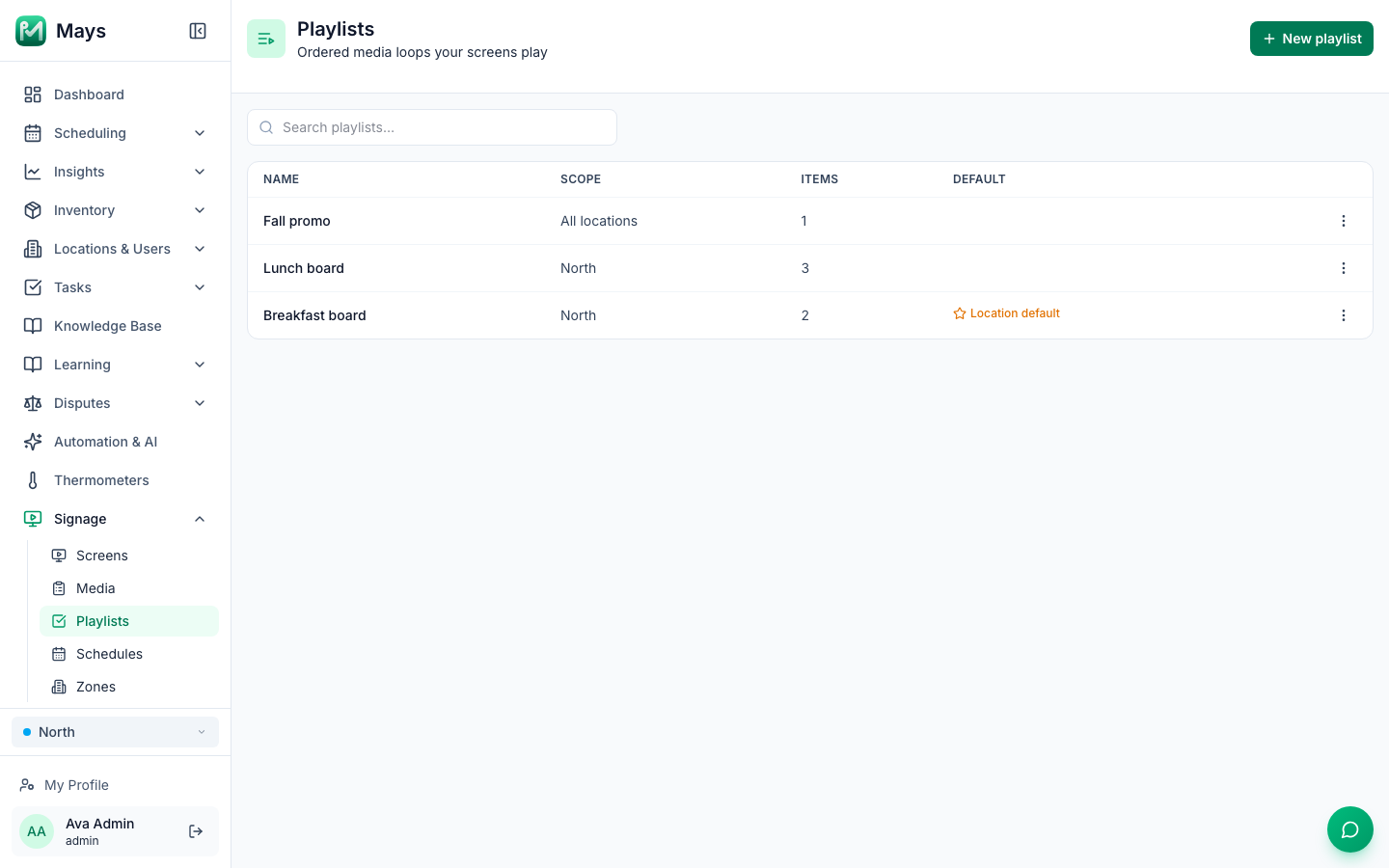
Signage → Playlists lists each playlist with its Scope (a location or All locations), how many items it has and which one is the Location default. Use ⋮ to View, Set as location default or Delete one.
What can go where
- A location's playlist can use that location's media and All locations media.
- An All locations playlist can only use All locations media.
- A screen can play its own location's playlists and All locations playlists.
How a playlist plays
- Items play in order and then start again, with a fade between them.
- An image stays up for its duration: 10 seconds unless you change it.
- A video plays to the end with no sound. A shorter duration in the sec box cuts it short.
- A playlist with one image just shows that image, and one video plays on a loop.
- If a video can't play, the screen skips to the next item.
- Images and videos fill the whole screen, and edges that don't fit are cut off. Make them the TV's shape: 1920 × 1080 for a TV mounted normally, 1080 × 1920 for one on its side.
Good to know
- There are no templates. Design each board in a design app and upload it as an image or a video.
- Use JPEG or PNG for photos from an iPhone. HEIC files upload, but most TVs and browsers can't show them.
- Screens pick up saved changes within about 10 seconds.
- Deleting a playlist stops its schedules. Screens that were set to play it go back to the location default.