Your weekly pattern, written once: tell ChatGPT or Claude how your week runs and fill the next four
Most café weeks have a shape that barely changes. Two baristas open on weekdays, one closes, the weekend line is always Jordan. The schedule still gets rebuilt every week, by copying last week and fixing what the copy got wrong.
Mays can keep that shape as a location's weekly pattern. With Mays connected to ChatGPT or Claude, you describe the pattern in a sentence and put it on as many weeks as you like.
This post is part of our series Run your restaurant with your AI.
The situation
Midtown's normal week:
- Monday to Friday, 6:30am to 2:30pm: two baristas.
- Monday to Friday, 11am to 7pm: one barista.
- Saturday and Sunday, 7am to 3pm: Jordan on the line, plus two baristas.
Before: the pattern lives in your head or a spreadsheet. Each week you copy last week in the schedule, then fix the shifts that came from a one-off change, and paste in the ones a swap removed.
Now:
At Midtown, every week: Mon–Fri 6:30am–2:30pm two baristas, Mon–Fri 11am–7pm one barista, Sat–Sun 7am–3pm Jordan on the line and two baristas. Save that as the weekly pattern and put it on the next 4 weeks.
Step 1: save the pattern
The AI turns your sentence into rows and asks Mays to save them (set_weekly_pattern). Each row is the days, the start and end time on Midtown's clock (24-hour; an end before the start runs past midnight), an optional position, and either the person who always works it (Jordan R., looked up by name) or how many open shifts it needs.
Mays sends a preview: every line, the shifts and hours per week, and how many shifts a week the old pattern had, if there was one. By default the new pattern replaces the saved one; say "add" if you only want to append a few rows. Saving writes no shifts.
Step 2: put it on the schedule
Next the AI asks Mays to apply the pattern (apply_weekly_pattern) starting from next week, for 4 weeks (up to 8 at a time). The preview shows what it will add. Your yes creates the shifts as drafts:
- Nobody is notified yet. Your team sees nothing until you publish.
- Duplicates are skipped. A shift the week already has, with the same times, person and position, isn't added again. Running it twice adds nothing.
- People who've left become open shifts. If someone in the pattern is no longer at Midtown, that shift is added as an open shift, ready for someone to claim once the week is published.
Step 3: adjust and publish each week
The pattern is the starting point, not the final word. The week Maya L. has a weekend off, change that one shift:
Next Saturday, give Maya's opening shift to Jordan instead.
Then publish the week when it's right:
Publish next week at Midtown.
Publishing is per week (publish_schedule_week). The preview lists who gets notified, plus any double-bookings or overtime to look at first.
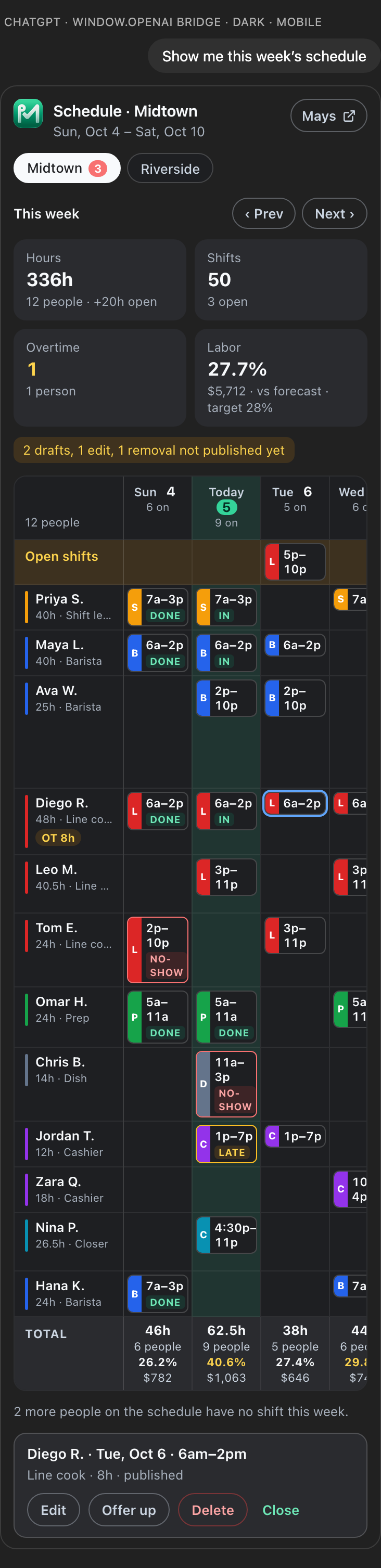
In ChatGPT and Claude, asking for the week shows the Mays week card: drafts have a dashed border, and on a phone the grid scrolls sideways with names pinned. Tapping a shift offers Edit, Offer up and Delete, which ask the AI to make the change, with Mays's preview first.
Pattern, copy week or auto-schedule?
Mays gives you three ways to start a week:
Weekly pattern | Copy week | Auto-schedule | |
|---|---|---|---|
Starts from | The week you described | Last week as it actually was | Last week, checked against time off, availability and hours |
Good for | A stable week | A week like the last one | A week you want built around the forecast |
From your AI | Yes, as here | In Mays (copy week and common shifts) | Yes, see drafting next week |
The pattern's advantage is that it doesn't drift. Copying last week also copies last week's one-off changes; the pattern doesn't.
What Mays doesn't do here
- It doesn't schedule by itself. Saving a pattern adds no shifts; applying it adds drafts; only publishing reaches your team.
- It doesn't block conflicts. Time off, availability and overtime are warnings in the previews. You decide.
- It doesn't change weeks you've already built. Existing shifts stay; only missing pattern shifts are added.
Before you start
- Connect Mays to your AI app. mays.app/ai has the setup for ChatGPT and Claude; Connecting Mays to your AI app has the details.
- Saving and applying a pattern are changes. An admin turns on Allow AI apps to take actions under Settings → Connected AI apps → Organization, and you tick make changes when you connect.
Still on paper? Turn a photo of your paper schedule into Mays shifts first.
Try Mays free for 30 days, with no credit card, and connect it to the AI you already use.