Import your team from a spreadsheet export with ChatGPT or Claude
Your team already exists in a file somewhere. The payroll provider has it, the POS has it, or there's a spreadsheet you've kept since opening. Moving it into a new system is the job everyone puts off: export, clean up the columns, then copy each name, phone number and position into a form, one person at a time.
With Mays connected to ChatGPT or Claude, the AI does the cleaning and Mays does the checking. You look at one preview and say yes.
This post is part of our series Run your restaurant with your AI.
The situation
Harbor Lane Café has 23 people across Midtown and Riverside. Your payroll export has their names, phone numbers, emails, job titles and home location, with columns named however that payroll company names them.
Before: you open the export, delete the columns Mays doesn't need, fix the phone formats, then add each person to Mays by hand, copying and pasting from the spreadsheet into the form 23 times.
Now: attach the export in the chat, or paste it in, and ask:
Add everyone in this file to Mays. Baristas and cashiers are Employees; the two shift leads are Managers. Use the location column for where they work.
What the AI does in Mays
- It reads the file itself. ChatGPT and Claude can read a spreadsheet or CSV you attach. The AI maps your columns: which is the first name, which is the phone, what "Store 2" means.
- It looks up your locations in Mays, so "Riverside" becomes the right location.
- It asks Mays to add the whole list at once (
add_team_members, up to 100 people per request). Mays sends back a preview and changes nothing yet. Every person is listed with what will happen: - added, and how they'll be invited (a text for employees with a phone number, an email for managers);
- skipped, because they're already in Mays, or appear twice in the list;
- invalid, for example a phone number that can't be read.
- You read the preview and decide. The AI walks you through anything skipped or invalid. Fix a phone number, drop a duplicate, and ask again for a fresh preview.
- Your yes adds the valid rows. Each person gets the normal Mays invite, the same one you'd send from the app.
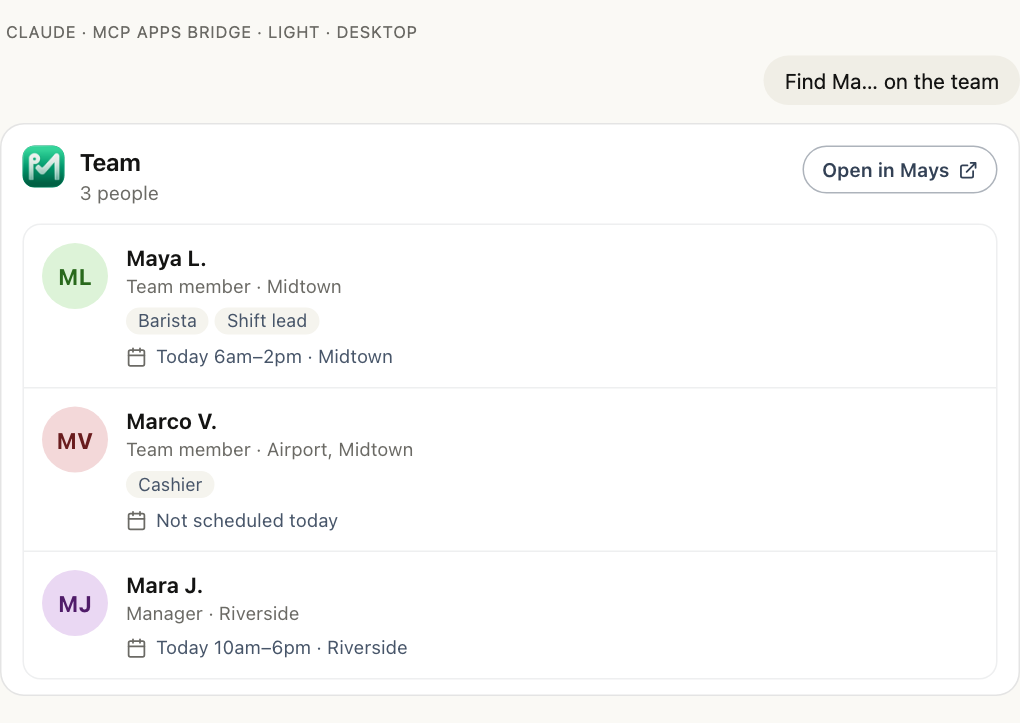
After that, "Find Maya on the team" shows her in the Mays team card in ChatGPT and Claude: initials, role, positions, locations and today's shift, with no phone number or email.
Positions, roles and wages
- Roles are Mays role names, like Employee and Manager. Tell the AI how your job titles map to them.
- Positions (Barista, Line cook, Cashier) are matched by name to positions that already exist at those locations. If your export says "Bar Staff" and Mays has "Barista", tell the AI which is which, or ask it to add the missing position first.
- Hourly wages go in only if your connection includes pay: you can see pay in Mays and ticked Include wages, labor cost and tips when you connected. Without that, people are added without a wage and you can set pay in Mays.
Where the data goes
Mays never receives your file. The AI reads it and sends Mays only the fields it needs for each person: name, phone and/or email, role, locations, positions and, with pay, a wage. Phone numbers and emails are needed to send invites. After that, the AI's answers show people as first name and last initial, and Mays's own record of the change keeps contact details masked.
Two ways to import, and when to use which
Mays also has its own Import employees on the web, which reads an export with Mays AI and imports the rows into a location without sending any invitations. See Importing employees from a spreadsheet. The two fit different moments:
Through ChatGPT or Claude | Import employees in Mays | |
|---|---|---|
Invites | Everyone added gets the normal Mays invite | No invitations are sent |
Locations | Each person can go to their own location(s) | One location per import |
Best for | Getting the team started now | Loading people quietly before you're ready |
If you import quietly and want to invite everyone later, you can ask your AI to send the team their Mays welcome when you're ready.
What Mays doesn't do here
- It doesn't add anyone without your yes. The preview is the whole list; nothing happens until you confirm.
- It doesn't add someone twice. People already in Mays are skipped, not duplicated.
- It doesn't change people who are already there. To update someone's role, locations or positions, ask for that change on its own; it has its own preview.
Before you start
- Connect Mays to your AI app. mays.app/ai has the setup for ChatGPT and Claude; Connecting Mays to your AI app has the details.
- Adding people is a change. An admin turns on Allow AI apps to take actions under Settings → Connected AI apps → Organization, and you tick make changes when you connect. Managers can add people only at their own locations, as in the Mays app.
Starting from zero? Set up a new café from one message adds the team, the positions and the first week together.
Try Mays free for 30 days, with no credit card, and connect it to the AI you already use.