Adding a whole team one by one takes a while. Instead, paste or upload the staff list you already have — from your POS, payroll or a spreadsheet — and Mays AI turns it into people you can check and import.
There's no template to fill in: Mays reads the names, phone numbers, emails, roles and PINs from whatever columns your export has. Importing is for admins.
Import a list
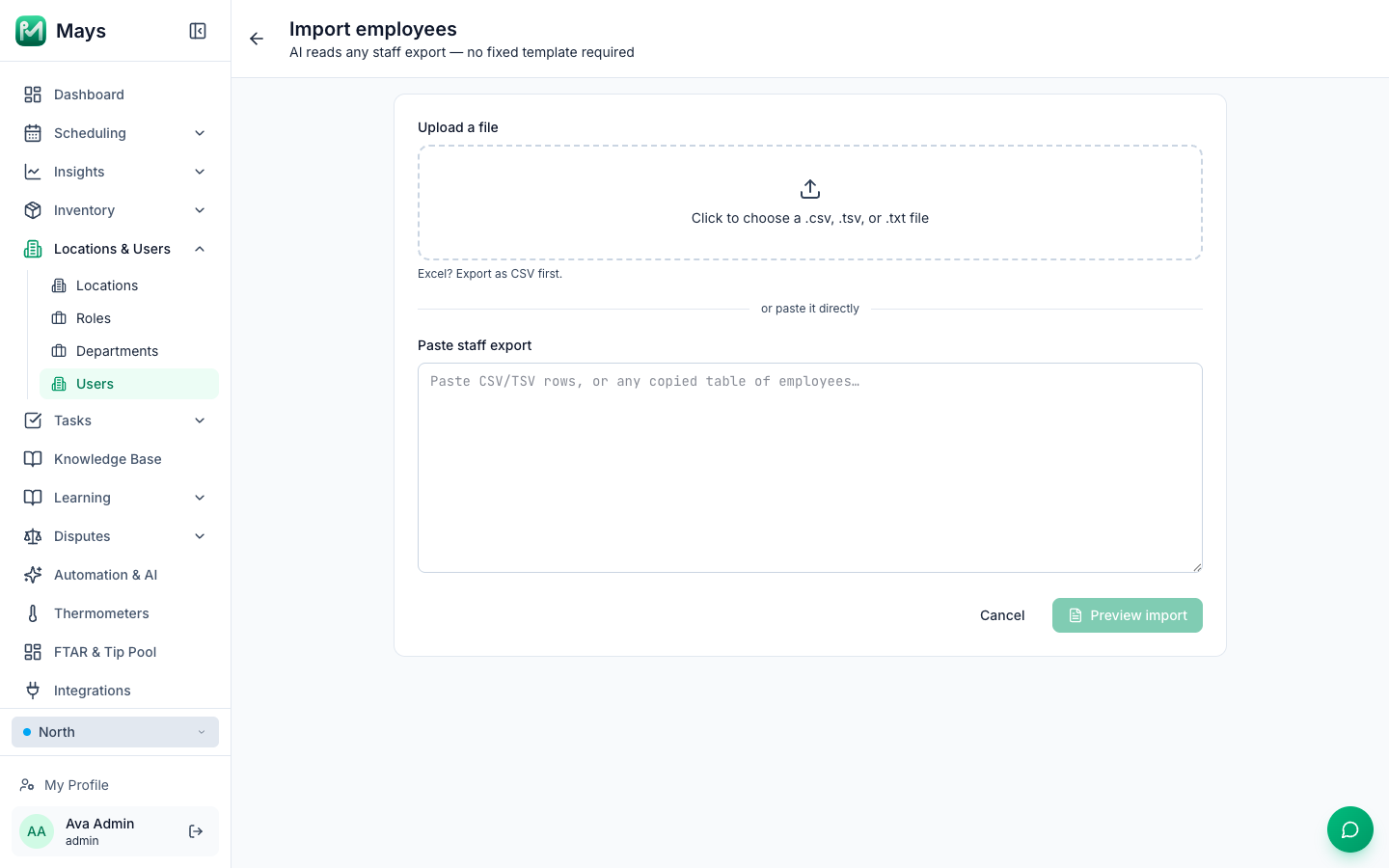
- Go to Locations & Users → Users and click Import employees. (On a narrow window it's under Actions.)
- Either click Upload a file and choose a .csv, .tsv or .txt file, or copy the rows from your spreadsheet and paste them under Paste staff export. From Excel, save as CSV first — or just copy and paste the cells.
- Click Preview import and wait a few seconds while Mays reads the list.
- Check the preview:
- Import into location — everyone in this import goes to the one location you pick here. It starts on the location selected in the sidebar.
- Each row has First name, Last name, Email, Phone, Role and PIN. Click any cell to fix it; change Role with its drop-down.
- Status tells you what will happen to each row: New will be imported, Exists — will skip matches someone already in your organization, and Invalid is missing something (a first name, or both phone and email). Fix an invalid row and it turns New.
- The line at the top counts them: 3 new · 1 already exist (will skip) · 1 invalid · 5 total.
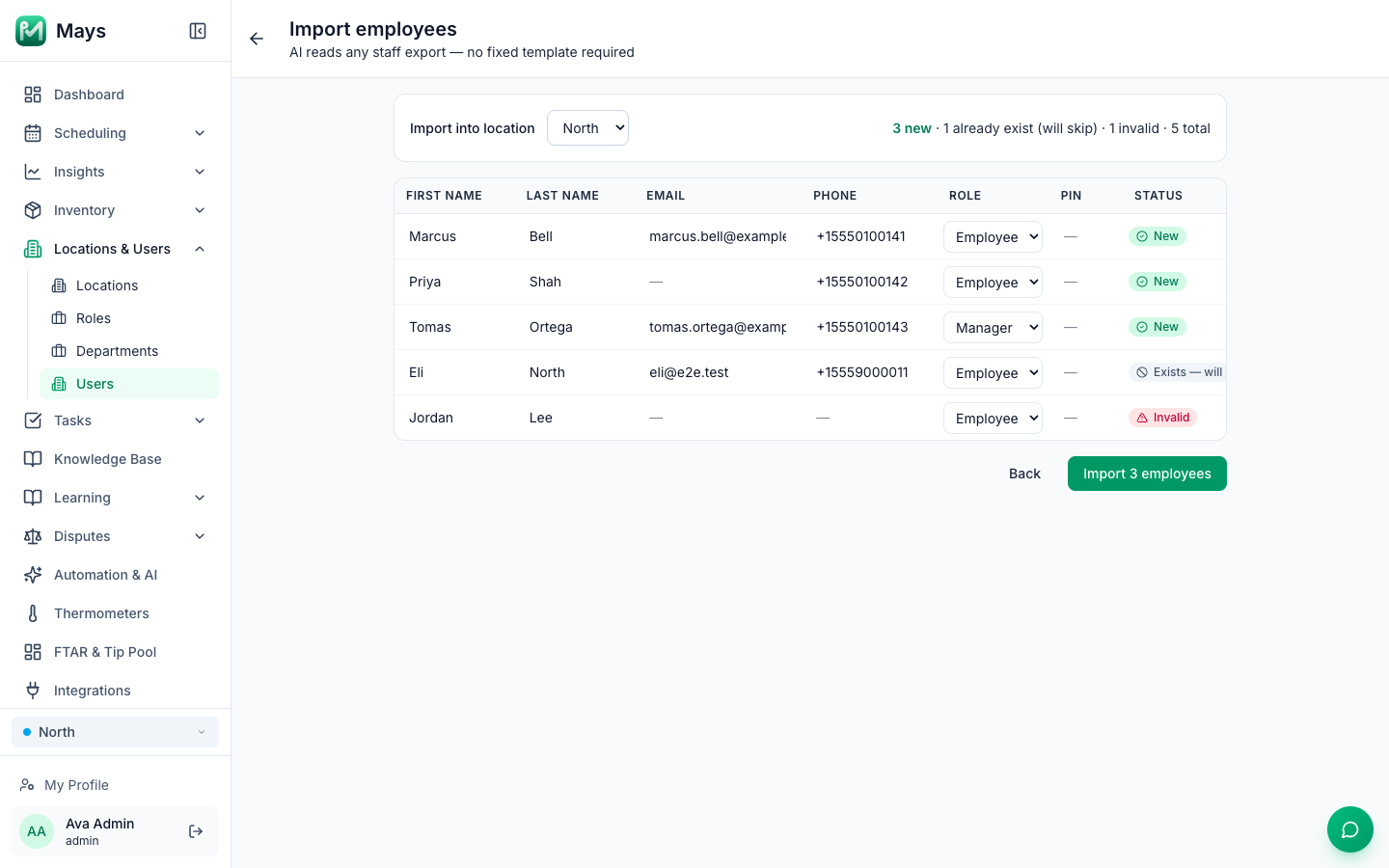
- Click Import N employees. Mays confirms how many were imported and how many rows were skipped. Click Done.
Staff at other stores? Run the import again for each location.
After the import
No texts or emails are sent — the people are added quietly and are Active straight away. Let them know themselves:
- Employees install the app (Installing the Mays apps) and sign in with the phone number from the import. Nothing else to set up.
- Managers and admins also need a password for the web app. Open each one from the Team members list and click Email Reset Link (they choose their password from the email), or have them click Forgot password? on the sign-in page.
How Mays reads your list
- Roles come from the file: owner or admin becomes Admin; manager, supervisor or lead becomes Manager; everyone else is an Employee. Check the Role column before you import.
- Duplicates are skipped, never overwritten. A row whose phone number or email already belongs to someone in your organization is skipped, and the same person listed twice in one file is imported once. To change existing people, edit them on the Team members page.
- Kiosk PINs are only set when your list has a PIN column. Anyone imported without one can get a PIN later on their page under Kiosk PIN.
- Not imported: wages, and any location column (the whole import goes to the location you picked).
- Someone imported without an email can only use the phone app.
Good to know
- Importing doesn't use your AI credits.
- Very long lists can be cut short. If people are missing from the preview, import the list in smaller parts.
- If the preview shows a warning at the top, read it — it tells you when part of the list couldn't be read.
- Imported employees are added to that location's schedule, ready to be given shifts.