Google Business Profile for a new café: the setup that brings people in
Most cafés create a Google Business Profile in the rush before opening: a name, an address, some hours, a phone photo of the counter. A few months later, the hours are wrong on holidays, the menu link goes to an old PDF, and the only photos are the ones customers took at night.
Your profile can be the first thing a new customer sees of your café, before your website and before they ever walk past. This guide covers the setup that matters for a café that's been open a few months: verification, categories, hours (holidays included), photos, the menu link, attributes, posts, Q&A and reviews. It ends with a monthly routine that keeps it all accurate.
Google changes these features often. Updated September 24, 2026: every Google rule and limit below was re-checked against the Google Business Profile Help pages linked in each section.
Step 1: Claim and verify
Adding or claiming a Business Profile is free; you start at business.google.com/add (Google: add or claim your Business Profile). Until it's verified, you can't do much with it. Google says you need to verify "to edit your business info on Google, such as business name or business hours, and interact with customers" (Google: verify your business). Your photos only show after verification, and you can't reply to reviews without it.
What to know about verification (same page):
- Google picks the method (phone or text, email, a live video call or a postcard), and you can't change it.
- Postcard codes usually arrive within 14 days and expire after 30 days.
- Don't edit your name, address or category while you wait, or the code won't work.
- Reviews of the verification take up to 5 business days, sometimes longer.
If you're offered video verification, plan it: it's one continuous recording of at least 30 seconds, captured live, showing things only an employee can access, like opening the register or the storage room (Google: verify with a video recording). Do it when the café is quiet and the sign outside is in the shot.
Step 2: Name, category and description
Name: use your real name, the one on your sign. Google's guidelines say the name "should reflect your business's real-world name, as used consistently on your storefront, website, stationery, and as known to customers," and that adding unnecessary information, like a marketing tagline, your hours or what you sell ("Luna Café Best Coffee Downtown"), can get the profile suspended (Google: guidelines for representing your business).
Categories: the primary category matters most, and Google says your categories affect your local ranking (Google: manage your business category). For most cafés, it's Coffee shop or Cafe. Google's test: pick categories that complete "This business IS a," not "this business HAS a," and use as few as possible (guidelines page). You can add up to 9 more (Google: edit your Business Profile), but only add one if it's genuinely what you are, like Bakery if you bake and sell bread. Changing a category can trigger verification again, so settle it early.
Description: up to 750 characters, with no links (same page). Say what you are and what makes you different: "Neighborhood coffee shop roasting in-house, with breakfast sandwiches and gluten-free pastries." The guidelines don't allow sales and prices in the description, so keep promotions for posts.
Step 3: Hours, including holidays
Wrong hours are one of the fastest ways to lose a new customer: they drive over, the door is locked, and they don't come back.
- Regular hours: set them for every day. For a restaurant, Google says to use "the hours when diners can sit down and dine in your restaurant. Otherwise, use takeout hours" (guidelines page). If you close mid-day, add two entries for the same day (Google: edit your business hours).
- Special hours for holidays: set them ahead of every holiday. Google recommends confirming holiday hours "even if they're the same as your regular hours" (Google: how to set special hours). On listed holidays, your profile may otherwise show a warning that your hours might differ (Google: about holidays on Google).
- Closures: special hours cover a closure of up to 6 days in a row. For 7 days or more, or an unknown period, Google says to mark the business Temporarily closed (special hours page).
- More hours: if you offer delivery, takeout or pickup at different times, set them as "More hours," as a subset of your main hours (Google: how to set More hours).
When you plan a holiday week, update Google on the same day you post the hours on your door. Our holiday and event staffing guide has the planning side.
Step 4: Photos and videos
Customers decide from photos. Google's tips for food businesses: at least three exterior photos, three interior photos and three photos of your food or drinks, in focus and well lit (Google: tips for business-specific photos).
Photo | What to show |
|---|---|
Logo | Your logo, square and readable at a small size |
Cover | The photo that says "this is us": the counter, the room, a signature drink |
Exterior | The storefront from the street, in daylight, so people recognize it |
Interior | Seating, the counter, the vibe at a normal hour |
Food and drinks | Your best sellers, shot on the counter in natural light |
Photos must be JPG or PNG, between 10 KB and 5 MB, with 720 × 720 px recommended. Videos can be up to 30 seconds and 75 MB, at 720p or higher, and new uploads can take 24 to 48 hours to appear (Google: manage your photos and videos). Google doesn't guarantee that your chosen cover shows first, so make every photo you add a good one.
Step 5: The menu link and ordering links
- Menu link: add it under Edit profile → Business information → Contact → Menu link (Google: about the menu editor). Point it to a page you update, not a PDF from opening month.
- The menu editor: food and drink businesses can also list items directly on the profile (same page).
- What's not allowed: menu links can't go straight to a third-party ordering or delivery service, and "popular items" samples shouldn't be submitted as a menu (guidelines page).
- Ordering links: order, booking and reservation links go in their own place, up to 10 per category (Google: manage your local business links).
Step 6: Attributes
Attributes answer the practical questions: Wi-Fi, outdoor seating, dine-in, takeout. Some you set yourself; others come from customers who visited (Google: manage your business attributes). Check every one that applies. The same page lists optional identity attributes (for example, women-owned or veteran-owned) and a "Small business" attribute for businesses making less than $10 million a year, which franchises can't use.
Step 7: Posts
Posts come in three types: Updates, Offers (which need a title, dates and time) and Events. You can schedule them ahead, and posts older than 6 months are archived unless you set a date range (Google: create and manage posts).
For a café, a simple rhythm works: a post when the seasonal menu changes, one for holiday hours, one for an event. The same page says that for single-location food and drink businesses in the US (and some other countries), posts about events, deals or specials, including ones from your Facebook or Instagram, may show on mobile in place of reviews. So what you post there is part of your first impression.
Step 8: Q&A, chat and suggested edits
- Q&A: Google says questions and answers are available "only for select business categories and regions" and may change (Google: edit your Business Profile). If your profile has it, answer the questions you see, and keep hours and attributes complete so there's less to ask.
- Chat: Google's own Business Profile chat ended on July 31, 2024 (Google: changes to chat and call history). In some regions you can now add a WhatsApp or text messaging link instead (Google: chat with customers).
- Suggested edits: people can suggest changes to your details. When Google notifies you about one, you have 4 days to accept or reject it; after that, Google may publish it if other public information, like your website, supports it (Google: updates on your Business Profile). Check notifications weekly.
Step 9: Reviews
Replies are public, show as your business, and the reviewer is notified (Google: manage customer reviews). To get more reviews, Google lets you create a review link or QR code for receipts and table cards (Google: request reviews with a link or QR code).
What's not allowed, from Google's policy: incentives "such as payment, discounts, free goods and/or services" for a review, discouraging negative reviews or only asking happy customers, pressuring people to review while they're on the premises, and asking staff to collect a certain number of reviews (Google Maps: prohibited and restricted content). Our guide to your first 50 Google reviews has reply templates.
Step 10: Check what's working
Verified profiles show performance data: searches (including the terms people used), views, calls, direction requests, website clicks, and clicks on your menu (Google: performance and insights). The searches figure updates at the start of each month. Look once a month: if menu clicks are high but website clicks are low, the menu is doing the work, so keep it current.
A monthly 20-minute routine
Task | Why |
|---|---|
Set special hours for next month's holidays and closures | The profile matches your door |
Accept or reject suggested edits | Nobody else changes your hours |
Add three new photos | New drinks, the season, the room at its best |
Publish one post | Seasonal menu, events, holiday hours |
Check the menu link and ordering links | No old menus, no dead links |
Reply to every unanswered review | Customers see someone reads them |
Look at last month's performance | Which searches and clicks bring people in |
Where Mays fits
Mays doesn't edit your Google profile: hours, photos, the menu, posts and attributes are updated in Google Business Profile itself. What Mays does:
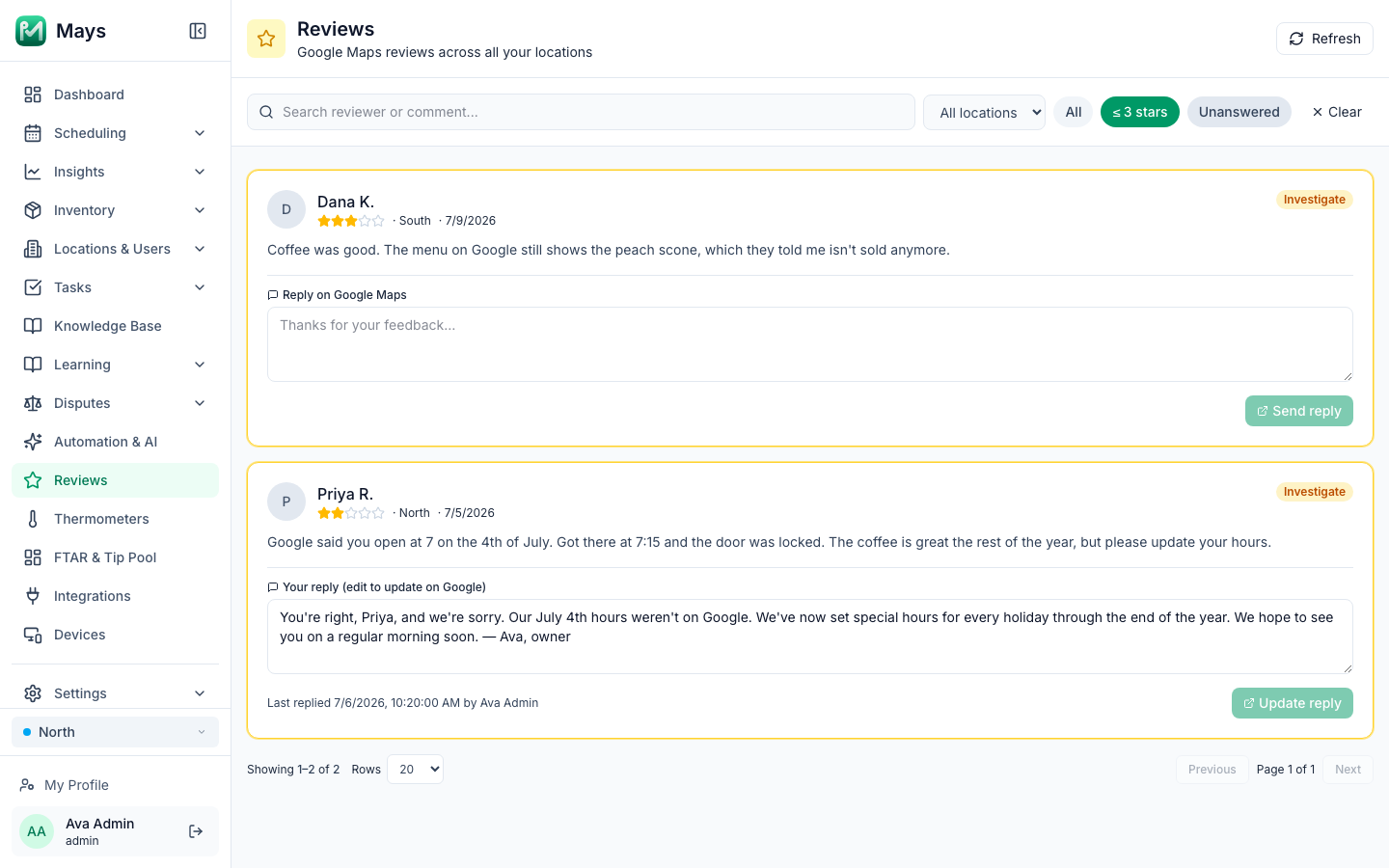
- Reviews in one place: the Reviews page lists Google reviews for every location, newest first, with filters for ≤ 3 stars and Unanswered. Write a reply and press Send reply, and it's posted to Google; Update reply changes it later. The image at the top of this post shows sample reviews from our test account. You write every reply yourself.
- Setup: an admin connects Google Business Profile from Integrations with Continue with Google. Linking each Mays location to its Google listing is done with our team today, so book a walkthrough and we'll connect it with you.
- The monthly routine as a checklist: in Tasks → Templates, create a template with the tasks above, set it to Monthly on the day you choose, and assign it to your managers. Use a Photo answer for "Special hours set" so the screenshot is the proof.
- Holidays on the schedule: add the holiday to the Events row of the schedule when you set the special hours in Google, so the team sees it too.
Your Google Business Profile checklist
- Profile claimed and verified
- Real business name, one clear primary category, a 750-character description
- Regular hours set; special hours set before every holiday
- Logo, cover, and at least three exterior, interior and food photos
- A menu link to a page you keep current, and your ordering links
- Every attribute that applies
- A post each month
- Suggested edits checked weekly
- Every review answered, and no incentives for reviews
- A monthly look at performance
Keep your profile and your reviews in check
Put the monthly profile routine on a checklist, and answer every location's reviews from one page.
Start your free trial: 30 days, every module, no card needed. Want your Google reviews in Mays? Book a walkthrough and we'll connect your Google Business Profile with you.