Send stock from one of your locations to another, such as cups to a store that ran short. A transfer is a draft until you post it, and posting can't be undone.
Who: admins, and managers who work at both locations. Where: Inventory → Transfers on the web. A transfer goes from the location picked in the sidebar.
Send stock
- Pick the sending location in the sidebar and go to Inventory → Transfers.
- Click New transfer.
- Pick the To location.
- Pick an item in Search item… and type the Qty in the unit you count it in. Click Add line for the next item.
- Add a Note if you like.
- Click Save draft to finish later, or Post now and confirm Posting moves stock immediately.
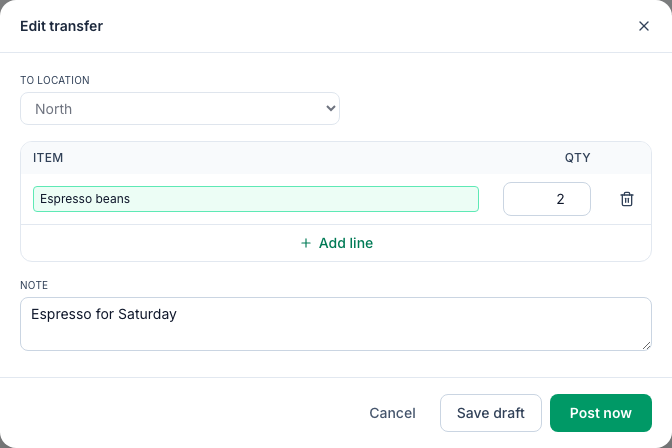
To post a draft later, click it (or ⋮ → Edit) and click Post now, or choose ⋮ → Post on its row. You can change a draft's items and note, but not where it's going.
What posting does
- On hand goes down at the sending location and up at the receiving one, by each line's quantity. See Stock on hand.
- Each side is valued at its own location's cost for the item: its imported cost if it has one, otherwise the cheapest vendor price at that location. If the two locations pay different prices, the two sides differ.
- It shows in the Transfers column of Inventory → Theoretical at both locations: a plus at the sending one and a minus at the receiving one. See Theoretical vs actual usage.
- Nothing is charged between locations. There's no invoice, and a transfer doesn't count as vendor spend or as the receiving location's delivery.
The transfer list
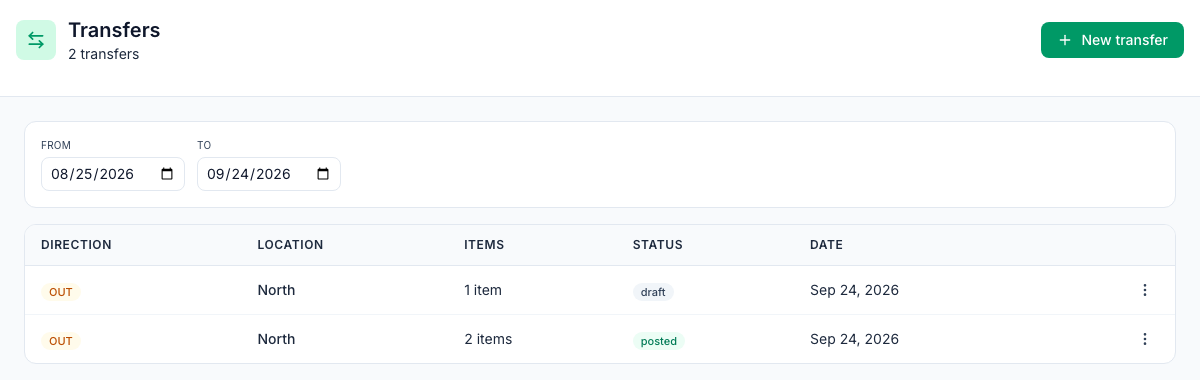
The list shows the transfers created between From and To (the last 30 days are filled in), both ways. The days follow the location's time zone, so a transfer made late in the evening is on that day. Each row has its Direction (OUT or IN), the other Location, the number of Items, the Status (draft or posted) and the Date it was created. The receiving location sees the same transfer as IN.
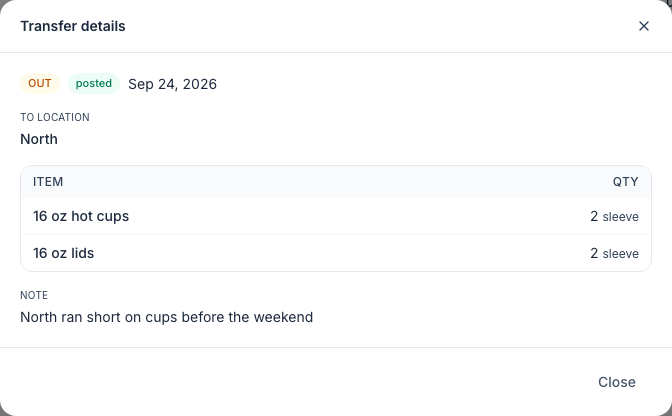
Click a posted transfer to see its Transfer details.
Good to know
- Posting can't be undone, and a posted transfer can't be changed. If you sent the wrong amount, post a transfer back the other way.
- Drafts can't be deleted. A draft you don't need stays in the list; just don't post it.
- Transfer items both locations use. The item list shows the sending location's own items and items shared with all locations. An item that belongs only to the sending location still arrives, but the receiving location can't count or order it.
- Managers need both locations. A manager who works at only one of them sees the transfer in the list but can't change or post it.
- New transfer is greyed out if the sidebar offers you only one location.