Call recording is an extra for the AI phone receptionist. It records calls that are put through to your staff, so you can listen to them later from the call log.
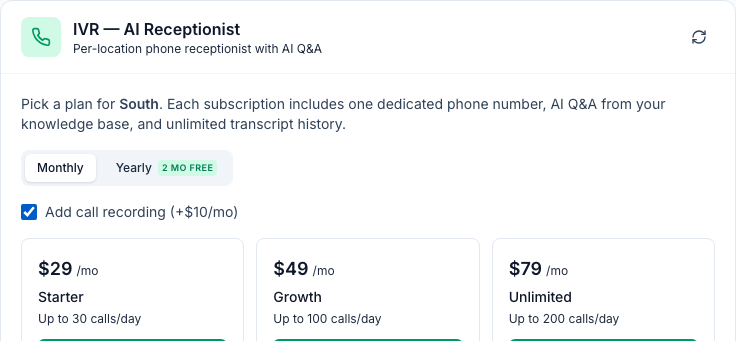
Who: admins and managers choose it when they subscribe a location, on the web. Admins, and managers at the location, can listen. Add-on: $10 a month ($100 a year) on top of the AI phone receptionist plan, as shown on the tab when this was written.
What's recorded
- Only the part with your staff. Recording starts when someone answers your fallback phone, after the receptionist puts the caller through. That happens when the caller presses 9 or asks something the receptionist can't answer.
- Both people on that part of the call.
- Not the part with the receptionist. That part is already in the call's transcript as text.
- If nobody answers the fallback phone, nothing is recorded.
What callers hear
Just before they're put through, callers hear Please be advised, this call may be recorded for quality and training purposes. and then Connecting you to the store.
Recording laws differ from state to state. Some require everyone on the call to agree, so check the rules where you operate before you add recording. Tell the staff who answer the fallback phone that these calls are recorded: they don't hear the notice.
Add recording
- When you subscribe the location on its IVR (AI Receptionist) tab, tick Add call recording before you click Subscribe. For yearly billing, it shows the yearly price.
- After payment, a Recording badge appears next to the plan.
- Mays also has to switch recording on for your organization. If the Recording badge shows but calls that were put through have no recording, contact support.
- Already subscribed? The tab doesn't let you add recording later. Contact support.
- To stop recording, contact support.
Listen to a recording
- On the location's IVR (AI Receptionist) tab, open Calls & blocked.
- Click a call that was put through (its transcript shows Put through to the store).
- Click Play recording at the top of the transcript. The recording loads and starts playing.
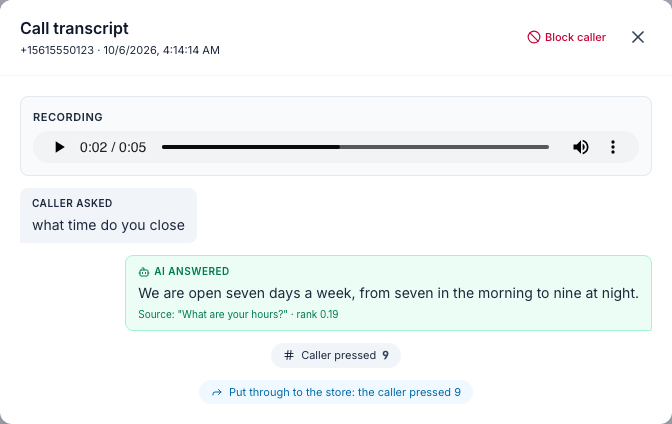
The recording is added a little while after the call ends.
Good to know
- Who can listen: admins, and managers assigned to the location. Recordings play only inside Mays, for someone who's signed in: there's no link to a recording that someone else could open.
- Recordings aren't deleted on a schedule, and you can't delete one from Mays.
- Recordings aren't written out as text. Only the part with the receptionist has a transcript.
- The recording notice is in English, like the rest of the receptionist.